
4Shared offers a free online hard drive with 10GB of total storage and a maximum of 200MB per file (I remember it used to be 100MB per file…..). It also supports external sharing links. One annoying thing is that you have to log in once every 30 days. Otherwise, your membership is canceled and all your uploaded files are deleted. 4Shared also uses a membership system, so you have to create an account before you can upload files. But the sign-up process is really simple, with only a few things to fill in~ You can also sign in directly with your Google account. Also, the file upload interface of 4Shared is really cool. Take a look at the picture below and you’ll see what I mean ^^
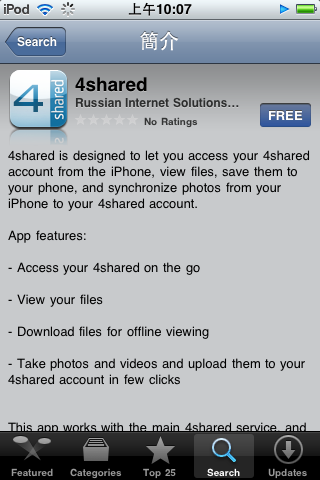
In addition, 4Shared supports desktop and mobile apps. That means you can install the 4Shared client on your computer or phone (smartphone) to upload files more conveniently. 4Shared also recently launched a Traditional Chinese interface, which should bring in many more users in Taiwan. By the way, among all the files on my blog, the 4Shared download count is the lowest. I heard it’s because 4Shared didn’t have a Chinese interface before.
1. Introduction to 4Shared
- Website: http://www.4shared.com/
- Total storage: 10GB
- Max file size: 200MB
- File deletion: files are deleted if you don't log in for 30 days; otherwise, files are not deleted

2. Features of 4Shared
- Supports desktop apps and mobile apps
- Supports WebDAV (so you can upload files directly from File Explorer on Windows, like Dropbox)
- Files can be shared via external links
- Supports direct login with OpenID and Google accounts
- You can set a password on individual files
3. How to Create a 4Shared Account
1. First, go to the sign-up page, fill in your details, and then click [Register]. If the interface is in English, you can change the language using the button in the top-right corner (see the picture below).Note: For the plan, just choose FREE (the free account).
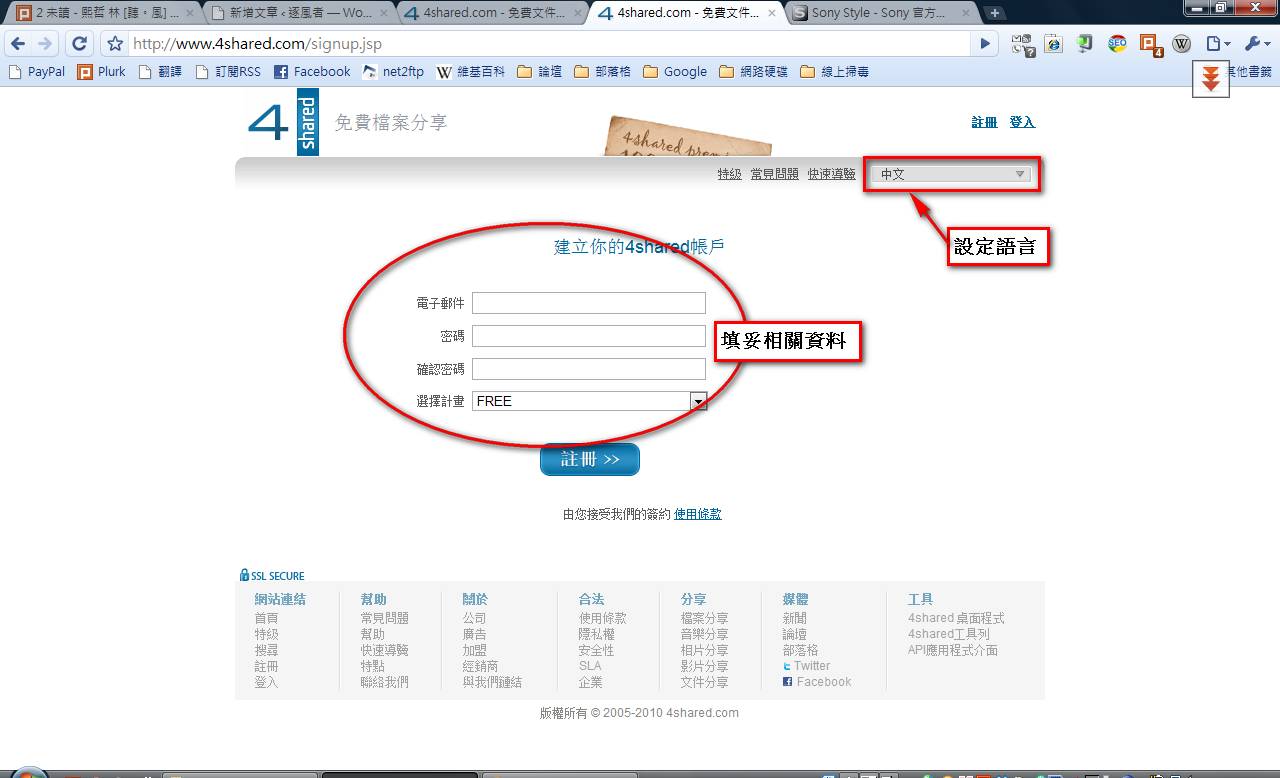
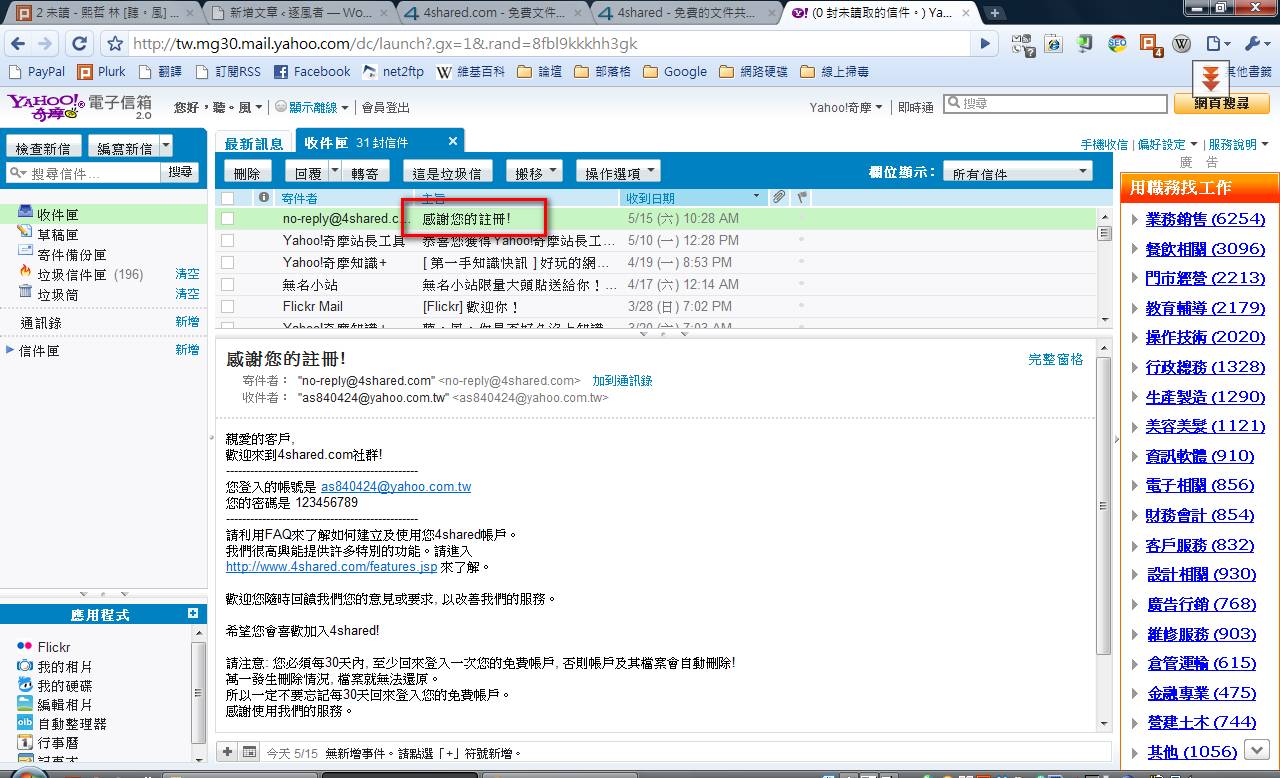
- That’s all there is to it. Your personal 4Shared account is ready!
4. How to Use 4Shared Storage
This section covers the basics: logging in, uploading files, creating folders, and so on.1. Logging in to 4Shared
By default, you're logged in right after you create your account. But if you ever get logged out, don't panic. Logging in is easy, especially now that there's a Traditional Chinese interface. Go to the home page, click [Log in], and a screen will appear for you to enter your username and password.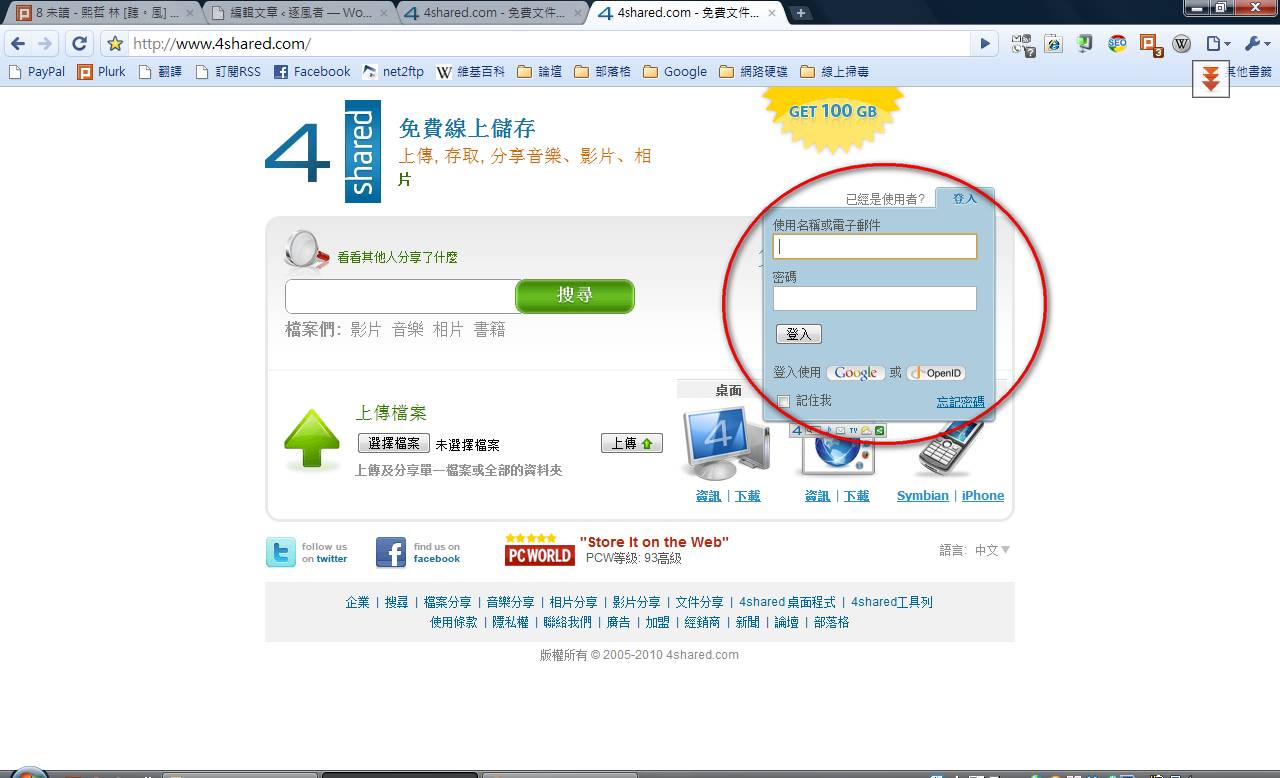
2. Creating a New Folder
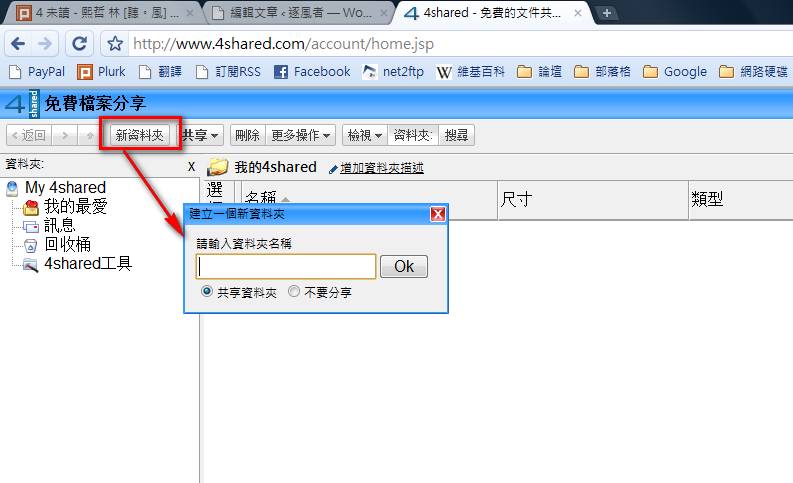
The first thing to do after you enter the 4Shared interface is to create a folder. You don't have to, and things are fine at the beginning without one. But once you have more files, it gets messy, so I recommend creating a folder rather than uploading files to the root directory.Click [New folder], enter a folder name, and choose whether to share this folder (in other words, whether people can download the files in it).
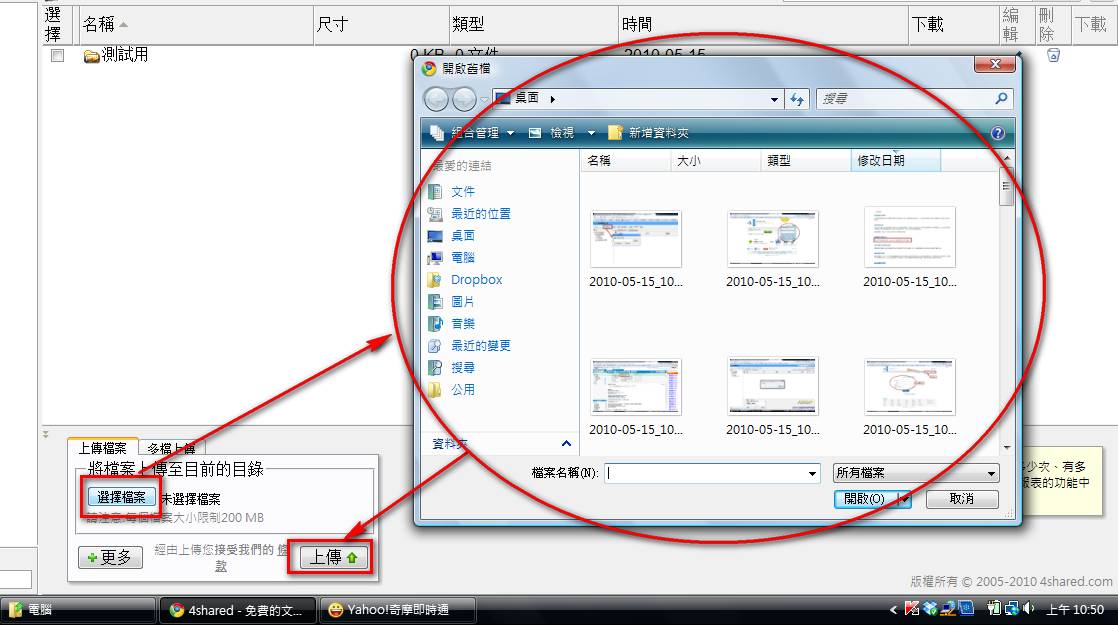
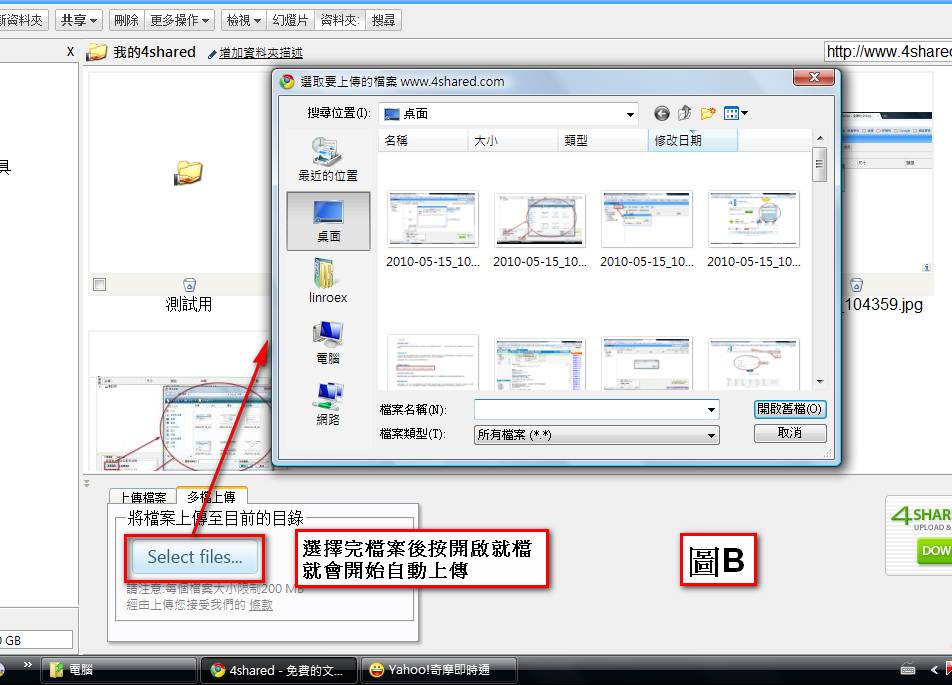
3. Uploading Files (see Figure B for multiple file uploads)
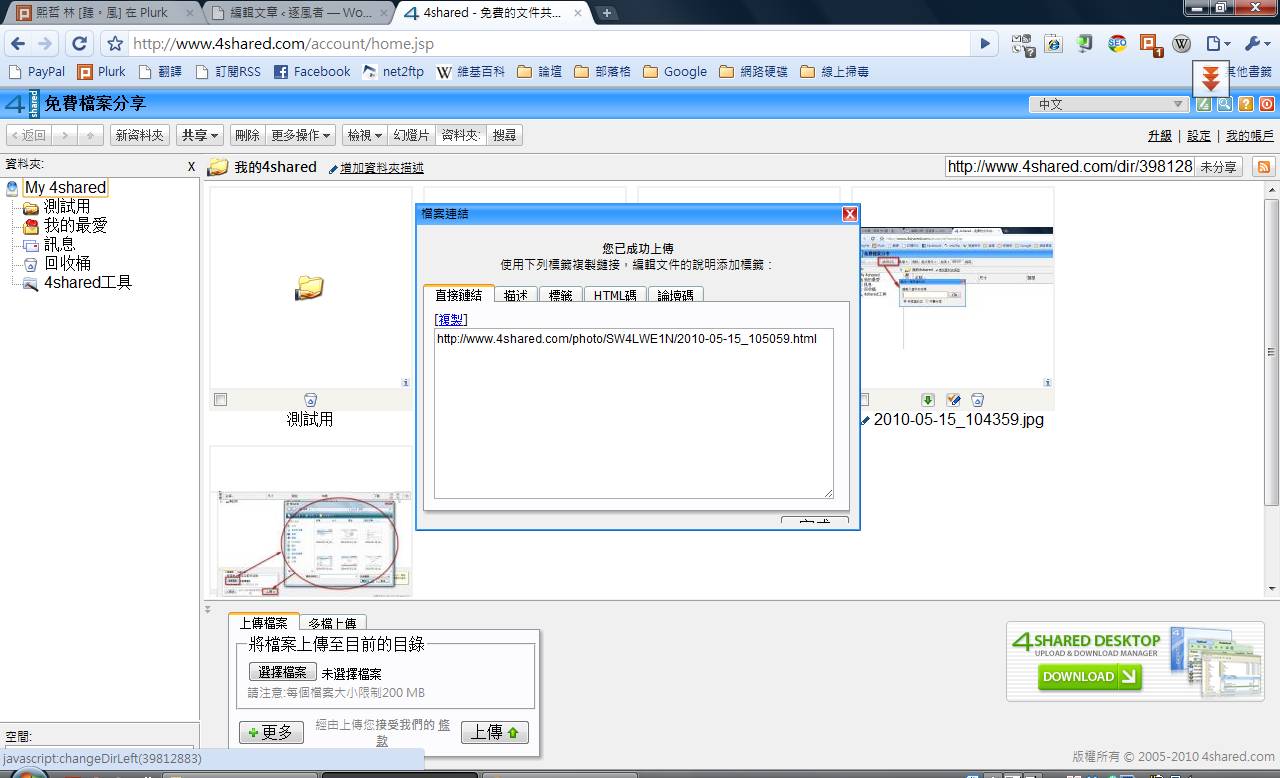
After you upload a file, a window appears with the download link for the file.
Beyond what I’ve covered here, feel free to explore on your own. A single article can’t cover everything perfectly. You can also check their FAQ (in Chinese).