Software Info
- Software name: 7-Zip
- Official website: http://www.7-zip.org/
- Download: Xun6 | 4Shared | Box.net | Official download
- Virus scan report: VirusTotal
- MD5 hash: e4a15d6d60c5611156e20666d2a760fd
Features of 7-Zip
- Supports Unicode file names (you can still extract files even if the file names are garbled)
- Very small, only 840KB.
- 7-Zip can compress files into: ZIP, 7z, GZIP, BZIP2 and TAR.
- 7-Zip can extract these formats: ZIP, RAR, CAB, ISO, ARJ, LZH, CHM, WIM, Z, CPIO, RPM, DEB and NSIS.
Part 1. Installing 7-Zip
1. Open the installer. If a security warning appears, just click Run.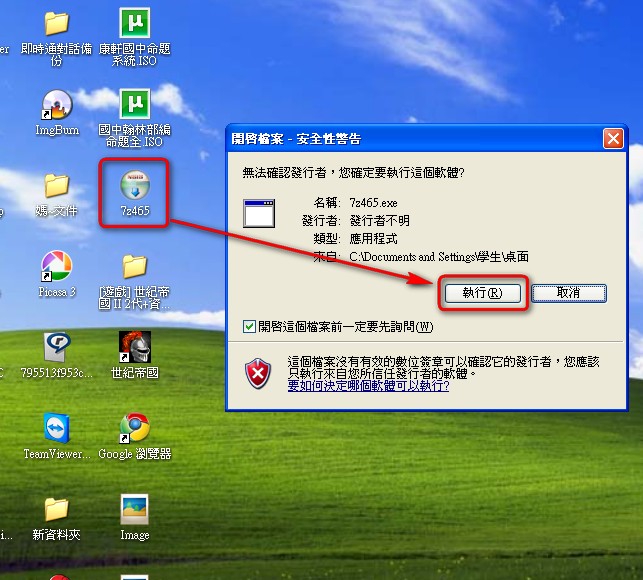
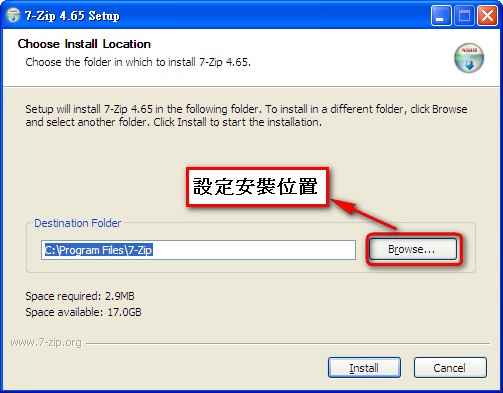
- Set the installation location. I usually keep the default and let it detect the location automatically. Unless you have special needs, just click Install.
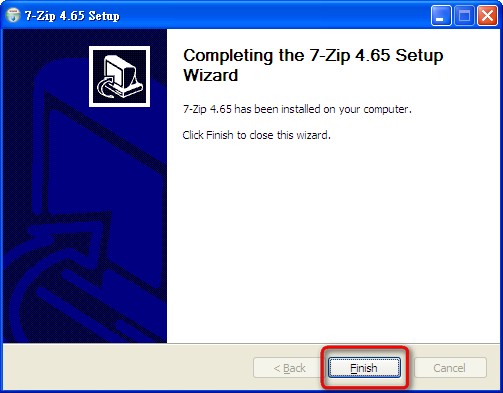
- The installation will start now. When the screen below appears, the installation is complete. Click Finish.
Part 2. Compressing Files
1. Select the files you want to compress, right-click them, and choose 7-Zip → Add to archive...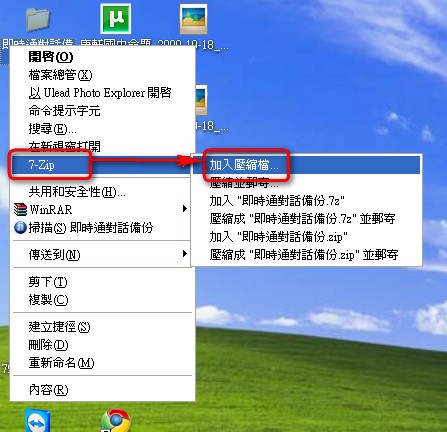
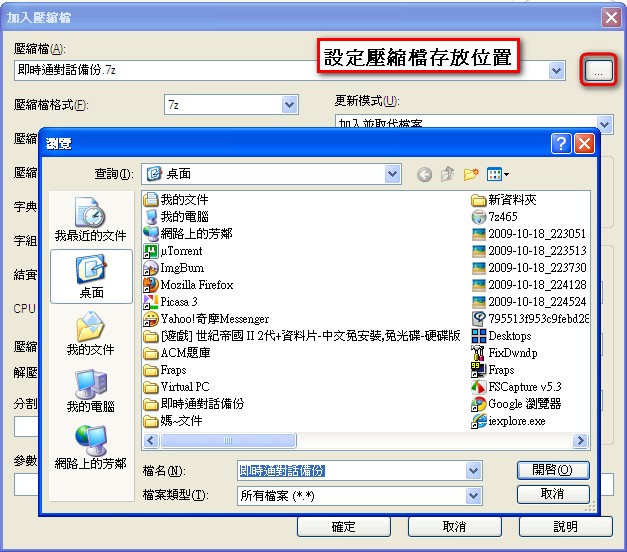
- A window for adding to an archive will pop up. In the “…” field you can choose where to save the archive, and the archive format menu lets you pick the compression method. Basically, if the other person has 7-Zip installed, use the 7z format. Otherwise, I recommend zip, because every extraction program can open zip files.
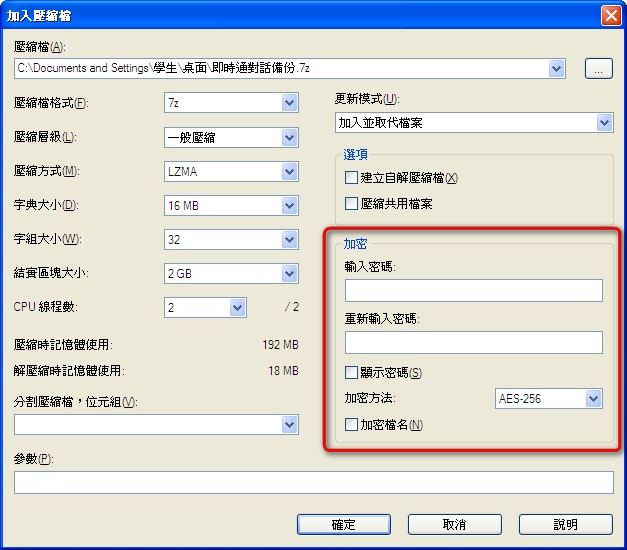
- You can also set a password, so only people who know it can open the file. The “Encrypt file names” option controls whether people without the password can see the original file names. If you check it, the file names will be hidden. For the encryption method, just pick any option. Those are cryptography details we don’t need to worry about XD
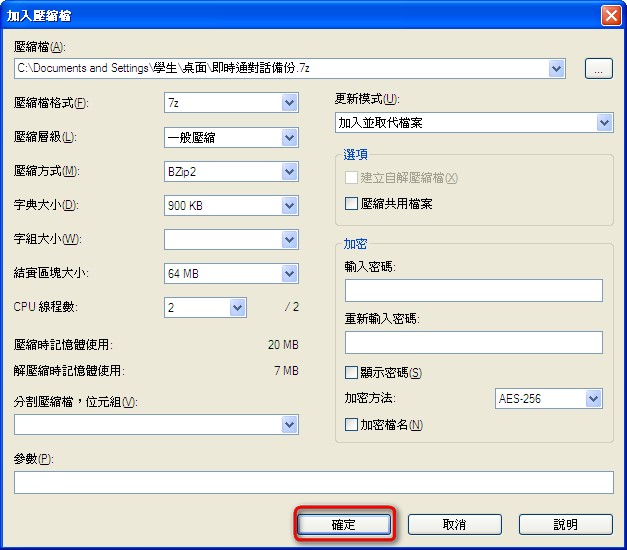
- For the other settings, adjust them to your needs! Once you’re done, click OK and compression will start.
- Images during and after compression
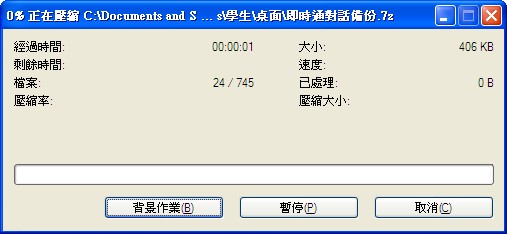
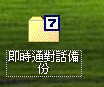
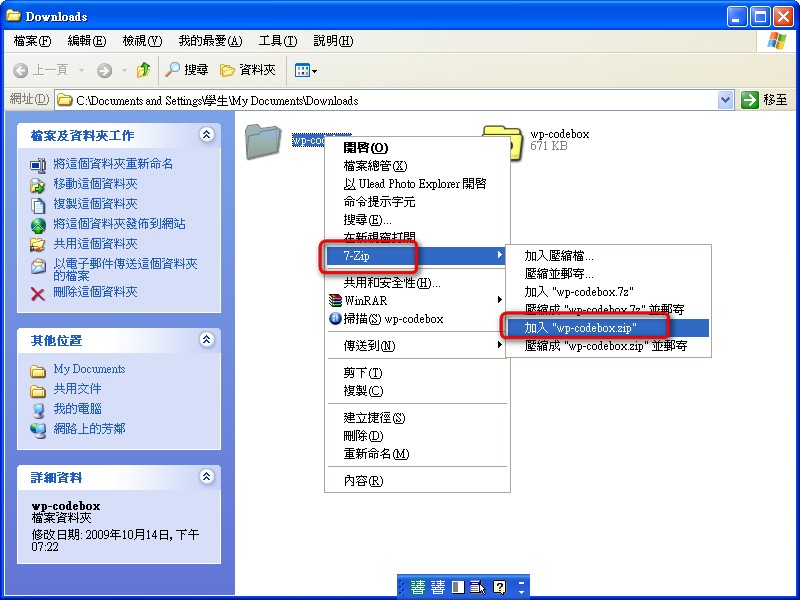
If you don’t want to go through the settings, you can just right-click the file and choose 7-Zip → Add “xxxxx.7z” or Add “xxxxx.zip” to create an archive quickly.
Part 3. Extracting Files
The previous part covered compressing files with 7-Zip. This part shows you how to extract files. First, right-click the file you want to extract, then choose 【7-Zip】 → 【Extract Here】.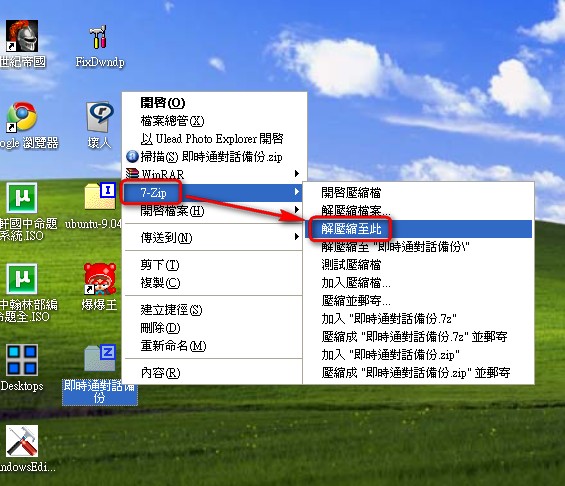
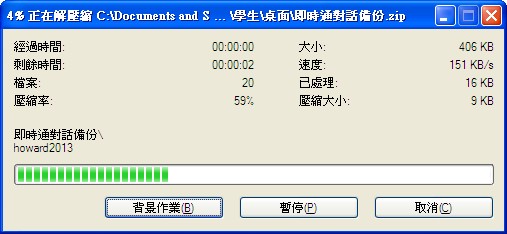
Extracting in progress ↓↓↓