When you need to send sensitive data through Facebook or email, such as a Google API token or a company’s annual accounts, do you really trust those online services? Personally, I don’t. There are too many possibilities, from hacker attacks to poor internal controls at a company that let employees view customer data. Because of these possibilities, I’m not really willing to send confidential data over the internet. But in this day and age, sending data without using services like email or Facebook Messenger is almost impossible. In that case, you can use AES to encrypt the file, and then share the password through a channel you trust, such as a phone call or in person. Or at the very least, send the password through a different channel than the file, to reduce the risk of everything being compromised at once.
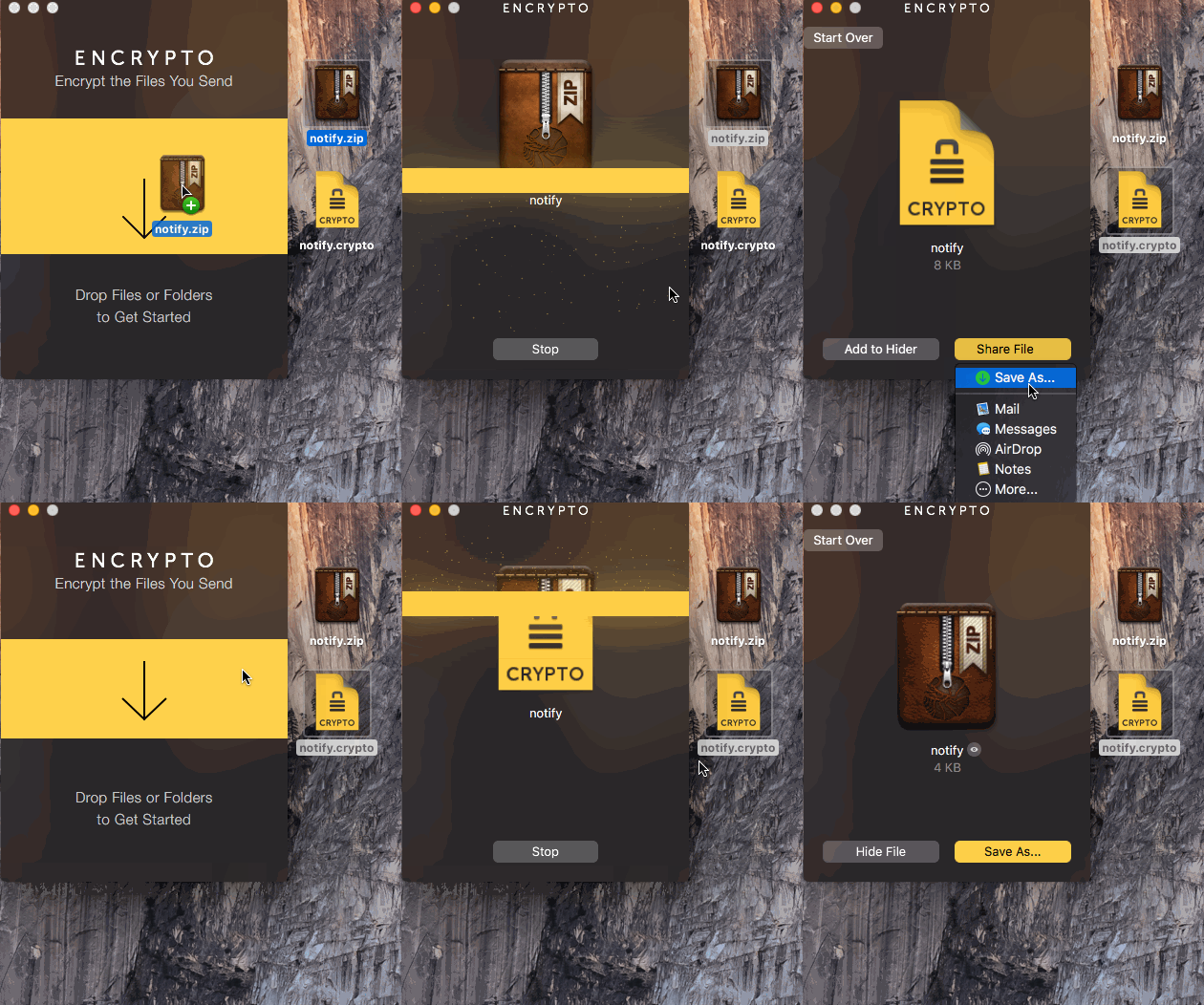
On Linux and Mac OS, you can quickly handle AES encryption and decryption with openssl. Operating systems usually come with openssl built in, so you can use it directly. If you’re not comfortable with the command line, you can also use the Encrypto app developed by MacPaw to do AES encryption and decryption through a graphical interface. It isn’t open source, but since it was developed by MacPaw, it should be fairly trustworthy.
Encrypting a File with AES
openssl enc -aes-256-cbc -salt -in file.txt -out file.enc
Decrypting a File with AES
openssl enc -d -aes-256-cbc -in file.enc -out file.txt
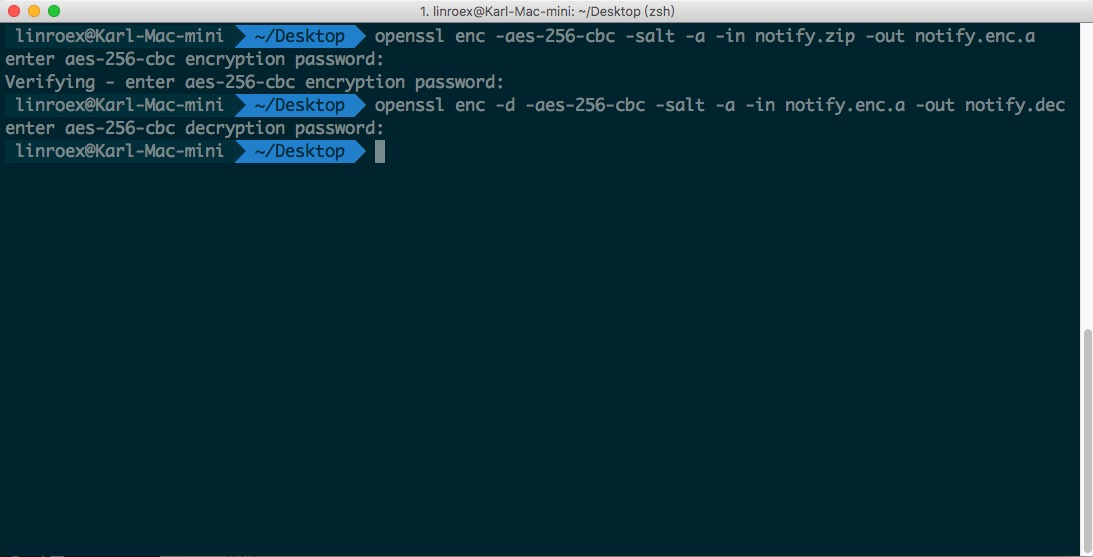
If you want to encrypt the file and output it in base64 instead of binary, add the -a option. Decryption works the same way:
openssl enc -aes-256-cbc -salt -a -in file.txt -out file.enc

openssl enc -d -aes-256-cbc -a -in file.enc -out file.txt
After you enter the encryption command, openssl will ask you to type the password twice (the password, then the same password again to confirm). It is used to encrypt the file. When decrypting, a password prompt also appears.
If you’re not comfortable with commands, I personally recommend the Encrypto app on Mac OS. You can download it directly from the Mac App Store. Just drag a file into it to encrypt or decrypt. It’s very simple, and the interface is beautifully designed. Encrypto also uses AES 256, but it seems to have its own proprietary format. So if you encrypt with Encrypto, the recipient also needs the same app to decrypt it (there is a Windows version too). I haven’t looked into its format in detail yet.