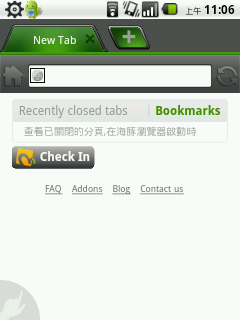
Note that Dolphin comes in a regular version and an HD version. The HD version requires Android 2.0 or later. If you’re running Android 2.0 or later, I recommend Dolphin HD. Otherwise, download the regular Dolphin from the Android Market.
Dolphin Features
- Tabs are integrated at the top of the browser, which is convenient
- Can subscribe to RSS feeds
- Supports mouse gestures
- Can sync bookmarks with Google
- Can change the browser theme
Dolphin Info
- Official site: http://blog.dolphin-browser.com
- Download link: market://search?q=pname:mobi.mgeek.TunnyBrowser
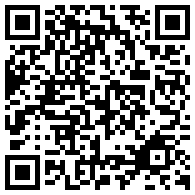
- QR Code:
First Time Using Dolphin
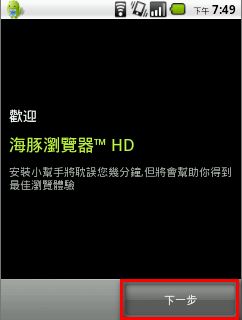
The first time you open Dolphin, a setup wizard appears to help you configure it quickly.- Tap Next.
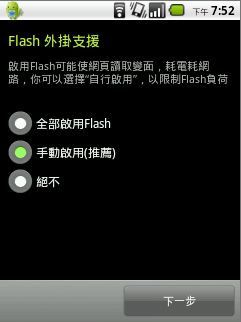
- This is where you choose whether to enable Flash. I recommend Manual, because Flash drains the battery quickly.
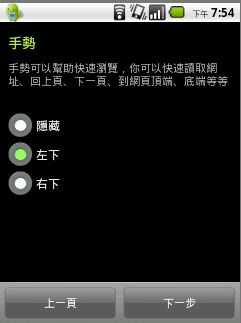
- This sets whether the mouse gesture button goes in the lower left or the lower right. Put it wherever you like, but don’t choose Hidden (unless you never use mouse gestures).
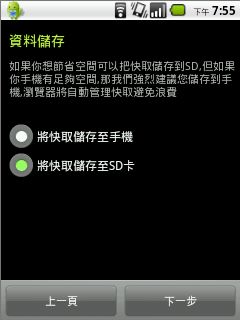
- This sets whether browser cache data is stored on the phone or on the SD card. If your phone’s internal storage is small, I recommend the SD card.
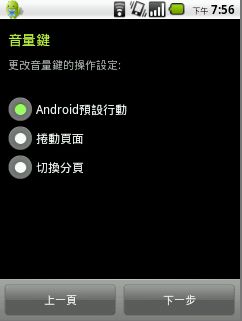
- This lets you choose what the volume keys do in Dolphin. You can use them to switch or scroll tabs, or leave them at the default (adjust volume).
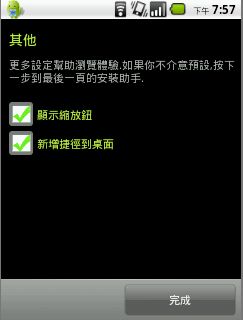
- Tap Finish and you’re done~
Adding Dolphin Mouse Gestures
1. Open Dolphin, press the standard Menu button on your Android phone, and choose More.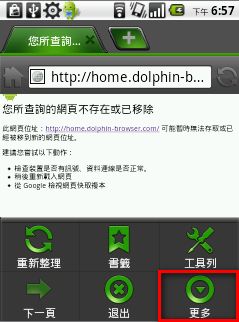
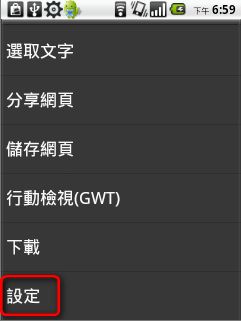
- Scroll down and choose Settings.
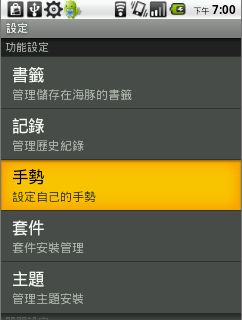
- Choose Gestures.
- This lists the mouse gestures that already exist. For example, the default gesture for adding a bookmark is an M. Find the gesture you want to use here and remember it.
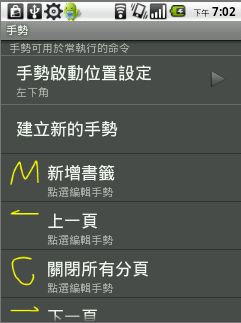
- You can also tap “Create New Gesture” to make your own mouse gesture.
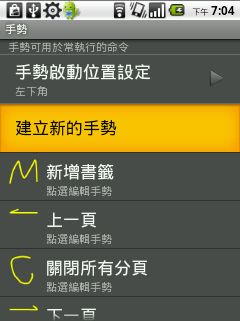
- First, choose the function for the new gesture.
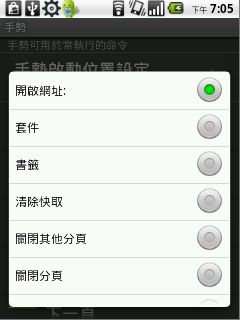
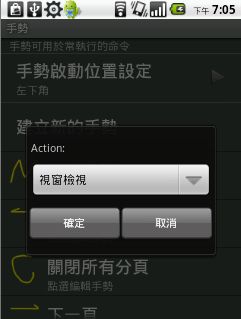
- Then tap OK.
- Draw the gesture you want. After drawing, tap the button on the left labeled “Discard.” It seems that because of a translation issue, the left “Discard” button actually works as Confirm. If a future update fixes the translation, just remember to tap the button on the left.
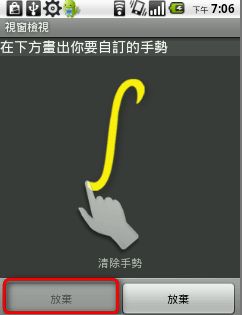
- That completes the setup.
How to Use Dolphin Mouse Gestures
1. Look for a finger-shaped button in the lower left or lower right corner and tap it~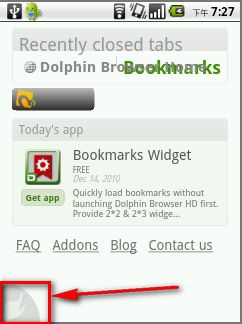
- Once you tap the finger button, you can use mouse gestures~ Whenever you want to use mouse gestures later, tap the finger button first, then draw the gesture.