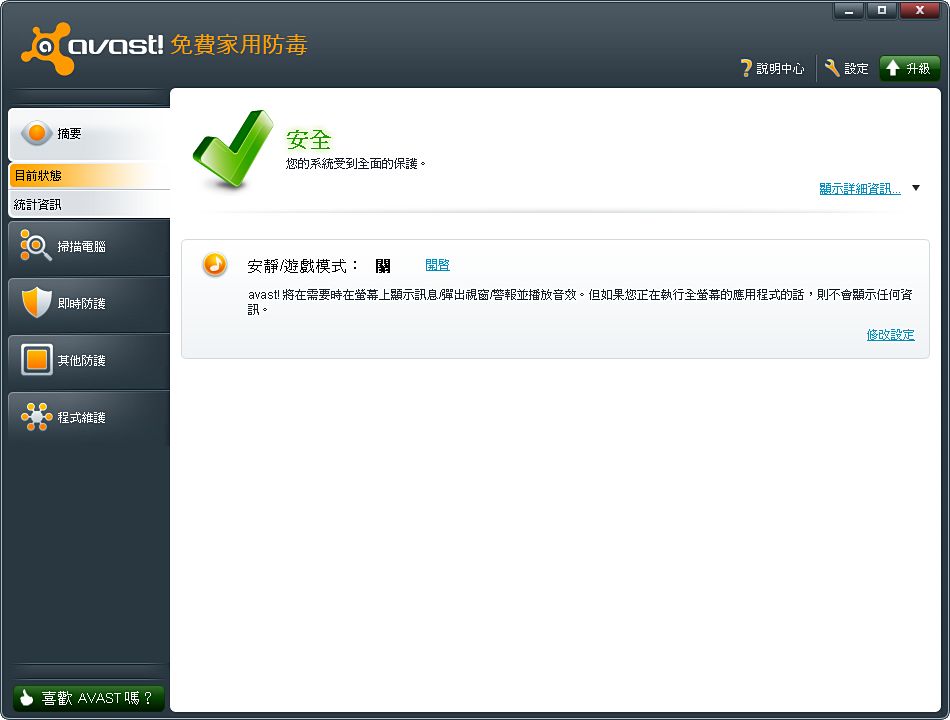
When you buy a new computer, I think the most troublesome part is choosing antivirus software. For ordinary people, a computer without antivirus is genuinely dangerous. But many antivirus programs cost money, pirated copies are unsafe, and free ones might not be strong enough and leave room for viruses and trojans. Here I want to introduce a “free” antivirus called Avast. It’s one of the best free antivirus programs out there, and in my opinion, it’s number one! It even beats some paid antivirus programs. So if you want to save the money you’d spend on antivirus software, give Avast a try.
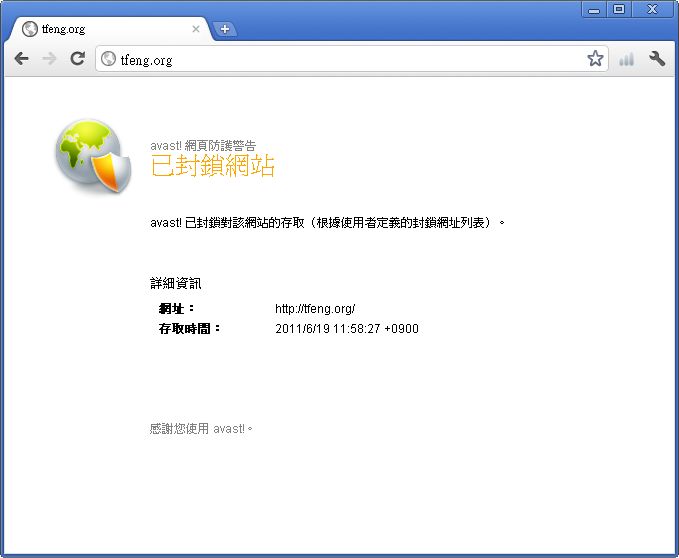
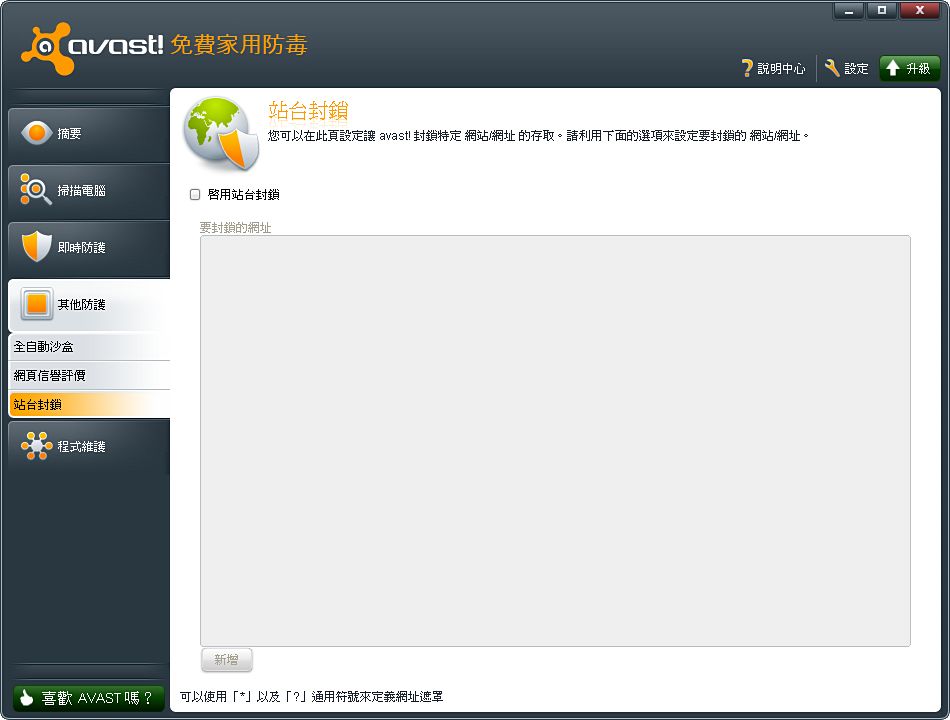
Avast is free, but its features are no less than those of paid antivirus programs. It has basic scanning, of course, and you can schedule scans or run a scan at startup. It also has a “Sandbox” feature, which usually exists only in paid antivirus programs. A sandbox lets you designate a program to open inside the sandbox. Whatever changes that sandboxed program makes are reverted after a reboot. So if you open a virus in the sandbox, whatever it does to your computer will basically be undone once you restart. Of course, a sandbox can still have holes that someone finds and breaks, so don’t rely on it too much XD Avast also offers “Site Blocking”, which lets you specify URLs to block. This is useful for keeping kids at home away from adult websites… or from spending too much time on Facebook…
▼▼ Site Blocking
Last but not least is Avast’s “Quiet Mode”. I’m sure many people have had the experience of being in the middle of a game when an antivirus alert pulls them back to the desktop. If it’s just a casual game, it’s no big deal, but sometimes it happens in the middle of a boss fight! By the time you return to the game window, your character is already dead… For this reason, many antivirus programs have faced the threat of being turned off… But now Avast has a built-in Quiet Mode. You can enable it in the settings, and then no warnings or notifications will pop up. You can also set it to suppress messages while a full-screen program is running, so you can avoid the regret of being killed by the boss.
Avast Info
- Official site: http://www.avast.com/index
- Download page: http://www.avast.com/free-antivirus-download
- Supported OS: All Windows versions (32- and 64-bit)
- Price: Free for home use
Avast Installation Guide
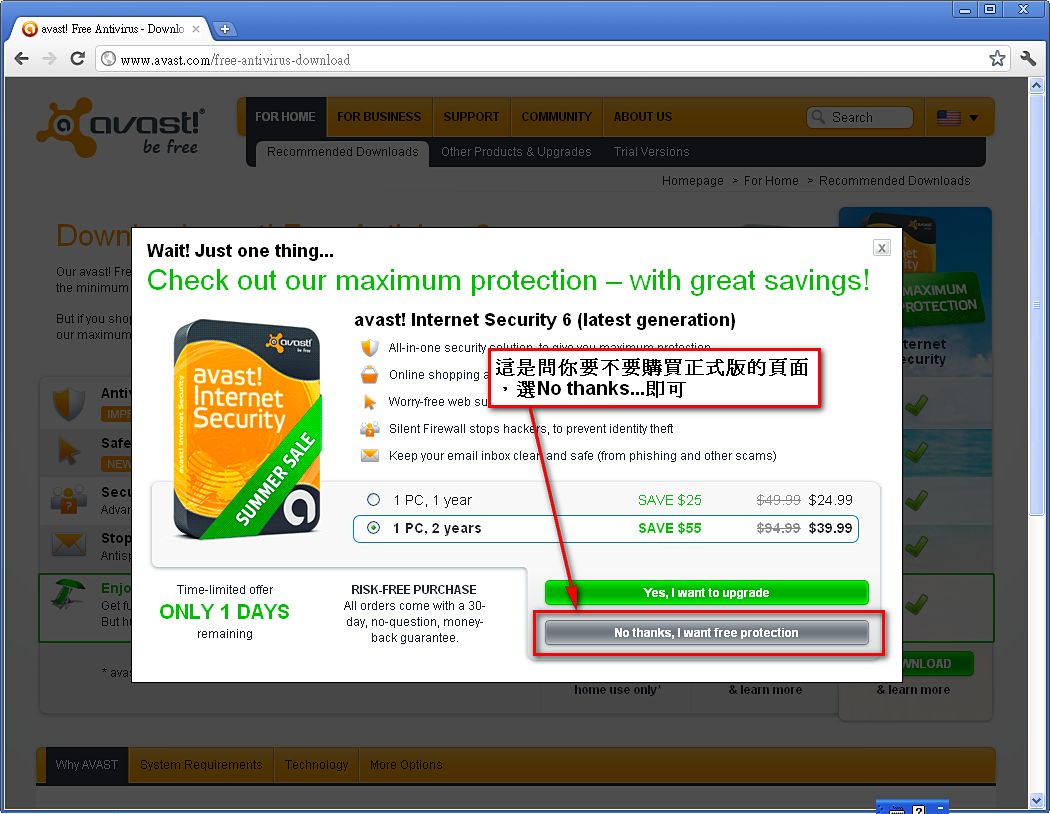
1. First, go to the download page and download Avast. Be sure to download the "HOME" version.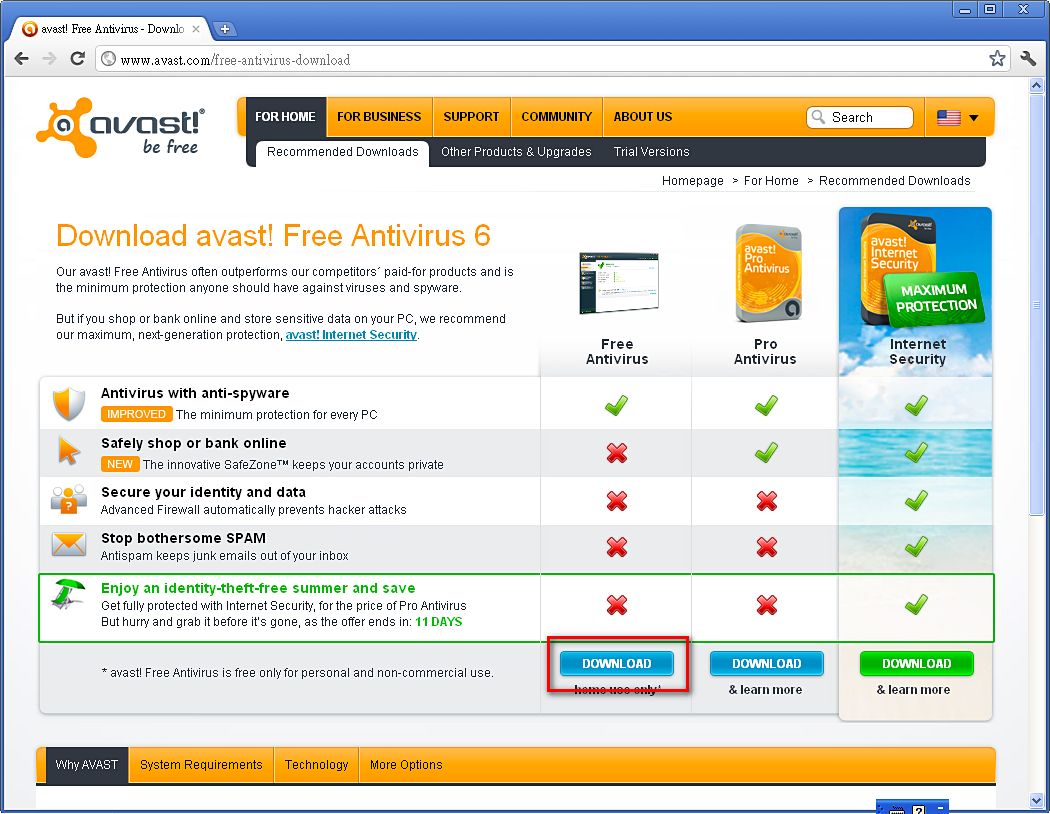
It asks whether you want to buy the paid version. Just click “No, thanks.” Many people see this screen, think Avast is trying to charge them, and then come yell at me for tricking them…
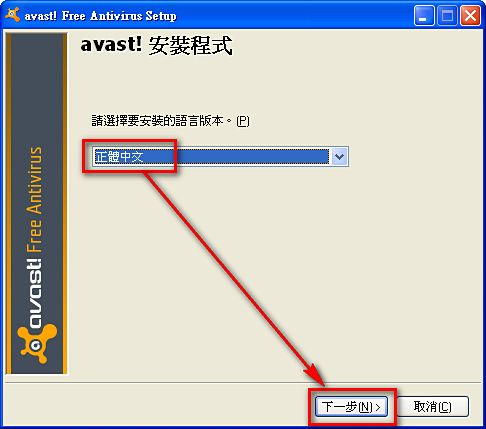
- Choose Traditional Chinese, then click Next.
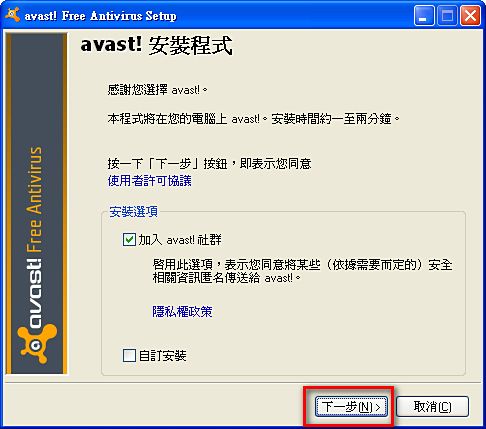
- Click Next.
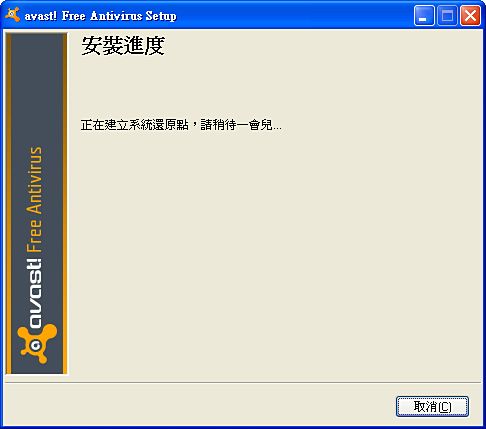
- Installing, please wait.
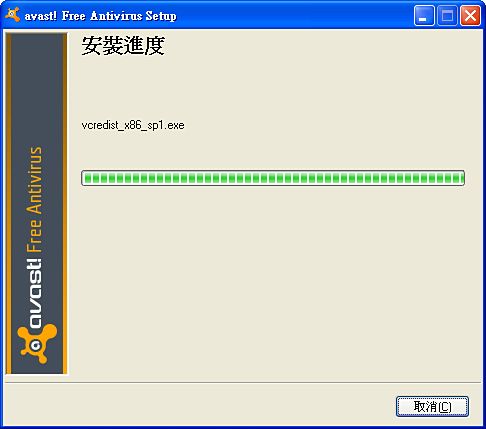
- Installation complete~~
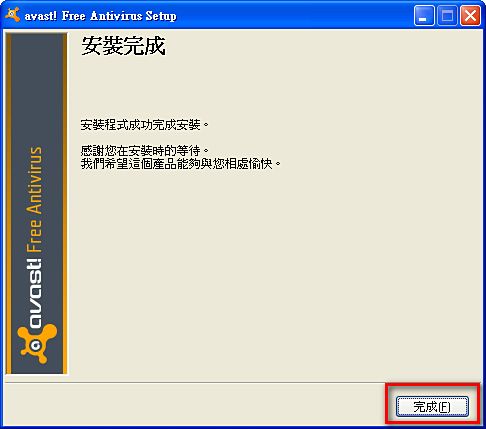
- After installation, open Avast and you’ll see the window below. It’s asking you to register. Although Avast is free, registration is still required. It just asks you to fill in your email address and name. Click “Register your program.”
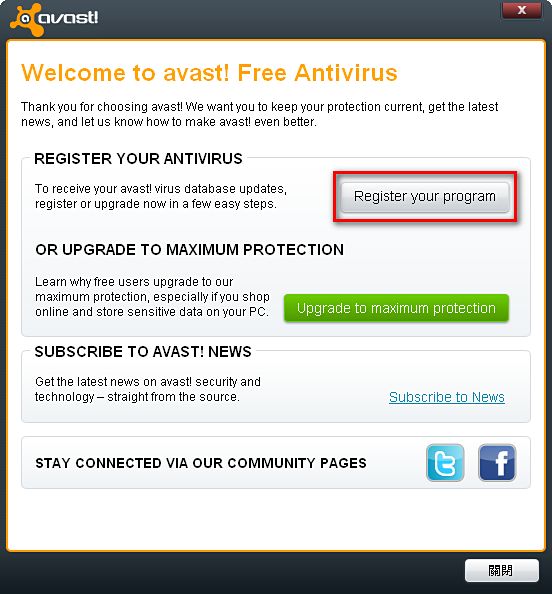
- More ads… Click the gray “Register” button~
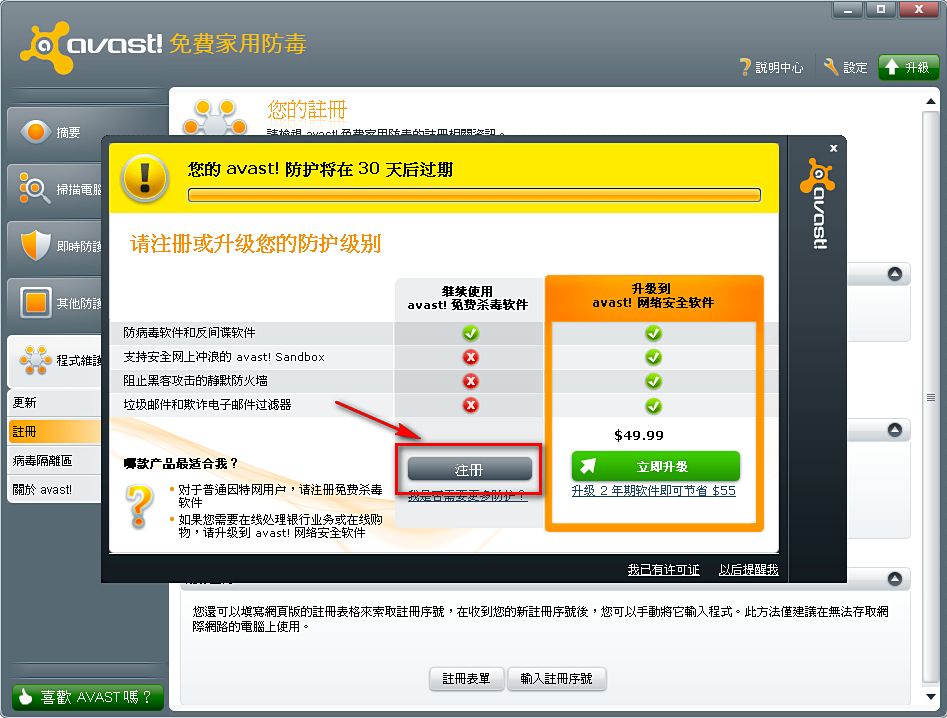
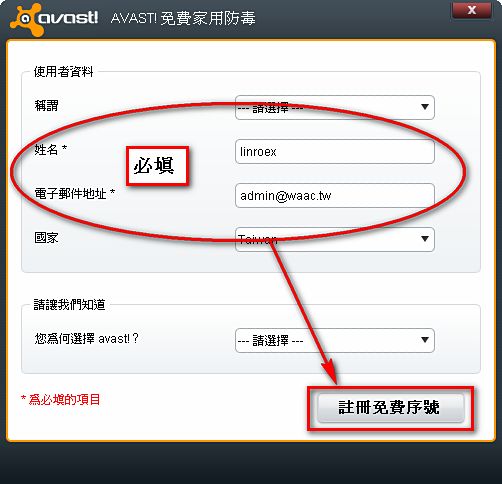
- Enter your name and email address, then click “Register for a free license key” to complete the registration.
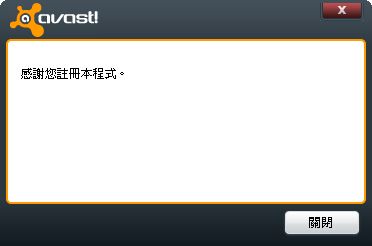
- Registration successful
Avast Update Guide
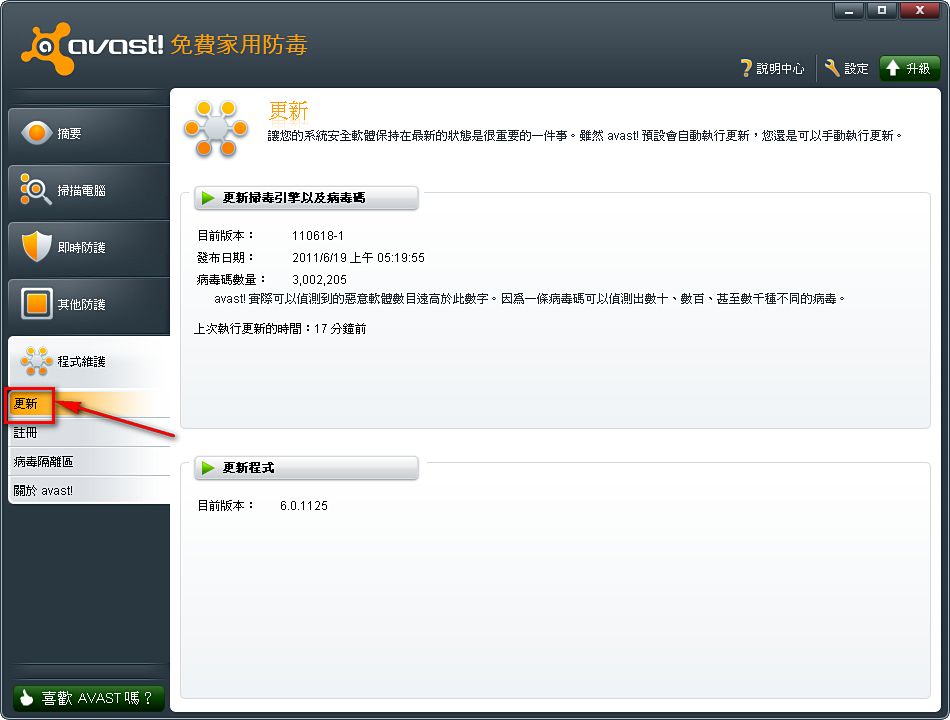
You don't actually need to update manually, because it updates automatically once installed~- Open the Avast main program, then choose “Program Maintenance” → “Update” on the right.
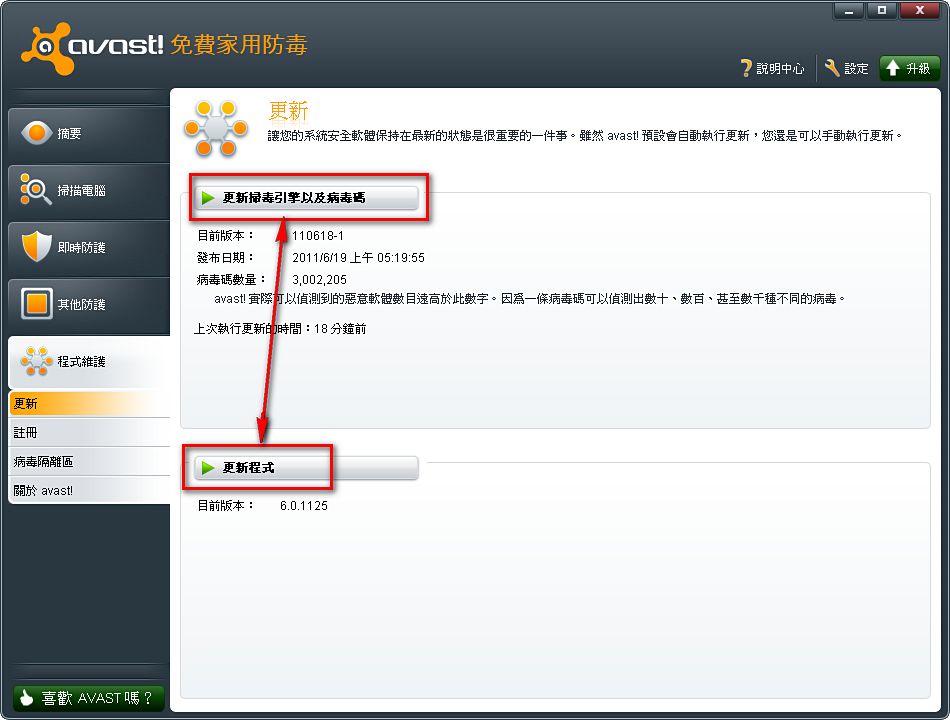
- Usually pressing “Update virus definitions and scan engine” is enough. New versions of the program itself come out very rarely, so there’s no need to press that one often XD
Avast Virus Scan Guide
1. Go to "Scan Computer" → "Scan Now"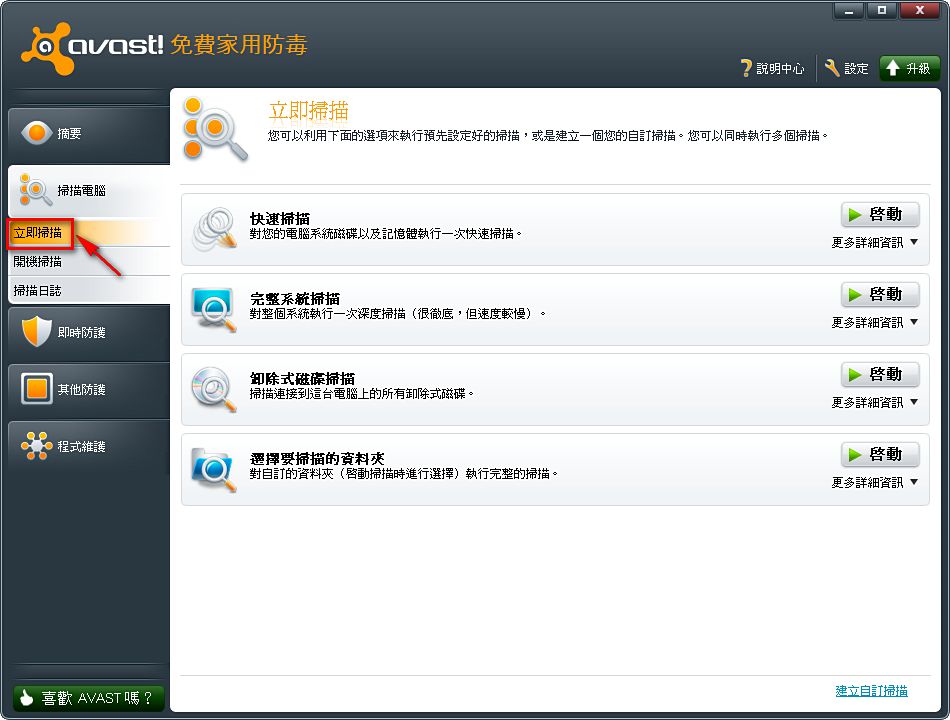
- There are four scan types: “Quick Scan,” “Full System Scan,” “Removable Media Scan” (for scanning flash drives and portable hard drives), and “Scan Selected Folders” (lets you define the scan scope). Here I’ll introduce the Quick Scan. Feel free to explore the other scan types on your own.
To start, press “Start” next to Quick Scan.
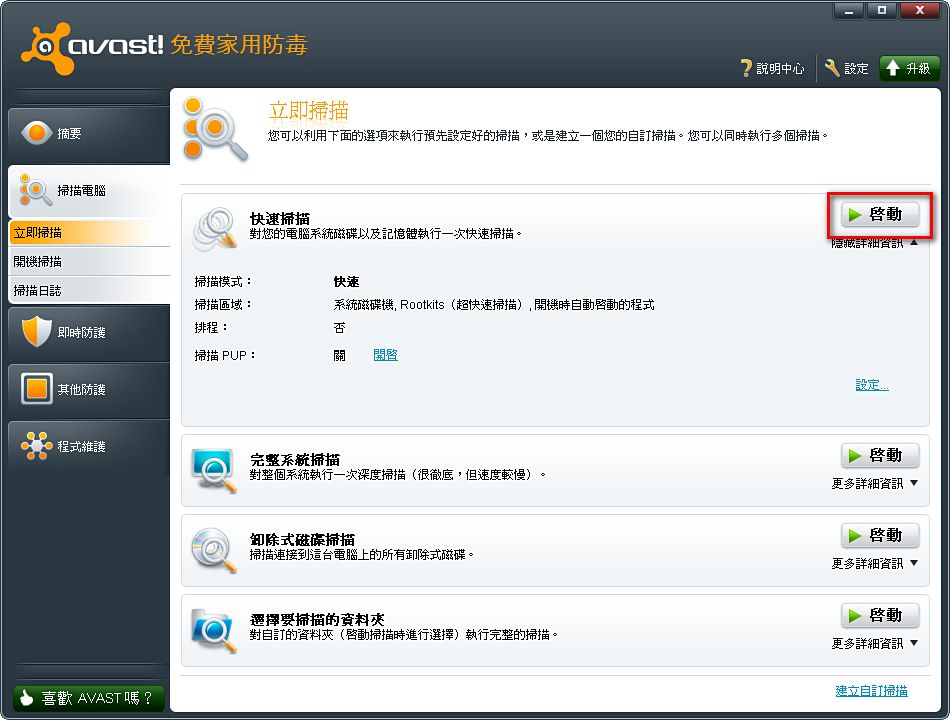
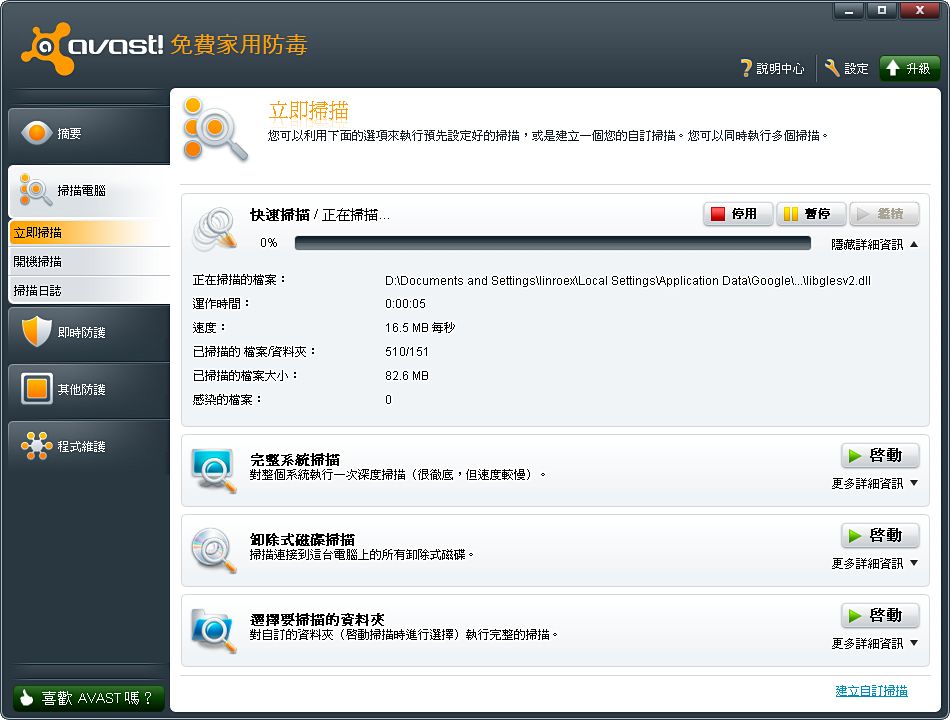
- Scanning, please wait
- “Scan Selected Folders” works a bit differently from the others. After you press Start, it asks which folders to scan.
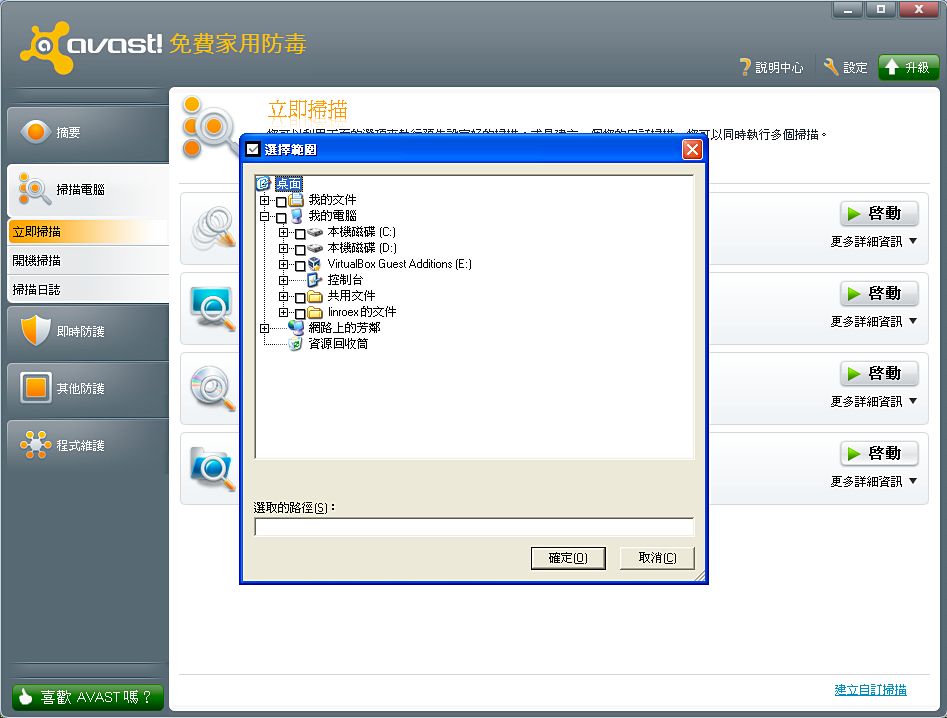
Setting Up Site Blocking
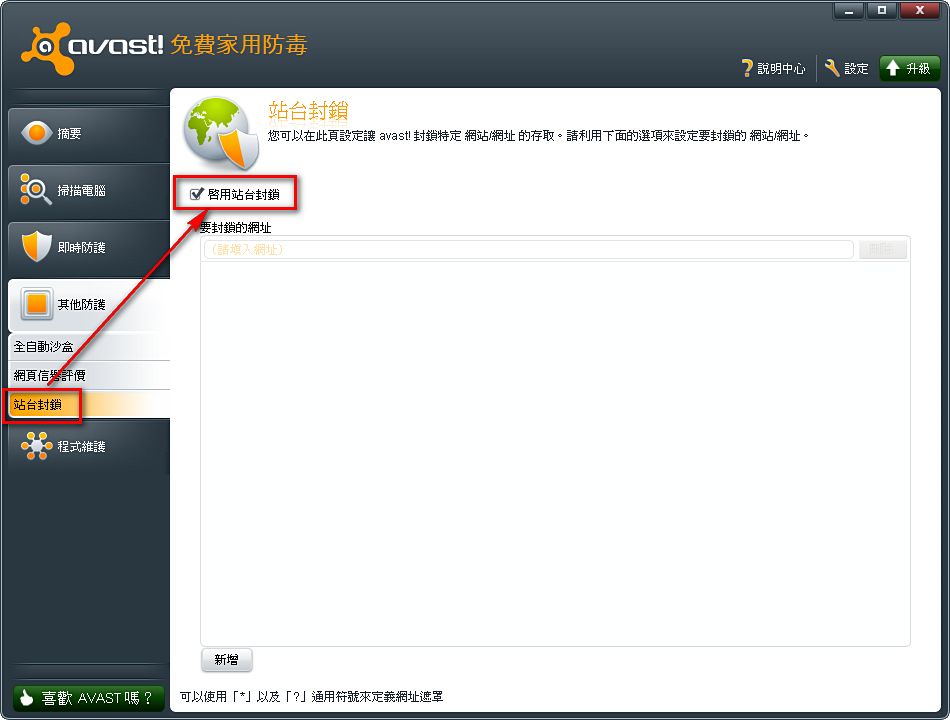
This feature is mainly designed for users with children at home. You can turn it on and block access to certain sites. For example, if a parent sees their child spending too much time on Facebook, they can block the Facebook URL to keep the child from getting hooked XD- Go to “Other Protection” → “Site Blocking” and check “Enable Site Blocking”
- Click “Add” and enter the URL you want to block. You can use wildcards.
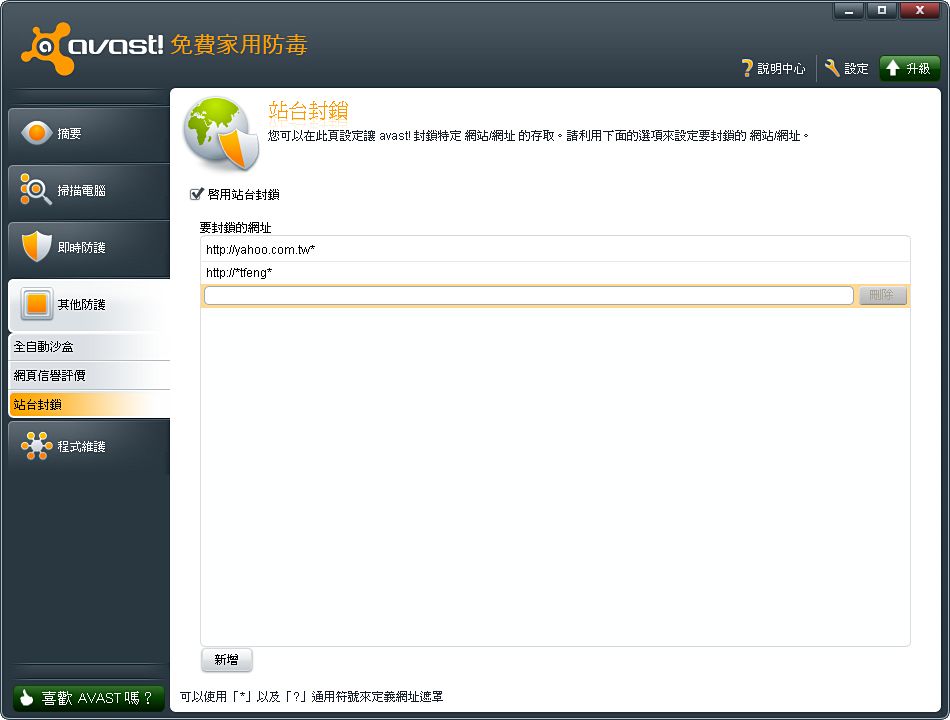
- The blocking result