Like many people, I’m used to handling documents and reports in Google Docs, and over time it piles up a lot of material. So what if one day you want to back up all your Google Docs files to your computer? Google Docs doesn’t offer an export service, only downloads. If you have just a few files, you can download them one by one, but if you have a lot, it gets to be a real hassle. Here I recommend a program called GDocBackup.
GDocBackup can back up all your Google Docs files, and it can also convert formats. If your account is a Google Apps account, it’s supported too~ Let’s walk through how to use this program.
GDocBackup Info
- Official site: http://gs.fhtino.it/gdocbackup
- Download: Official download | Box.net | 4Shared
- Version: 0.7.2.175
GDocBackup Tutorial
1. First, go to the download links above, download GDocBackup, and install it.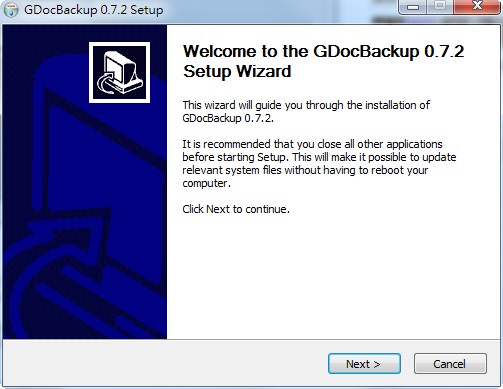
- Once it’s installed, run it. The first time you use it, a Config window opens automatically. Enter your Google account and password there. Note that “Remember” must be checked for the password to be entered.
Backup Directory sets where the backed-up files are saved.
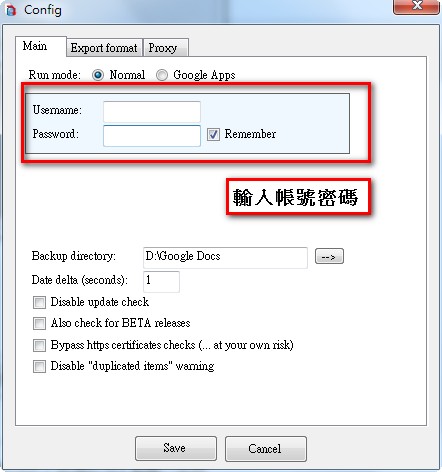
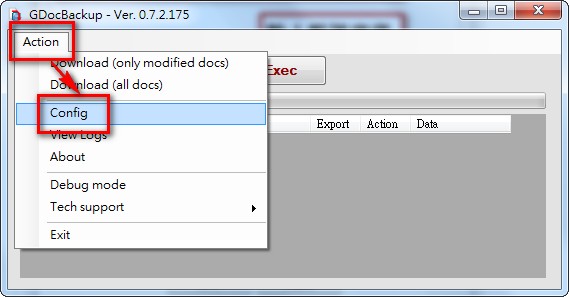
If the Config screen doesn’t appear when you start GDocBackup, you can open Config manually from “Action” in the upper-left corner of the program.
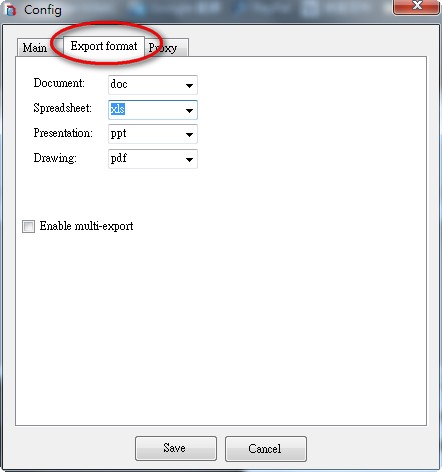
- You can also click the “Export format” tab to set the format for backups. The default is Microsoft Office formats, but you can change them to open formats such as odt or ods. PDFs can be changed to jpg, png, and so on.
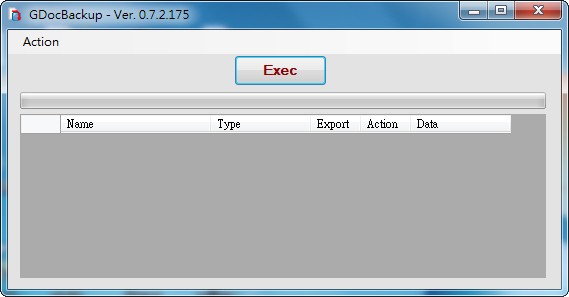
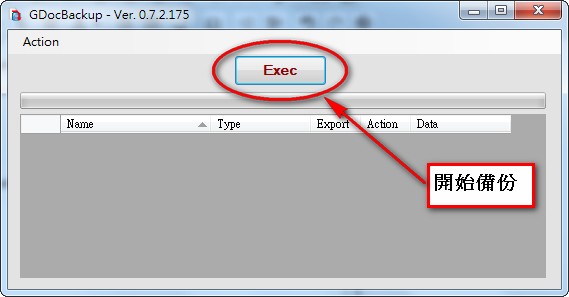
- Once everything is set, click “Save” to save the settings, then click “Exec” to start the backup~
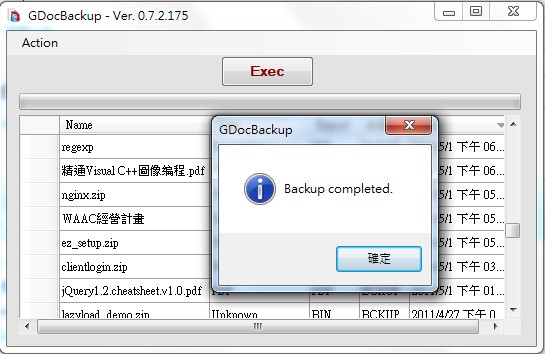
During the backup, this area shows the files that have already been backed up. There’s a progress bar at the top so you can estimate how long it will take.
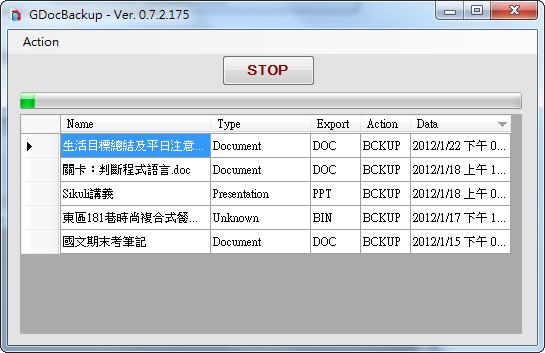
- Backup complete