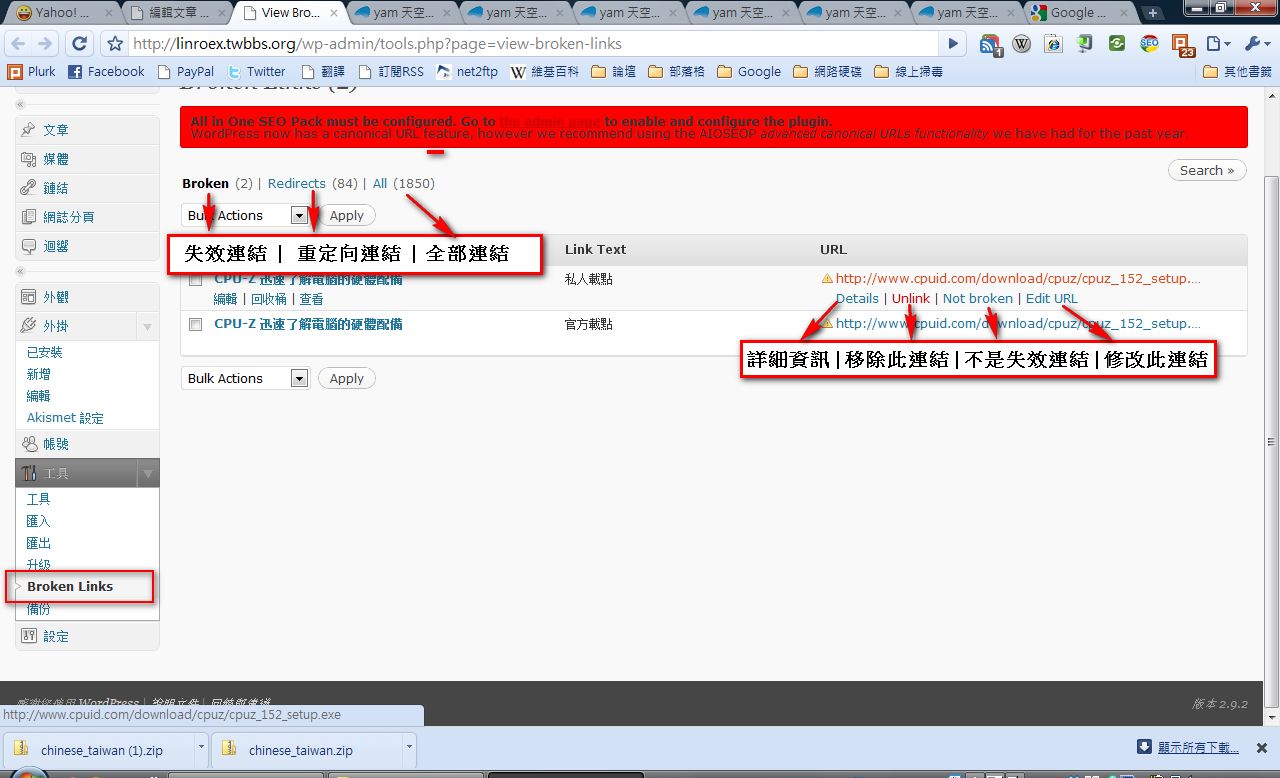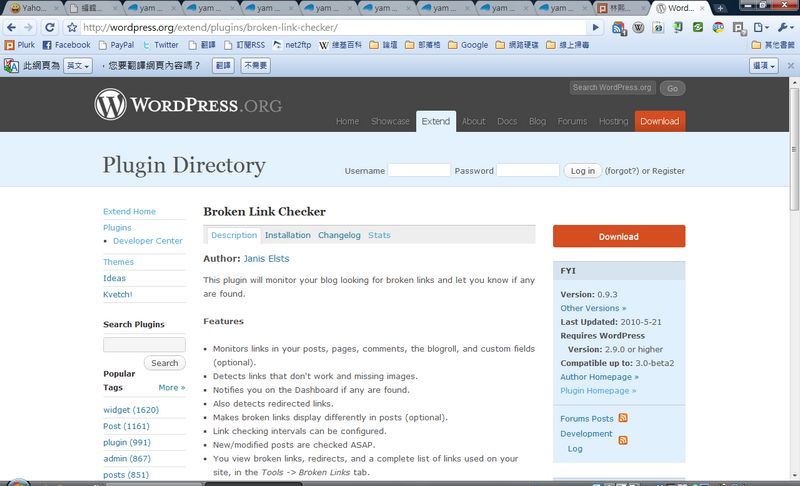
When you look for files online, you often run into an annoying situation: you finally find the file you want, click the link, and get… “This page has been removed. Please contact the site administrator.” It’s really frustrating. But it’s not entirely the webmaster’s fault. Once a website grows, it has a lot of outgoing links, and the webmaster can’t check every one of them by hand. Some webmasters ask users to report broken links, but I don’t think that works well. Someone who has already hit a dead link is annoyed enough. Why would they bother reporting it? Here I want to introduce Broken Link Checker, a plugin made specifically for WordPress. It automatically checks your WordPress blog for broken links and broken images (the broken-image icons that Chinese speakers jokingly call “steamed buns”). Broken Link Checker can also email you when a broken link appears on your blog. It’s very convenient, but I’d recommend that first-time installers don’t turn that feature on right away. Many people find over a thousand broken links or images the first time they run it, and their inbox gets flooded XD
Broken Link Checker Info
- Official website: http://goo.gl/gU0N
- Download: Official download | Xun6 | Box.net | 4Shared
Features of Broken Link Checker:
- Automatically checks WordPress for broken links & images, with a very low false-positive rate
- Can be set to check automatically every few hours
- Can notify the site owner of broken links by email
- Can be set to stop running when the server's CPU usage goes above a certain level
Broken Link Checker Tutorial
1. First, go to the WordPress admin area and click [Plugins] → [Add New]. Type "Broken Link Checker" into the search box and click "Search Plugins".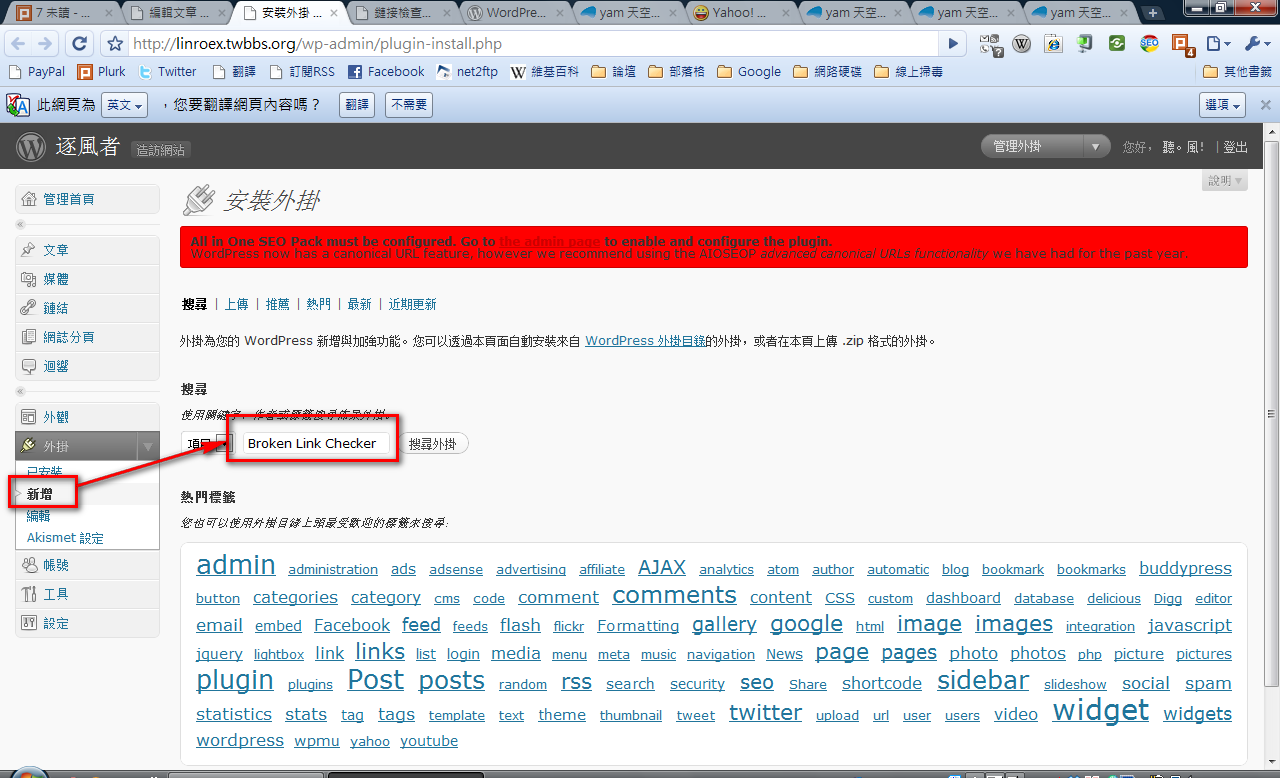
- Select the first plugin in the results, then click [Install] → [Install Now].
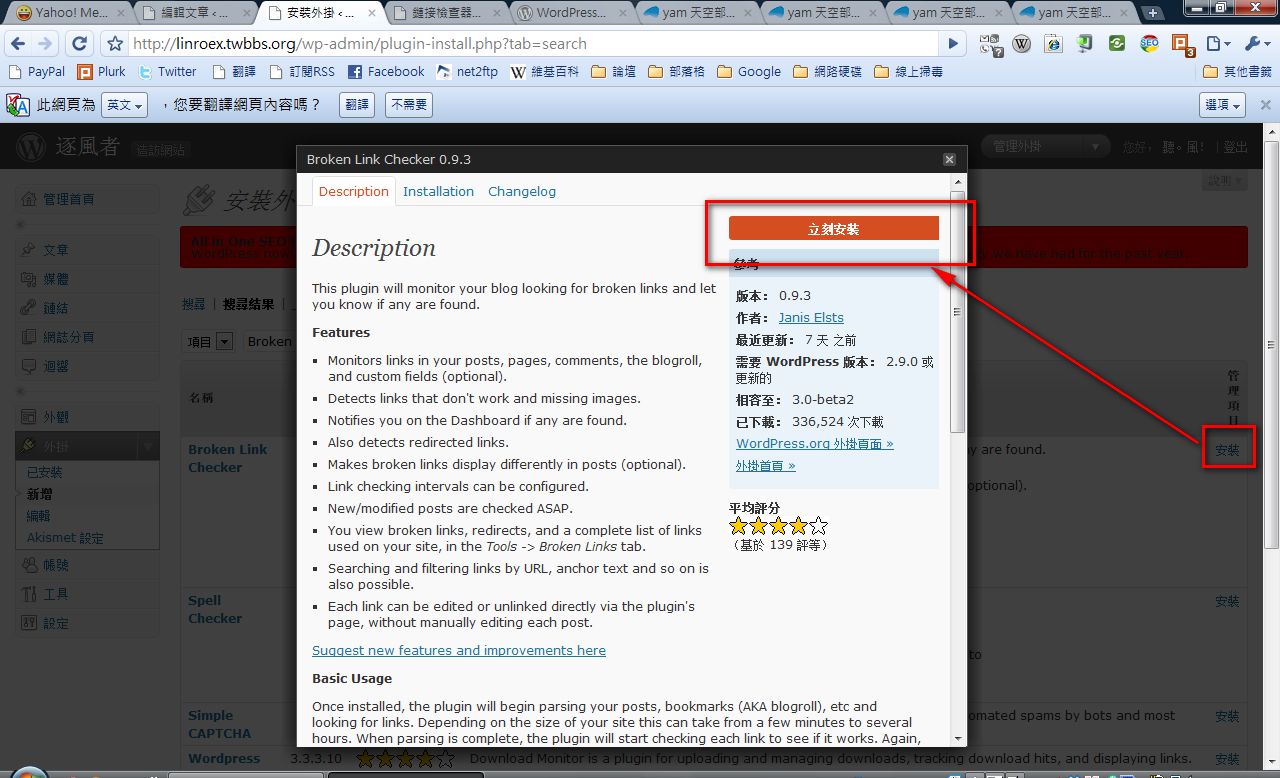
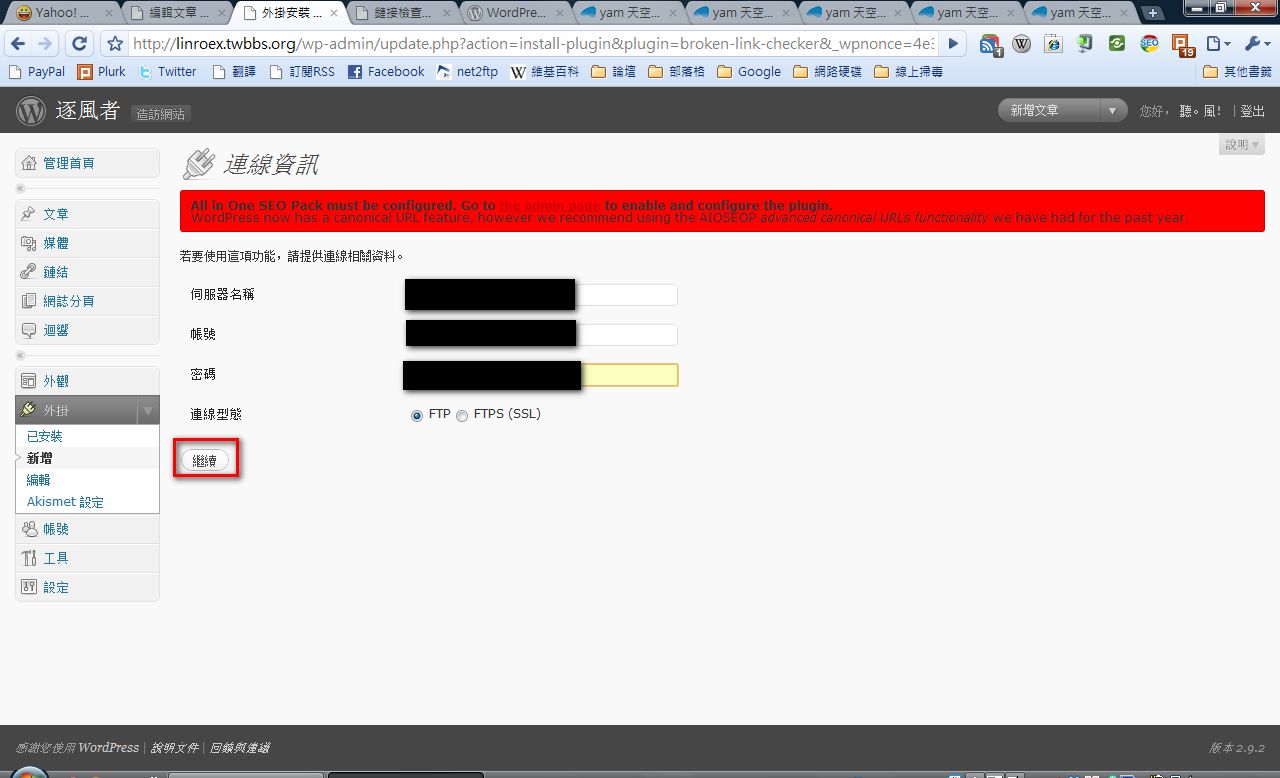
- Enter the required information, then click [Continue].
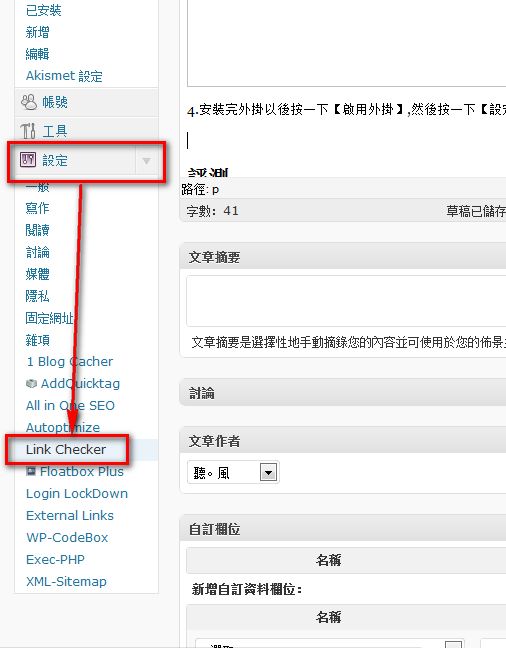
- After installing the plugin, click [Activate Plugin], then click [Settings] → [Link Checker].
- Here you can see all of Broken Link Checker’s settings. I had planned to make a Traditional Chinese language file for everyone, but it got too late and I didn’t get to it. So below, I explain some of the important settings.
Status: Shows which broken links you have.6. You can also check your broken links under [Dashboard] → [Tools] → [Broken Links].Re-check all pages: Manually re-checks all links.
Check each link: Sets how many hours to wait between link checks. I recommend at least 3 days, because checking every day puts too much load on the server.
Broken link CSS / Removed link CSS: Sets the style for broken links and for removed links. (I personally never change these.)
Broken link SEO: If checked, it automatically adds a nofollow tag after broken links.
Exclusion list: Links listed here are automatically excluded from the broken-link results. This prevents false positives. Currently, https links are known to have a very high false-positive rate.
E-mail notifications: Automatically sends you an email when broken links appear on your blog.
Server load limit: When the server’s CPU load goes above this value, link checking stops automatically. This keeps your web host from blocking you. I’ve been through this before: too many people were online at the same time, I had this plugin turned on, and… I got blocked.