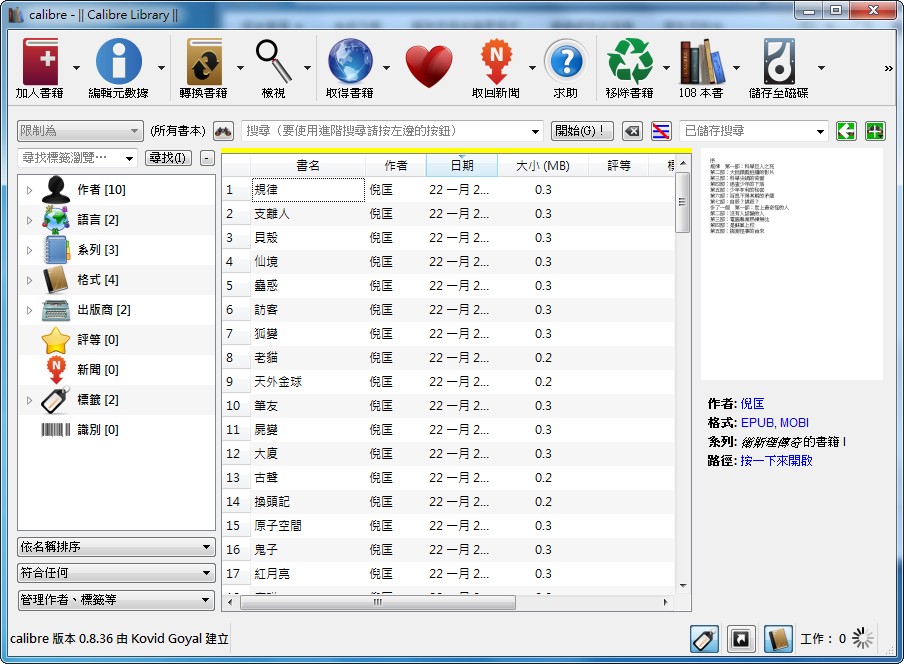
If you read e-books, I’d like to recommend a program called Calibre. If you read on your computer, you probably don’t need to convert anything. But many people read on e-book readers like the Kindle or Nook, and for them, Calibre is essential. The Kindle doesn’t support the EPUB format. It only supports formats like AZW, MOBI, and PDF. If the book you have is in EPUB format, you can’t read it directly on a Kindle. Most books from the well-known e-book site Haodu are in EPUB format, and that’s where Calibre comes in to convert them for you.
Calibre can convert files into many formats. The common ones, TXT, EPUB, MOBI, and PDF, are all supported. Its conversion isn’t just basic, either. You can do a lot of detailed editing, such as setting up the table of contents. On top of that, Calibre can send files directly to your Kindle (connected via USB). You could say that if the iPad has iTunes, the Kindle has Calibre~ It’s also worth mentioning that it supports Windows, Linux, Mac OS, and more, and there’s even a portable version that doesn’t need to be installed. XD
Calibre Info
- Official website: http://calibre-ebook.com/
- Download page: Official download page|Box.net|4Shared
- Version: 0.8.36
Calibre Tutorial
Calibre can do a lot of detailed editing, such as setting up the table of contents. But in this article, I'll only cover converting, setting book information, and sending to a Kindle, since those are the things you'll do most often. I'll cover the other detailed features in a later post.- You don’t need me to explain installation! Just keep clicking Next.
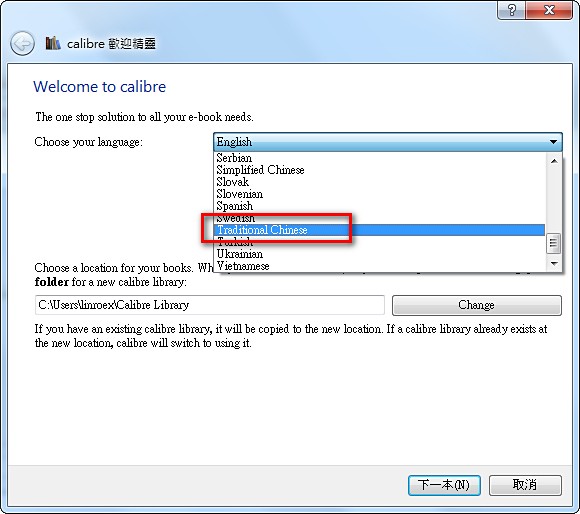
- After installing, launch Calibre. On first use, a welcome wizard appears. In the language field, choose Traditional Chinese.
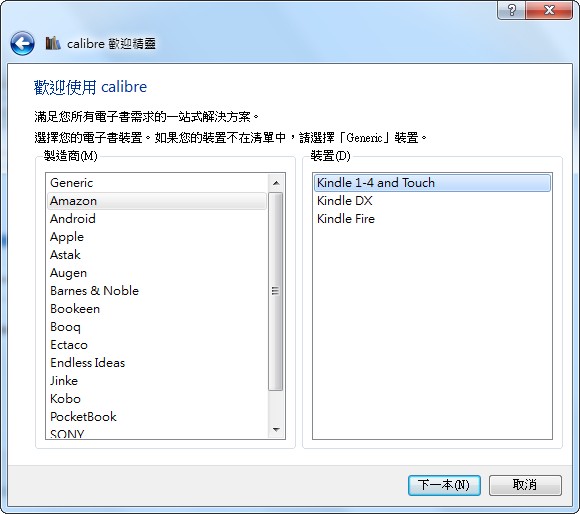
- Here you set which e-book device you have, and Calibre optimizes for that device. In my case, of course, I chose Amazon’s Kindle~ Though skipping this step is fine too. XD
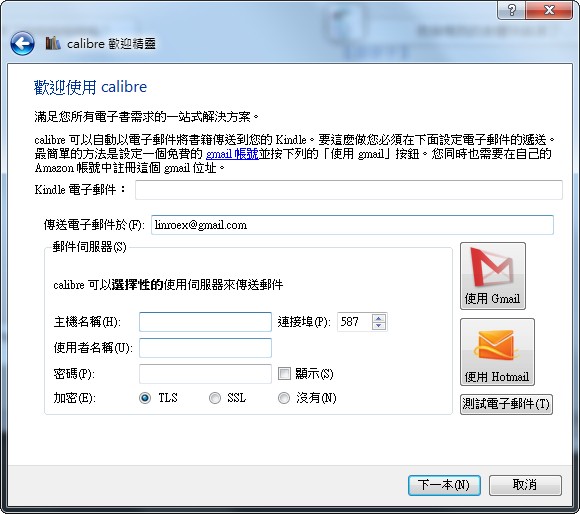
- If you chose Amazon, you can set up your Kindle email address and a few other details. This makes it easy to send files to your Kindle. You can also skip this and just click Next.
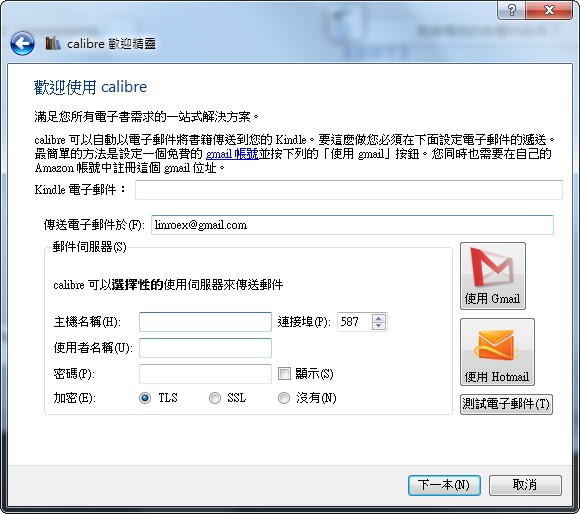
- Click Finish, and you’re done.
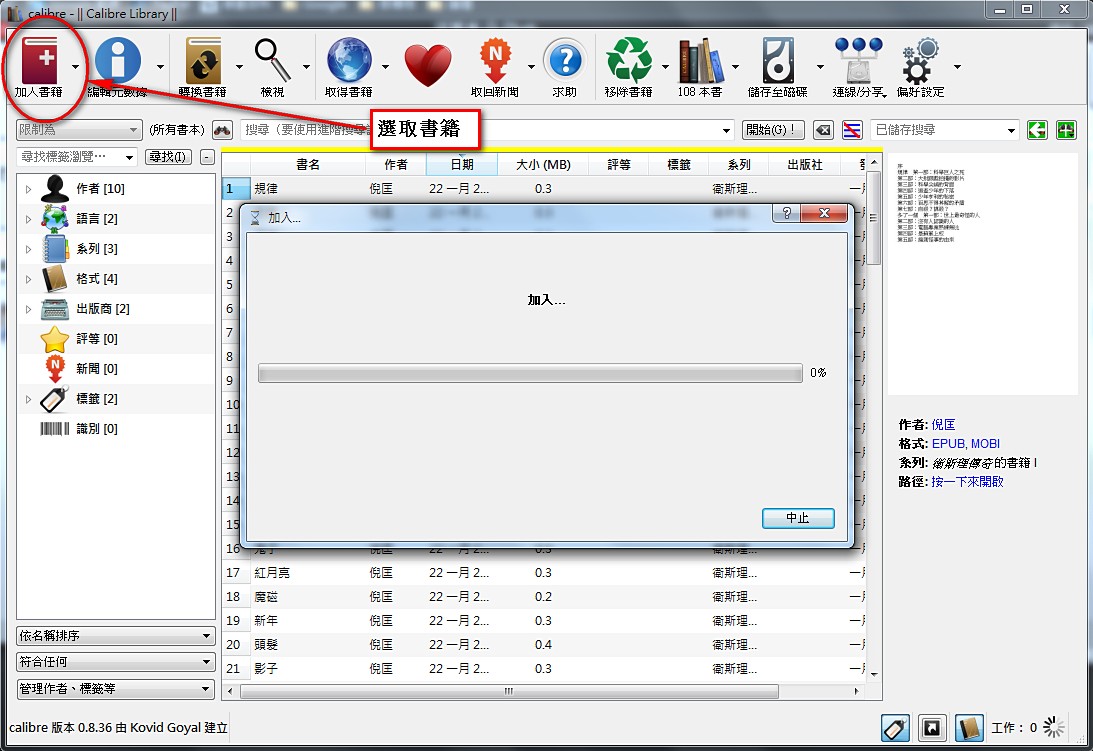
- Next, click “Add books” in the upper left, then choose the books you want to convert. You can import many books at once, or drag them straight into the Calibre window.
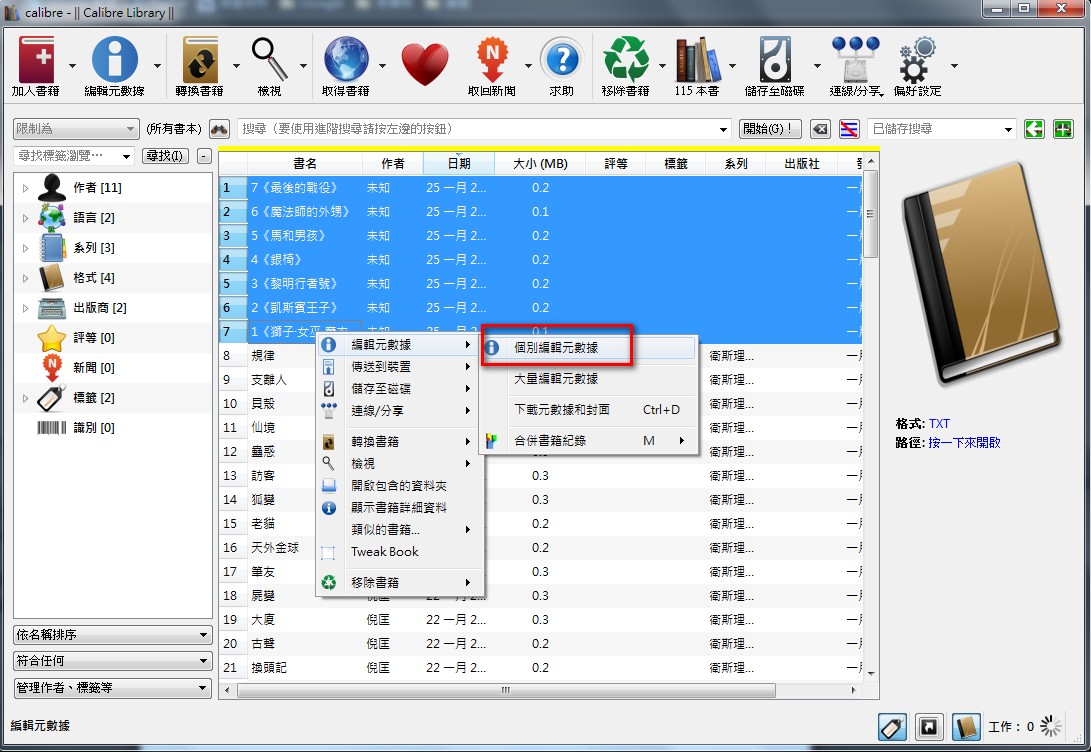
- In the central area, select the books you want to work on (hold Shift to select multiple books), then right-click -> “Edit metadata” -> “Edit metadata individually”.
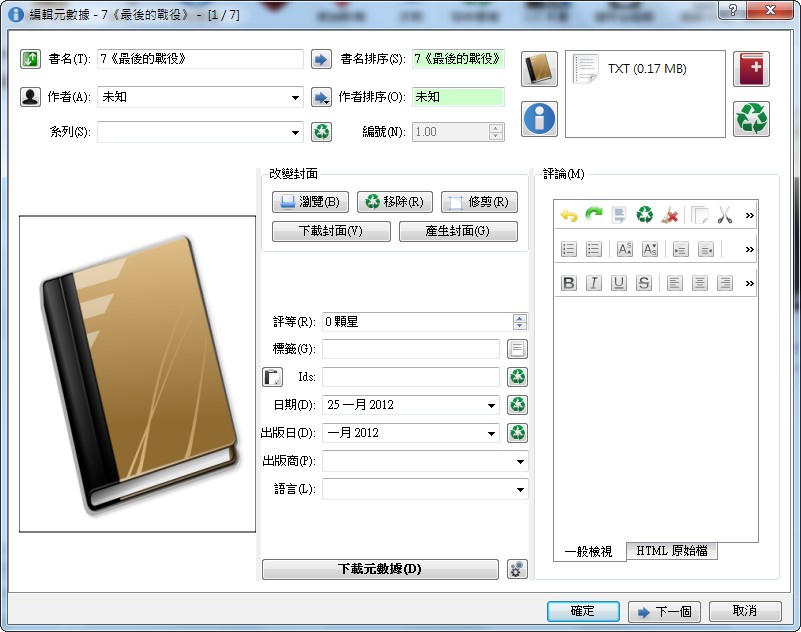
You can set things like the title, author, and publisher, and you can also add a cover. After editing, click “Next”. When you’ve finished all of them, click “OK”.
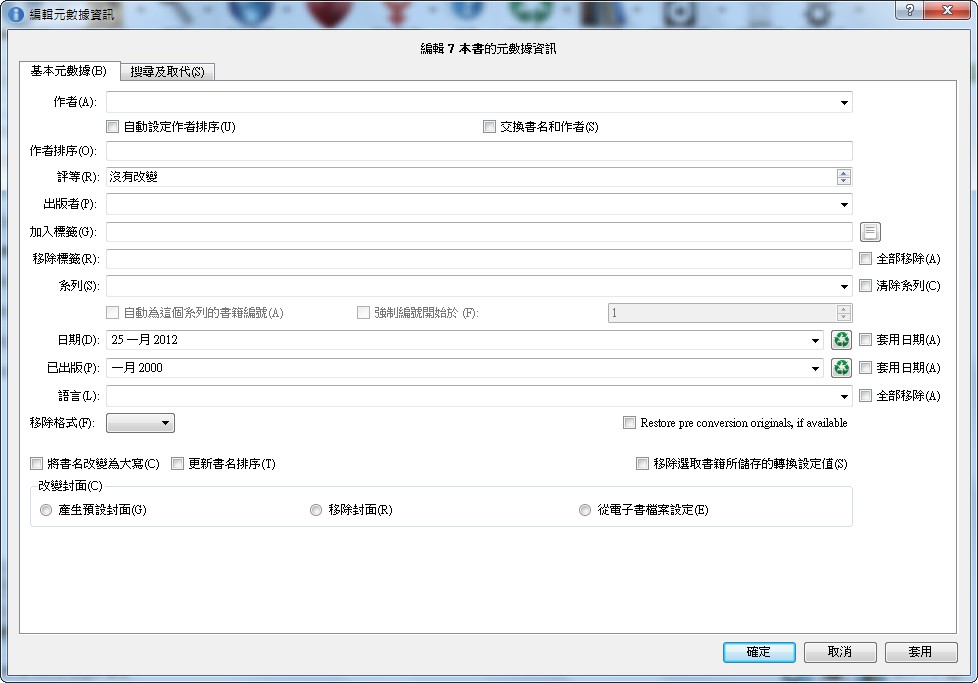
If you’re processing lots of books at once, you can also click “Bulk edit metadata”.
- After setting the book information, select the books you want to process again, then right-click -> “Convert books” -> “Bulk convert”.
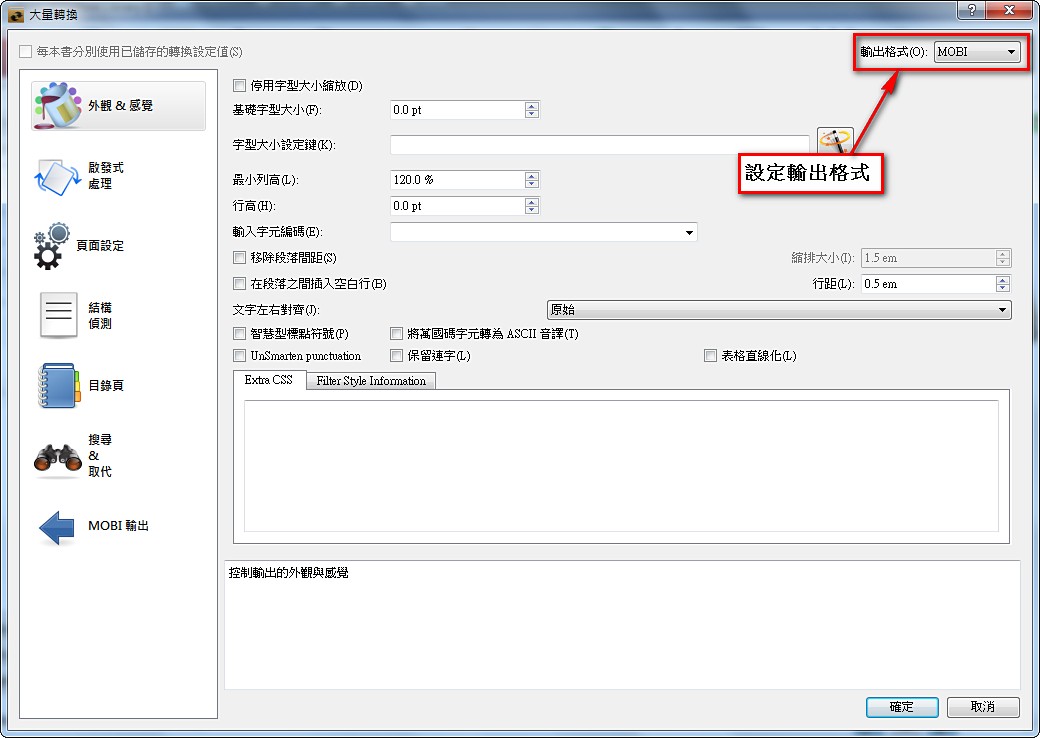
For the output format, choose the format you want. For a Kindle, MOBI is supported, so just select MOBI.
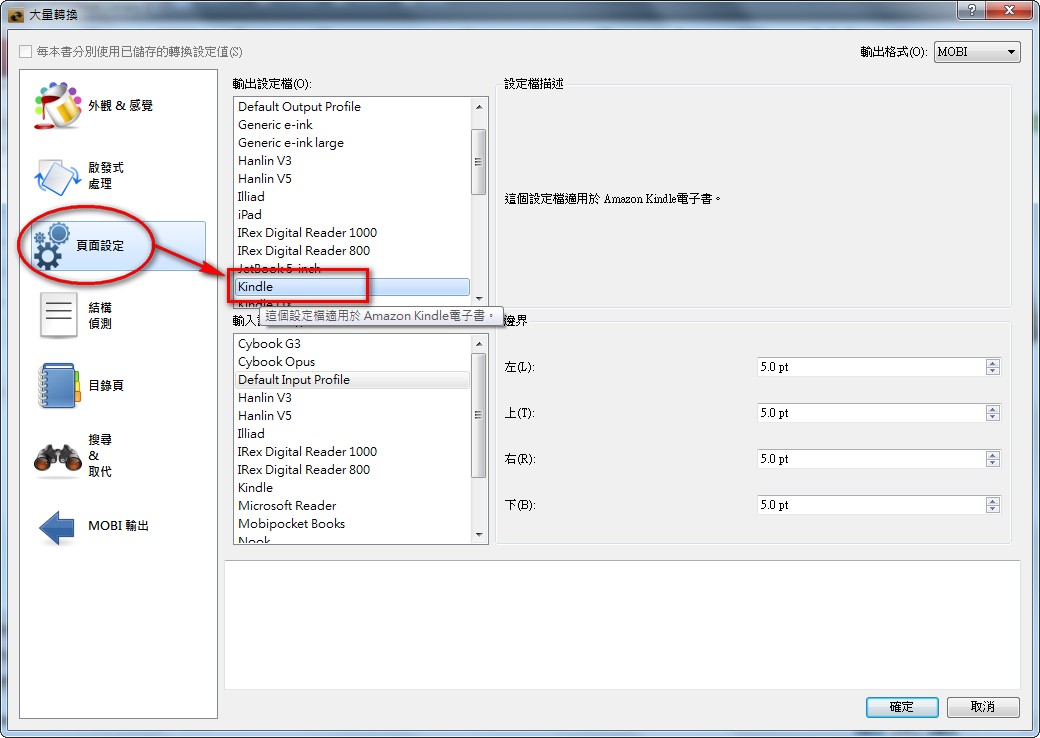
Next, select “Page setup” on the left. Under the output profile, you can set your device. In my case I set it to Kindle, and it makes some settings automatically.
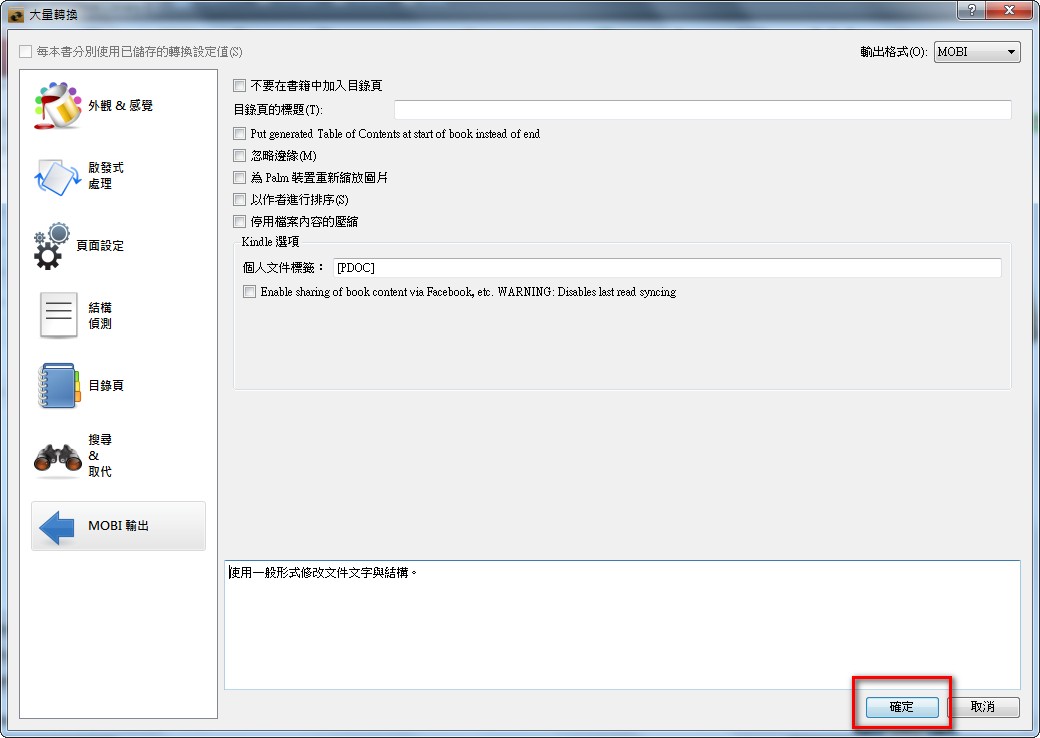
Finally, click “OK” and it starts processing.
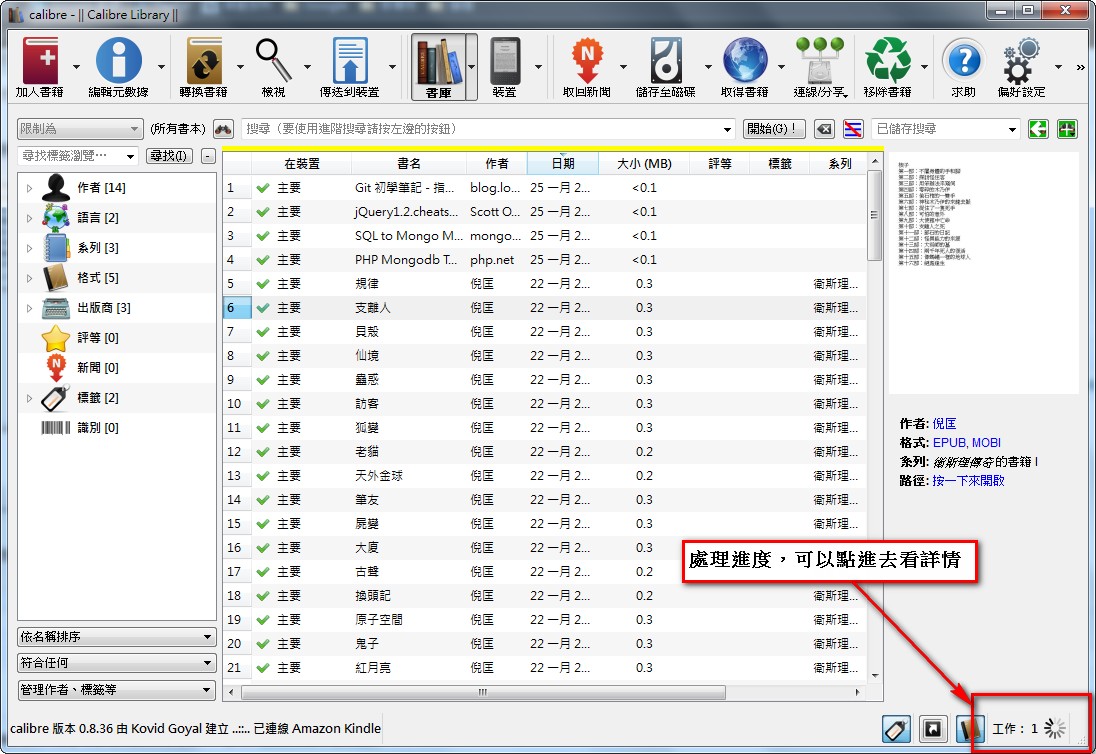
The progress is shown in the lower right corner. Click it to see the details.
- After conversion, select the files you want to process again, connect your Kindle to the computer, then right-click -> “Send to device” -> “Send specific format to” -> “Main memory”.
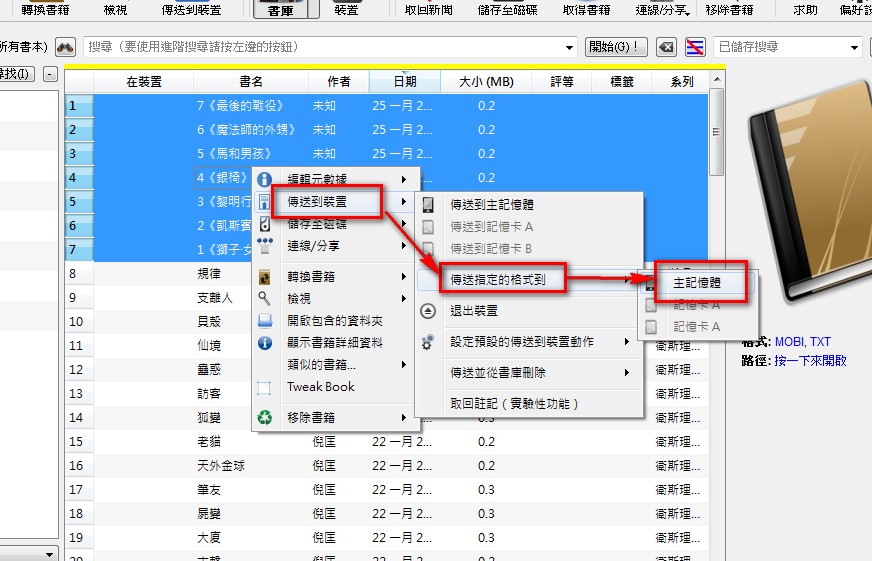
- Here you can choose which format to send to the Kindle.
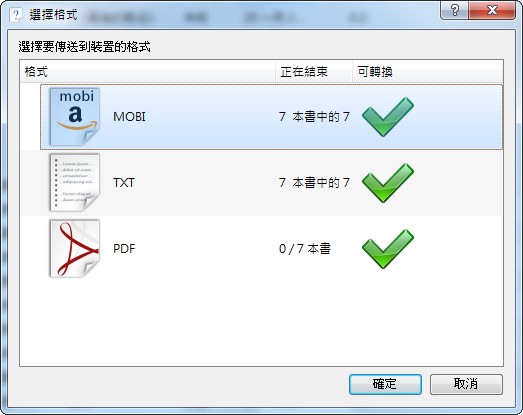
And that’s it. The transfer is complete.
- To delete e-books stored on the Kindle, click “Device”, select the books you don’t want, then right-click -> “Remove books” -> “Remove selected books”.
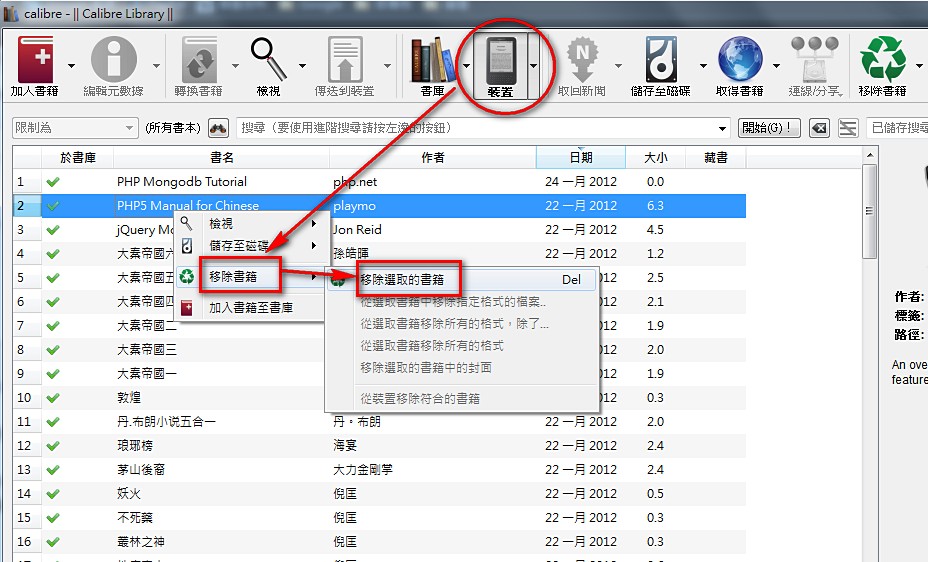
Click “Library” (the button next to Device) to switch back to the main view.
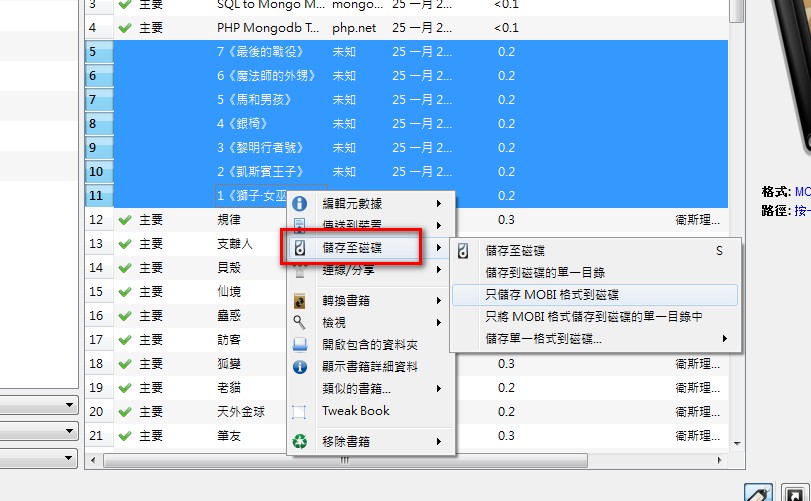
- You can also export e-books to your hard drive. Select the e-books you want to export, right-click -> “Save to disk”, then choose the options you need.