Have you ever had this problem? When you first learn crontab, you are never quite sure whether your settings are correct. After each change, you wonder whether the job will actually run the way you expect. Here I share two ways to confirm that your crontab is set up correctly!
First, you do not need to worry about syntax errors. Just like with Apache config, if the format is wrong, crontab will not let you save the file! But if you want to verify that the schedule matches what you intended, the difference can be huge. For example, you might think you set a job to run every five days, but it actually runs on the fifth day of every month. Please don’t laugh. I have made exactly that mistake myself, haha.
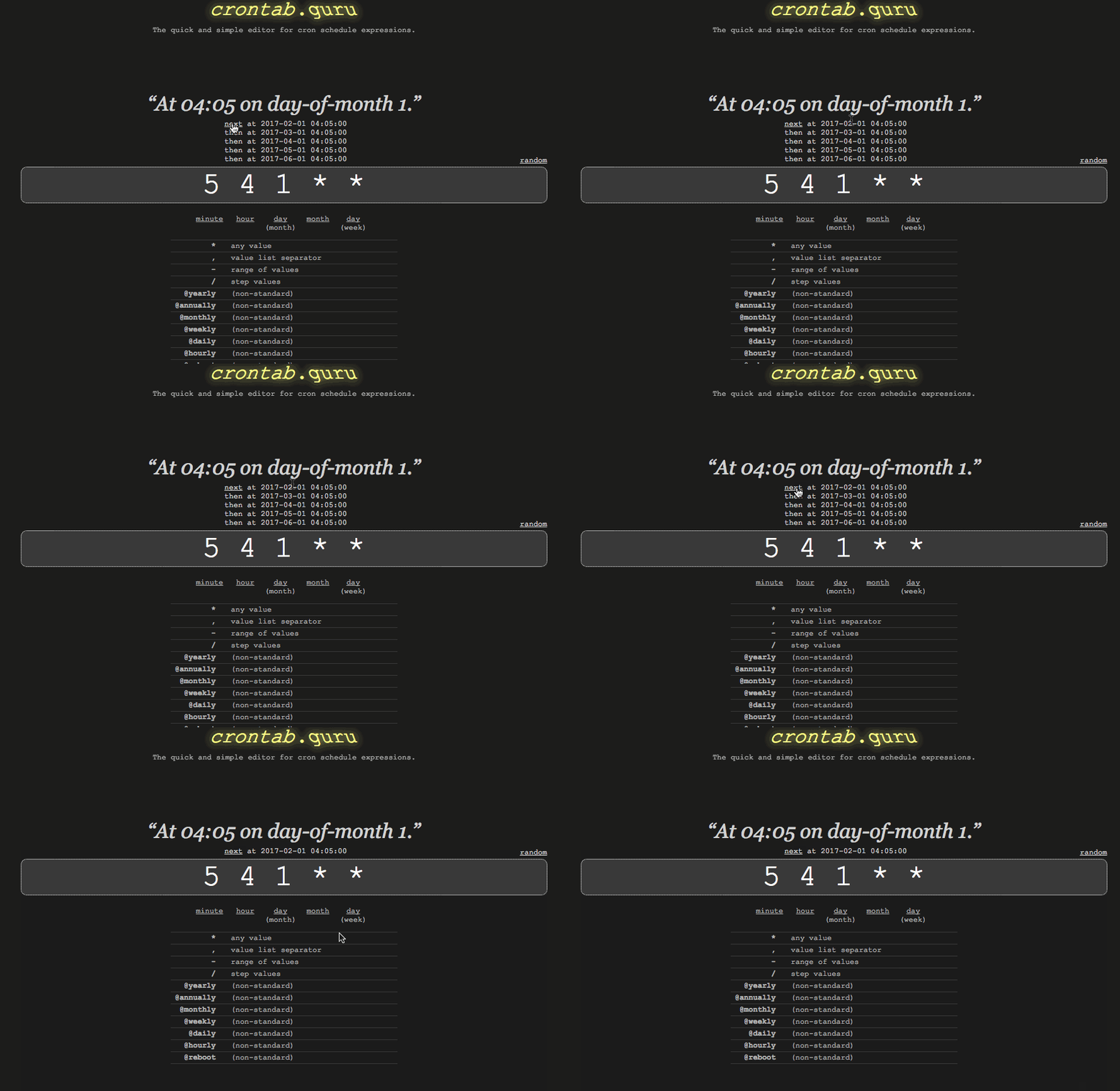
To verify the schedule, the first method is to use one of the many crontab testers available online. Here I will introduce one of them, crontab.guru. Enter your schedule string, and the site displays it in a “human-readable” form, along with the times of the “last five runs”!
The second method is for when you still do not trust online tools. On Linux, every crontab run is recorded in syslog. This lets you confirm that a job ran at the scheduled time. If the program your job runs produces any output, you can also see it here. Note: search for uppercase “CRON”, not lowercase. The two give very different results!
grep CRON /var/log/syslog*
You will see results like this:
Jan 20 04:30:01 CODERTW CRON[25813]: (root) CMD (service apache2 restart)
The date is at the beginning of each line, and the command that was run is at the end.
If there are too many CRON log entries after a run, you can try a two-step grep to find the records you need. For a more detailed explanation of this technique, see Linux Grep Tips – Searching for Lines That Contain a Given String.
grep CRON syslog.1 | grep -E "apache|backup"
Reminders
- Because syslog is split across multiple files, do not panic if you do not see your run in the log. It may be inside a compressed file.
- If the timing is not what you expected, check your server's time zone setting. Try running date in the Terminal to see the current time.