This tutorial is for Windows only.
I tested Code::Blocks myself, and I think it works quite well. It has everything Dev C++ has. One thing that disappointed me, though, is that Code::Blocks does not have a Traditional Chinese language option, which raises the barrier to using it. Most programmers are good at English (I am the exception, XD), but it is still more comfortable to use software in your own language. Another feature is that you can choose which compiler to use to build your code. You do not have to use its built-in compiler. For example, if you are writing code in Code::Blocks but want to compile it with VC++, you can set that up directly in the program.
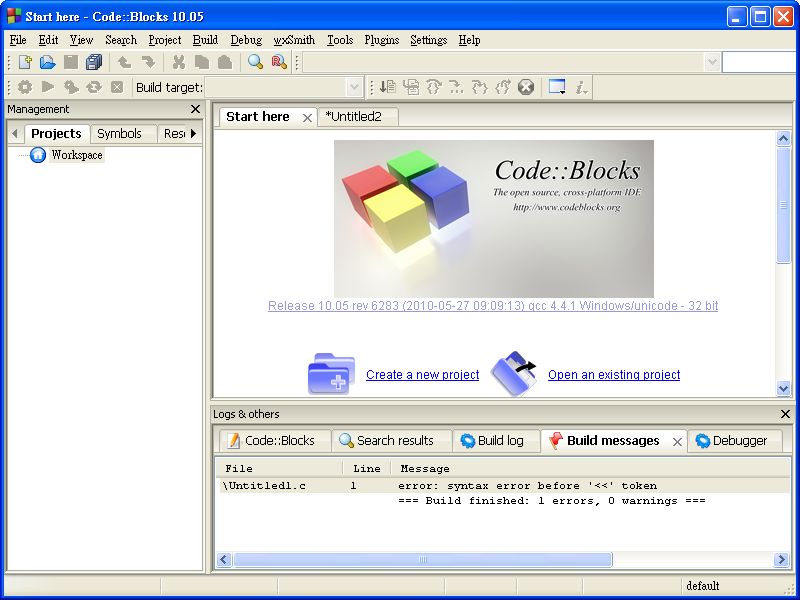
Code::Blocks Info
- Official website: http://www.codeblocks.org/
- Supported languages: English...
- Download page: http://www.codeblocks.org/downloads/26
- Supported operating systems: Linux, Windows (2000 to 7), Mac
Code::Blocks Features
- Supports three operating systems
- Supports plugins
- Still being updated (unlike Dev C++)
Code::Blocks Installation Guide
This article covers Windows only.Step 1: Go to the official Code::Blocks website and download the main program, then run the installer.
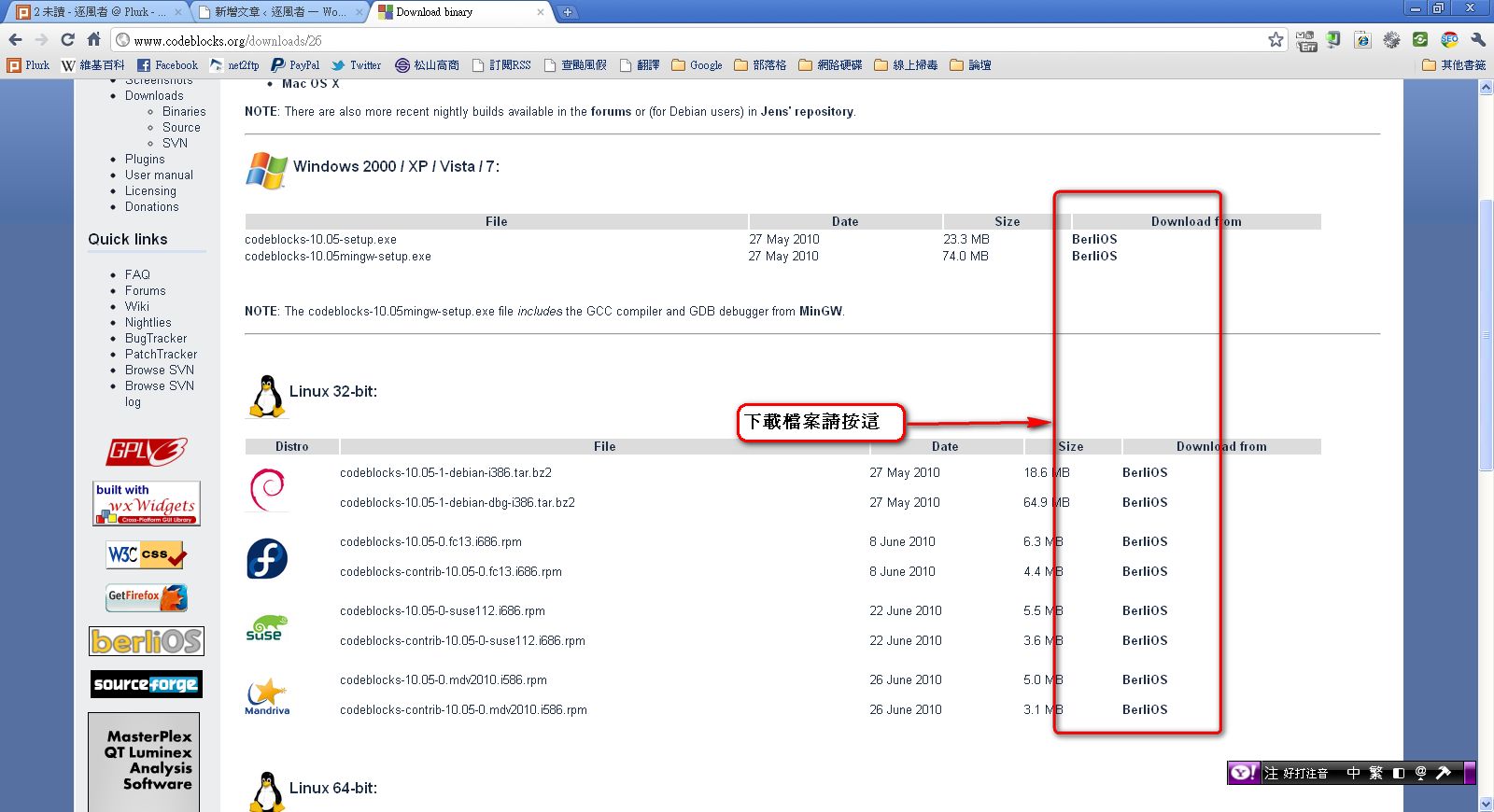
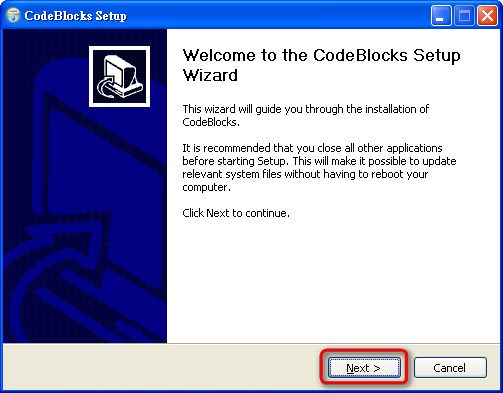
Step 2: Click Next.
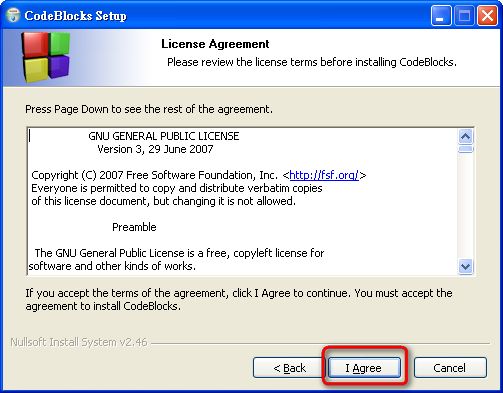
Step 3: Click I Agree.
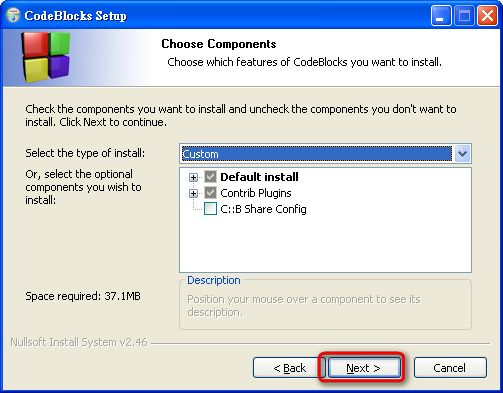
Step 4: Click Next.
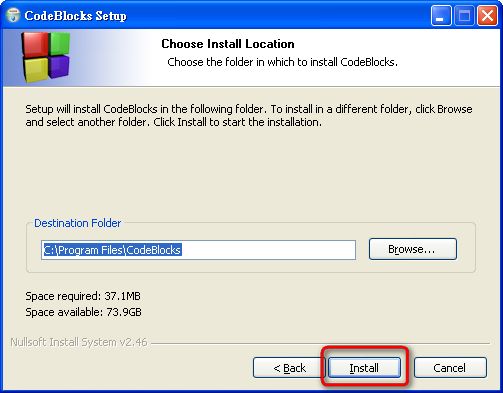
Step 5: Click Install to start the installation.
Code::Blocks Tutorial: Creating a New Console Project
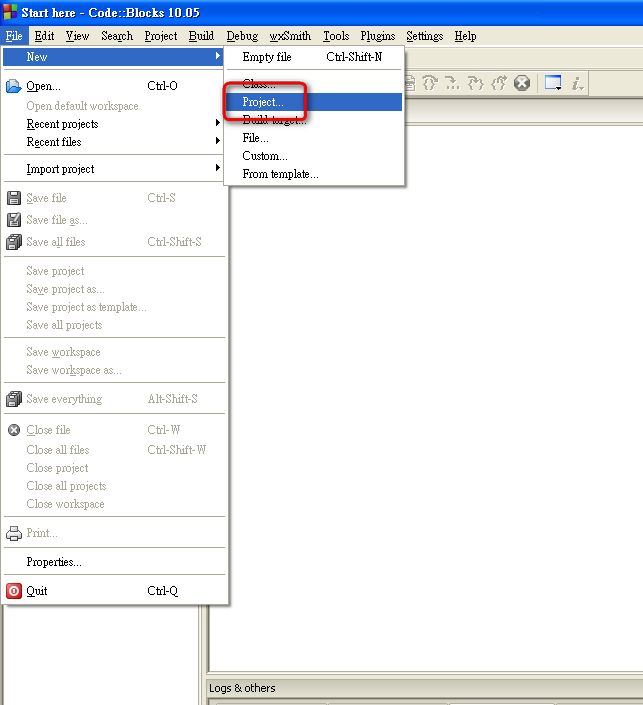
In this tutorial, I will only cover the basics that beginners use most often, which is the console application. Code::Blocks can do much more than I can cover here. Besides Console, its built-in project templates include Code::Blocks Plugins, DirectX, ARM Project, and many more. If you are comfortable with the basics, feel free to explore the others on your own.Step 1: Open Code::Blocks and click File → New → Project, in that order.
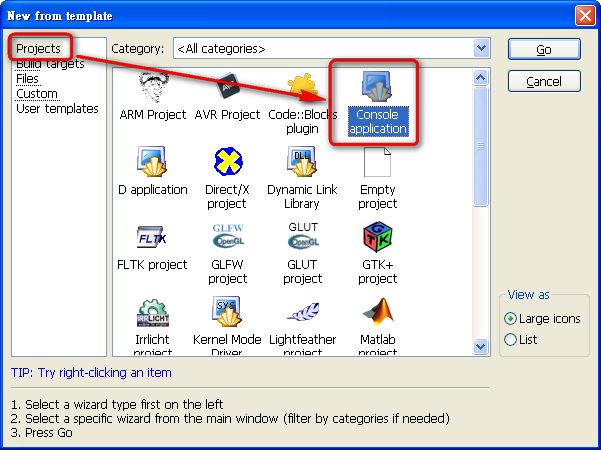
Step 2: On the left, select Projects, then select Console Application and click Go.
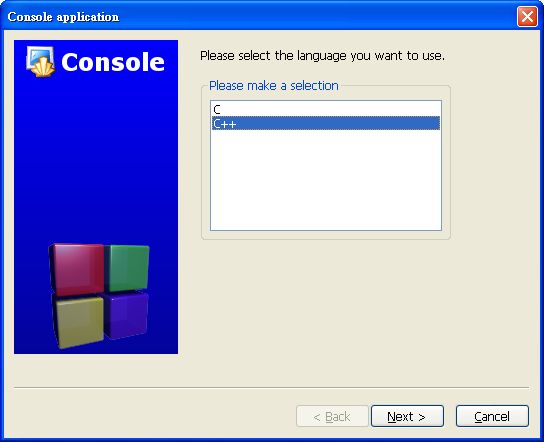
Step 3: Here you choose whether to develop in C or C++. After you make your choice, click Next.
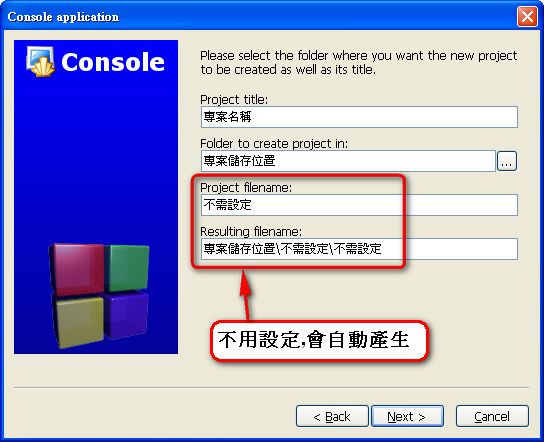
Step 4: Set the project’s name and where it is stored.
“Project Title” is the name of the project.
“Folder to create project in” is where the project will be saved.
You do not need to change the two options below these.
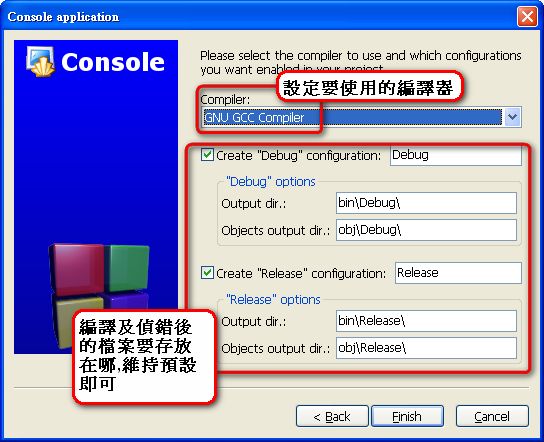
Step 5: Set the build options. It is best to keep the default values. When you are done, click Finish.
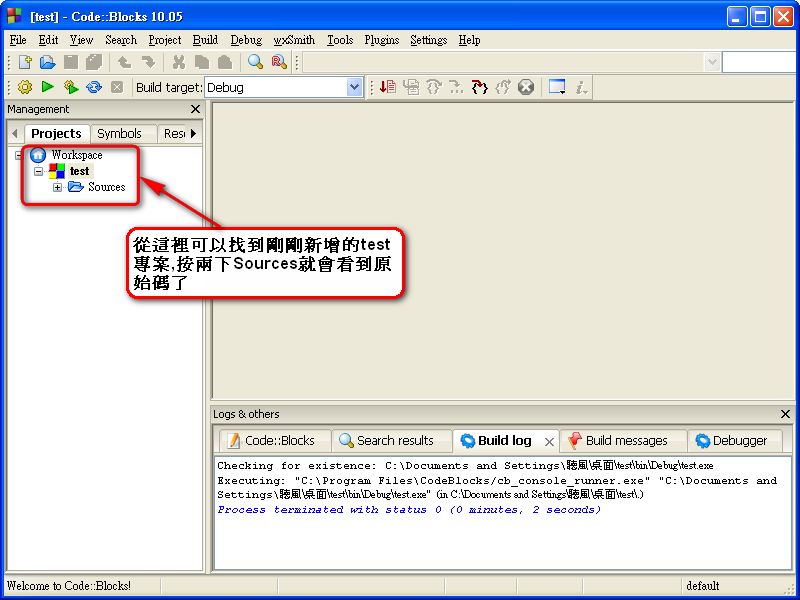
Step 6: After you click Finish, you might wonder why nothing appears. Do not worry. You can open the project you just created from the Projects panel on the left side of the main window. Then press F9 on your keyboard to build the program.