This post shows you how to turn a “video” into “music.” Often you might download a great music video from a video-sharing site (for example, YouTube), but the file is in a video format such as MP4 or FLV. In that case, you can use the audio track extraction feature built into MediaCoder to convert the video into an audio file!
For the basics and installation of MediaCoder, see my earlier post “MediaCoder: A Free Transcoder with GPGPU Support”
Audio Track Extraction Tutorial
1. Launch MediaCoder, load the video you want to process, go to the "Audio" tab, and choose "MP3" in the "Format" field.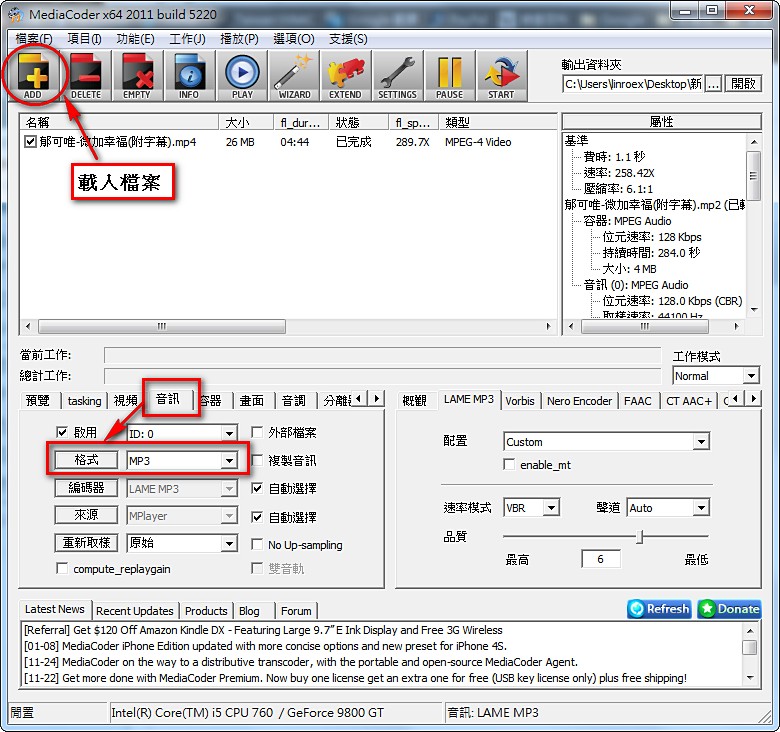
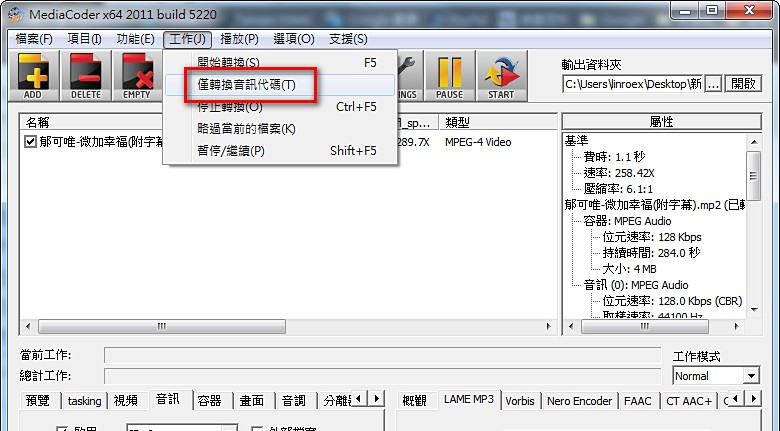
- Set the “Output folder,” then go to “Job” -> “Transcode audio only.”
- Done!
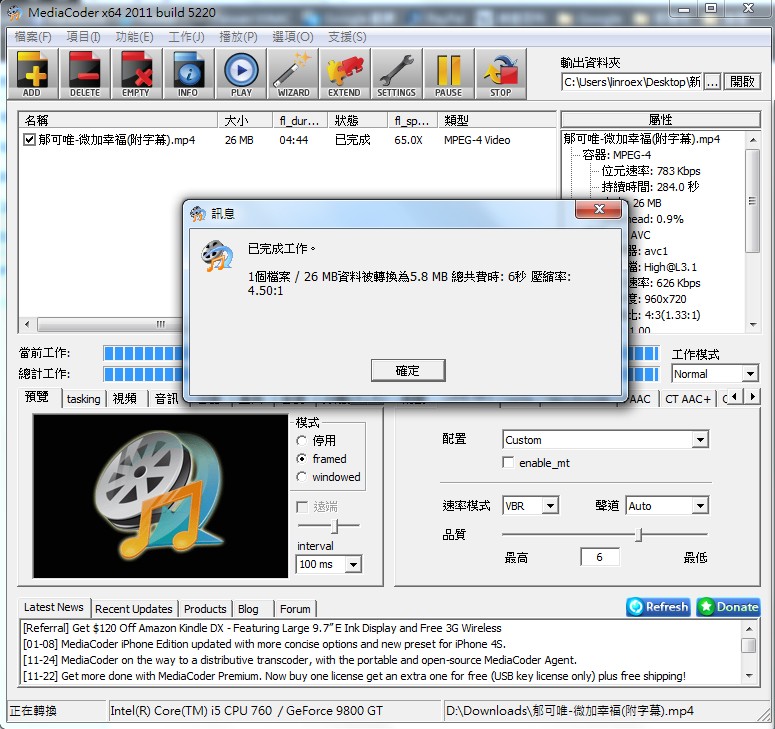
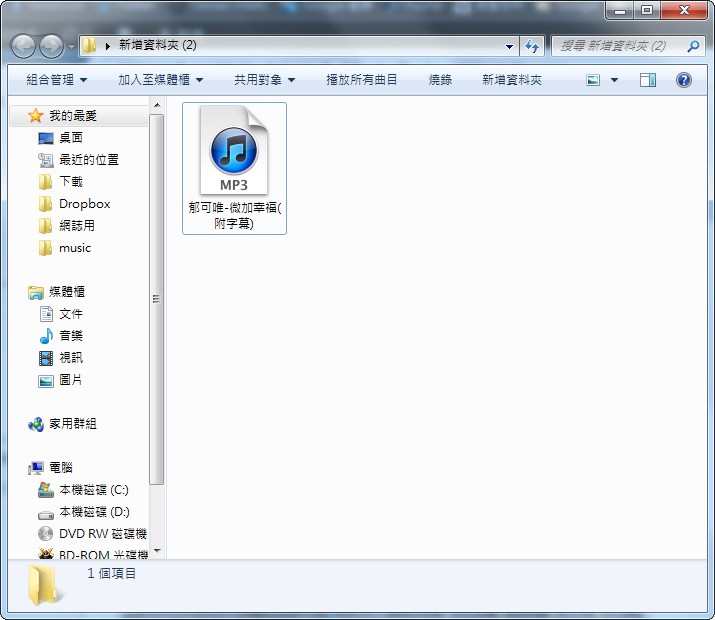
Summary: MediaCoder is really convenient. It has audio track extraction built in, and it works well with FastestTube, which I introduced earlier. Download the videos from YouTube with FastestTube, then use this audio track extraction feature to batch-convert them into music!