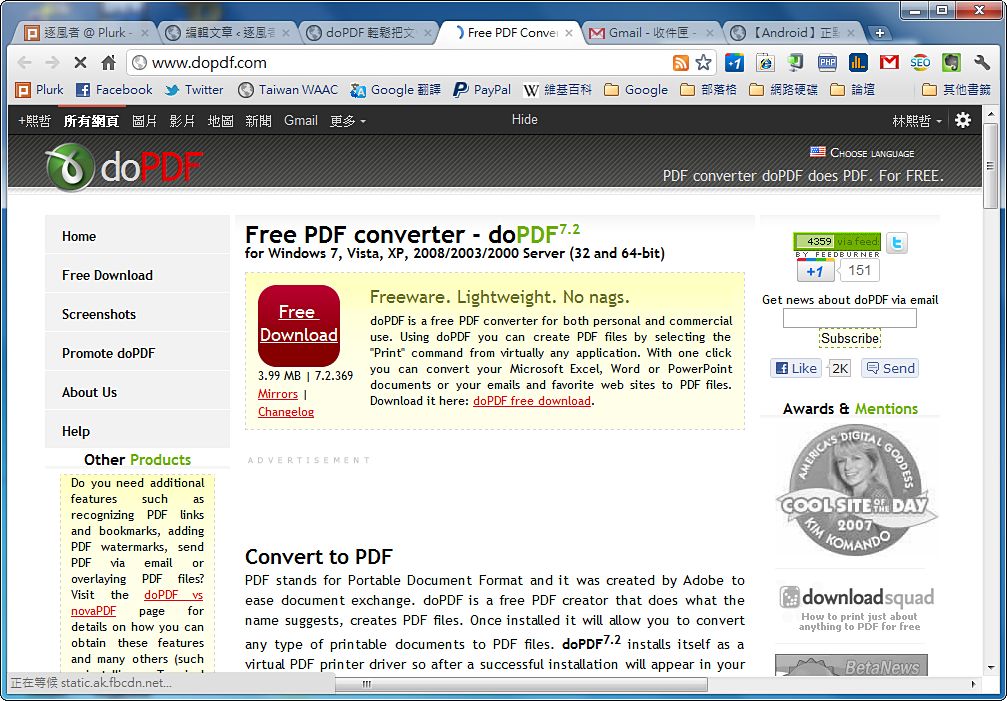
Sometimes we want to convert a Word document into PDF format, or we come across something funny or useful online that we want to keep. That’s when you’ll use doPDF! Unlike ordinary conversion software, which requires opening a main program, doPDF works through “printing.” Normally, when you print a file, you get a physical document, but with doPDF, “printing” produces a PDF file instead.
Actually, doPDF has been around since my first year of junior high school. Back then I liked browsing the software download section on Pchome, and I happened to come across doPDF. I never imagined it would still be around today and become quite well known. I remember going to the library to use the computers in junior high, and seeing this program brings back memories of those days xD Does this make you nostalgic?
About doPDF
- Official website: http://www.dopdf.com/
- Download: Official link | 4Shared | Box.net
- Virus scan report: http://goo.gl/updde
- MD5: 7bed5ff44800485ed4a9ab7bebf32a4c
- Price: Free
doPDF Installation and Usage Guide
1.Set the language to Traditional Chinese, then click "OK"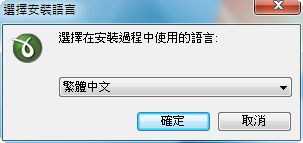
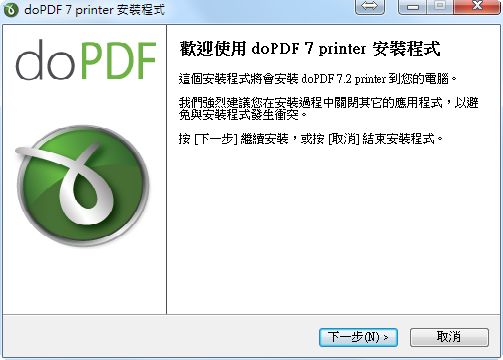
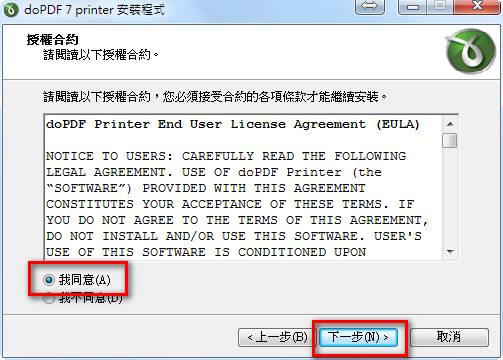
2.Just keep clicking “Next” until the installation finishes. When you reach the license agreement, remember to select “I accept the agreement.”
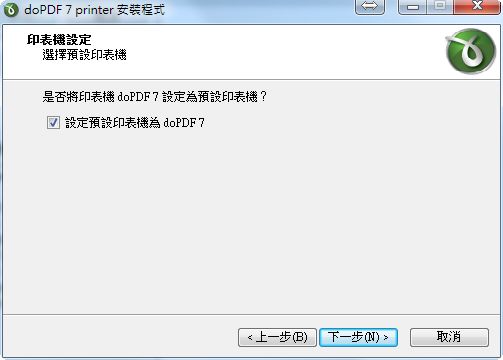
3.Decide for yourself whether you want to set doPDF as your default printer.
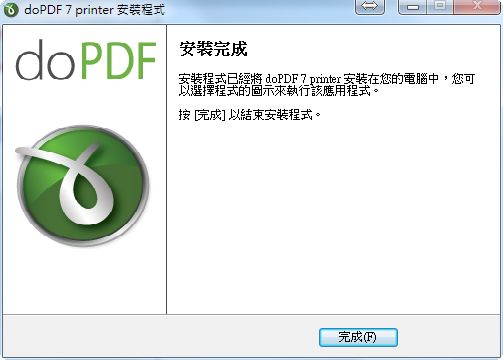
4.Installation complete
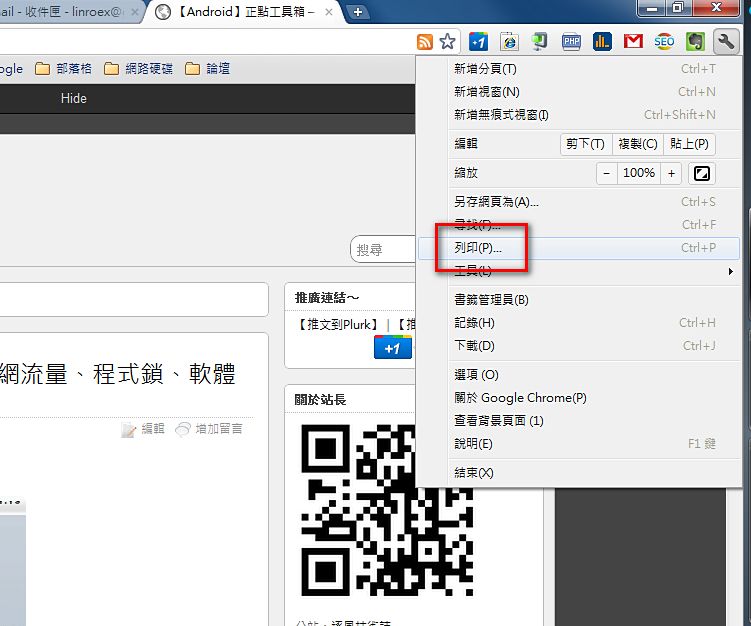
5.Next, open the document or web page you want to convert to PDF, then run the print command! (For web pages, find the print button in your browser. For ordinary Office documents, it’s File → Print in the top left corner.)
6.Set the printer to “doPDF” and click “Print.”
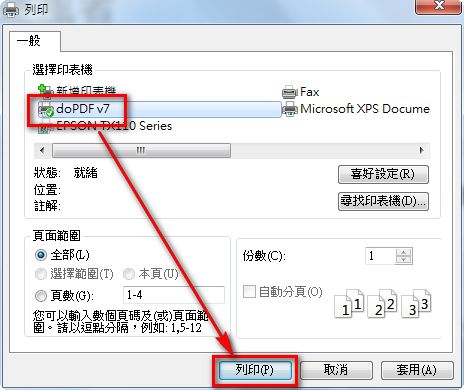
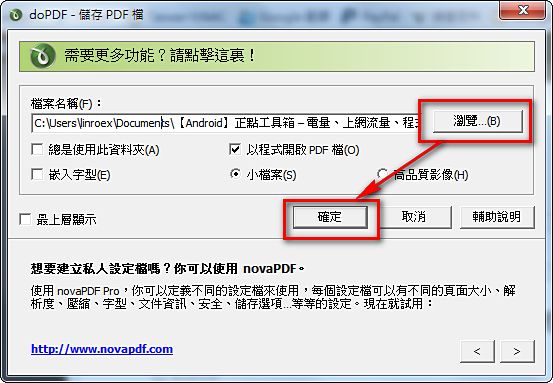
7.A settings window will appear. You can click “Browse” to choose where to save the file, then click “OK” to start the conversion!