Calling Dropbox an online hard drive actually sells it a bit short, but it’s the only name I can think of right now. If anyone has a better name, please let me know! Dropbox’s main function is that you install a client program on your computer. When you have a file to upload, you just drop it into the Dropbox client and it’s uploaded. Dropbox also gives free users 2GB of space, and if you recommend Dropbox to someone else, your space can grow too (up to 8GB). Personally, I feel 2GB is already enough.
I first got into Dropbox because of my mom. She kept saying she wanted to find a place to back up her documents, but with an ordinary online hard drive there were too many steps, and she always forgot the upload part. Later, an internet friend (I don’t even know who it was = =) sent me a Dropbox invitation, so I recommended it to my mom. After she tried it for a while, she also said it was very convenient XD. Dropbox has versions for Windows, Mac, Linux, and iPhone, so I can sync my data easily. But one word of warning: although Dropbox lets you share your files, don’t expect to upload files of several hundred MB, because Dropbox is better suited to syncing documents and images. Uploading games would take a long time, and you might get disconnected halfway through.
Dropbox Information
- Website: http://www.dropbox.com/
- Client download: http://www.dropbox.com/downloading
- Free base storage: 2GB
Installing the Dropbox Client
1.First, go to the Dropbox website and download the main program by clicking "Download Dropbox."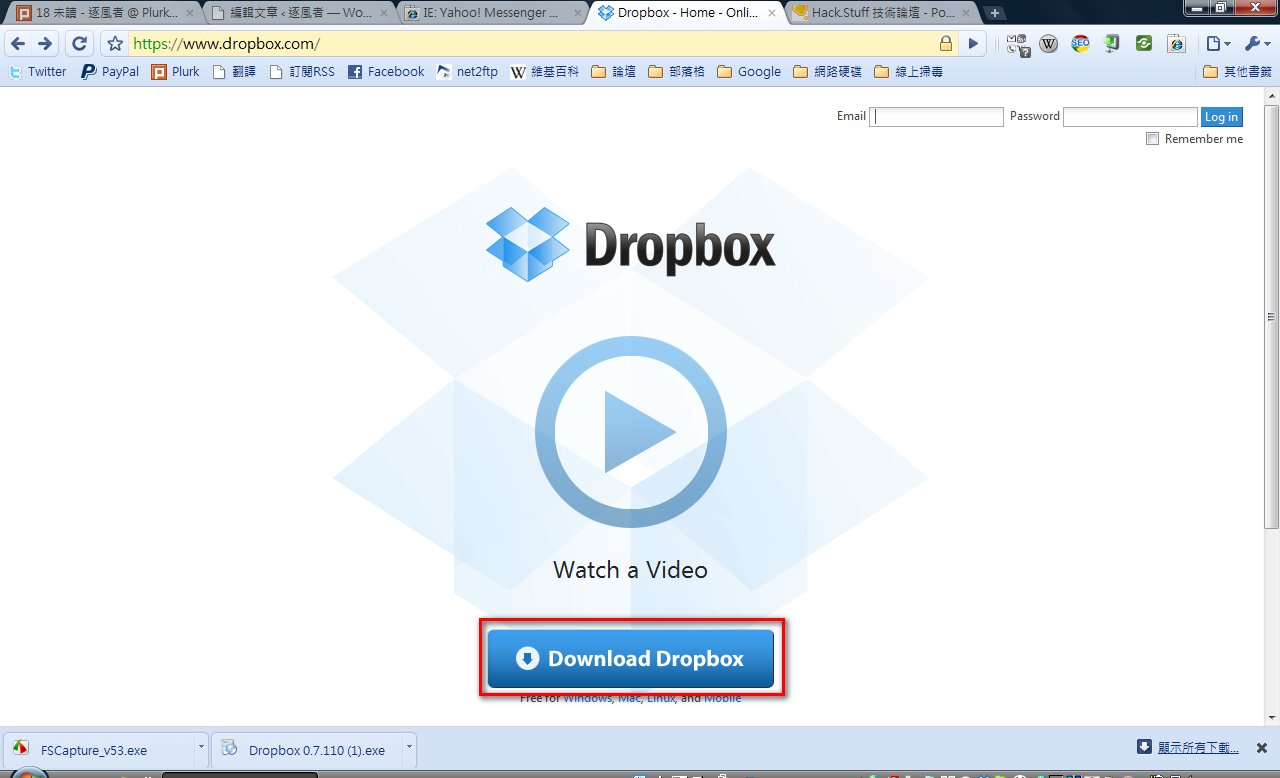
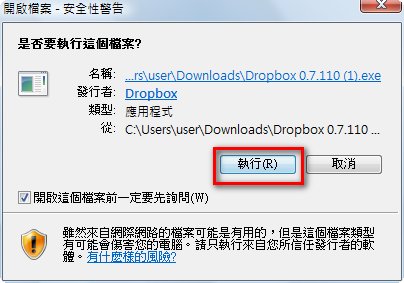
2.After downloading Dropbox, open the installer and click “Run.”
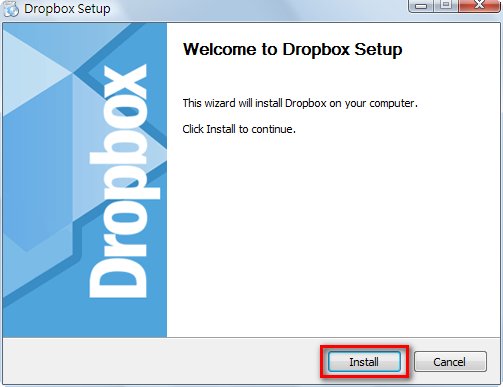
3.Click “Install.”
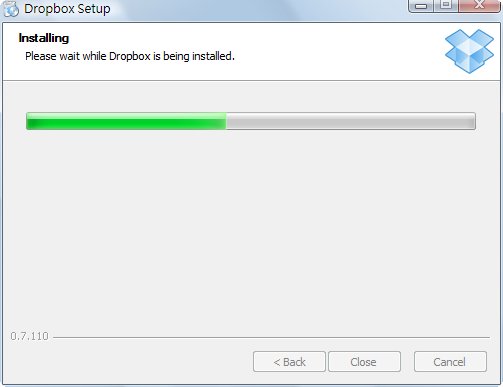
4.Installing
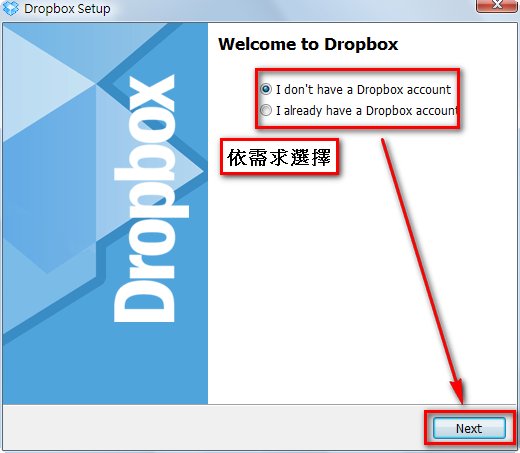
5.If you already have a Dropbox account, click “I already have a Dropbox account.” If you don’t have one, click “I don’t have a Dropbox account” and then click “Next.”
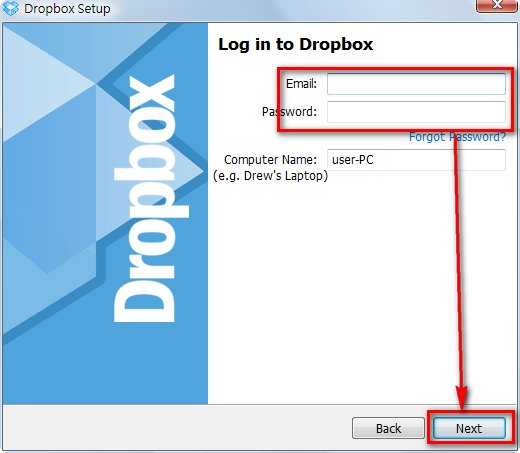
If you chose “I already have a Dropbox account,” enter your username and password, click Next, and you’re done~
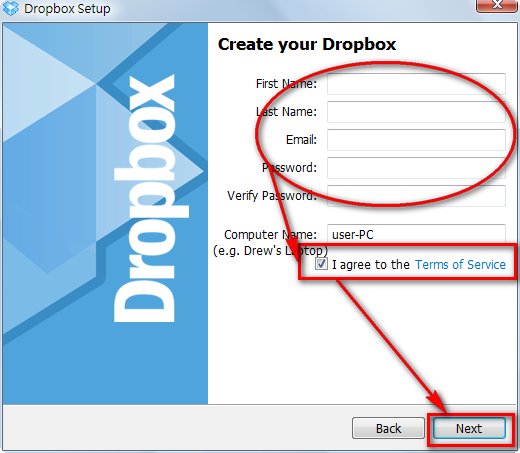
If you chose “I don’t have a Dropbox account,” enter the account name you want and your information, then click Next and continue to the next step.
The sign-up form fields and the author's explanations are as follows:First name surname
Last name given name
E-mail email address (account)
password password
verify password confirm password (re-enter the password)
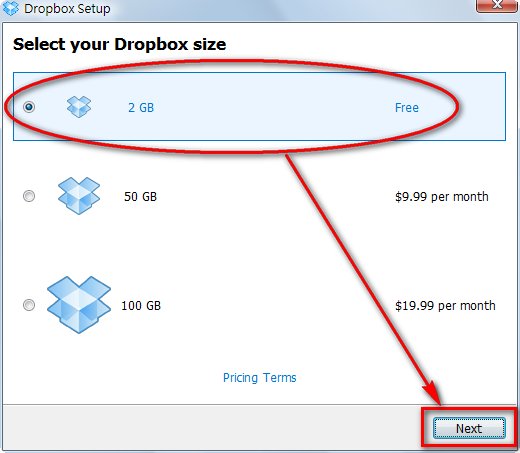
6.Choose the 2GB plan and click Next
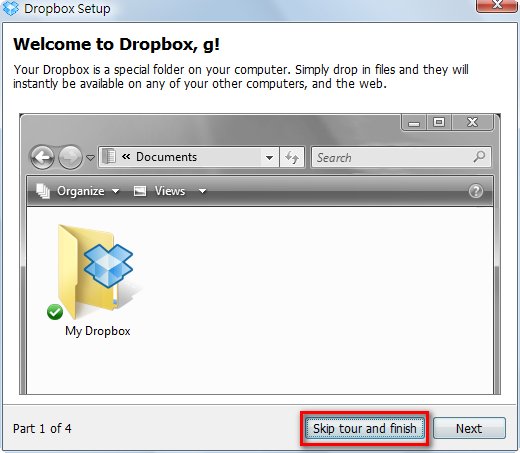
7.This part is a tutorial, so just click “Skip tour and finish”
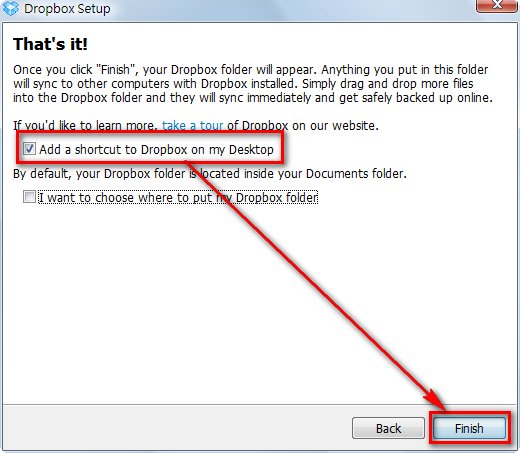
8.Keep the default settings and click “Finish”
That completes the installation. Using it is simple: first open the Dropbox main program from your desktop, and then you can start using it. To upload a file, just drag it into the Dropbox main program (folder). It works the same way as Windows Explorer.
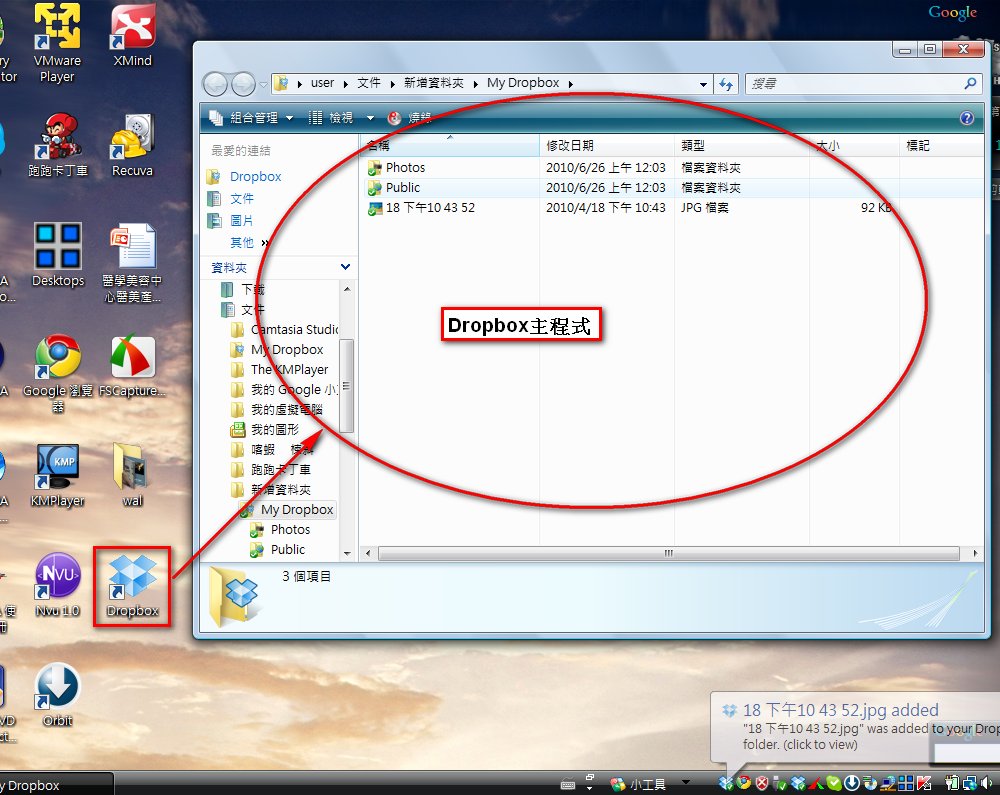
P.S. Windows Explorer: every day when you copy, move, and delete files, you’re using Windows Explorer.
Sending Dropbox Invitations
1.Go to the Dropbox website, enter your username and password in the upper right corner, and click "Log in."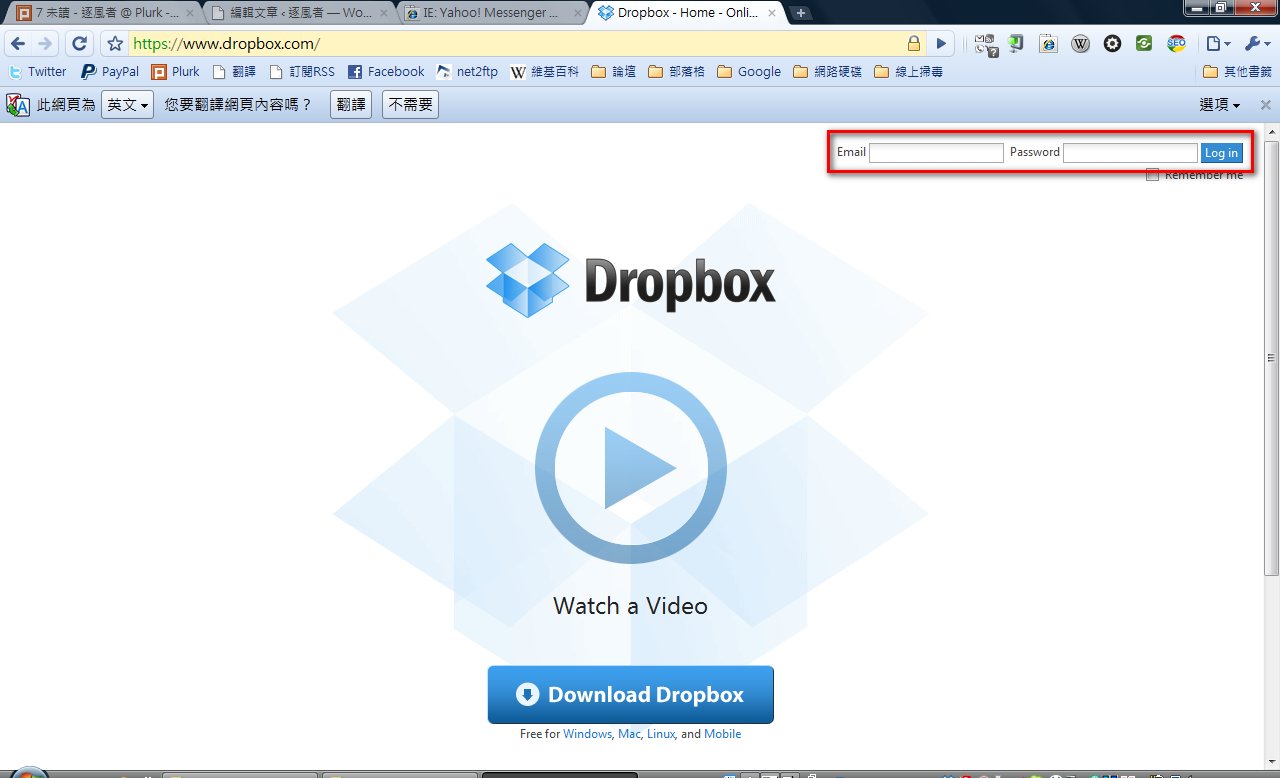
2.Click “Get Extra Space Free.”
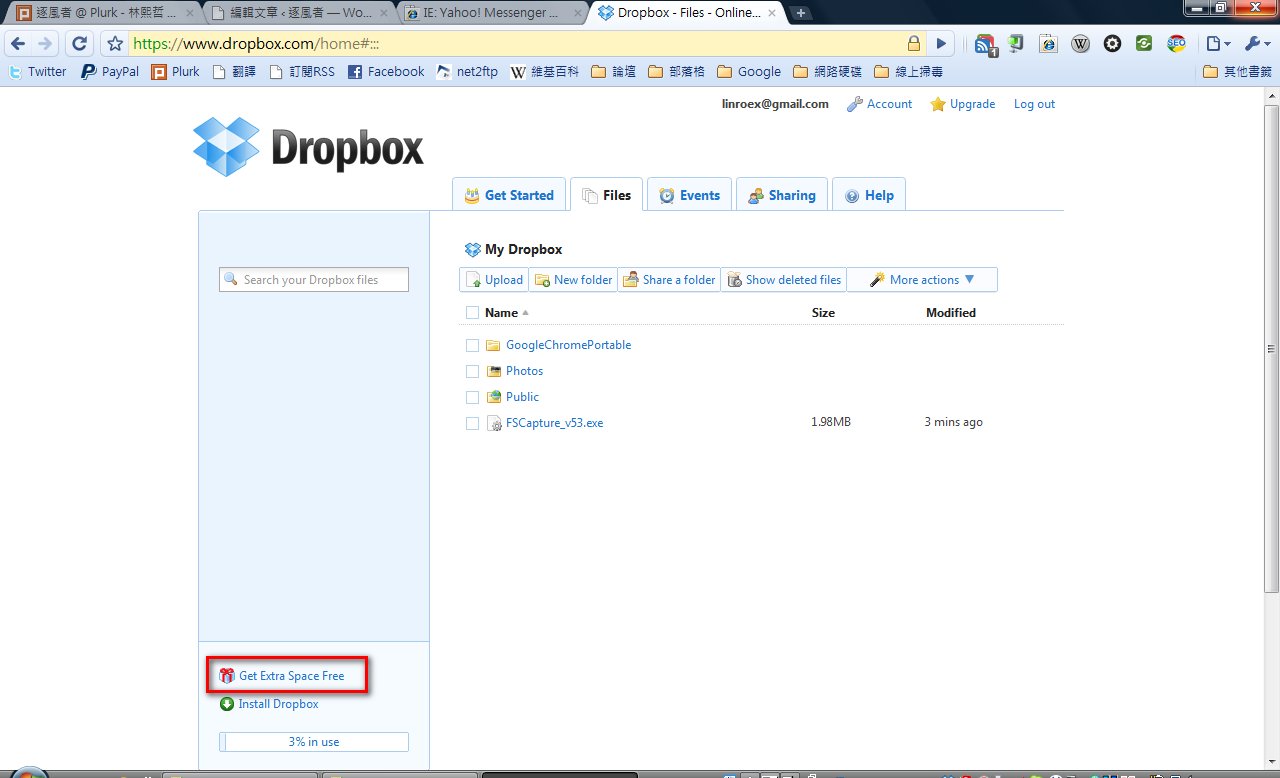
3.There are three ways to invite people to join Dropbox. Each time someone you invite joins, you get 250MB of extra space.
Method 1 (A): Give others a direct link to invite them (this method is for instant messaging, forums, and blogs).
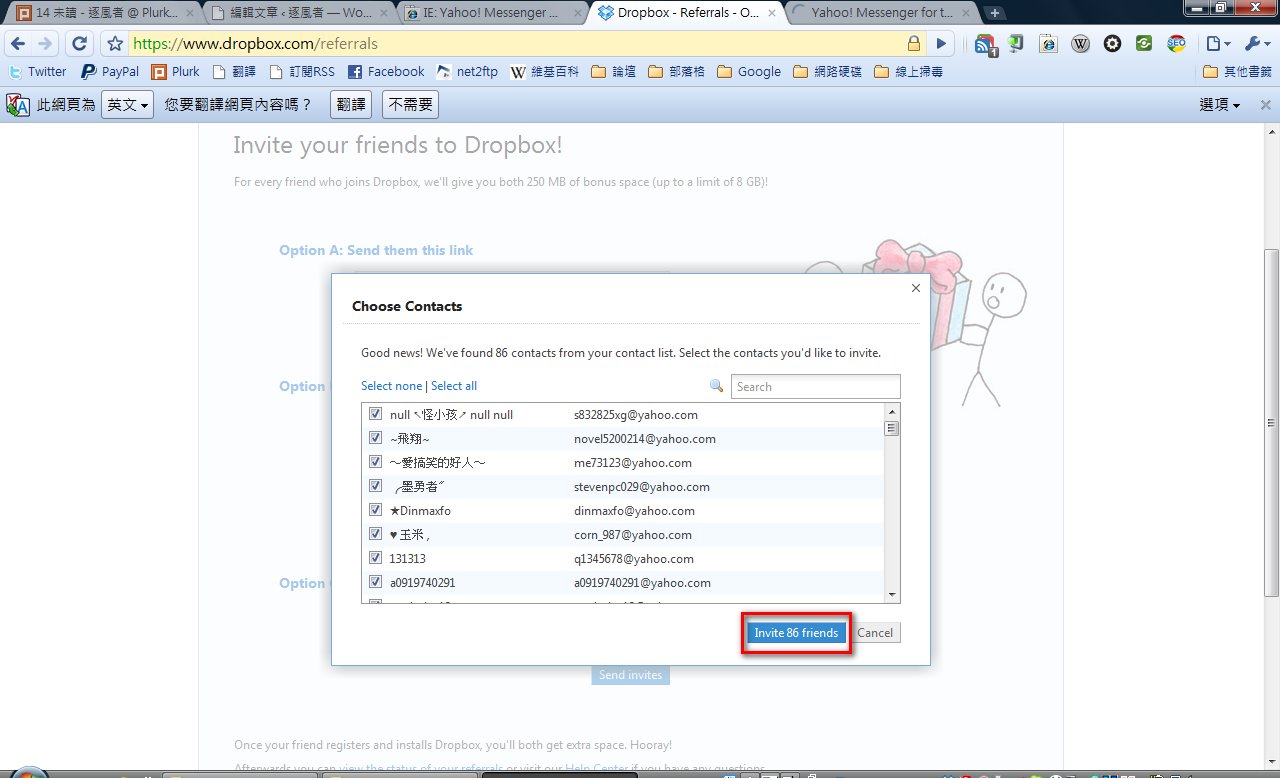
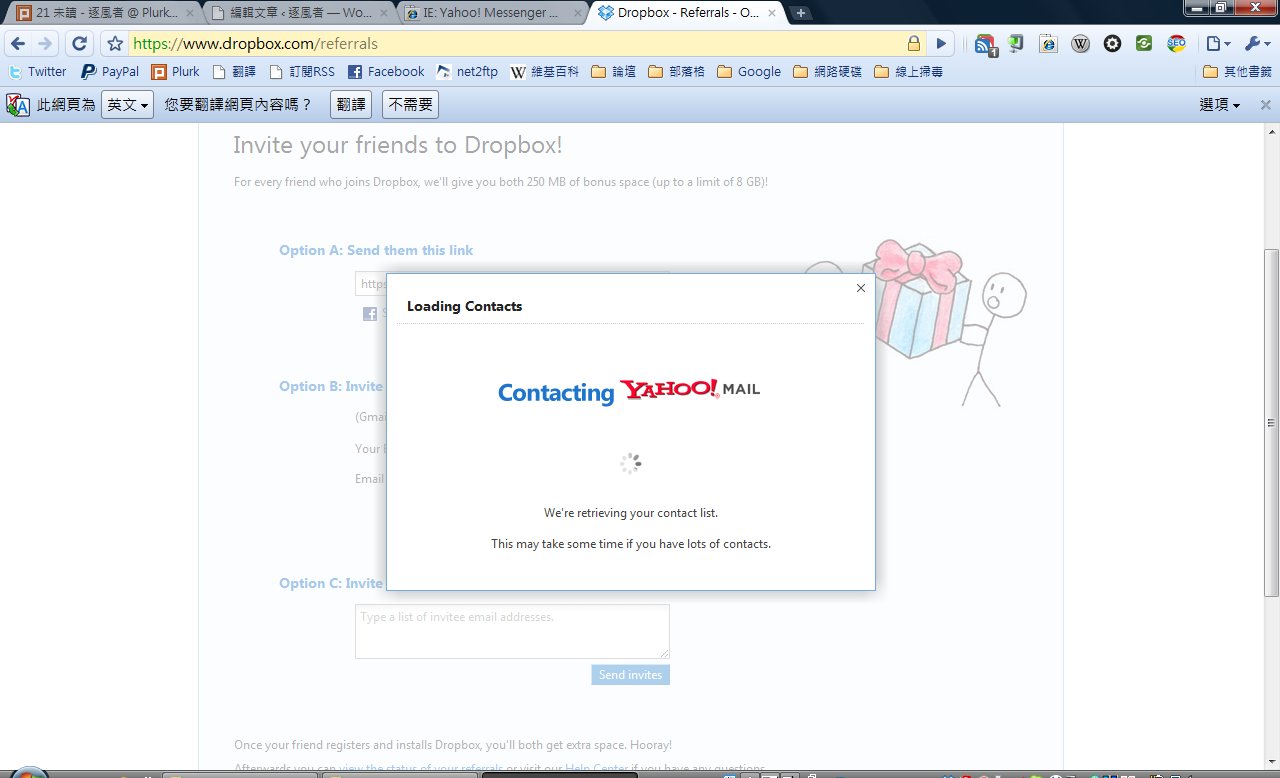
Method 2 (B): Let Dropbox search your contacts and send invitations to the people in them.
Method 3 (C): Manually enter the email addresses of the people you want to invite and send the invitations.
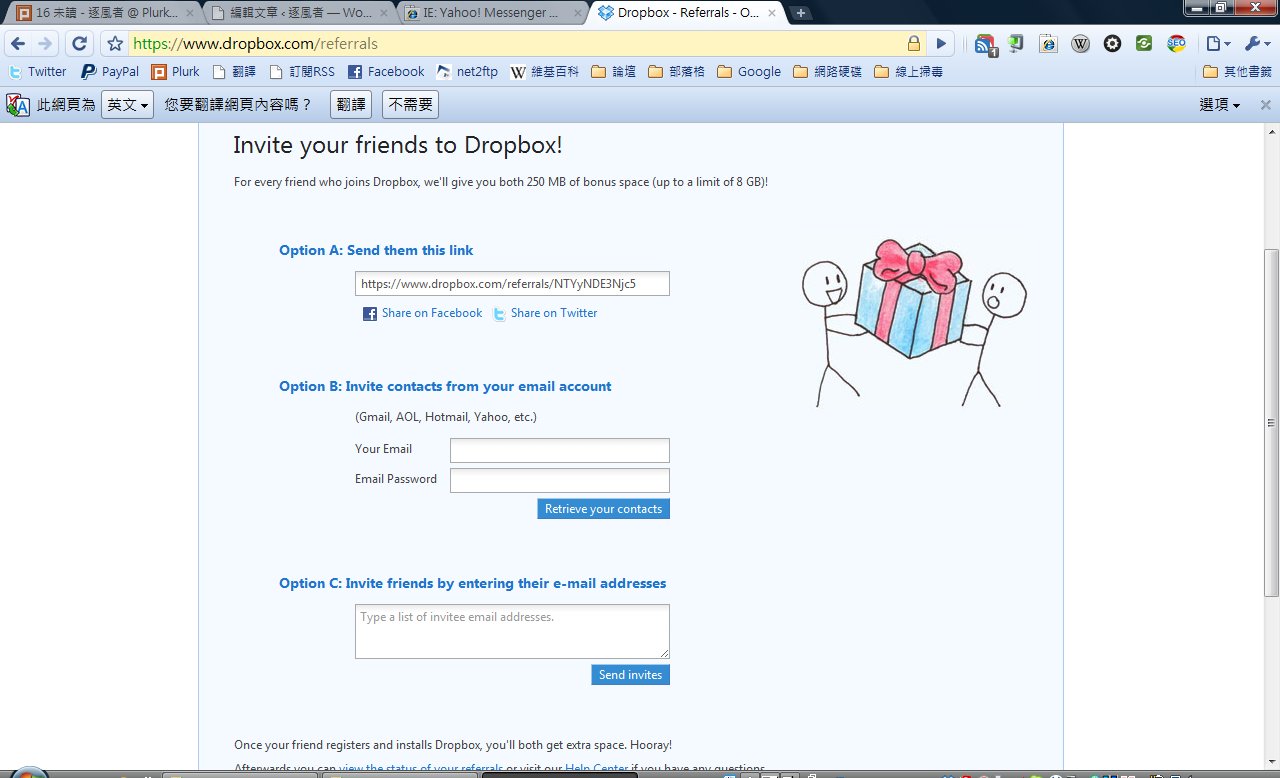
The invitation process is simple. I’ll only cover sending invitations through your contacts, since I think method A needs no explanation = =
1.Enter your email account and password. Note: you must enter the full email address. For example, my Gmail account is linroex, so I need to enter linroex@gmail.com. Then click “Retrieve your contacts.”
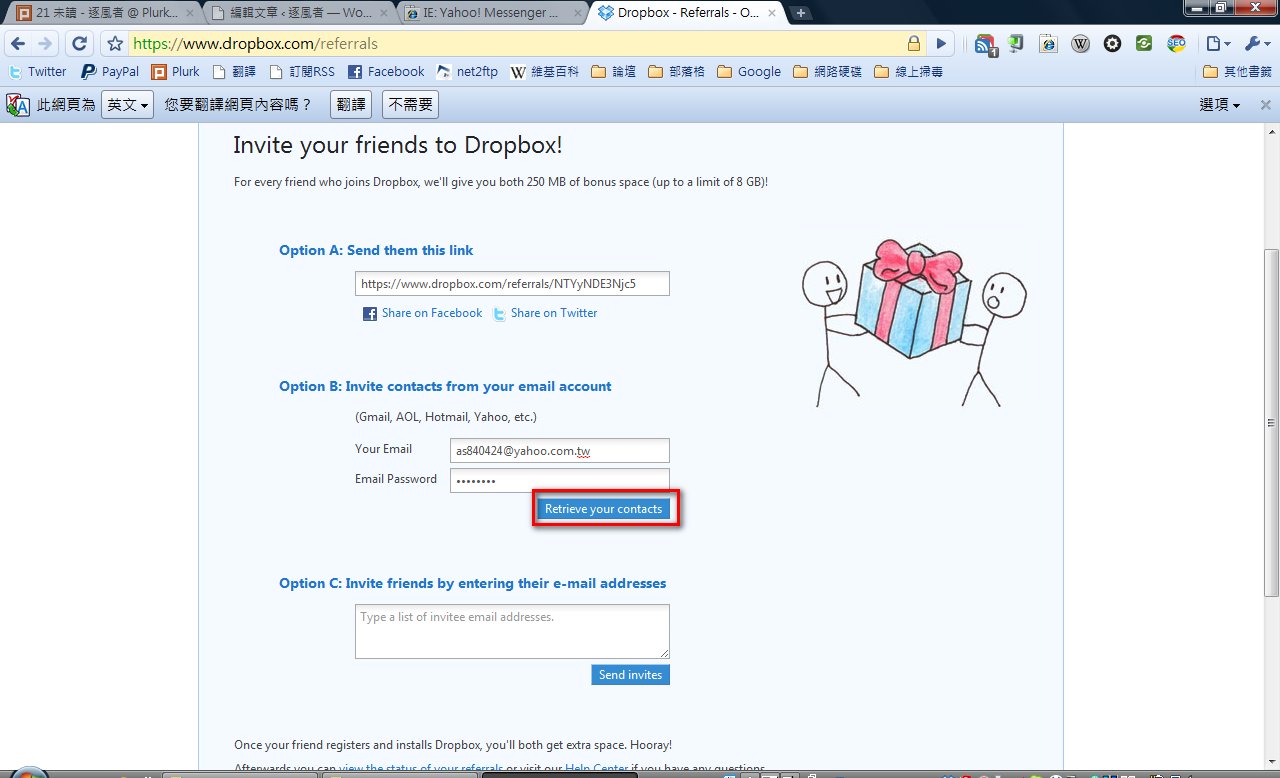
2.Opening your contacts
3.Finally, click “Invite XX (number) friends” to send the invitations.