
ebuddy is a web-based instant messaging site that I’ve found quite good so far. It supports many different instant messaging services, including well-known ones like Yahoo Messenger, MSN, GTalk, and QQ (which is popular in mainland China). ebuddy also supports Facebook, though I don’t really understand what Facebook has to do with instant messaging = =. Besides supporting many IM services, ebuddy also offers many languages, including Traditional Chinese, Simplified Chinese, and English, so you don’t have to worry about not understanding the interface. But what I like best about ebuddy is that it lets you sign up for one account and manage all your different IM accounts together. That way, you only need to remember one account, which is like remembering many accounts ^^
This article will introduce how to log in to ebuddy, change the language, and use your ebuddy ID.
ebuddy Features
- Supports Yahoo, MSN, GTalk, and QQ
- Works without installing Flash
- You can sign up for an ebuddy account to manage your various IM accounts
- Supports multiple languages (including Traditional Chinese)
- Multi-person chat conferences
- Video chat supported
Changing the Interface Language to Traditional Chinese
Since ebuddy's built-in language is Simplified Chinese, when you first visit the ebuddy website, click "Site Languages" in the upper right corner and select Traditional Chinese to switch the page to Traditional characters~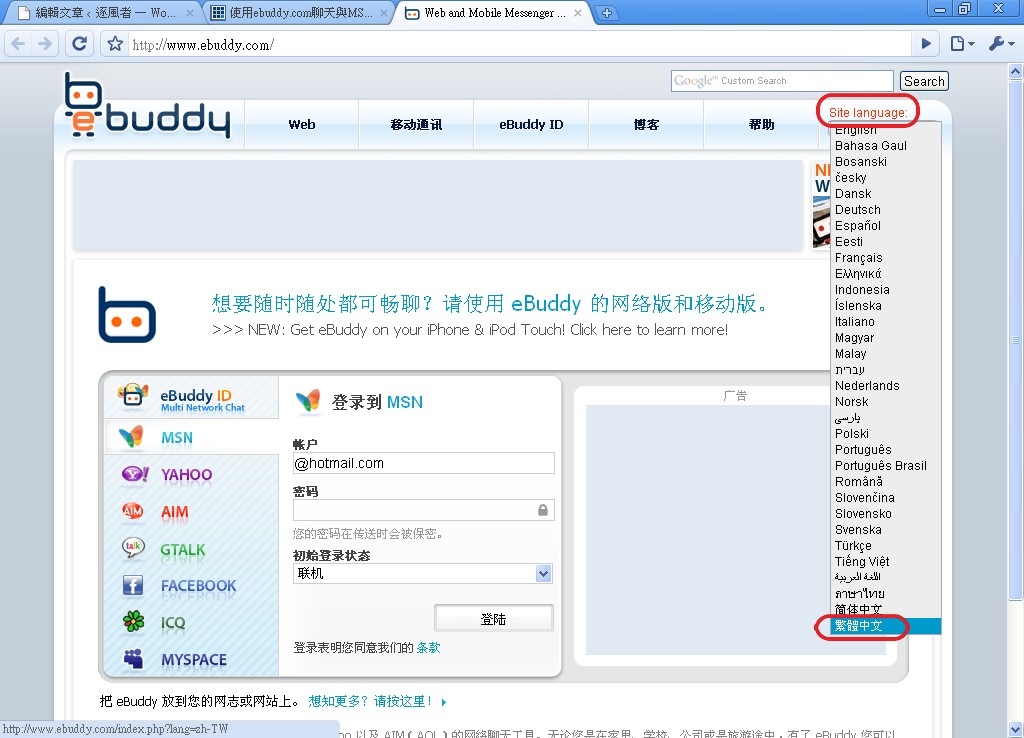
Logging In to ebuddy
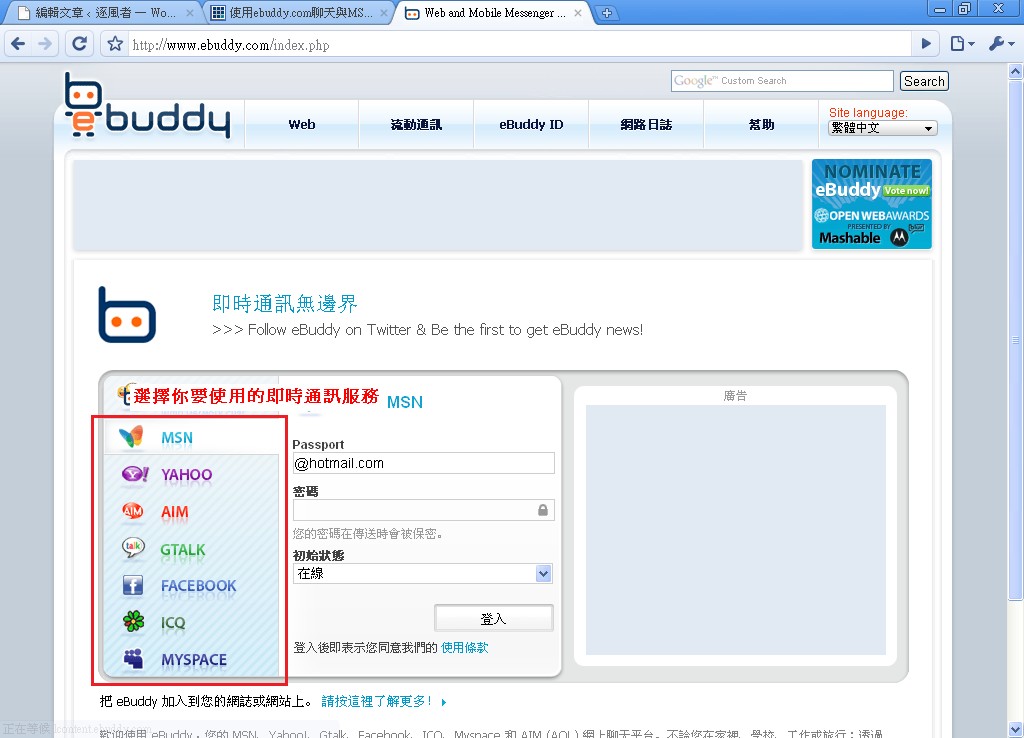
In this section, we'll show you how to log in to various instant messaging services. However, we won't explain how to use each IM service itself, because ebuddy supports so many IM services that covering them all would take us years!1.First, click the instant messaging service you want to use
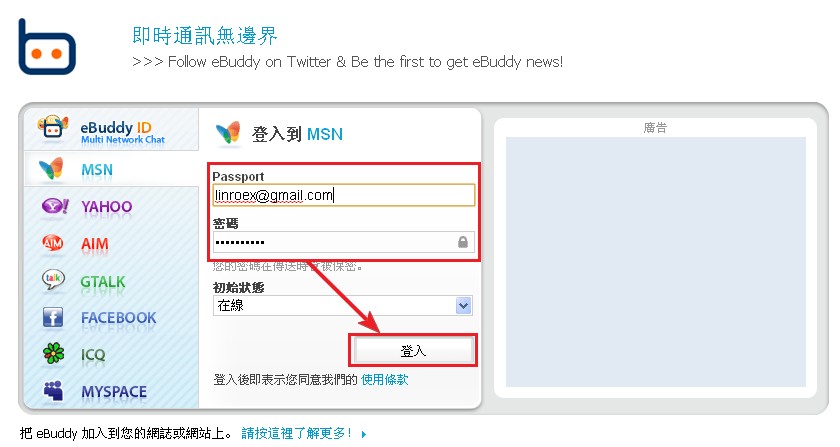
2.Enter your account and password, then click Log in
3.A pop-up window will open next. If your browser has a pop-up blocker installed, turn it off first or add ebuddy to its whitelist.
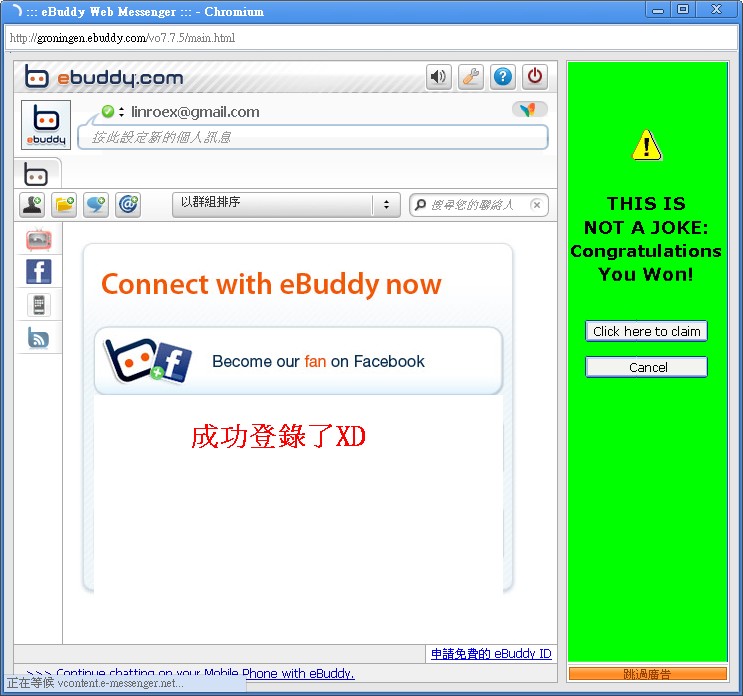
4.Now you can start chatting with other people. I won’t explain how to chat, so feel free to explore on your own. If you have any questions, leave a comment and ask me.
.
.
Applying for an ebuddy Account
As I mentioned at the beginning of this article, ebuddy lets you sign up for an account with them to manage your other IM accounts in one place. This is very convenient for people who use many IM services, so in this section, we'll show you how to use ebuddy to manage your accounts. However, since your ebuddy ID holds all of your IM accounts, be very careful not to let anyone know your password!Note: By “managing,” I mean that “you only need to enter your ebuddy ID on the ebuddy website, and it will log you in to each IM service automatically.”
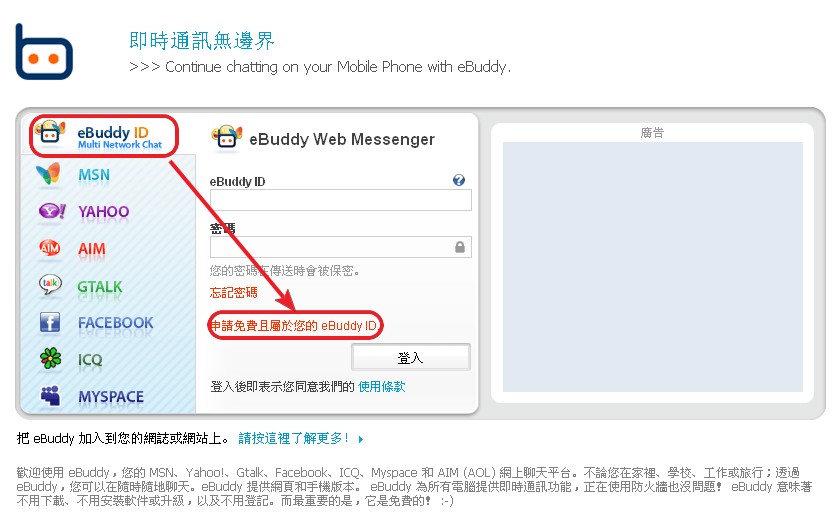
1.Click [ebuddy ID] in the left menu, then click [Apply for your free, personal eBuddy ID]
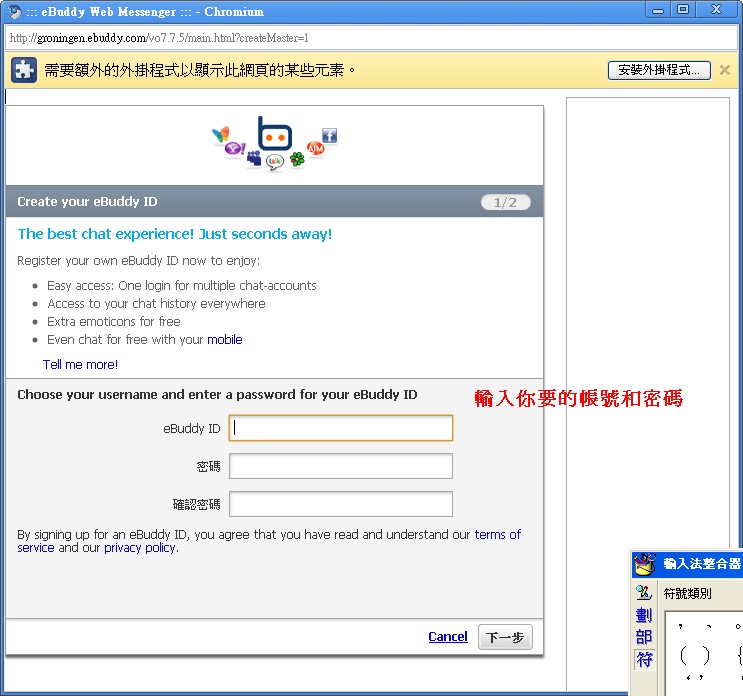
2.Enter the account and password you want, then click Next
3.Enter your commonly used email address, your age, and select your gender, then click [Create ebuddy ID] and you’re done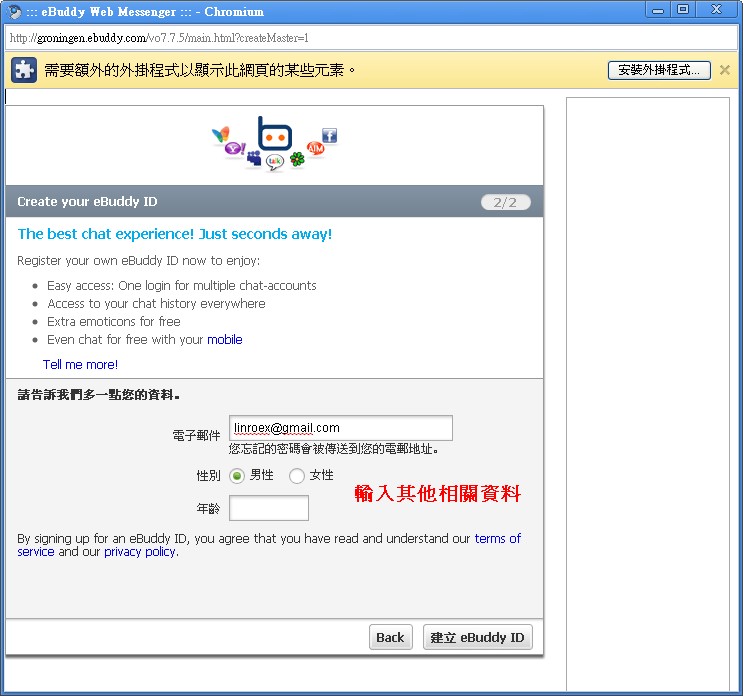
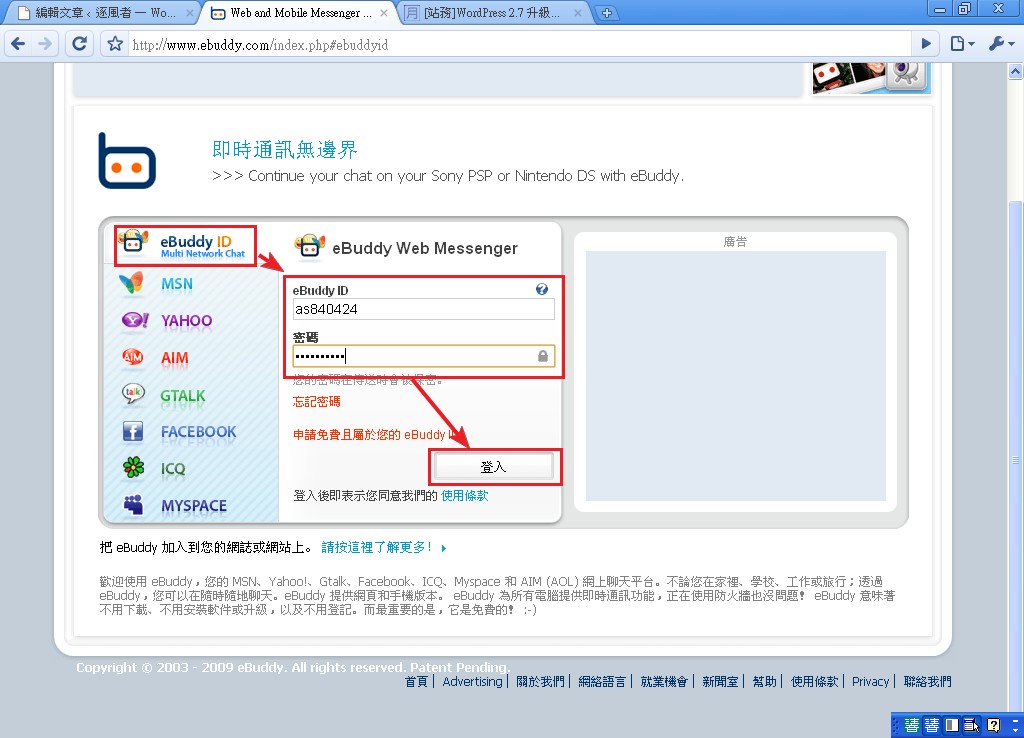
4.Next, go back to the ebuddy home page, select [ebuddy ID] in the right menu again, enter your password, and click Log in
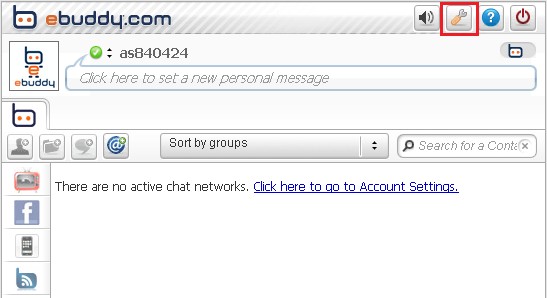
5.It will be in English when you first enter, but don’t worry. Click the settings icon in the upper right corner (see the figure below), then change the language to Traditional Chinese under Language.
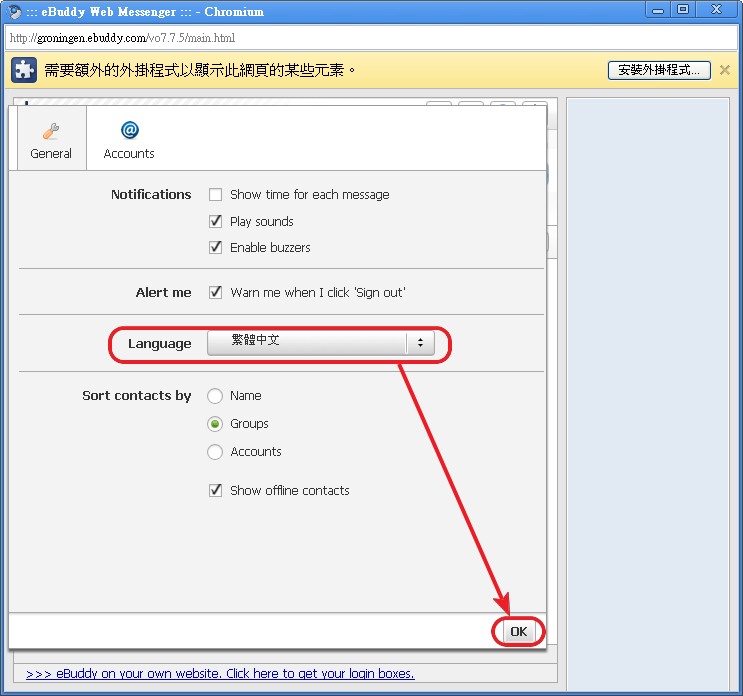
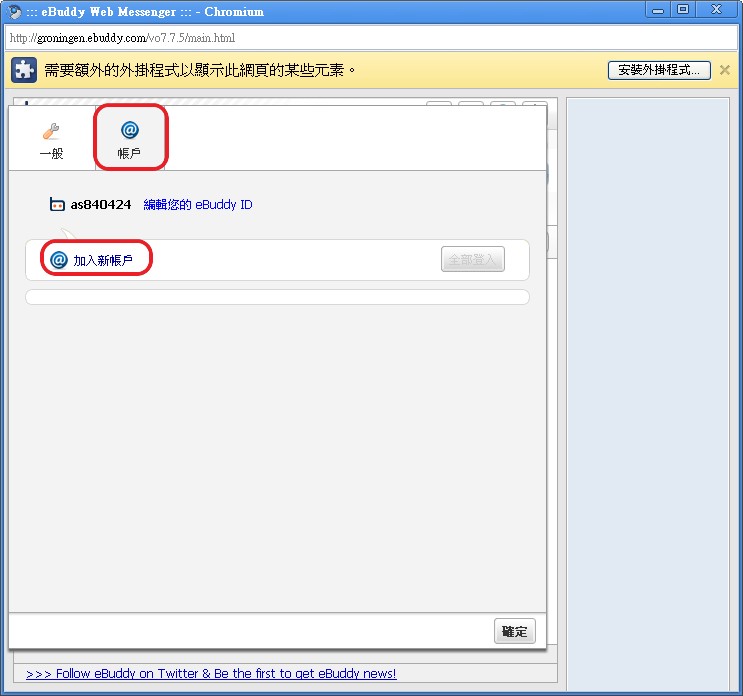
6.After changing the interface language to Chinese, go back to the [Settings] page you just visited, select the second tab [Accounts], and click [Add new account]
7.Select the instant messaging service you want to add, then click Next
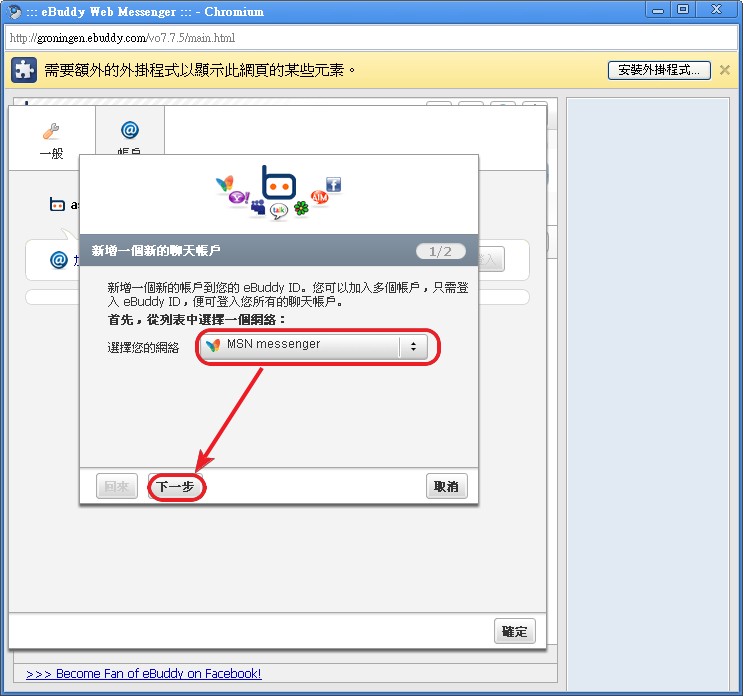
8.Enter the account and password for that IM service, then click OK to finish adding it. Add your other accounts the same way.
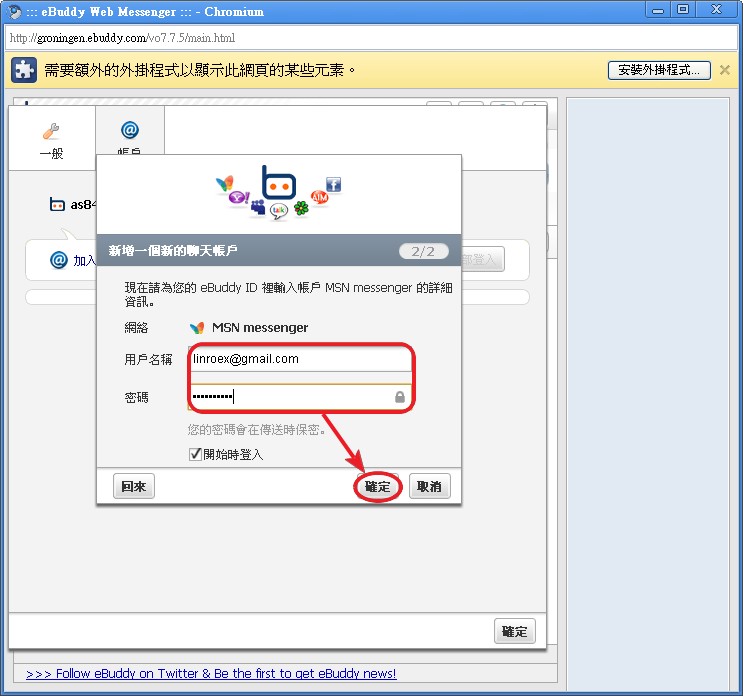
9.Once you’ve set up your other IM accounts, you’ll see them listed under Settings → Accounts. If they’re there, you’ve succeeded!
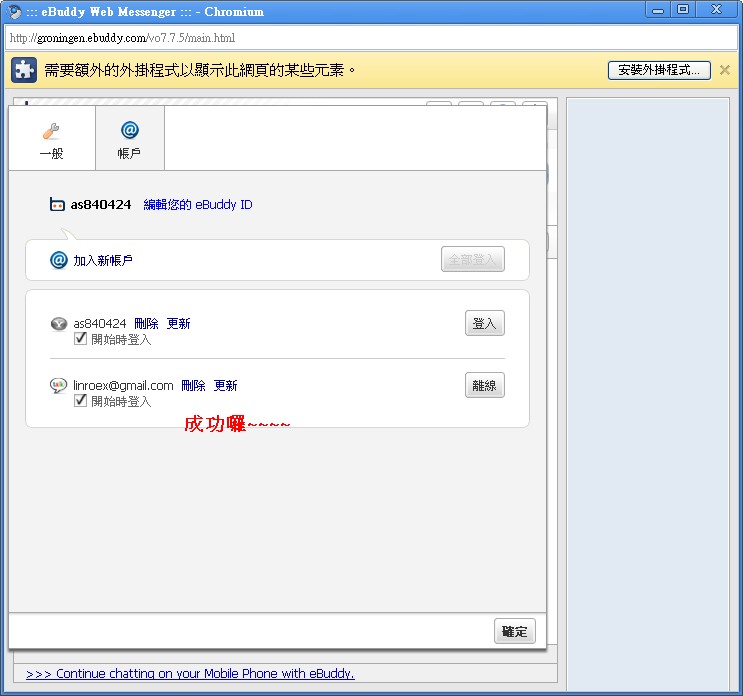
Next, please go to the next page, where we’ll show you how to use one ebuddy ID to log in to all the IM accounts you’ve set up.
Using Your ebuddy ID
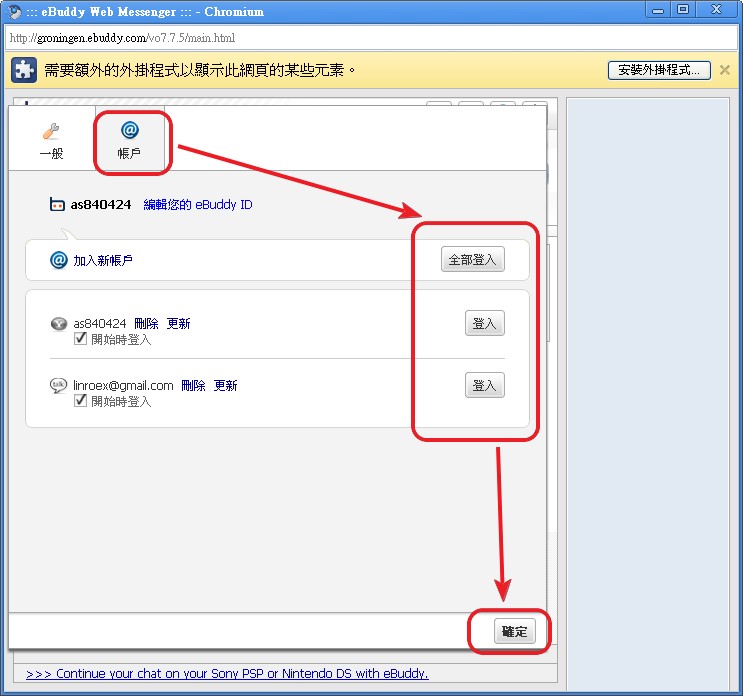
In the previous article, we signed up for and set up an ebuddy ID. In this one, we'll show you how to log in to all the IM services you've set up.1.As usual, first log in to ebuddy, then select [Settings] → [Accounts], and click Log in on the IM service you want to use. If you find clicking each one tedious, you can also click [Log in all], then click OK to return to the main screen.
2.Once you’re back on the main screen, you’ll notice that your contact list is several times longer than before. That’s because you’ve logged in to all of your IM accounts. This feature is really convenient, isn’t it!!
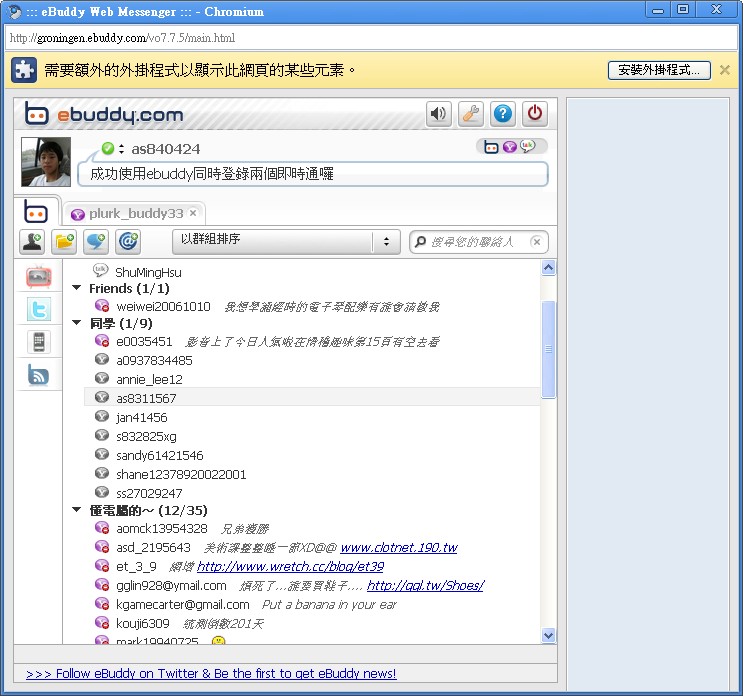
3.Unfortunately, ebuddy doesn’t show names, only the other person’s account name, so it’s a bit tiring to recognize people = =