After you install Elasticsearch and Kibana, you will quickly run into a serious problem: “Wait, where are the username and password?” That’s right, Elasticsearch and Kibana don’t come with the usual user management module. You can only restrict access by binding them to an internal IP or port. But if you’re like my company and don’t have a fixed IP, or you want to set up several accounts, keep reading. This post shares how to set up basic user authentication for Elasticsearch and Kibana using HTTP Auth.
Of course, you can also use X-Pack for access control. It’s an official plugin that lets you fine-tune permissions for each user on both Elasticsearch and Kibana. But there’s one catch: X-Pack costs money. I used X-Pack at first too, and only found out it was paid after 30 days, when I was locked out of Kibana. If you installed X-Pack from the start, you can follow “WTF Elastic X-Pack License - How to uninstall X-Pack” to remove it first, or you won’t be able to log in to Kibana at all.
My requirement was that Kibana and Elasticsearch needed to communicate with the internet, so I couldn’t lock them to the intranet or a single subnet. If your Kibana and Elasticsearch only need to be used on the intranet, and you don’t need complicated permissions or a record of who logged in, you can consider using a VPC to bind them to one subnet.
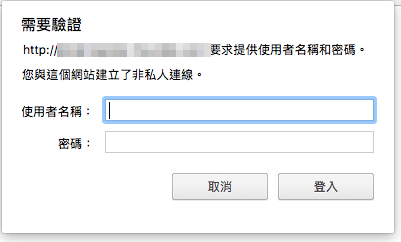
Architecturally, Nginx acts as the entry point. All requests go straight to Nginx, which forwards them to Elasticsearch (or Kibana). Elasticsearch and Kibana are set to listen only on 127.0.0.1. Nginx is configured with HTTP Basic Auth for authentication. The benefit of this setup is that Elasticsearch’s own API supports HTTP Auth, so you don’t need to change any application code.
And it can go further. If you need to log user logins, or connect accounts and passwords directly to a database, you can also write code on Nginx with Lua. See lua-nginx-module.
Getting Started
First, set Elasticsearch to listen on localhost only. Open /etc/elasticsearch/elasticsearch.yml and find the following settings. Don't add them as new lines; they are around line 55, so just remove the comment markers:#/etc/elasticsearch/elasticsearch.ymlDo the same for Kibana and set it to localhost only:network.host: 127.0.0.1 http.port: 9200
#/etc/kibana/kibana.yml

server.port: 5601
server.host: "127.0.0.1"
After making these changes, remember to restart Kibana and Elasticsearch so they take effect. You should also check that they really can’t be reached from the external network.
service elasticsearch restart
service kibana restart
We’ll use Nginx as our external entry point, so we need to install Nginx:
sudo apt-get install nginx
Next, replace the contents of the default file in /etc/nginx/sites-enabled with the following:
#/etc/nginx/sites-enabled/default

server {
 listen 80;

 auth_basic "Kibana Auth";
 auth_basic_user_file /etc/nginx/passwd/kibana.passwd;

  location / {
    proxy_pass http://127.0.0.1:5601;
    proxy_redirect off;
  }
}

server {
 listen 9201;

 auth_basic "Elasticsearch Auth";
 auth_basic_user_file /etc/nginx/passwd/elasticsearch.passwd;

  location / {
    proxy_pass http://127.0.0.1:9200;
    proxy_redirect off;
  }
}
With the configuration above, Nginx can receive requests from outside and forward them to the internal ports you specify. It also uses HTTP Basic Auth as the most basic login restriction.
Next, we need to create a password file so Nginx knows which accounts and passwords are valid. Install Apache’s utility tools:
sudo apt-get install apache2-utils
Then use the commands below to create the password files. Change user_name to whatever you like. After you run the command, the system will ask you for a password. Passwords are stored as hashes, so even though it’s a file, you don’t need to worry too much about its safety.
sudo htpasswd -c /etc/nginx/passwd/elasticsearch.passwd user_name
sudo htpasswd -c /etc/nginx/passwd/kibana.passwd user_name
You can set up multiple accounts by removing the -c parameter, because -c means “create.” If you include it, the password file gets overwritten.
sudo htpasswd /etc/nginx/passwd/kibana.passwd userA
sudo htpasswd /etc/nginx/passwd/kibana.passwd userB
When you’re done, restart Nginx and try whether Elasticsearch works. Don’t test Kibana yet, since it isn’t finished. If something goes wrong, for example, the settings look correct but don’t work, check the logs of the related services. In my case, the port I specified was already in use, so I had to switch to a different port. It can also be that the password file path is wrong.
To connect to Elasticsearch, use this format:
http://username:password@192.168.0.1:9201
The last small step: if your Kibana and Elasticsearch are on different machines, Kibana can no longer connect to ES, because we’ve turned on authentication for Elasticsearch. Edit kibana.yml in the same way. Don’t add these lines as new entries; find the existing ones and modify them. If both are on the same machine, you can skip this step.
# /etc/kibana/kibana.yml

elasticsearch.url: "http://192.168.0.1:9201"

elasticsearch.username: "username"
elasticsearch.password: "password"