I came across this article on Brian’s Reinstall Maniac blog, so I rewrote it and posted it on my own blog (since I can’t just copy the text, XD). I hope Brian won’t mind!!
Now, let’s get to the main topic. The tutorial starts here~~
First, let me explain what “freeze panes” is! Freeze panes is a feature that a lot of people use (I didn’t know it either = =). It lets you lock the cells you specify in place, so they don’t move when the user scrolls. It’s a bit like a floating ad on a web page. Want to learn this technique? Then let Webmaster Feng walk you through it step by step.
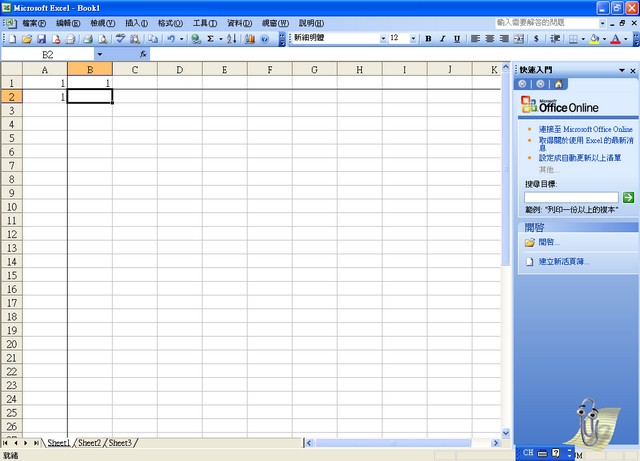
- Open Excel, then select the cell just next to the cells you want to freeze.
For example, to freeze A1, B1, C1…, select A2.
{(This part is quoted from Reinstall Maniac)
For example, if you want the data in “Row 1” to stay fixed in place and not scroll, click any cell in “Row 2,” such as “A2” or “B2”... etc.
If you want the data in “Column A” to stay fixed in place, click any cell in column “B,” such as “B1” or “B2”… etc. If you want both “Row 1” and “Column A” to stay fixed at the same time, click the cell “B2”.
}
- Click [Window] → [Freeze Panes], and that’s it.
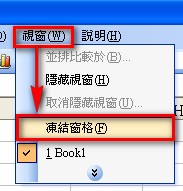
That’s it, the cells are now frozen. Here’s the result: