When analyzing data, you often need to split values into different ranges so you can see how they are distributed. For example, you might group students into 80-100 points, 60-80 points, and failing, then count how many students fall into each group for analysis. That’s where the FREQUENCY function in Excel (or Google Sheets) comes in very handy!
Before I knew about the FREQUENCY function, I would foolishly write lots of IF statements in SQL to do similar range calculations. SQL is powerful, but combining the tools around you matters even more! Some things are easier to handle in SQL, and others are easier to handle in Excel. For example, this “count by range” task is a perfect case where Excel is more convenient!
FREQUENCY(data_array, bins_array)
The FREQUENCY function takes two arguments. In this example, data_array is the student score column (only the score column is needed), and bins_array is the column of range boundaries. FREQUENCY also returns an array, which means you don’t need to copy the formula into each column. It fills the cells automatically!
Just enter the following formula in cell E2, and it will automatically fill in E3, E4, E5, and E6 as well. Pretty convenient, right? It matches up with the values in the “bins” column automatically. In the example below, E2 holds the count of values 100 and above, E3 holds the count for 100 ~ 80, E4 holds the count for 80 ~ 60, and E6 is, of course, the count of values below 0!
=FREQUENCY(B2:B7, D2:D5)
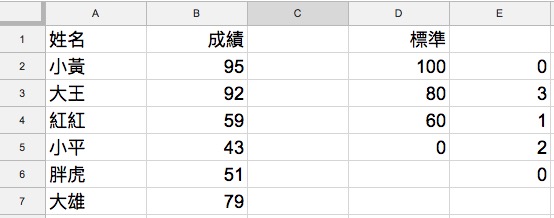
If the FREQUENCY function returns an error, check whether there is other data in the cells where its results should go. It returns an array and automatically fills N rows, so if there is other data in those cells, you’ll get an error.