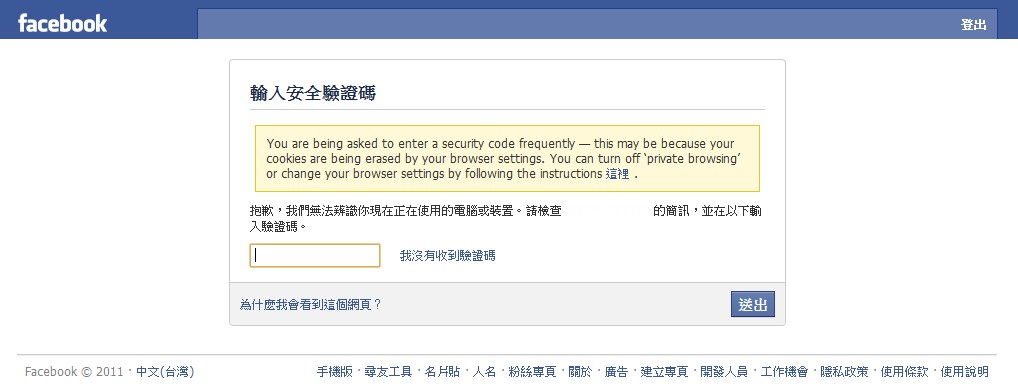
Are you sure there are no Trojans or viruses on your computer? Can you say your computer is completely safe? Are you worried that your Facebook account might be hijacked? Here I’m going to show you how to turn on Facebook’s free service, Account Security. It gives your account more protection, such as encrypted connections, login notifications, and login approvals.
Facebook’s Account Security section offers many features to protect your account. The ones I strongly recommend turning on are Secure Browsing and Login Notifications. Secure Browsing means that when you’re on Facebook, you use an encrypted “https” connection, which prevents people from snooping on your internet traffic. Login Notifications send you a text message every time you log in to Facebook, containing details such as the time and location of the login. The best part: the text messages are free! If you don’t mind a bit of extra hassle, you can also turn on Login Approvals. It’s similar to Google’s 2-step verification. When you log in from a device that hasn’t been approved, a security code is sent to your phone.
Turning On Account Security
1. After logging in to Facebook, click the triangle button next to Home in the top right corner, then select "Account Settings."
- Then go to “Security” in the left-hand menu.
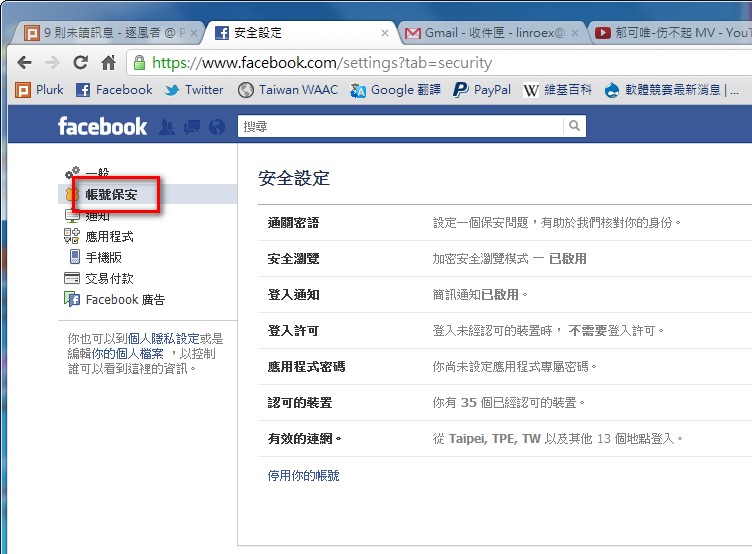
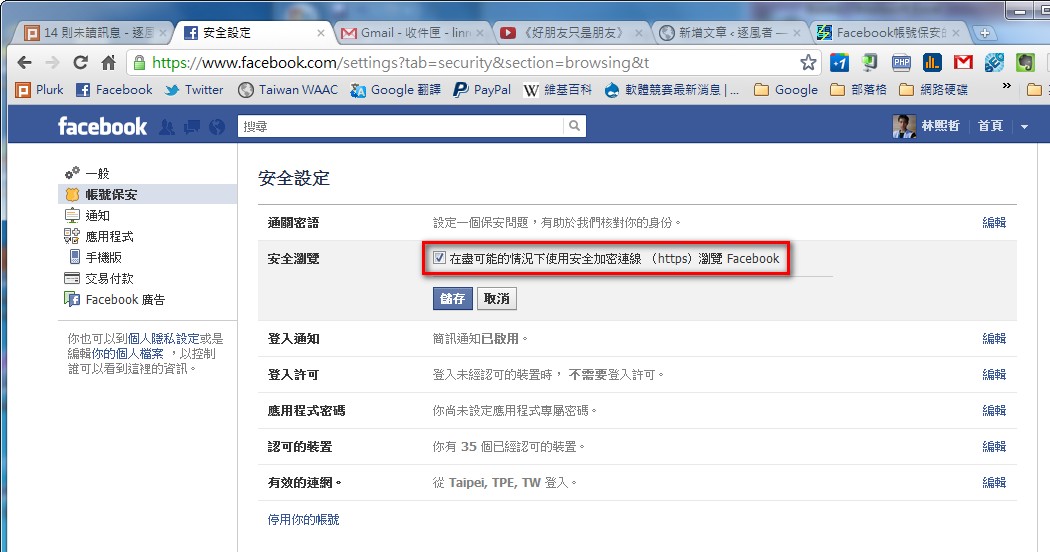
- Click “Secure Browsing,” check “Browse Facebook using a secure encrypted connection (https) whenever possible,” then click “Save.”
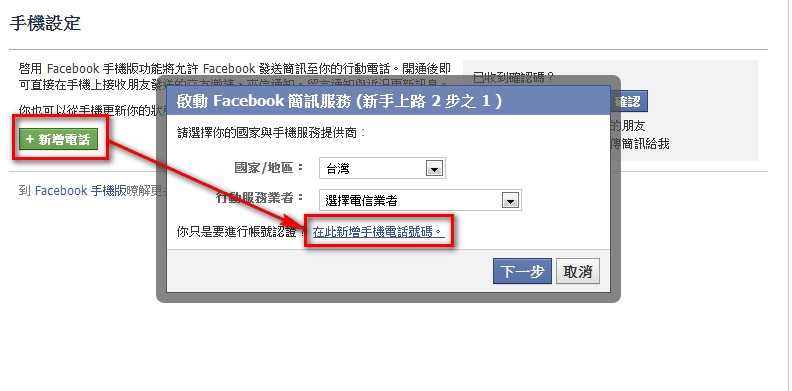
- Next, set up login notifications. First go to the mobile section in the right-hand menu, then click “Add a Phone” and follow the prompts to link your phone to Facebook. (You can’t expect FB to send you text messages without knowing your phone number, right? XD)
On the “Getting Started (Step 1 of 2)” screen, select “Just want to verify your account? Add a mobile phone number here."
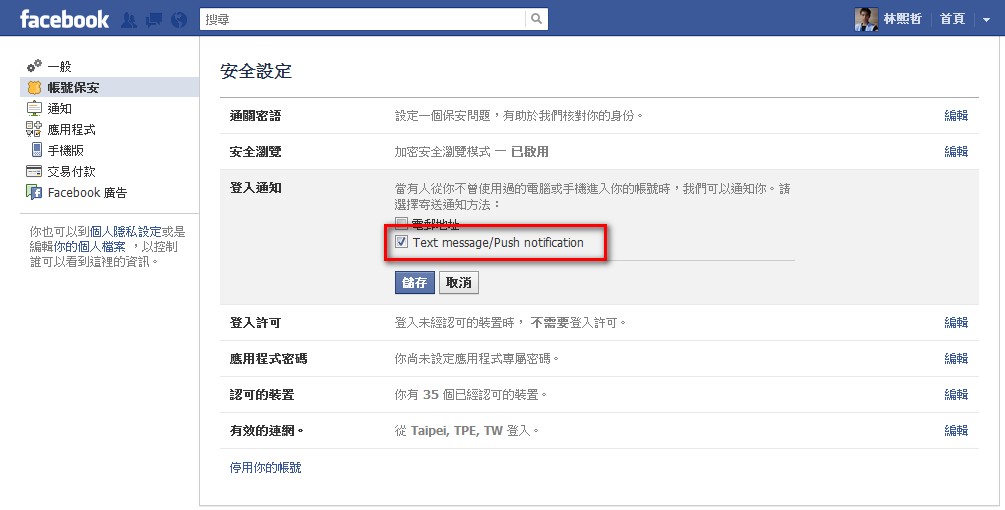
- Next, click “Login Notifications” and check “Text message/Push notification.” This means that a text message will be sent to your phone every time you log in.
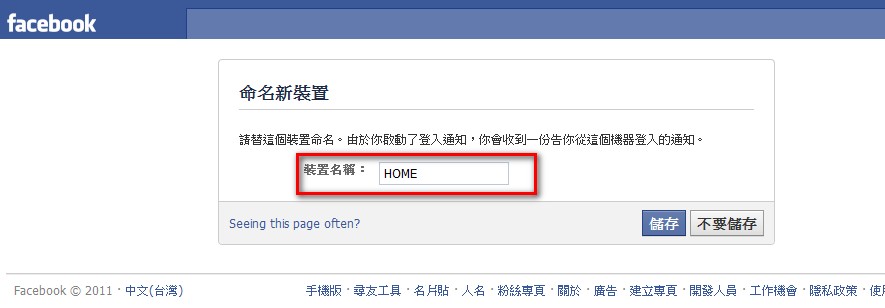
- The next time you log in to Facebook, the system will ask you to enter a device name. You only need to do this “once.” It will remember the device name for this computer, and a text message will be sent to your phone.
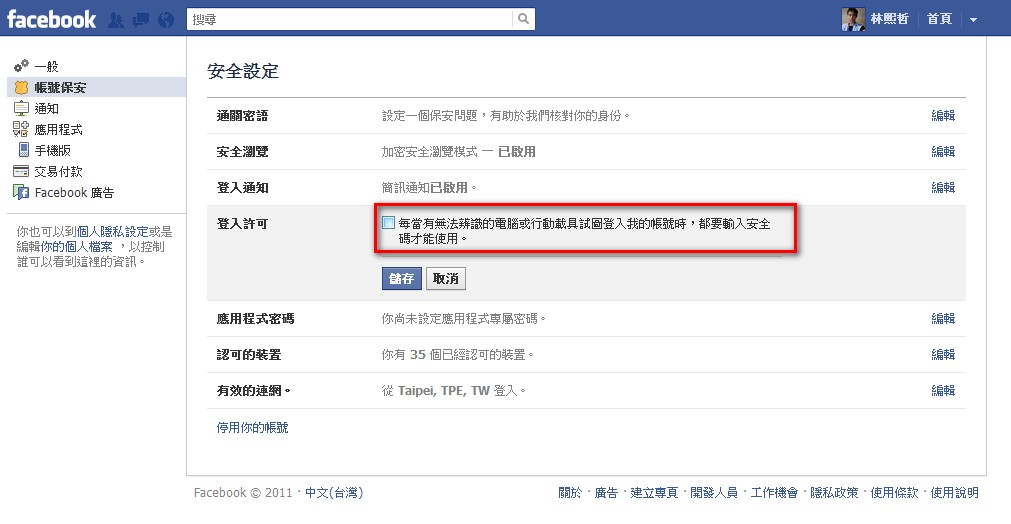
- Next is setting up “Login Approvals.” This part is up to you. Even I find it a bit of a hassle, but it’s definitely very secure. XD
Click “Login Approvals,” then check “Whenever an unrecognized computer or mobile device tries to log in to my account, I’ll need to enter a security code to use the account.”
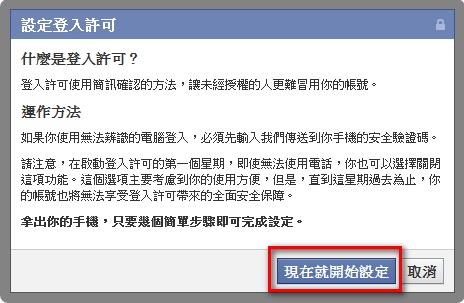
A dialog box appears to introduce the feature. Click “Get Started Now.”
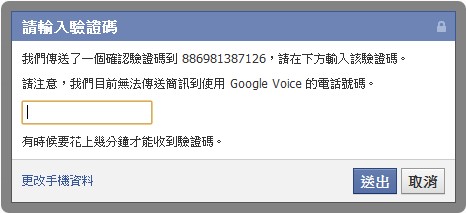
The system sends a verification code to your phone.
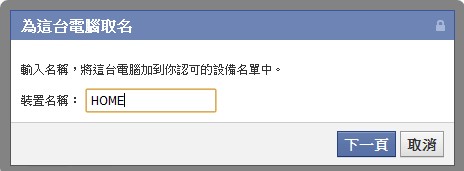
Give the computer you’re using a name. The system will add this computer to an allowlist, so logging in from this computer won’t require a security code to be sent to your phone.
- From now on, if you log in to Facebook from a computer that hasn’t been verified, the system will ask you to enter a security code.