For every webmaster, Facebook has become just as important a traffic source as Google. In the past, we did a lot of SEO work for search engines, but did you know that Facebook has also published a document, “Best Practices for Sharing Websites and Mobile Apps,” that explains how to adjust your web pages so they are displayed in the best way when users share them on Facebook? In this article, I’ll share what I tried on my personal blog.
When we post a URL on a Facebook wall, the post automatically shows a title, a description, and text. If you don’t do anything, Facebook will pick an image from the page to display, or it may show only text with no image:
Best case: an image that matches the content, along with the title and description text

If you haven’t optimized for Facebook, it may only show the title and description, or the text may even be wrong or irrelevant.
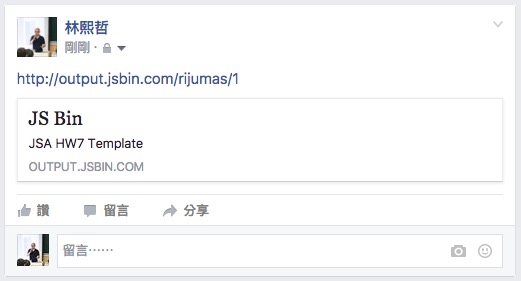
Comparing the two examples above, it’s obvious which one is more likely to attract Facebook users to read it. Everyone knows that a suitable image and an attractive text and title make your post stand out. It’s a real shame if a page doesn’t display correctly when shared on Facebook simply because it wasn’t optimized.
Next, I’ll share how my personal blog, Coder’s Journal, handles this. If you’re a social media editor who doesn’t understand the technical side, you can read this and discuss it with an engineer.
WordPress has a featured image feature that lets you set one image for each post, and my whole setup relies on it. If a post has a featured image, that image is used when sharing to Facebook. If not, the first image in the post is used. If neither exists, the featured image of the post’s category is used for sharing. The description text uses the first 100 characters of the post.
Basic Information
When we share an article to Facebook, Facebook's crawler visits the page and pulls out information such as the title, description, and cover image. We can set Open Graph Meta Tags so that Facebook can crawl the page correctly. If we don't, the crawler decides on its own, using its algorithm.Modify this code and add it inside the HTML head.
<meta property="og:title" content="碼人日誌文章標題">
<meta property="og:image" content="https://example.com/hello.jpg">
<meta property="og:description" content="這是一段簡介文字">
If you have multiple images you’d like to show and let users choose from, you can set several og:image tags, for example:
<meta property="og:image" content="https://example.com/hello1.jpg">
<meta property="og:image" content="https://example.com/hello2.jpg">
<meta property="og:image" content="https://example.com/hello3.jpg">
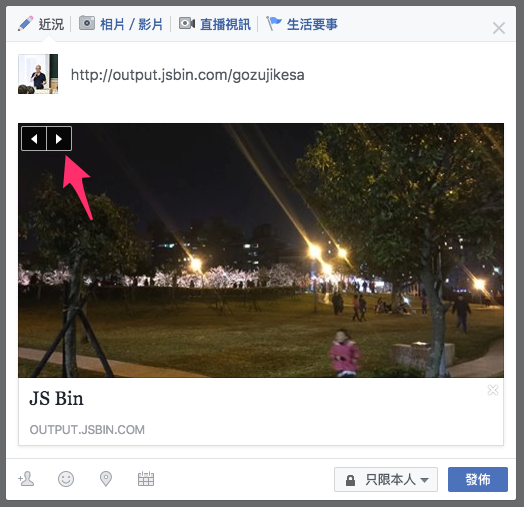
Besides these three Open Graph Meta Tags, you can also add others as needed: Open Graph standard object properties
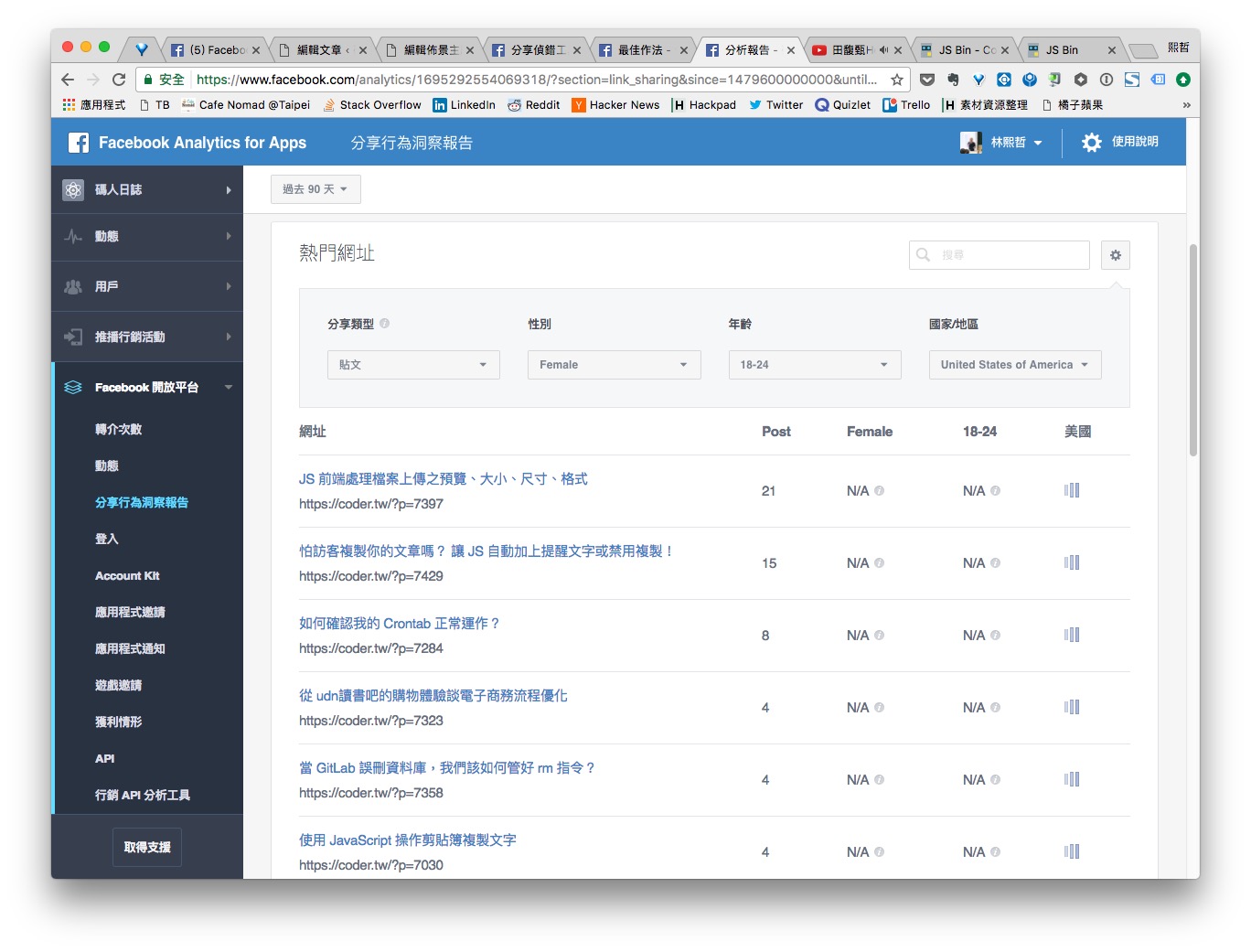
In addition, I recommend creating an app on Facebook for Developers and filling in its app_id. This lets you see more detailed information in Facebook’s analytics tools, such as the number of shares for each post.
<meta property="fb:app_id" content="" />
Cover Image
For the best display, the og:image cover image should be at least 1200×630 in resolution, and try to keep an aspect ratio of 1.91:1. This keeps part of your carefully prepared image from being cut off.If the ratio isn’t adjusted properly, you end up with an embarrassing result like this:

There are also some restrictions:
- The image file size cannot exceed 8MB
- The image resolution cannot be lower than 200×200
If the image is smaller than 600×315, it will be displayed in the layout with the image on the left.

By now you’re probably eager to set og:image, only to find that sharing on Facebook still shows no image, right? That’s because the first time you share a link, Facebook doesn’t download the cover image to its servers that quickly. The cover image usually takes effect the second time you share the link. My personal habit is to paste the link into the post box without posting it, then refresh the page and paste it again. That usually displays correctly. Or you can add these two Open Graph Meta Tags to solve the problem, so that the first share already displays correctly.
Setting og:image:width and og:image:height lets Facebook learn the image’s width and height directly, without having to download the image and calculate them. That way, the image displays correctly on the first share.
<meta property="og:image:width" content="1024">
<meta property="og:image:height" content="600">
Facebook also supports Open Graph Meta Tags generated dynamically with JS. If you use JS to change the content of og:image, Facebook can read it correctly. Taking advantage of this, I wrote a purely front-end program that sets og:image:width. The reason is that if I added these from the back end, I’d have to store both the width and height of every image in the database. I’m a bit lazy and didn’t want to change the back-end code, so…
window.onload = function() {
  var img_src = document.head.querySelectorAll("[property='og:image']")[0].content;
  var img = new Image();
  img.src = img_src;

  img.onload = function() {
    var og_width_meta = document.createElement("meta");
    var og_height_meta = document.createElement("meta");

    og_width_meta.setAttribute("property", "og:image:width");
    og_width_meta.setAttribute("content", img.width);

    og_height_meta.setAttribute("property", "og:image:height");
    og_height_meta.setAttribute("content", img.height);

    document.getElementsByTagName("head")[0].appendChild(og_width_meta);
    document.getElementsByTagName("head")[0].appendChild(og_height_meta);
  }
}
If you change an image, Facebook’s cache means the change won’t take effect right away. In that case, you can use Facebook’s bulk invalidation tool to clear the cache.
Error Checking
If you've made all the settings but they still don't take effect, you can use Facebook's Sharing Debugger to check for configuration errors.Error checking tool: https://developers.facebook.com/tools/debug/sharing/
If the URL is being shared to Facebook for the first time, you’ll see a message like this. Click “Fetch New Information” to proceed.