I use Bear for notes and Things for to-dos. Both have MCP servers on the Mac, and asking AI in Claude Desktop to search my notes or tidy up my to-dos works great. But as soon as I’m out and using my phone, or the web version of Claude or ChatGPT, those tools disappear. After some digging, I found the problem is how MCP connects. This post explains why that happens, and how to use FastMCP to turn an MCP that only works locally into one you can use anywhere.
Why can’t the web version reach the MCP on your computer?
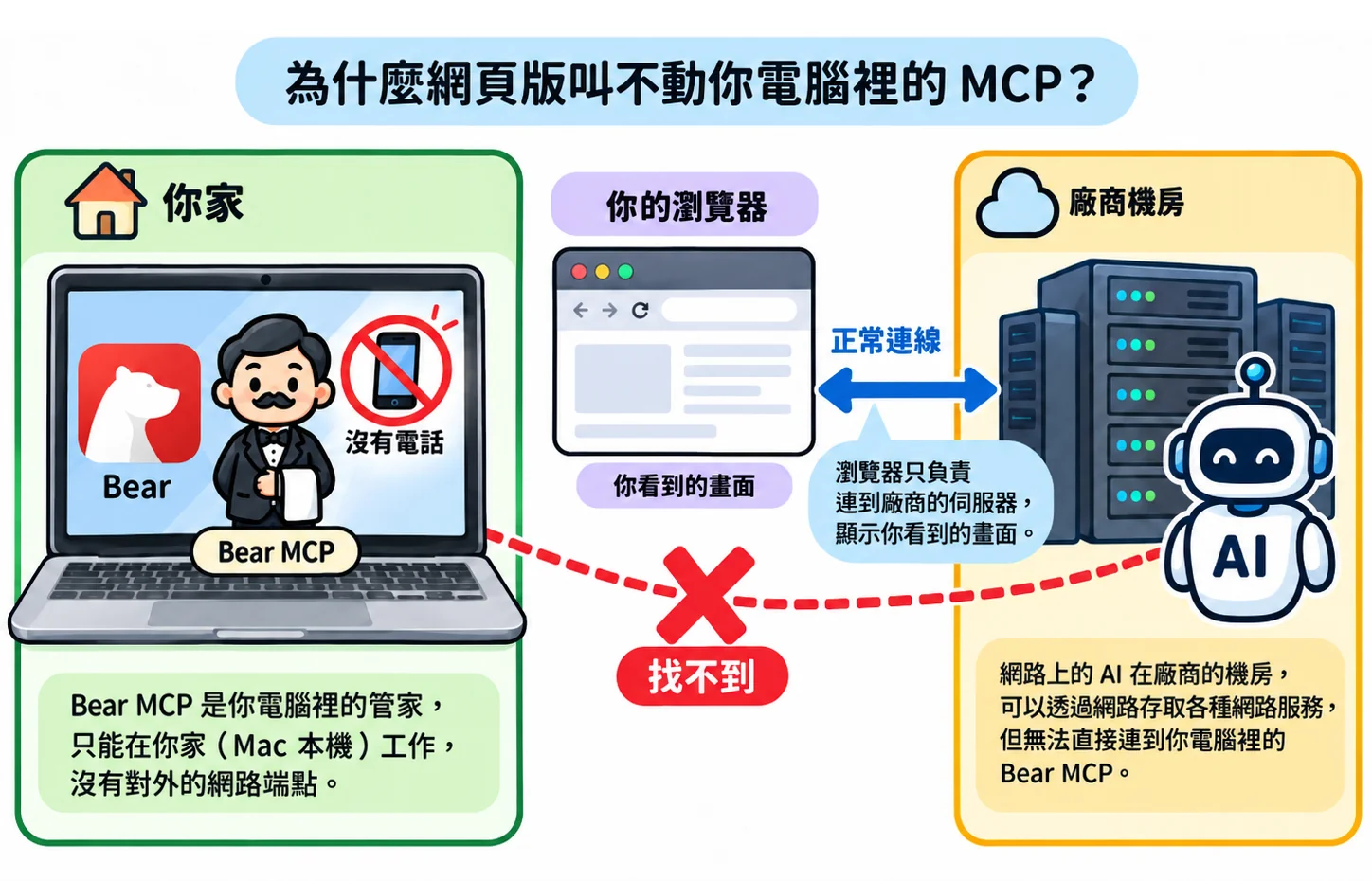
Let’s start with an analogy: an MCP is like a butler living inside your computer, whose job is to fetch things from Bear and Things for the AI. The butler only lives in your house, and only people inside your house can call on him.
The desktop version of Claude is also installed on your computer. It lives under the same roof as the butler and can just tell him what to do in person, so it can reach him.
The web and mobile versions are where it gets confusing. The screen is right in front of you, and the browser is running on your own computer or phone, so it looks like it’s in your house too. But the browser is really just a window. What you see through it is the screen; the thinking and the work happen on computers in the vendor’s data center. When the AI needs a tool, it’s the data center computer that goes out looking for the butler, not your browser. And the butler in your house has no phone, so of course the data center can’t reach him.
The two kinds of MCP
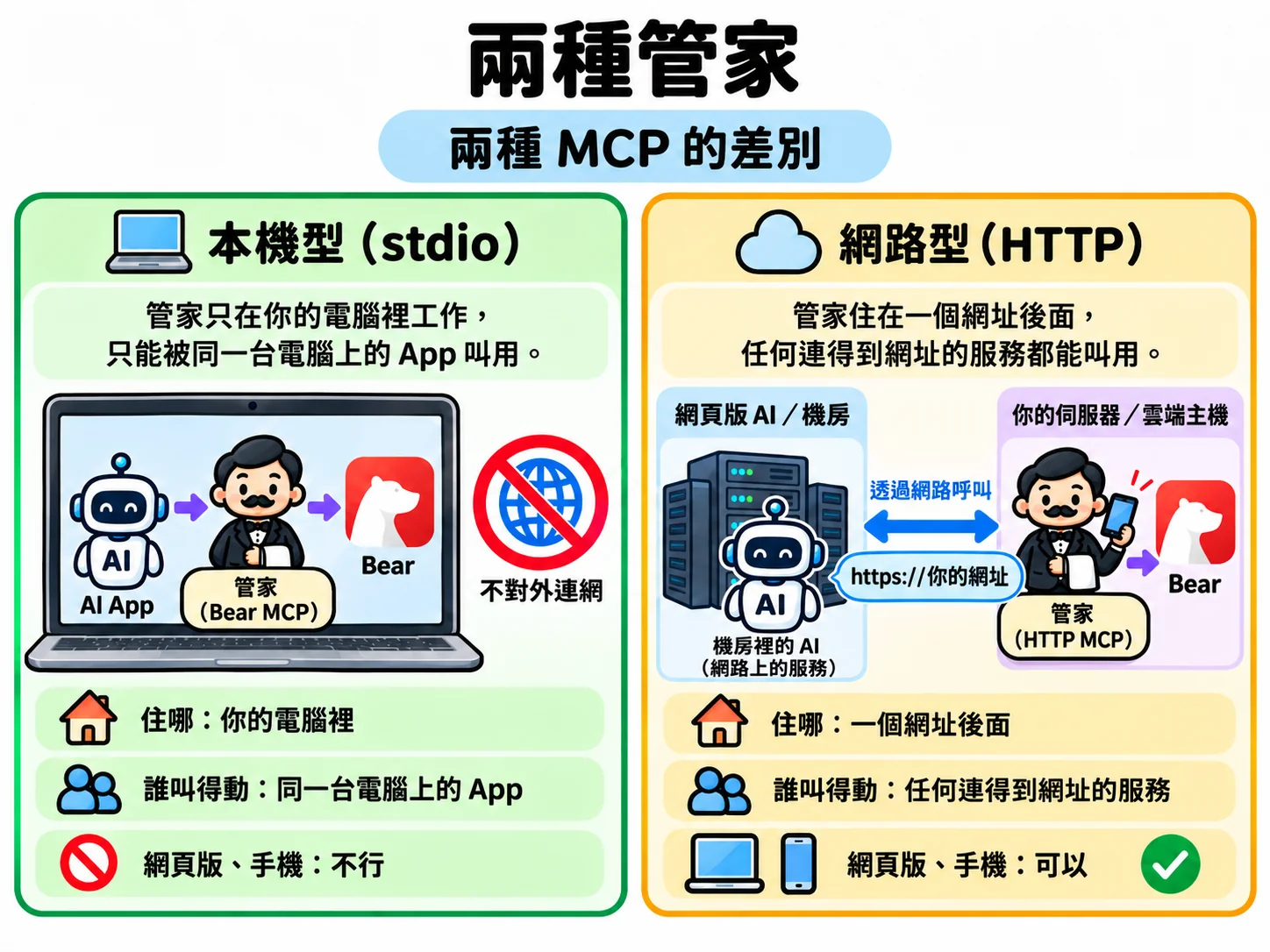
MCP actually has two ways to connect:
- Local (technically called stdio): the butler lives in your house, and only apps on the same computer can call on him
- Network (technically called HTTP): the butler has a phone, the phone number is a URL, and any service anywhere can call him
| Local (stdio) | Network (HTTP) | |
|---|---|---|
| Where it lives | Inside your computer | Behind a URL |
| Who can call it | Apps on the same computer | Any service that can reach the URL |
| Web and mobile | No | Yes |
Which one should you choose?
If you want your MCP to work everywhere: just go with network. The web version, your phone, and your other computers can all use it directly.
If you care about privacy: go with local. The butler has no phone, so outsiders can’t reach him. Only people who can touch that computer can use it.
If you share an account: network isn’t a good fit. A network MCP is attached to the account, so everyone sharing the account can use it, and the butler can’t tell who is calling. In this case, local plus the desktop app (for example, Claude Desktop) works better. The settings live on each person’s own computer and don’t affect each other.
The short version: network to use it anywhere, local for privacy, and local for shared accounts too.
Why you need a “bridge”
The problem is that many MCPs only come in the local kind, even official ones made by the app developers themselves. Bear 2.8’s bearcli, the xcrun mcpbridge built into Xcode 26.3, and the MCP built into the 1Password desktop app all use stdio. Obsidian has no official MCP, but the community-made ones mostly default to stdio as well.
Shipping only the local kind actually makes a lot of sense. These apps’ data is already on your computer. Local needs no open network port and no password, and only your own computer can call it. For app developers it’s the simplest and safest choice, and whether to give the butler a phone is left up to the user.
So if you want to use it from the web, you have to give the butler a phone yourself. That phone is the FastMCP we’re setting up in this post: it answers calls coming in from outside, passes them on to the butler, and once the butler is done, replies through it.
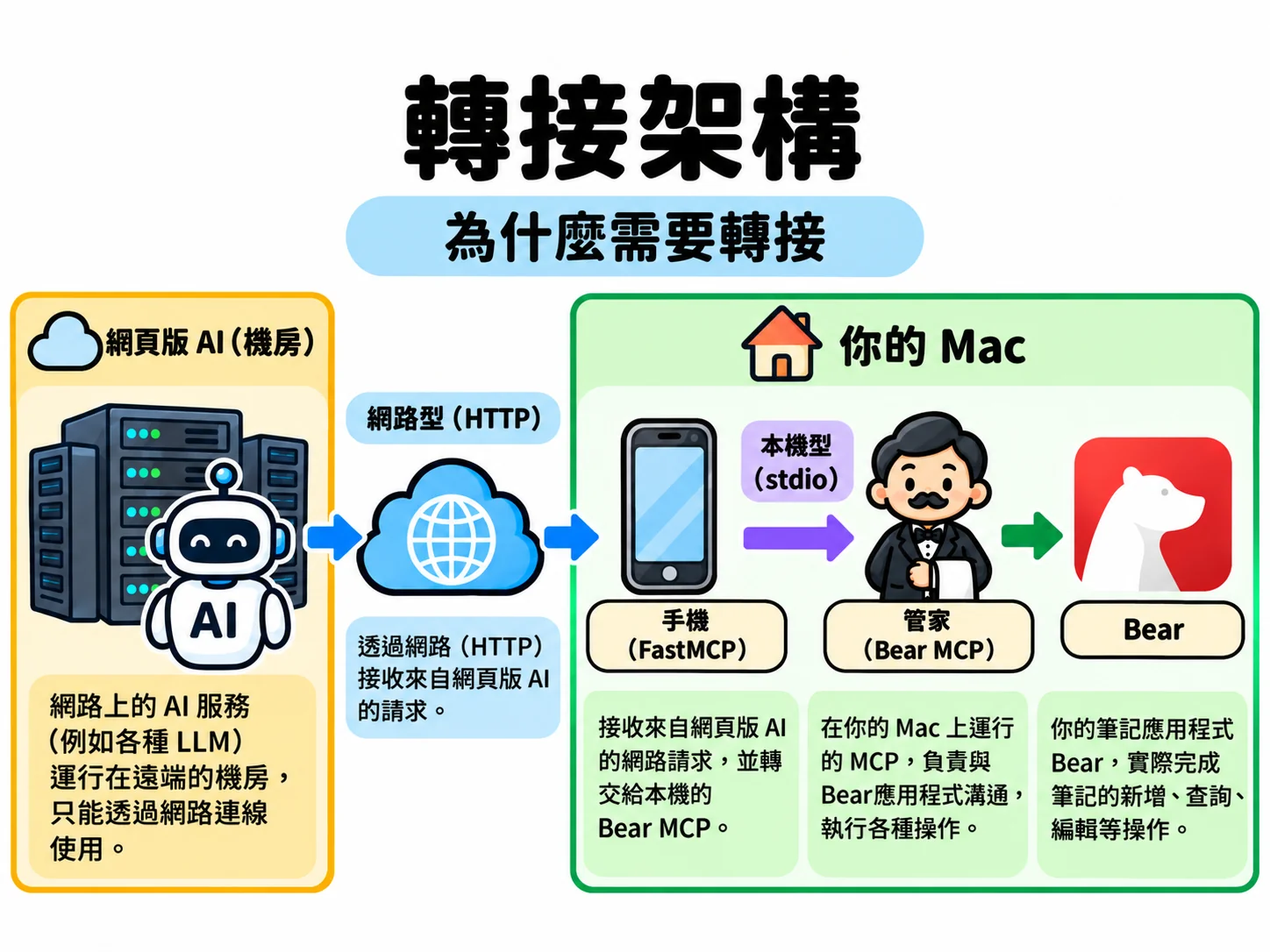
Of course, if you only use the desktop app, there’s no need to bridge anything. Just use the local kind.
Hands-on: bridging bearcli with FastMCP
There are tools made specifically for this kind of bridging, but I went with FastMCP for one simple reason: security. Every extra tool you install is one more place someone could tamper with (in security terms, the “attack surface”). FastMCP is already the development library many MCPs are built on, so using its built-in proxy feature means you don’t have to trust yet another new tool. A few lines of Python and you’re done.
Setting up the environment
Since Bear 2.8, bearcli ships inside the app itself, at this path:
/Applications/Bear.app/Contents/MacOS/bearcliYou can run it in Terminal first to check that the MCP server starts (it will sit there waiting for input; press Ctrl+C to exit):
/Applications/Bear.app/Contents/MacOS/bearcli mcp-serverNext, create a small project with uv and install FastMCP:
uv init bear-http
cd bear-http
uv add "fastmcp>=3,<4"
uv generates uv.lock, which pins the versions actually installed, so rebuilding the environment on another machine gets the same versions.
The bridge program
Create proxy.py:
from fastmcp.server import create_proxy

config = {
    "mcpServers": {
        "bear": {
            "command": "/Applications/Bear.app/Contents/MacOS/bearcli",
            "args": ["mcp-server"],
        }
    }
}

proxy = create_proxy(config, name="bear-http")

if __name__ == "__main__":
    proxy.run(transport="http", host="127.0.0.1", port=8000)
Here’s what each part does:
configuses the same format as Claude Desktop’sclaude_desktop_config.json.commandis the program to launch andargsare its arguments. It’s how you tell FastMCP who the butler is and how to wake him upcreate_proxy()creates an MCP server that has no tools of its own. When it receives a request, it launches bearcli, forwards the request, and passes the result backproxy.run(transport="http", ...)turns the phone on and serves everything the network way, athttp://127.0.0.1:8000/mcp
Start it:
uv run proxy.pyIf you’re on FastMCP 2.x, the function name is different: use from fastmcp import FastMCP and then FastMCP.as_proxy(config, name="bear-http"). Everything else is about the same, but check the docs for the version you installed.
Testing
Open another Terminal and write a small check.py script using FastMCP’s own client to see whether the tools show up:
import asyncio
from fastmcp import Client

async def main():
    async with Client("http://127.0.0.1:8000/mcp") as client:
        tools = await client.list_tools()
        for tool in tools:
            print(tool.name)

asyncio.run(main())
uv run check.pyIf it prints Bear’s tool names (things like listing, searching, and reading notes), the bridge works.
A few small details
- Only let your own computer call in at first:
127.0.0.1in the program means “this computer itself”, so the phone only answers calls from this computer and no one outside can get through. That’s ideal for testing. Many examples online use0.0.0.0, which means anyone on the same network (for example, the same Wi-Fi) can call in. Don’t do that while testing - Applying it to other MCPs: Things and other local MCPs work the same way. Just swap out
commandandargs. You can also put several servers inmcpServersand serve them all from the same URL
Wrap-up and reminders
Bridging is about making MCP usable everywhere, but not every situation calls for it. Go network to use it anywhere, and go local if you care about privacy or share an account. Giving the butler a phone is all it takes to connect the two.
Two last reminders. I don’t cover them in detail here, but you must deal with them before you actually rely on this while you’re out:
- Keep your Mac on, awake, and online: the phone and the butler are both on your Mac. If your Mac falls asleep, no one answers the phone
- The URL has to be public, and it must have authentication: the web AI calls in from the vendor’s data center. The setup above that only answers calls from this computer, or a URL that’s only reachable on your home Wi-Fi, can’t be reached from the data center. So in the end you need a public URL. But once the phone number is public, you need a password, or you’re effectively opening your notes for the whole world to read and write
I’ll write a separate post on authentication and deploying a public URL when I get the chance.