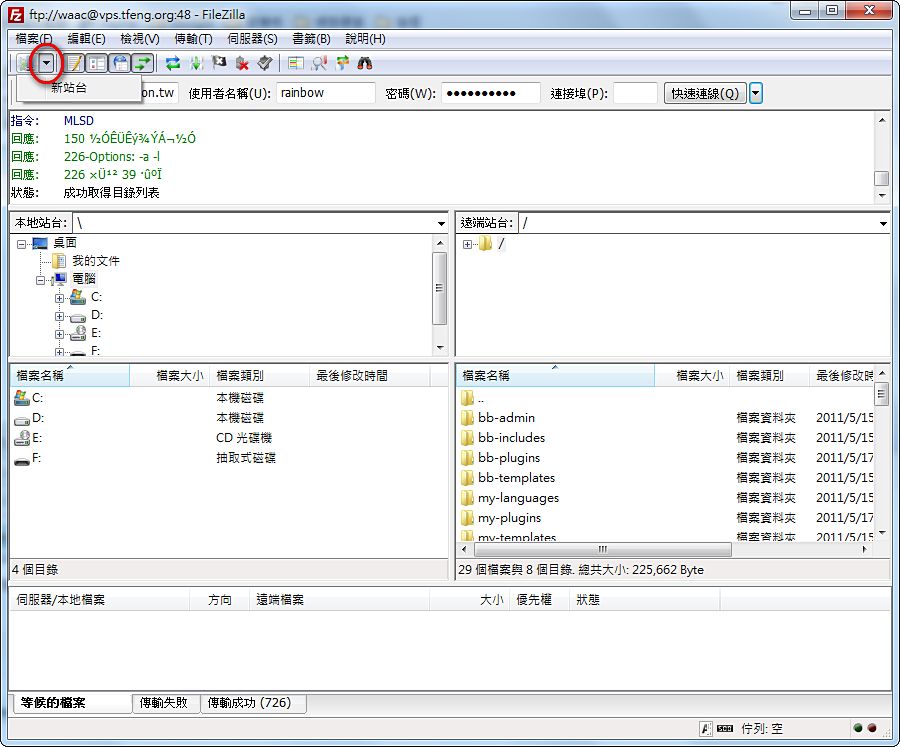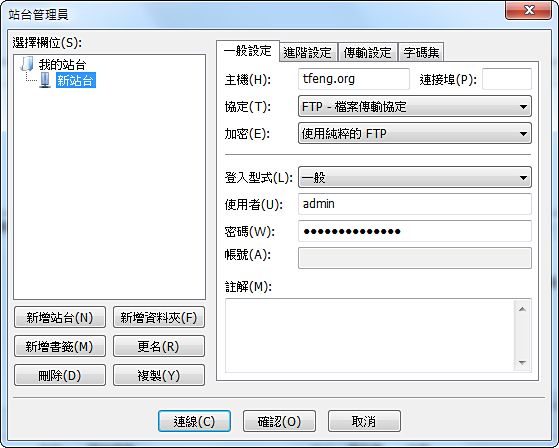
FileZilla is an FTP client that many people use today, and one handy feature is Site Manager. Because I manage websites myself, I often need FTP. Every time I wanted to connect, I had to enter the address, username, password, and other details, which wasted a lot of time. But once I set up Site Manager, I only need to fill in the details once, and from then on I can connect directly without typing all that information again~
Site Manager Tutorial
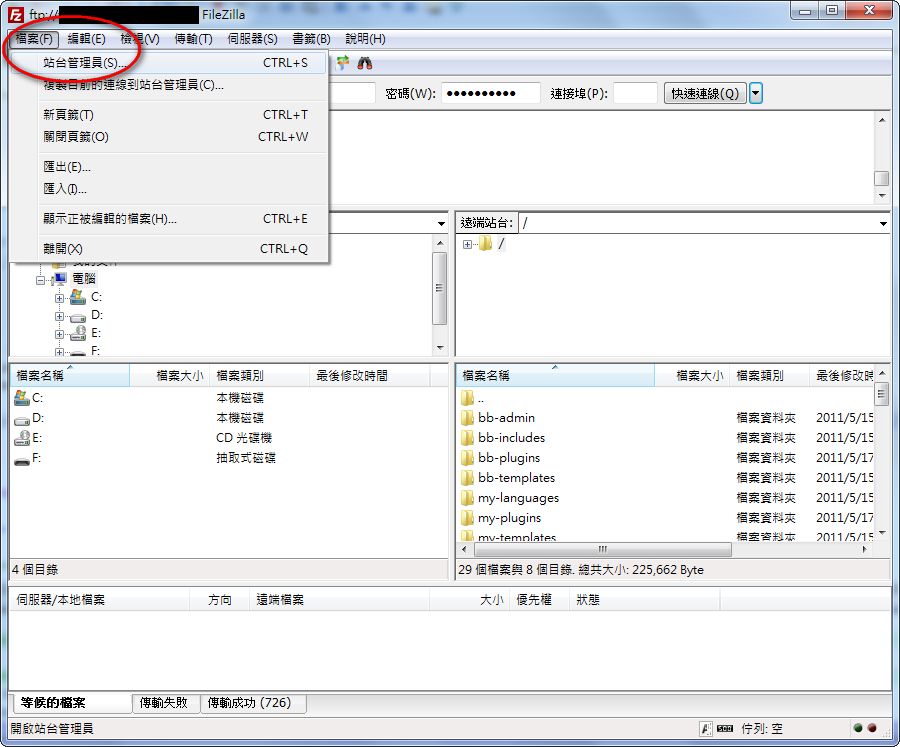
- After opening FileZilla, click “File” → “Site Manager” in the upper-left corner.
- Click “New Site” and set up your FTP connection details. For Host, enter your FTP address. The protocol and port usually don’t need to be changed.
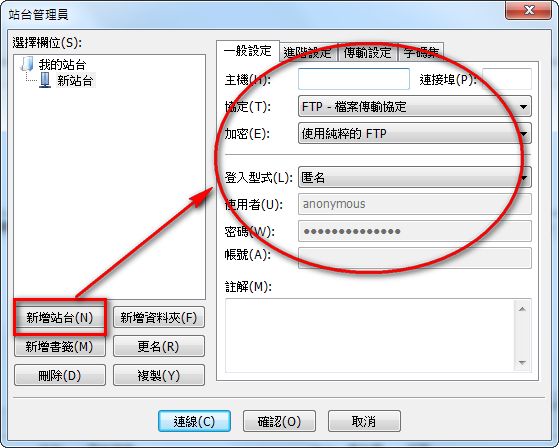
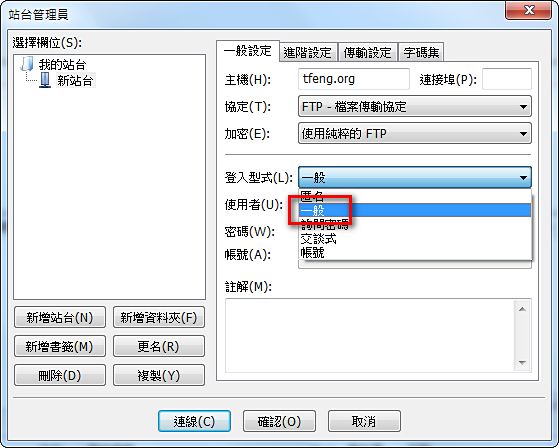
- The thing to watch out for is the “Logon Type” section. The default is Anonymous, but usually we want FileZilla to log in automatically for us. So choose “Normal,” then enter your username and password below.
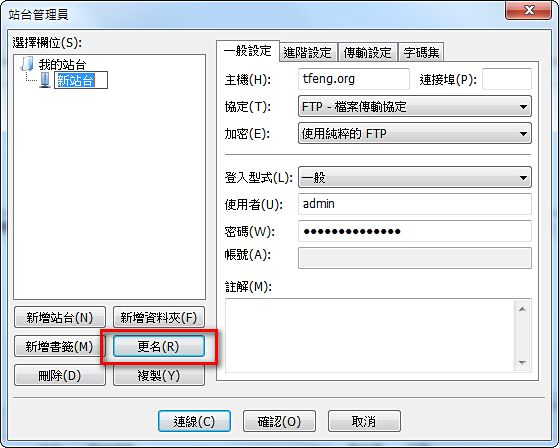
- You can also click “Rename” to give the site a name so it’s easy to pick out, for example “Blog 1,” “Blog 2,” and so on~
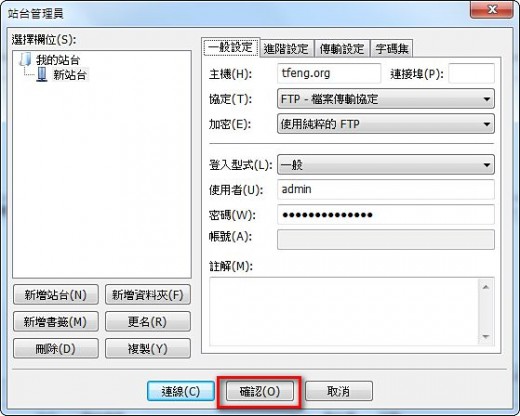
- When everything is set, click “OK” to save.
- Once it’s set up, there’s a small button under “File” that lets you connect quickly. See the image below, and click the button inside the red box.