Recently, while playing with Ubuntu, I ran into something: if you manually format the hard drive that Ubuntu is installed on, your computer will no longer be able to enter the operating system. This happens because the system’s MBR file has been damaged. Formatting Ubuntu directly isn’t the only way to hit this; sometimes it happens when installing a dual-boot system as well. When it does, don’t panic, because the MBR file can be repaired, and the steps aren’t very difficult. First, prepare a Windows installation disc, then set the computer to boot from the disc….
For an introduction to MBR, see: WikipediaMaster Boot Record (MBR), also called the master boot sector, is the first sector that a computer must read when accessing a hard disk after it starts up. Its three-dimensional address on the disk is (cylinder, head, sector) = (0, 0, 1).
For a hard disk, the number of bytes in one sector can be 128×2n (n=0,1,2,3). In most cases, n=2, so one sector is 512 bytes. The MBR records basic information about the hard disk itself, as well as the size and location of each partition, so it is an important entry point to your data. If it is damaged, the basic data-structure information on the disk is lost, and you have to rebuild that structure through a tedious trial-and-error process before you can access your original data again. The information in the MBR is written by FDISK. It is a product of low-level formatting and has no direct relation to the operating system (the operating system is built on the disk partitions made by high-level formatting, and is tied to a particular file system).
Before you begin:
- Windows installation disc
MBR Repair Tutorial Begins
1. Put the Windows installation disc into the computer, then let it load the installation screen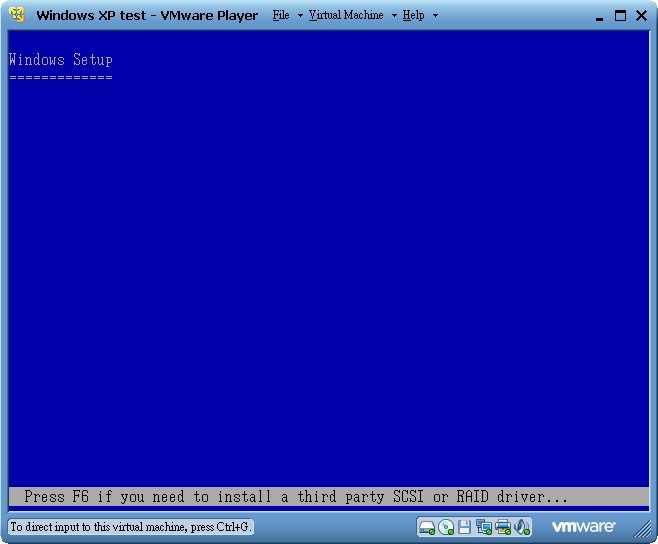
- On the Windows installation welcome screen, press R to open the Recovery Console
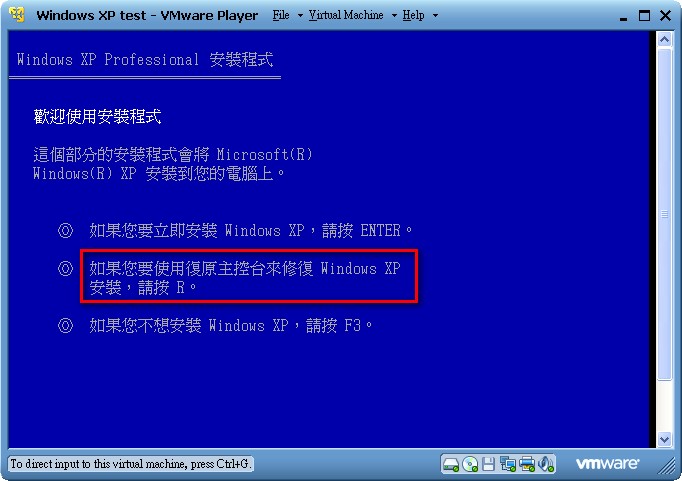
- Enter the following command:
chkdsk c: /r
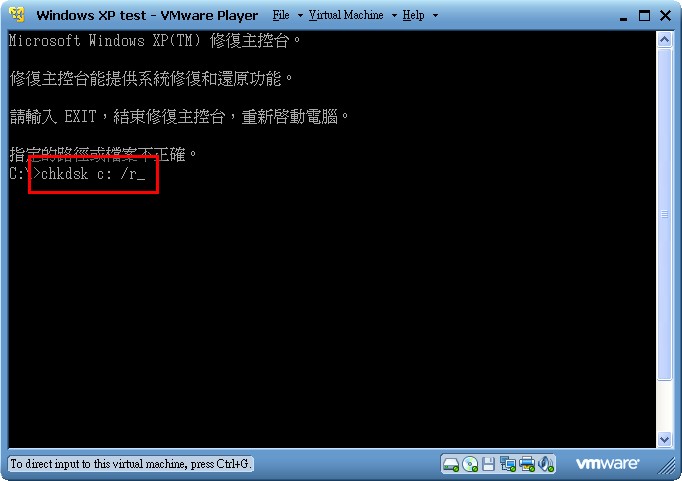
This command checks the hard disk for errors and takes a while to run. Change the “c:” part to the drive letter of the hard disk where your operating system is installed. After the chkdsk command finishes, enter the following command:
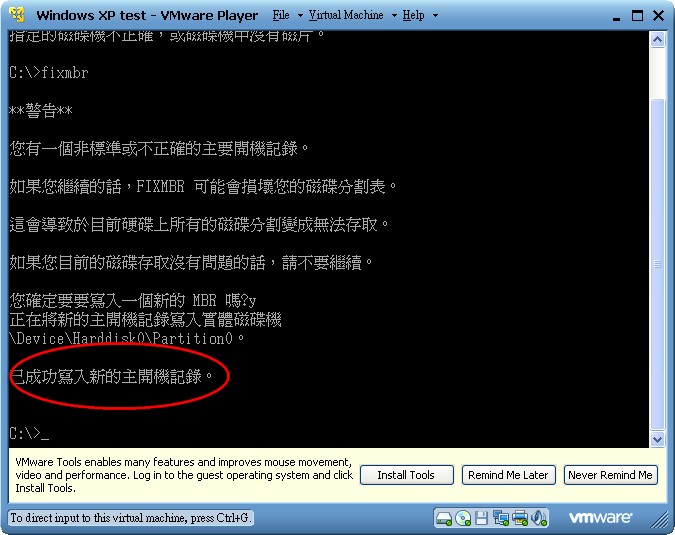
fixmbr
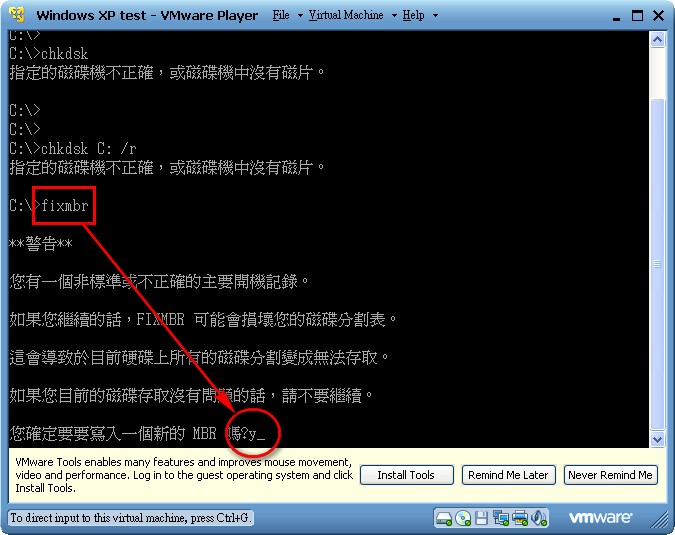
This command automatically repairs the MBR file for you. Once it’s fixed, everything should be OK.
For related information, you can find it here: http://support.microsoft.com/kb/314058/zh-tw