(The latest version of PicPick now supports file name templates too.)
FSCapture Information
- Download links: Xun6 | 4Shared | Box.net
- Virus scan report: VirusTotal
- MD5: 627529521bee4b31a04cf5ea079a3892
Features:
- Can capture the active window, the full screen, a specific area, or a web page (with automatic scrolling)
- Built-in watermark and shadow features
- Built-in image editor
- Automatic file naming with file name templates
- Built-in screen color picker & screen magnifier
- Free, Chinese-language, and portable (green)
- Delayed screenshots
Hotkey Setup Tutorial
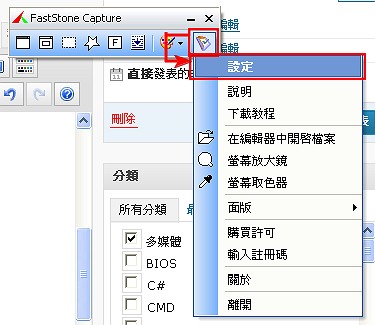
I'm sure everyone is familiar with hotkeys, so I'll skip the small talk and go straight to how to set them up~- Open FSCapture, click the button on the right side of the program, and select “Settings”
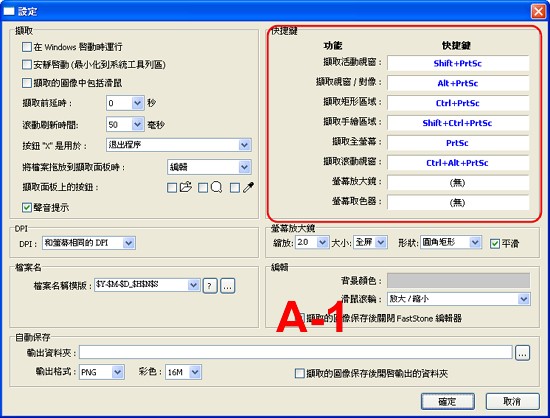
- Once you open the FSCapture settings area, you’ll see a section called “Hotkeys” (see Figure A-1). Set them there. It’s simple: click the white area once, a box will pop up, and then press the hotkey you want to use on your keyboard (see Figure A-2)
Press the key you want to use and it will detect it automatically XD ↓↓↓↓
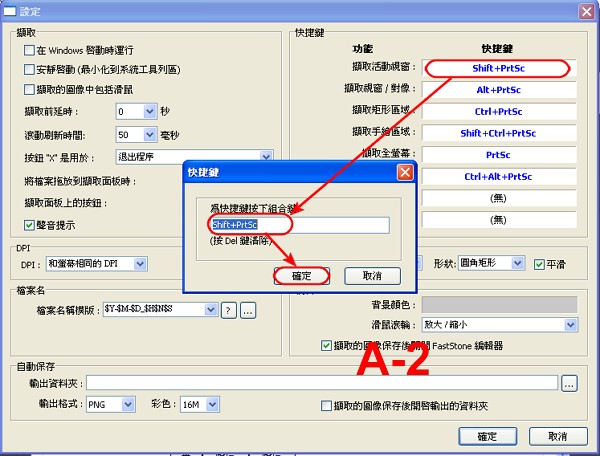
- After you finish, click OK to save the settings. Here’s how I personally set mine
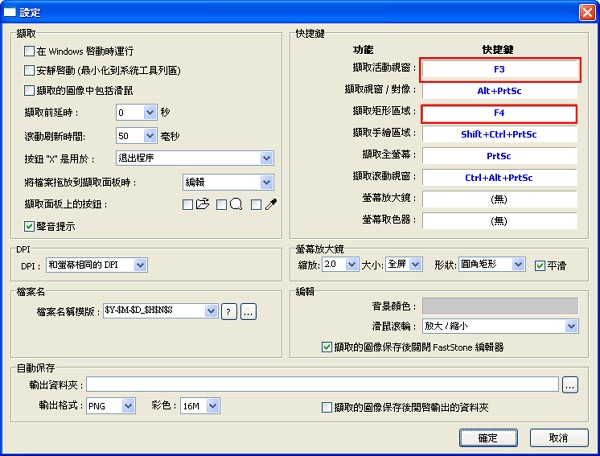
I’d also recommend checking both “Start with Windows” and “Start silently,” since they’re more convenient. As for whether to capture the mouse cursor, that’s up to you. Personally, I don’t use it.
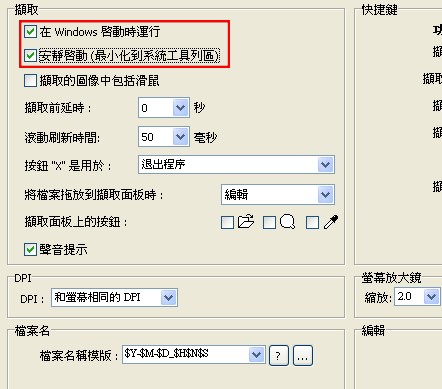
Editor Tutorial
In this part, I'll take you through an actual screenshot and show you how to process it in the editor.- To take screenshots with FSCapture, first set up the hotkeys as described in the previous post. Then click the second button on the right side of the program and choose “To Editor” (this way, the editor opens automatically after each capture)
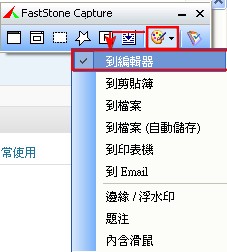
- Open the program you want to capture, then press the hotkey to take a screenshot. After a successful capture, an editor will open. Here are its main features.
2-1. Resize & Sharpen:
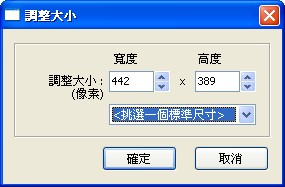
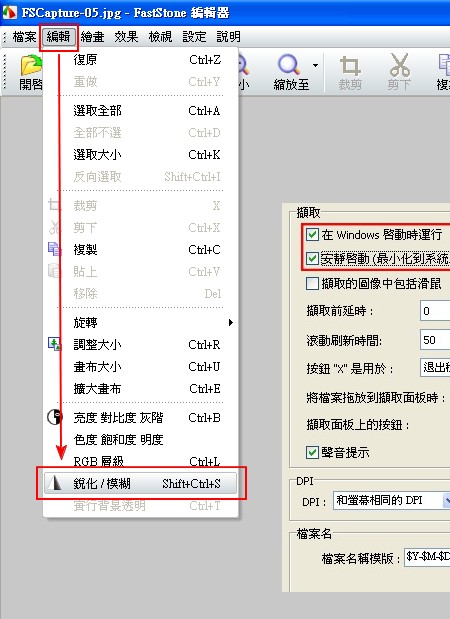
Sometimes, after taking a screenshot, you'll find the image is too large to upload online. In that case, go to Edit - Resize to change it.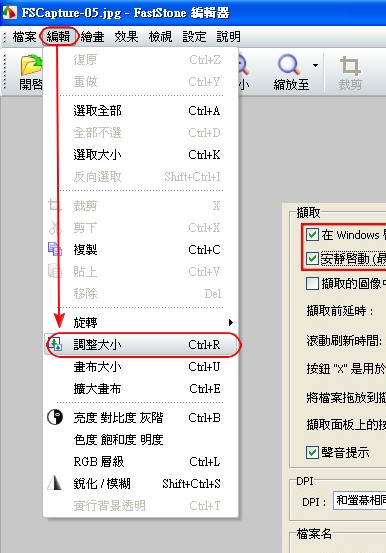
Enter the width and height ↓↓↓
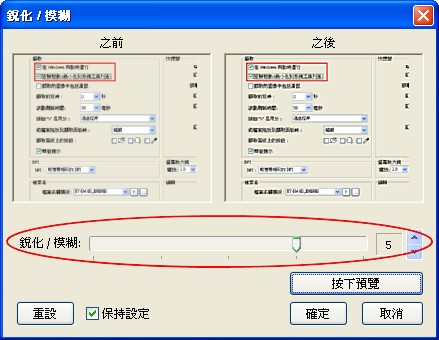
- After changing the width and height, you may notice the image has become blurry. In that case, use Edit - Sharpen/Blur to fix it
- Drag the slider to the right and click Preview to see how much sharpening you’ve applied. If you go overboard, click Reset to restore the image
2-2. Adding Text & Lines to Images:
1. Click Draw on the toolbar at the top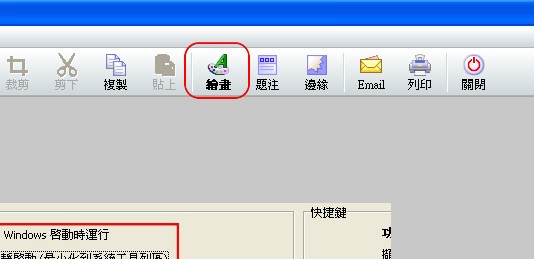
- Start drawing XD
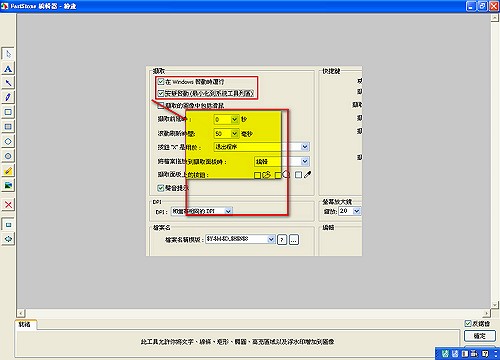
Those two features are basically the ones I use most in the FSCapture editor. For the rest, such as rotation and adjusting the “humor level” (a joking term), feel free to explore on your own. I’ll be lazy and leave them for you to try.
Delayed Screenshot Setup Tutorial
Delayed screenshots are one of FSCapture's biggest highlights. They let you set how long to wait after pressing the screenshot key before the capture is actually taken. At first glance, that might seem pointless, but people who take a lot of screenshots know that many programs hide themselves as soon as you take a shot, so you can't capture them. That's where delayed screenshots come in: press the screenshot hotkey first, then bring up the program that's hiding.- Open the settings area
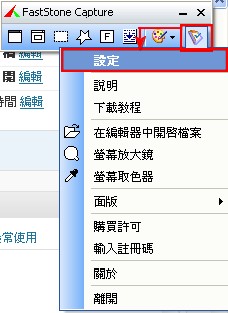
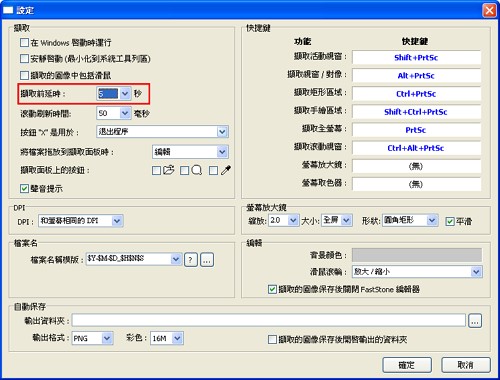
- Set the delay you want under “Delay before capture”, then click “OK” to save
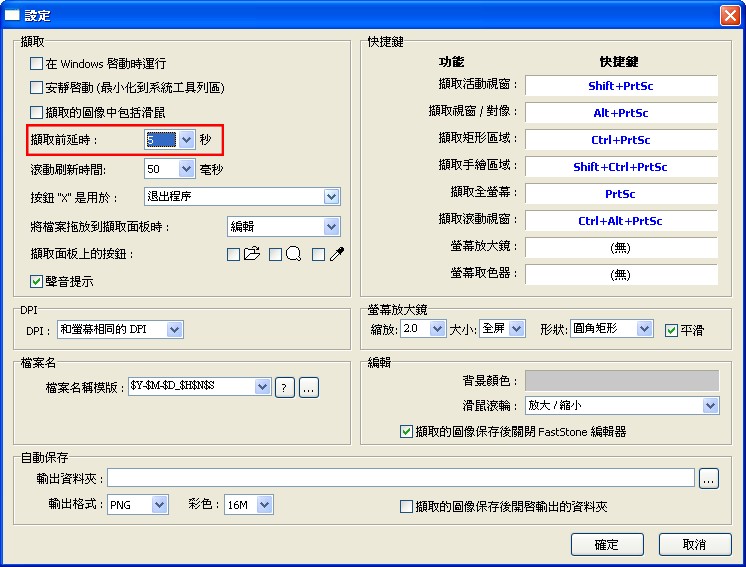
- Next, open the program you want to capture, then press the hotkey. Some programs may minimize themselves automatically, so just bring them back up within the time limit you set
File Name Template & Auto-Save Setup Tutorial
The file name template works best combined with automatic saving, because it lets you save a photo right after taking it without opening the editor.P.S. If you don’t have any special needs, the default file name template is fine.
- As with most settings, first open “Settings”
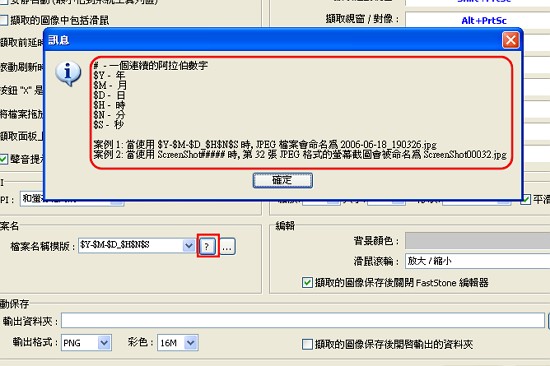
- Enter the pattern you want in the file name template field. That may be hard to follow in words, so you can click the “?” button next to it to see the explanation
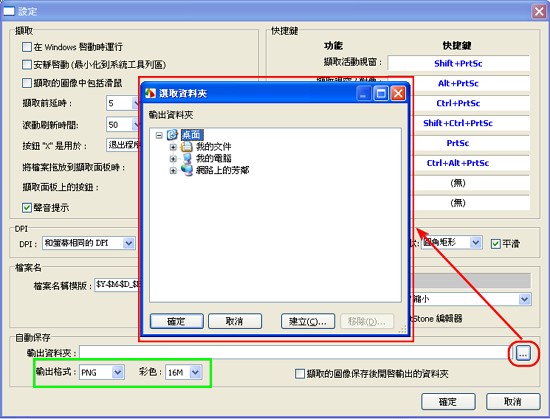
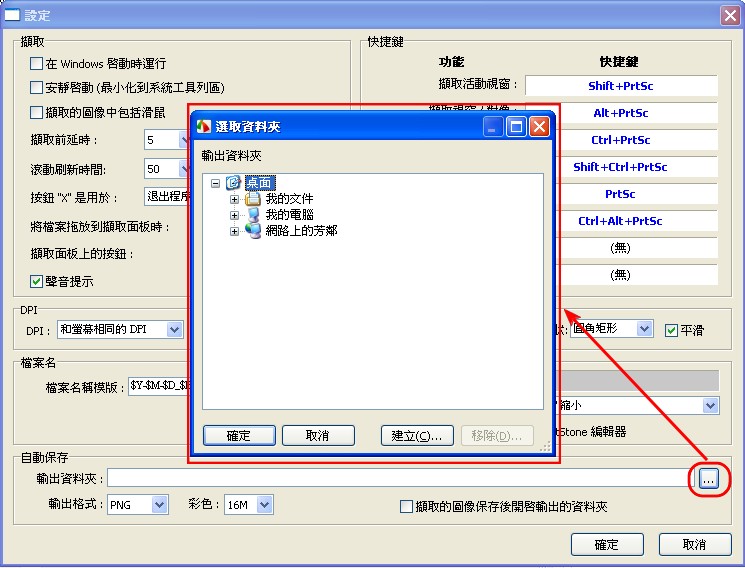
- After that, click the “…” next to “Output folder” to choose the folder where auto-saved files will go. (You can also change the file format used for auto-saved files.)
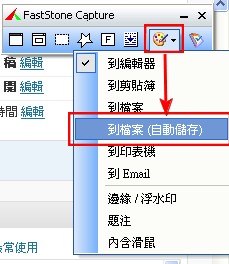
- Once that’s done, go back to the small toolbar interface, click the second-to-last button, and choose “To File (Auto-Save)” from the menu
.
.This article is the last one of the summer break, so I made it extra thorough.
That said, I probably won’t be able to write posts often from now on @@
So whenever I do have time to write, I’ll try to make the posts as complete as possible. In other words, from now on I’m aiming for a more polished, premium style.