
Worried that nobody reads what you write? Want to raise the visibility of your blog? Funp can help you get there easily. The idea is simple: you write a post on your blog, then submit it to Funp, and Funp puts the latest posts on its front page. Imagine how much visibility your post would get if it appeared on a page that thousands of people are looking at all the time. Of course, because so many people use Funp, posts move off the front page quickly. To stay on the front page for long, your post needs to be “pushed” (Funp’s term for recommending a post) by many people. The more people push it, the more likely it is to be seen.
Some people wonder whether Funp really increases blog visibility. I think that as long as your article is good enough, it can also bring a lot of traffic. Don’t believe me? Try an experiment. Spend 5 days without pushing anything to Funp, and record the number of visits on the 5th day. Then pick another 5 days, and every evening between 7 and 9 PM, publish your article on Funp. On the 5th day of that second period, record the visit count and compare the two numbers to see which one is higher.
URL: http://funp.com/
1. Account Registration Guide
1. To apply for an account, first go to their website. Once you are there, click "Register" in the upper right corner.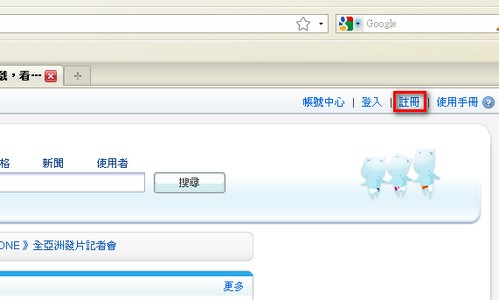
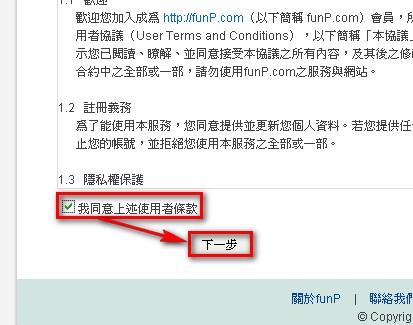
- A user agreement will appear. Of course, we uphold the fine tradition and click “Agree”.
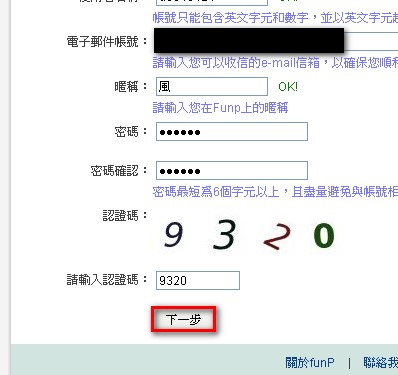
- Fill in your details and click “Next”.
- If the application succeeds, it will tell you to check the email address you entered.

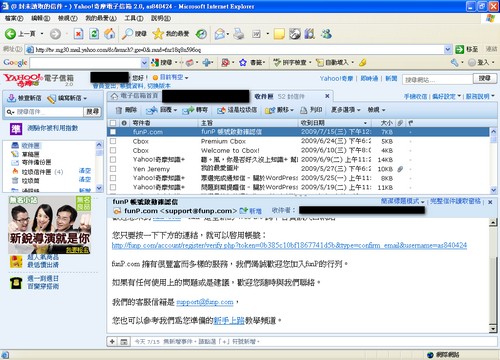
- Check the inbox of the email address you entered for an email titled “funp account activation email”. If you find it, click the longest link in it to finish registering.
2. How to Post
Once you have registered, the most important thing is of course posting. If you don’t post, how would anyone know you have published something new? Let alone raise your visibility.
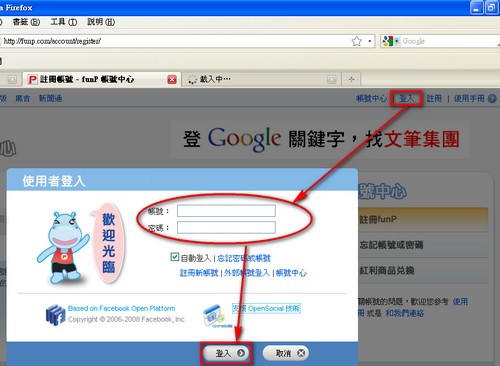
- Click “Login” in the upper right corner, then enter your account name and password.
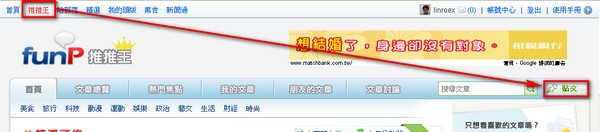
- Click “Push King” in the upper left corner, then click to post.
- Enter the URL of the article you want to post in the URL field, then click “Next”. It will automatically detect the article’s information.

- Next, it shows you the data it detected. It can usually detect everything. The worst case is when nothing is detected, and then you have to fill in all of it yourself.
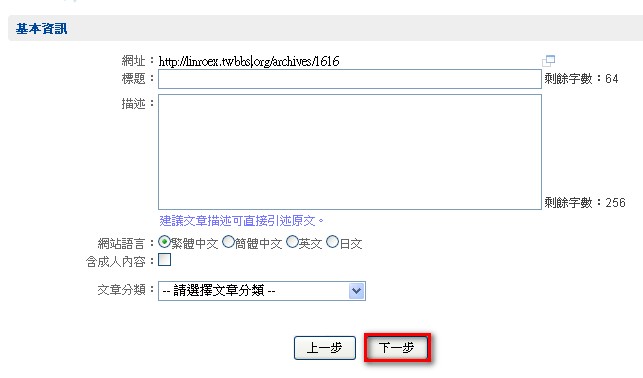
P.S. Most people have no trouble filling in the data. The thing to note is that anything you type in the “Description” field will not line-wrap.
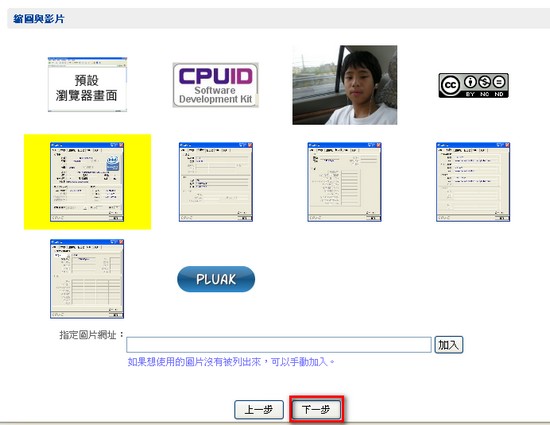
- Next, choose the representative image for this article. It lists the images detected in the article. Pick the one you like and click “Next”. If none of them is what you want, you can click “Browser default screen” directly.
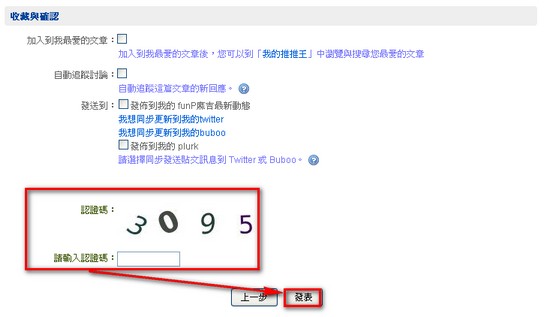
- The last step: enter the verification code and click “Publish”.
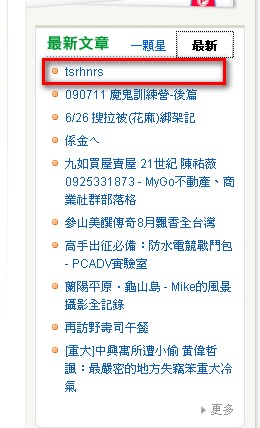
- The article has appeared successfully.
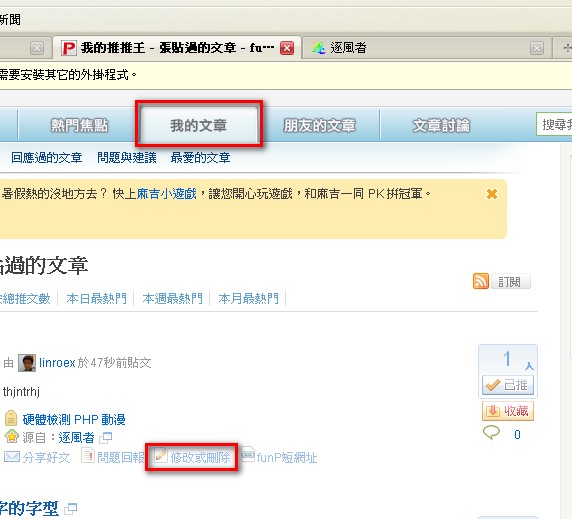
- If you want to edit an article you have already posted, click “My Articles” to make changes.
That covers the basics of Funp. For other features, check out the User Manual. This site will also publish a few more articles like this from time to time to share tips.