I think many people have played games, and you probably know that many single-player games need the disc in the drive to start. If the disc gets damaged, you can’t play the game anymore, so at this point everyone probably wants to make a backup copy! But game companies, for their own interests, add copy protection, so ordinary methods can’t burn it. So… what do you do? In this post, I’ll show you step by step how to use Alcohol 120 to get around the copy protection.
Required Software:
Alcohol 120 (30-day trial version) Official download | Virus scan reportA-Ray Scanner (for identifying copy protection) Box.net | Xun6 | Virus scan report
Note: Alcohol 120 is a trial version that can only be used for 30 days, so I recommend finishing the cracking work within 30 days of installation.
Have you prepared the two programs above? Now let’s learn step by step.
The first step in getting around its copy protection is of course figuring out how it works. Here I recommend the ArayScanner program for identifying it. Not only is it free, it is also very accurate and almost never misidentifies anything. It also connects to their database to make the determination, so it can even identify the newest copy protection schemes :)
1. A-Ray Scanner Installation Steps
1. Double-click the installer.
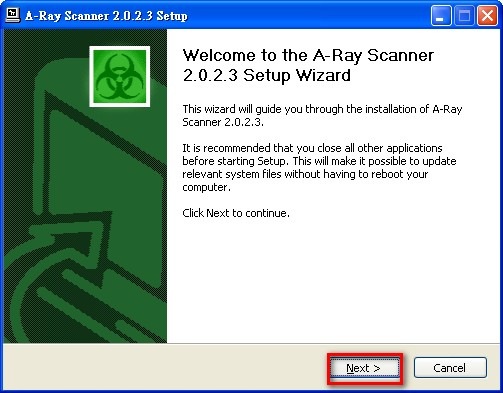
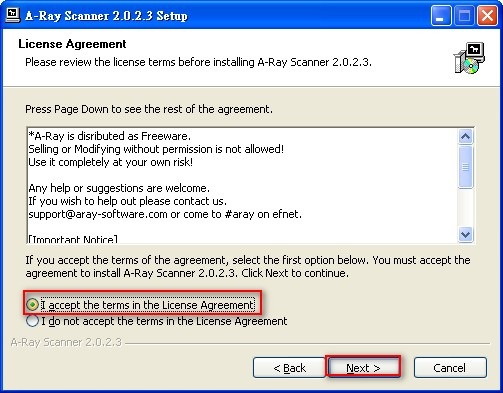
- Click NEXT.
- Check the “I accept……………….” box, then click NEXT.
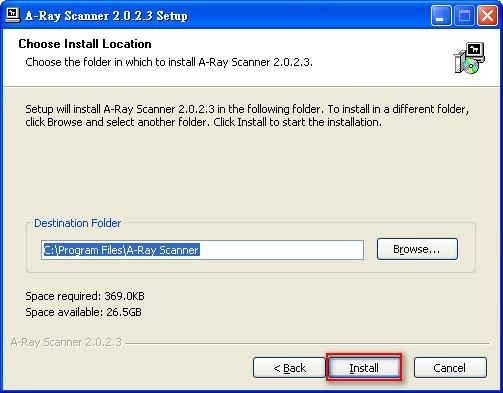
- Set the installation location (the default is fine).
- Once the installation is complete, click Finish to launch the program.
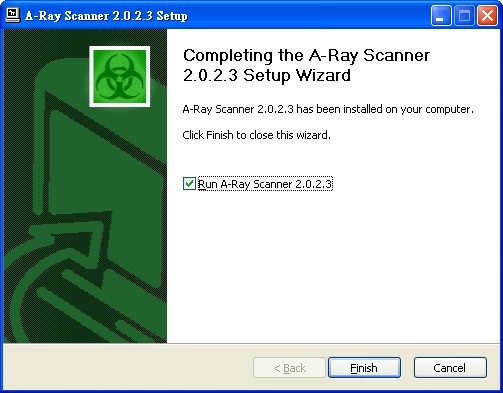
After installing the program, insert the disc whose copy protection you want to identify into the drive, then switch to ArayScanner.
2. A-Ray Scanner Usage Guide: Identifying the Disc's Protection Technology
1. Select the drive that holds the game disc.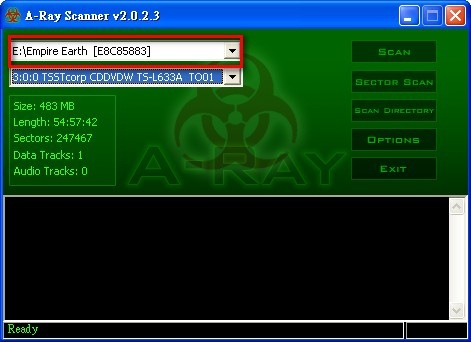
- Click SETCOR SCAN to scan.
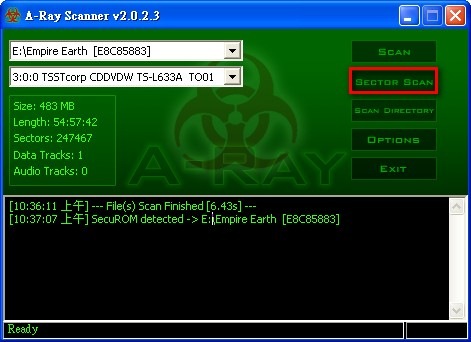
- After the scan finishes, the results appear at the bottom. The part before the “->” symbol is the copy protection method.
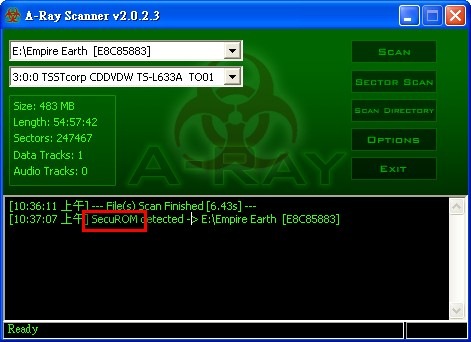
- Once you know the copy protection method, the rest is easy. Make a note of the protection method for now, then follow the next article, “Alcohol 120 Installation Guide”: install the program first, then come back and continue.
3. Alcohol 120 Installation Guide
1. Open the Alcohol 120 installer and click NEXT.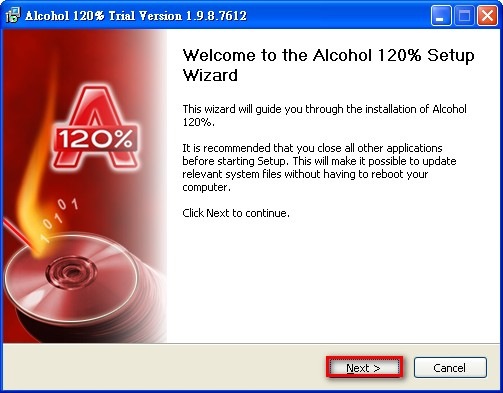
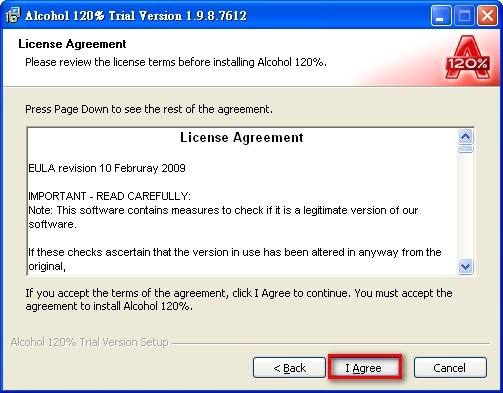
- This is the program’s license agreement. If you accept it, click I Agree.
- It will ask whether you want to restart your computer. Choose “OK” to restart (the installation cannot continue without a restart).
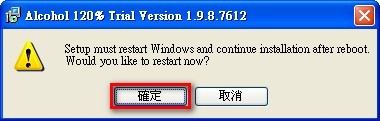
- After restarting, the installer will pop up automatically. If it doesn’t, open it manually.
The first steps are the same as before: click NEXT, then I Agree.
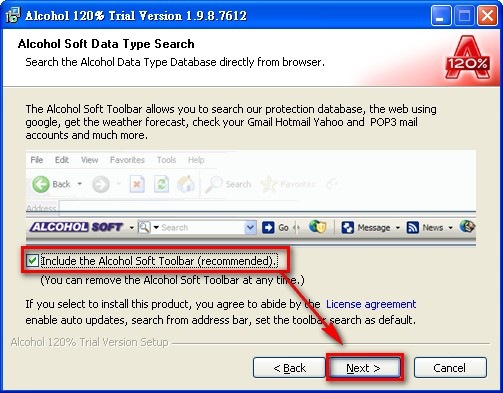
Next, it asks whether you want to install its toolbar. If you don’t want it, uncheck it and click NEXT.
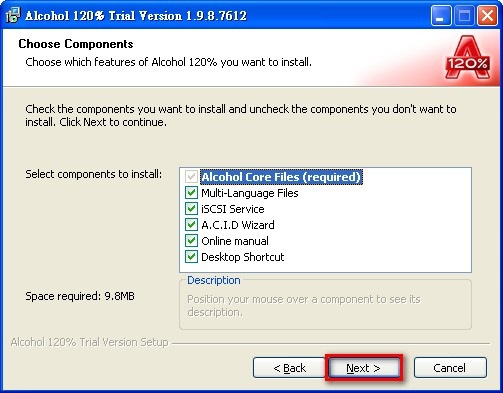
- Here you choose the components to install. Generally, keep the defaults and click NEXT.
- If there isn’t enough space on your C: drive, you can set the installation location to another place here. After setting it, click NEXT.
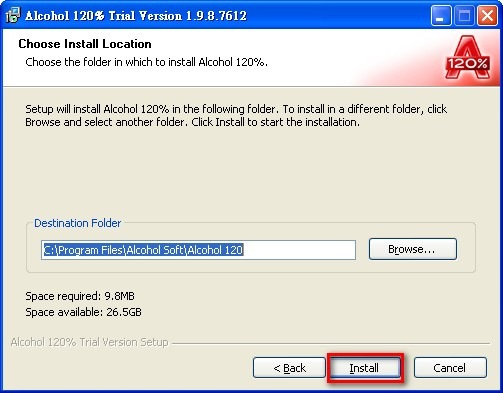
Installing
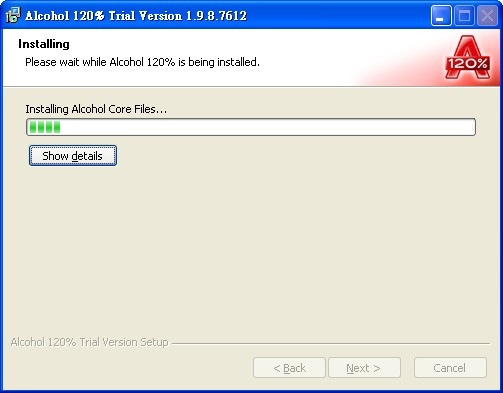
Once the installation is complete, click Finish and the program will open.
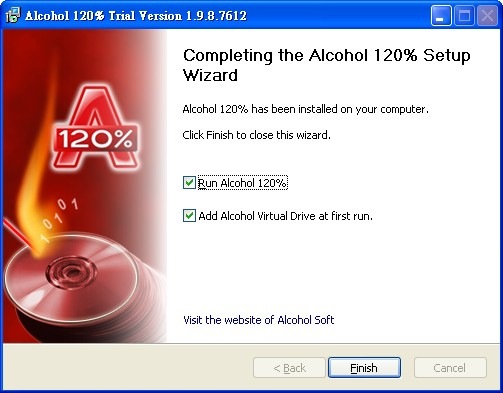
Now comes the last step, and also the most important one. Once you have created the disc image file, you can mount it and play the game.
4. Creating Disc Images with Alcohol 120
1. Open the main Alcohol 120 program.
- Because this is the trial version, you have to wait 10 seconds after opening it before you can press the OK button.
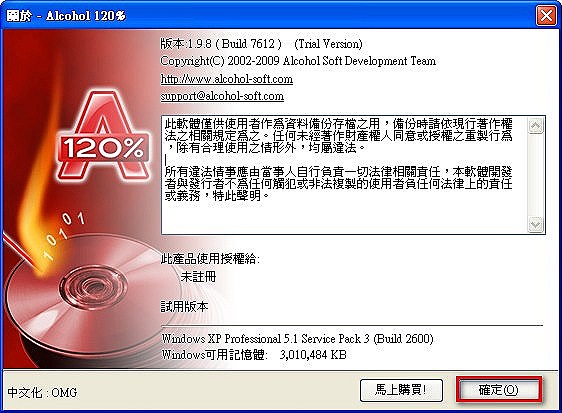
- After opening it, wait for it to finish running some processes.
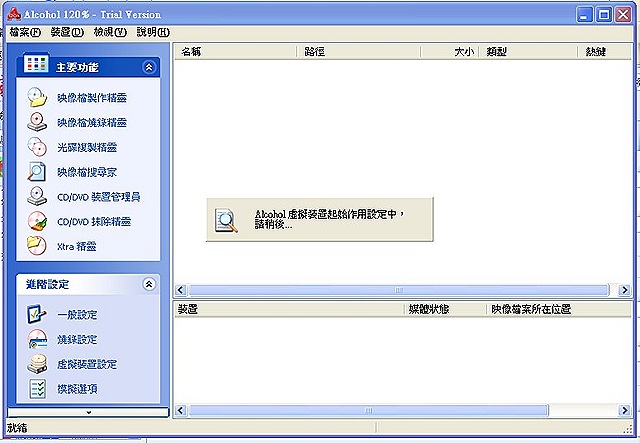
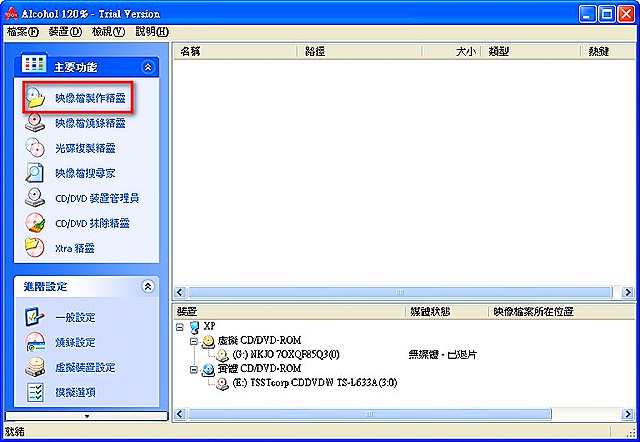
- Select “Image Creation Wizard.”
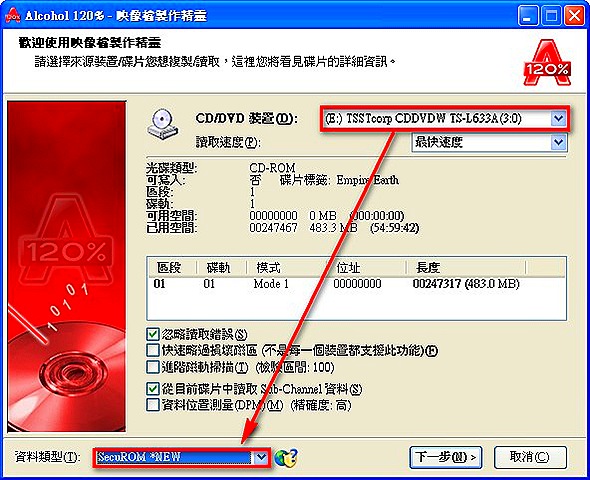
- First, set the drive that holds your game disc (1).
Then, under the data type, select the copy protection method you identified earlier with the program.
Once that is set, click “Next.”
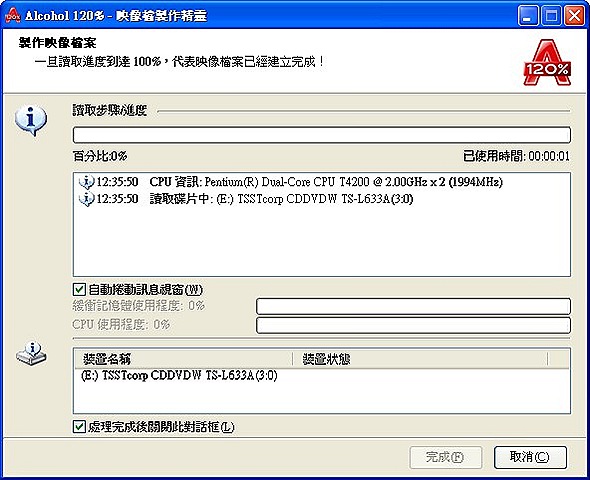
- Set where the disc image file will be saved. Leave the other settings alone, then click “Start” and the process will begin.
- Once the image file is created, you can either mount it or burn it to a disc. To burn it to a disc, click “Image Burning Wizard.”
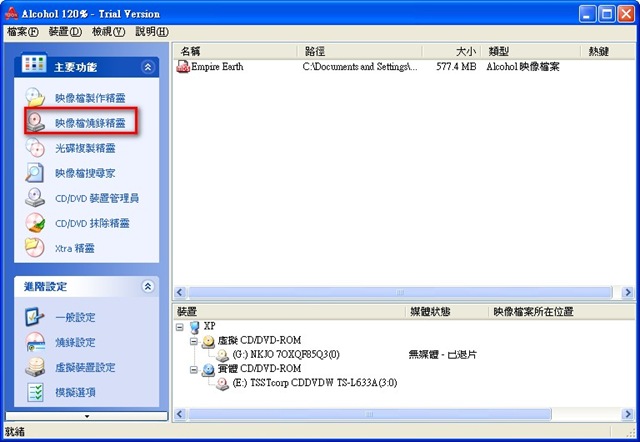
If you don’t have a burner at home, don’t worry. Alcohol 120 has a built-in virtual drive feature. Just right-click the virtual drive and choose to mount the image file.
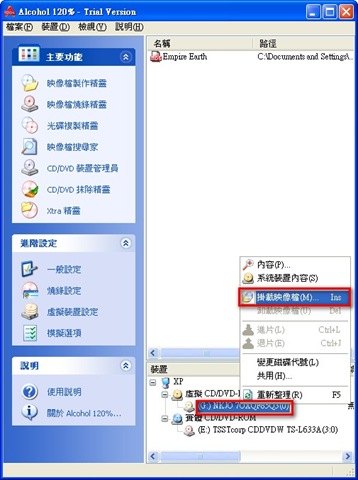
This tutorial is almost over.
If you have any questions, feel free to leave a comment and ask me.
But please don’t ask me how to crack this program.
Either figure out a way to crack it yourself.
If you can’t find one, then buy it.
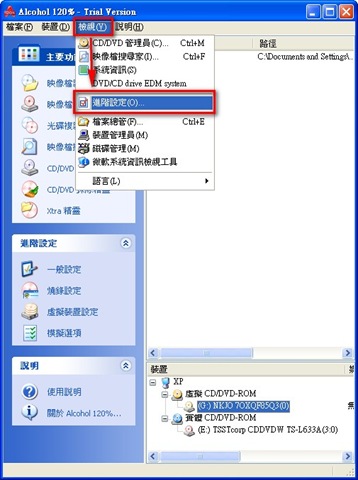
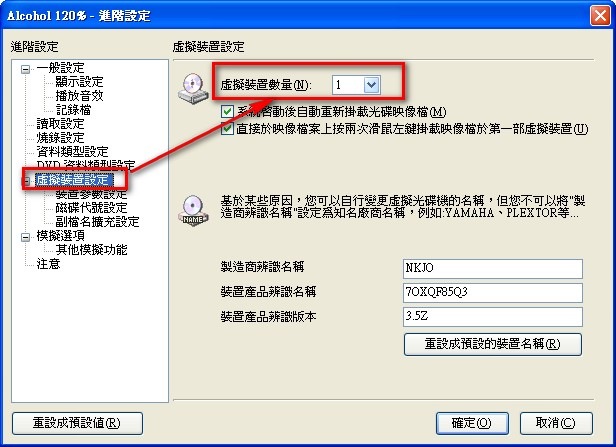
Update: If Alcohol 120 doesn’t show a virtual drive, click “View” - “Advanced Settings”, then select “Virtual Device Settings.”
There is an option called “Number of virtual devices.” Just increase it.