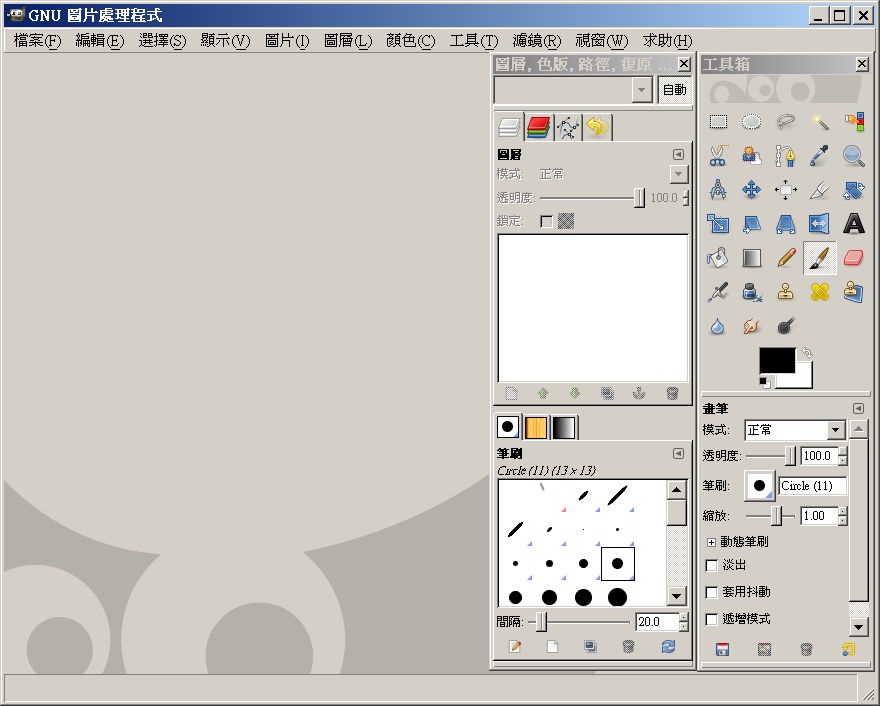
GIMP is an image editing program that comes close to Photoshop, and it is open source. Although it is free software, meaning you can use it at no cost, its features are by no means inferior to the commercial Photoshop. Basic drawing tools are built in, it supports layers, and most importantly, you can extend its functionality by installing plug-ins. As far as I know, there are hundreds of plug-ins available.
GIMP Features
- Can open Photoshop plug-ins
- Cross-platform (Windows, Linux, Mac)
- Supports multiple languages (Traditional Chinese built in)
- Supports common formats such as JPG, GIF, PNG, XPM, TIFF, TGA, PDF, BMP, and more
- Has layers, channels, and other features
GIMP Information
- Official website: http://www.gimp.org/
- Download page: Official download page|Box.net|4Shared
- License: GNU GPL
- Mascot: Wilber
Installation Guide
1. Run the installer, then click [Next]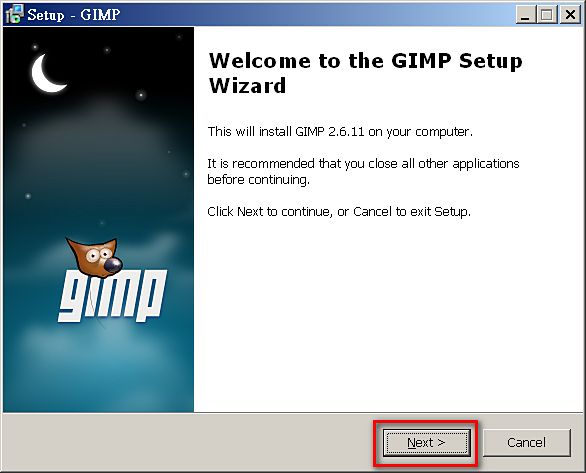
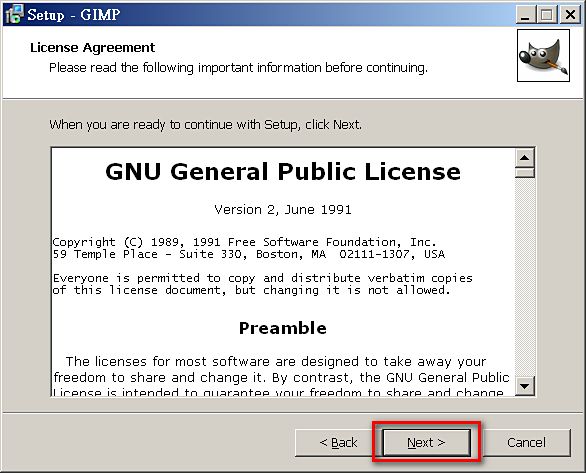
- This is the license screen. Just click [Next]. I don’t think you’re in the mood to read it slowly XD
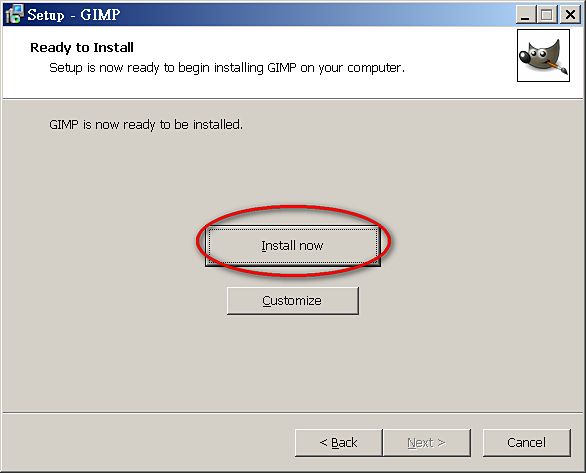
- Click [Install now]
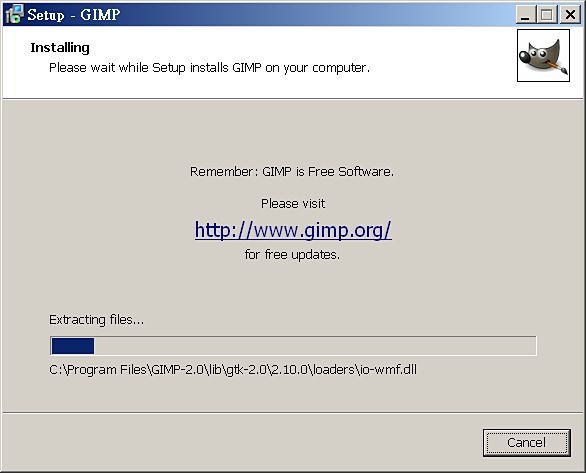
- Installing. Honestly, the installation is quite fast XD
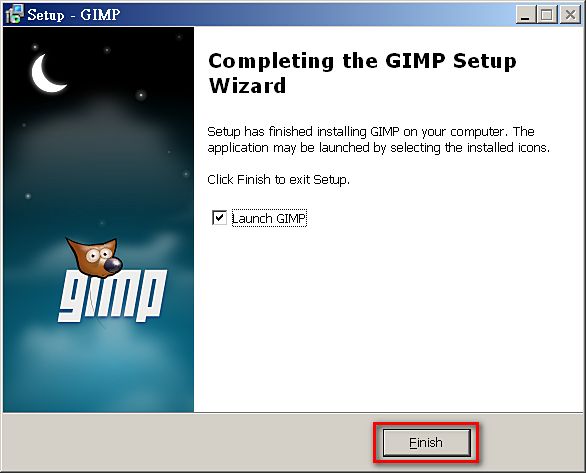
- Once the installation is complete, click [Finish] and GIMP will open.
Conclusion:
What attracted me to GIMP was its startup speed, and the fact that it is free software. I have an old image editing program, Photoimpact, installed on my computer. To be honest, it is rather bloated. Every time I open it, it takes a while to finish loading. Sometimes I just want to do something small, like rotating a photo or resizing it, and Paint is not enough for that... but opening Photoimpact takes so long. Then I remembered a program I had heard about before: GIMP~ According to my tests, GIMP starts much faster, and it uses fewer resources in comparison. I was also worried that GIMP's interface would be in English, but it turns out I was overthinking it. GIMP actually has Traditional Chinese!!