We have all heard the story of someone accidentally deleting the root directory as a joke, but don’t think it is just a joke! I have personally seen countless friends’ computers suffer this kind of disaster. Today, the engineers at GitLab (a service similar to GitHub) also demonstrated the immense power of the rm -rf command… They wiped out the database on the production server… I always thought this kind of disaster would never happen to me, but now even a service like GitLab, which has tens of thousands of users, has had it happen through carelessness. That made me look into how to prevent it, so let’s talk about how to keep the rm command under control!
GitLab’s handling was also interesting: while recovering the data, they live-streamed it for everyone to watch. That may be a good marketing technique, but to me it just looks like the engineers’ personality (lol). If you want to watch the stream, click Youtube - GitLab Live Stream.
The old familiar advice:
- Check your current directory before pressing Enter.
- Don't use the rm -rf command lightly.
- Set up Linux user permissions properly, and don't switch to root carelessly.
- Back up your data!
The most basic approach: the rm command has an -i option. When you delete files with rm -i, the system will ask you again whether you really want to delete them. You can set an alias for rm like this:
# ~/.bashrc
alias rm="rm -i"
Even so, if you accidentally type rm -rf, the -i option will still be ignored, because it is a forced deletion. A better approach is to use the safe-rm command. This command needs to be installed separately, and it works on both Mac and Linux. safe-rm works exactly like rm. The only difference is that you can pre-configure certain paths, and when a user tries to delete one of those paths, safe-rm blocks it directly. I personally recommend replacing rm with safe-rm on your own computer and on company servers to keep such disasters from happening by accident. In addition, company network administrators can set up in advance the directories that must not be deleted, such as where database files are stored.
Safe-rm Git: http://repo.or.cz/w/safe-rm.git
# Mac OS
brew install safe-rm

# Ubuntu
sudo apt-get install safe-rm
After installing safe-rm, I recommend setting it as the alias for rm. You can’t expect every user to remember to use the safe-rm command when deleting files, so it’s better to make it the default.
# ~/.bashrc
alias rm="safe-rm"
Next, let’s set which directories cannot be deleted. Once a directory is set, safe-rm will not remove it, even with the -f option. If you want to delete it, you can only remove that path from the configuration file. Also, only the specified path itself is protected; the files and folders inside it can still be removed. In other words, if you set the root directory as non-removable, the files and folders inside the root directory can still be removed.
There are two configuration files. If they don’t exist, you can create them yourself:
# Global
/etc/safe-rm.conf

# User
~/.safe-rm
Enter the paths that are prohibited from removal in the configuration file, one entry per line, for example:
/home/karl
/etc/*
/var/log/**/*
Finally, don’t forget to restart the Terminal for the changes to take effect!
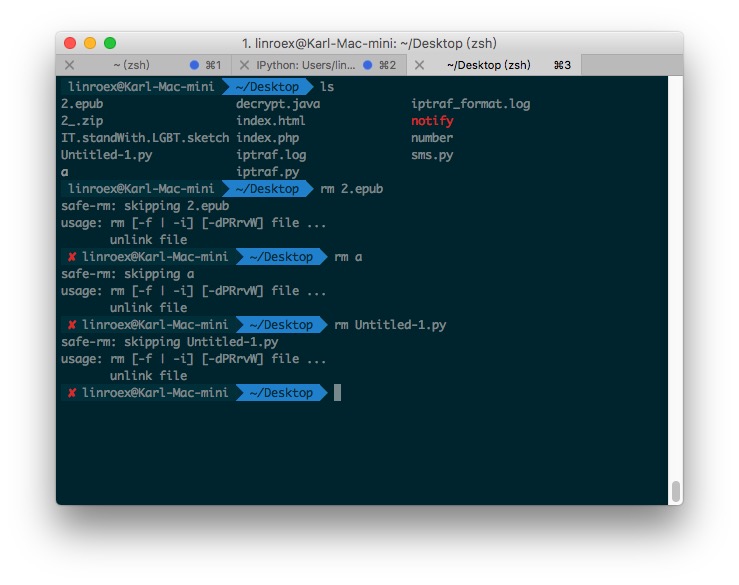
Once this is set up, when you try to remove a file that is protected by default, you will see something like the following:
But keep in mind that safe-rm is the last line of defense. What matters more is developing the good habit of thinking for three seconds before typing a command, and not using rm -rf lightly. If you rely only on safe-rm, then the day you switch to a new computer, the disaster will happen all the same.