Gmail has a built-in filter feature that can filter emails based on their information and perform certain actions, such as deleting every email from abc@gmail.com as soon as it arrives, or adding certain labels. Gmail filters can also help you block spam. Just set up a filter for emails from people you don’t know that have attachments, and you can block about 60% of virus emails. Making good use of Gmail’s filter feature will definitely save you a lot of time.
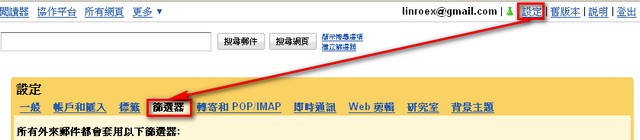
- Log in to Gmail, then click [Settings] → [Filters] in order.
- Click [Create a new filter].
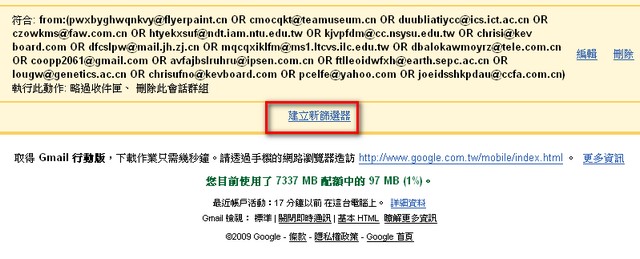
- A box will appear above the inbox for you to configure. The following steps are important.
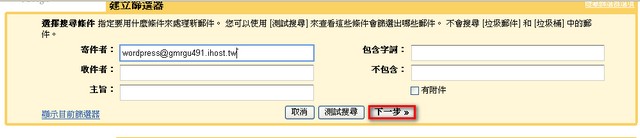
If you want to set up a filter for emails from “123@gmail.com”, enter 123@gmail.com in the From field. If you want to specify two or more addresses at once, you can connect them with OR.
Example:
123@gmail.com OR 456@gmail.com
This way, the action you specify will be performed when an email arrives from either 123@gmail.com or 456@gmail.com.
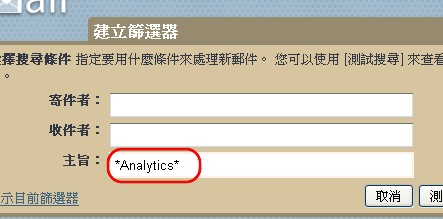
If you want to filter emails whose subject contains specific characters, you can enter the following in the Subject field:
*keyword*The keyword is the word you want to filter for.
* is a wildcard.
P.S. “Has the words” checks whether the email contains the specified words, and if it does, performs the specified action. Other options are set up the same way. After you finish, click “Next.”
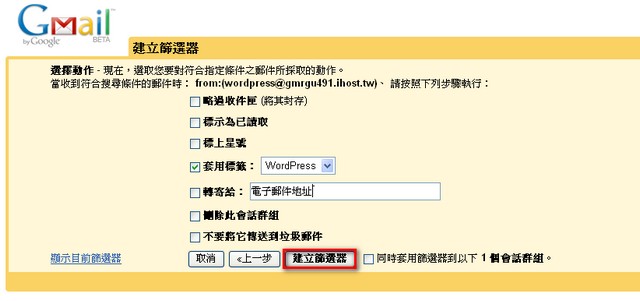
- Now for the last step. Here you set the action to perform when a matching email arrives. I wanted it to automatically add a label, so I checked the label option and set it to WordPress. You can change this to suit your own needs. Once you are done, click “Create filter.”
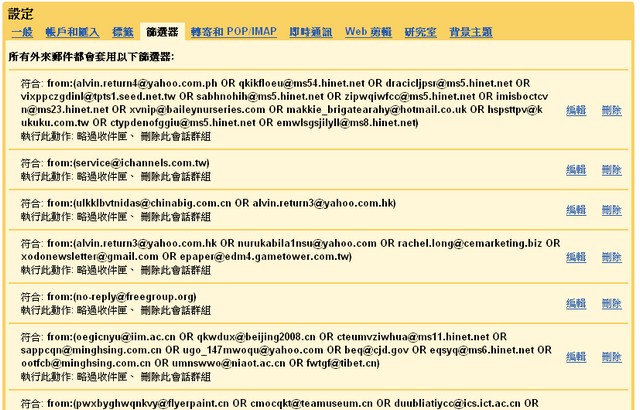
The filter you created will be shown below.
 <
<