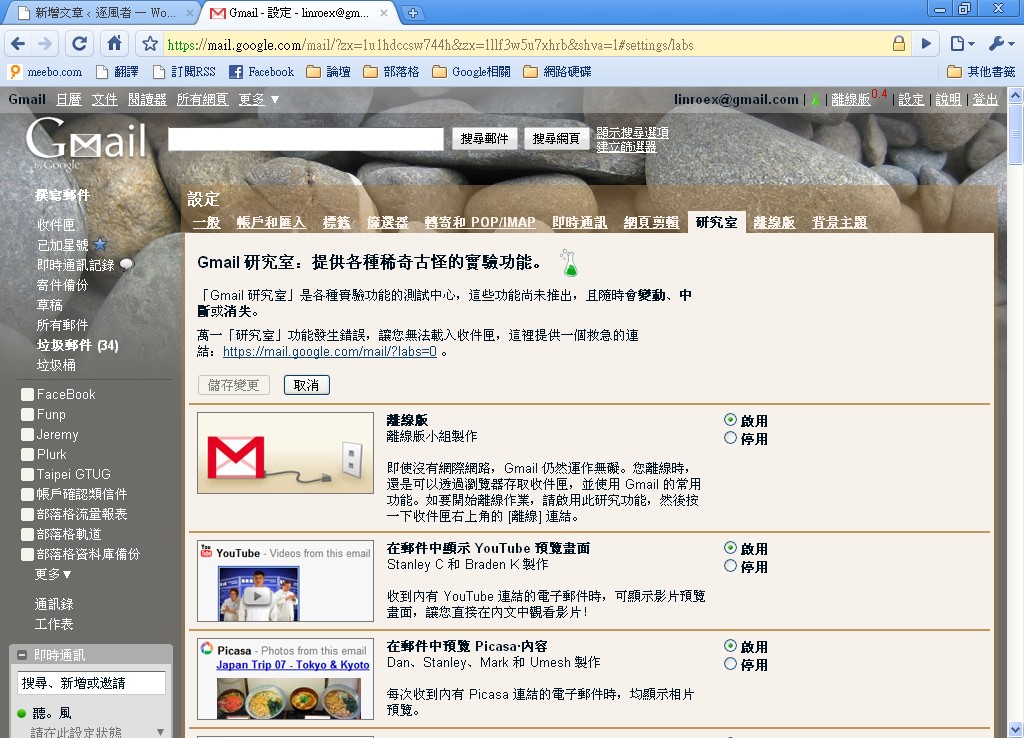
Gmail Labs is a recent feature from Gmail. It contains many things Gmail is still experimenting with (for example, offline mode and translate mail). In other words, the features in Gmail Labs are usually features that Gmail may release in the future. However, because Gmail Labs features are still under development, they are not very stable, and installing some incomplete features can sometimes cause problems. But don't worry too much about that! Gmail Labs provides a URL that lets you turn off a problematic Lab feature when something goes wrong. I have used Gmail Labs for over two months and have rarely run into crashes. Below, I will introduce several Gmail Labs features that the site owner recommends.
Emergency link https://mail.google.com/mail/?labs=0
1. Gmail Labs Installation Guide
1. After logging in to Gmail, click [Settings] → [Labs] in order.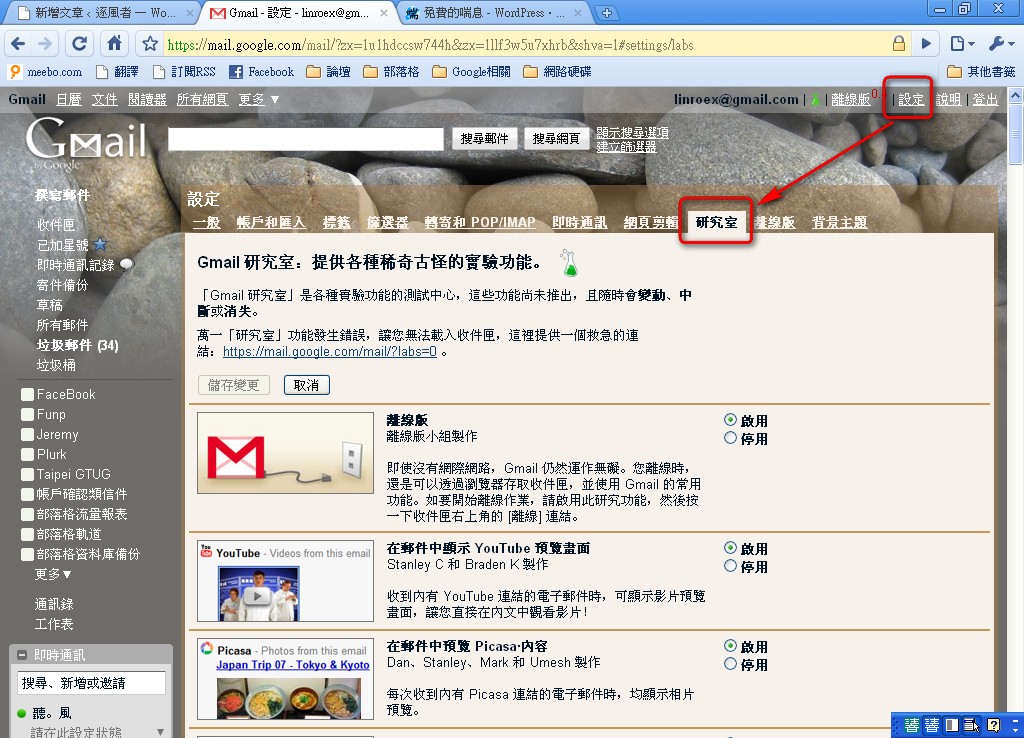
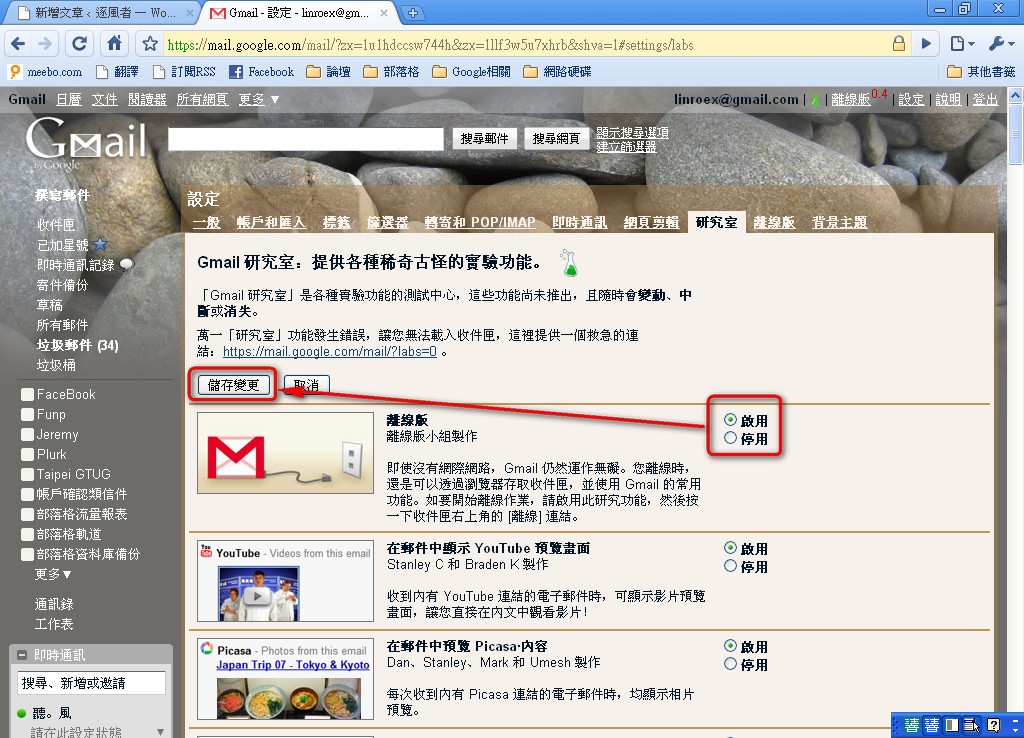
2. Find the feature you want to use, select [Enable], then click [Save Changes].
2. Recommended Features
In this section, we will introduce in detail several must-use Gmail Labs features recommended by the site owner, such as Translate Mail and Mouse Gestures. However, we will not show how to install them, because the installation method is the same for every Gmail Labs feature. Please refer to the tutorial in the previous section to install them (after entering Labs, press Ctrl+F5 and search for the name of the feature you want to use).1. Translate Mail
Translate Mail was one of the first features the site owner installed when they discovered Gmail Labs. It is really convenient. I don't think most people only receive emails in Chinese. Occasionally, foreign websites send emails too, and those are usually in English or other languages, certainly not Chinese! So what do you do? Opening Google Translate is a good option, but that means opening another window. Can't you translate right in your inbox? Translate Mail in Gmail Labs was made for people like the site owner, whose English is not very good. XD- After installing the Translate Mail feature in Labs, open the email you want to translate. A Translate Mail button will appear below the email subject. Click it, and the email will be translated.
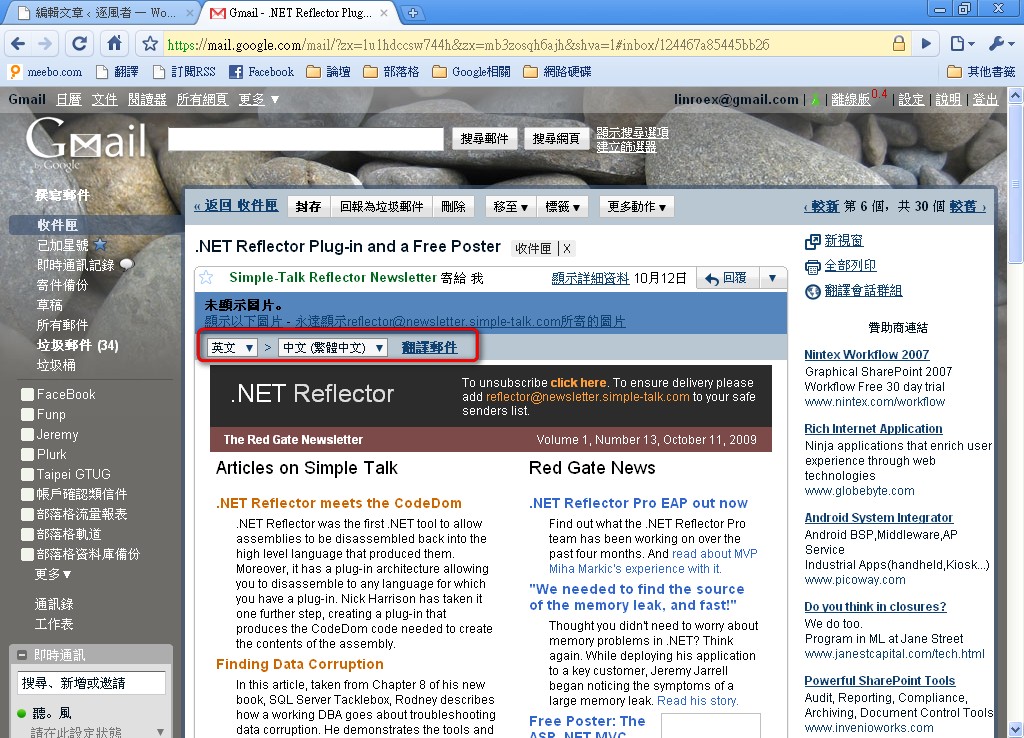
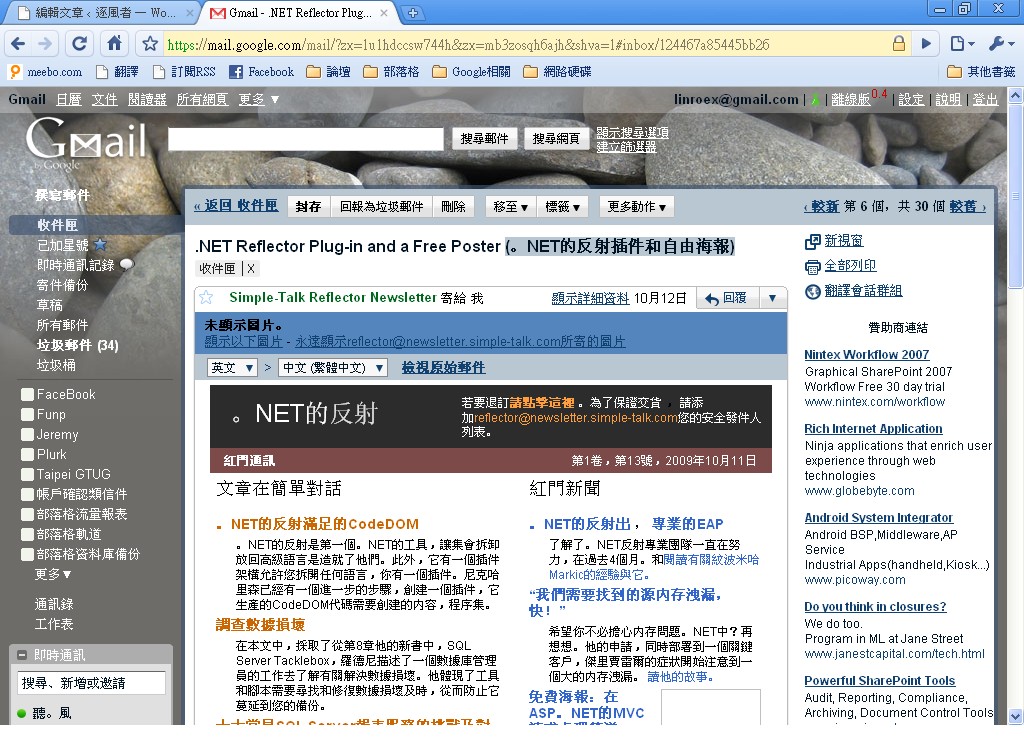
- Translation complete, and it is now in the Traditional Chinese you are familiar with: )
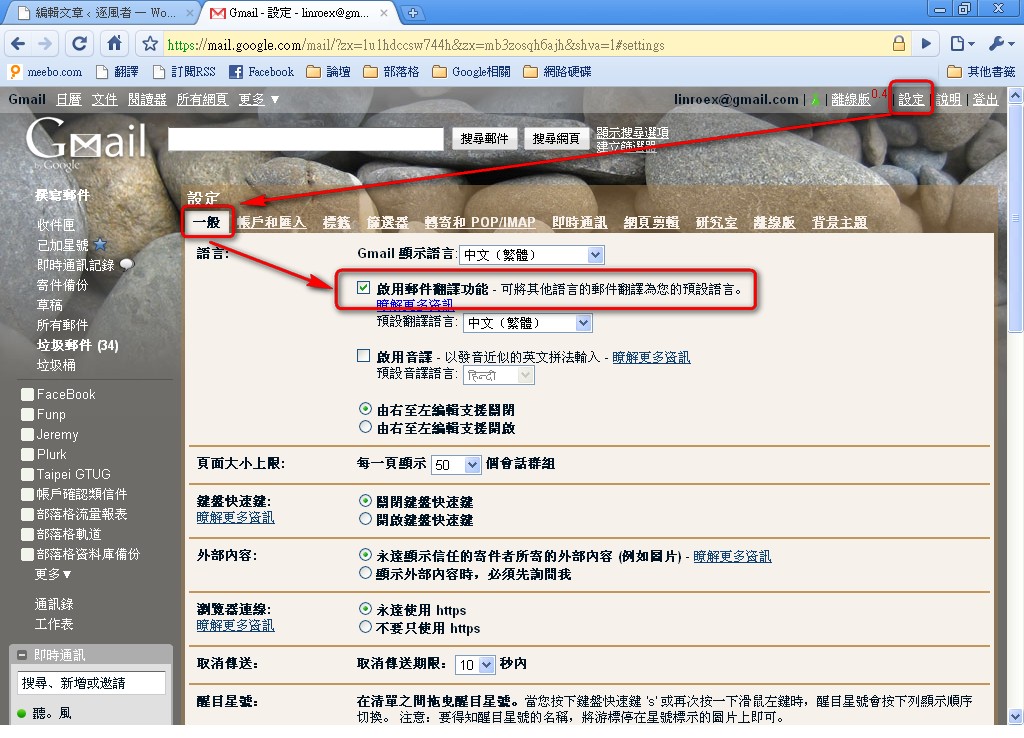
If you installed the mail translation feature but cannot use it, go to [Settings] → [General] → [Language], then check [Enable mail translation].
2. Showing YouTube/Picasa/Flickr/Yelp/Google Docs and Other Previews in Emails
This section introduces five features at once. Basically, I recommend turning on all of them, because they let you preview things like YouTube videos or Google Docs directly in your inbox when you receive them, without opening another window. All five features are at the top of Labs, so go turn them on!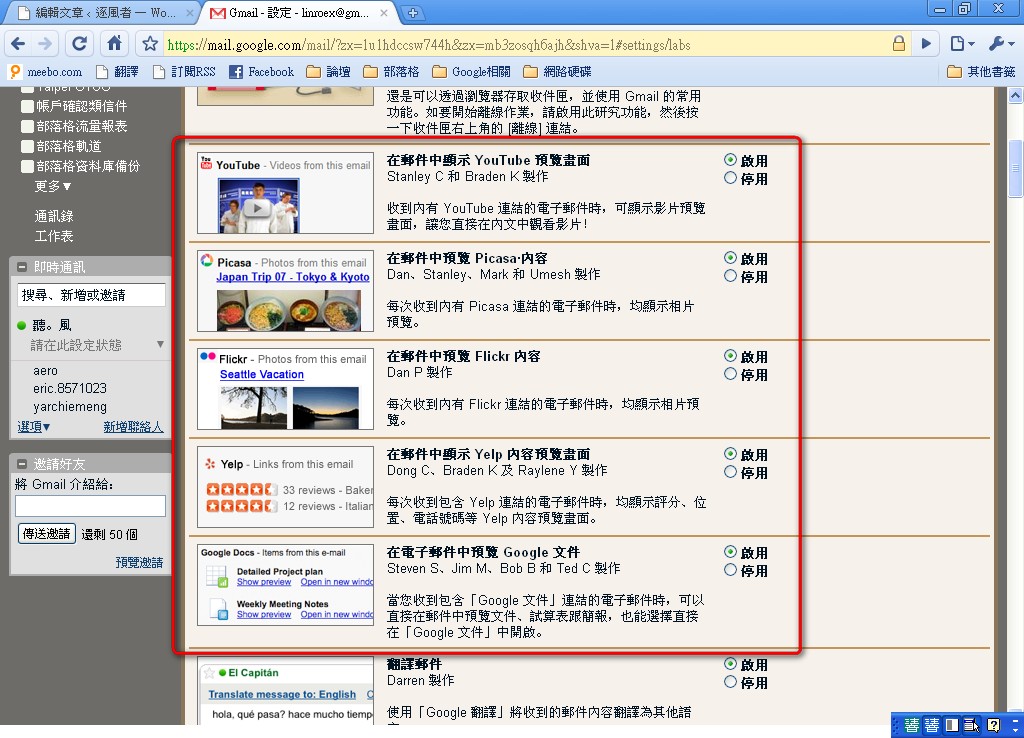
3. Canned Responses
Canned Responses is actually a feature that regular users rarely need. Canned Responses lets you pre-set several replies and apply them directly when an email arrives. This is more useful for companies that use Gmail as a customer service inbox, because they often receive very similar emails, such as questions about where a certain product can be bought. Retyping the same reply every time is tedious, so Canned Responses can boost work efficiency a lot~Creating a canned response:
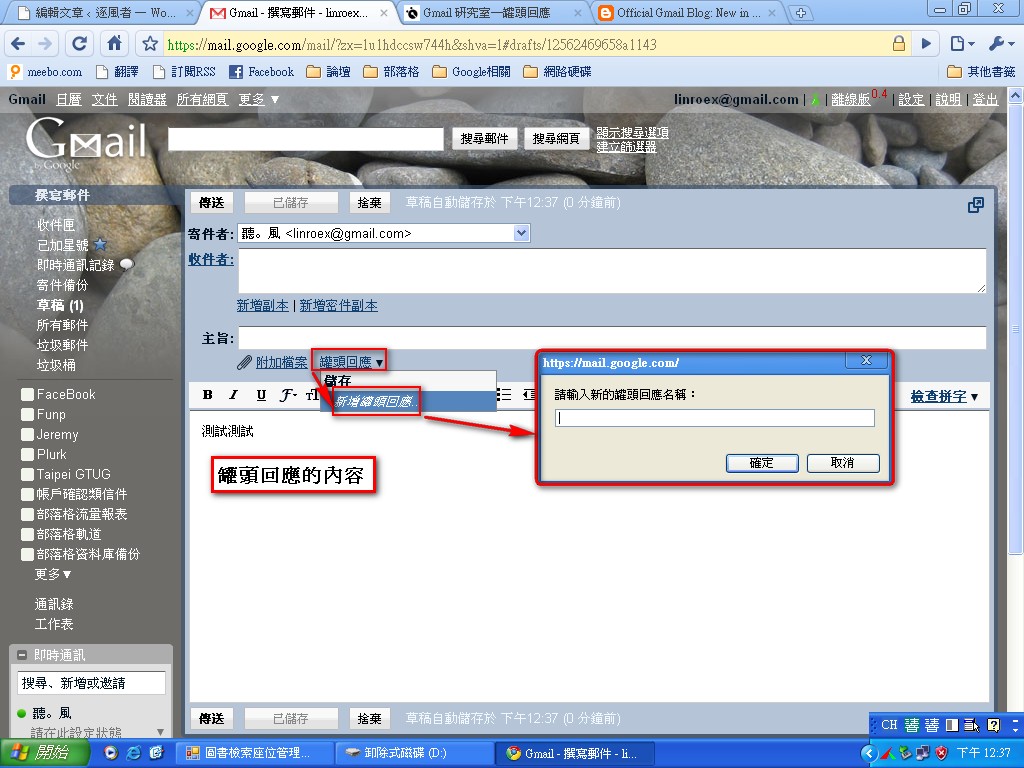
- Click [Compose], then type the content you want to reply with. For example, when you receive an email asking where to buy product XX, you would usually answer that it can be bought at the XX store. A better customer service rep might even attach a map. So type the reply in the body, then click [Canned Responses] → [New canned response], and enter a name for this canned response.
Using canned responses:
In the previous section, we showed you how to create Canned Responses. In this section, we will teach you how to use Canned Responses.
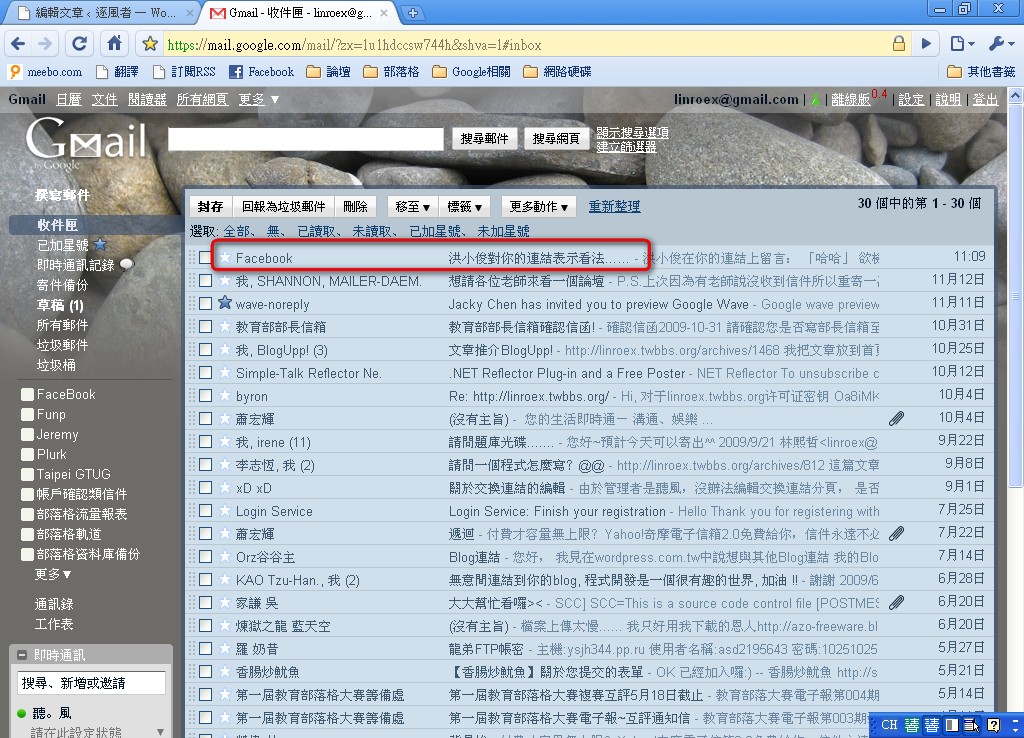
- Click the email you want to reply to (the site owner just picked one at random).
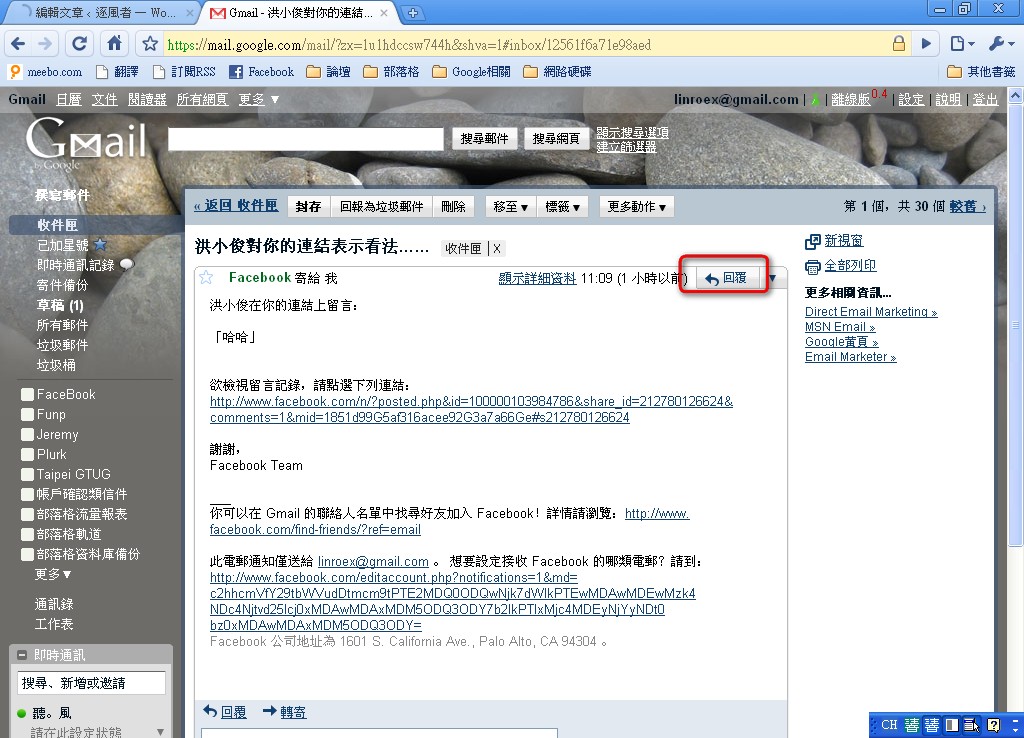
- Click the Reply button.
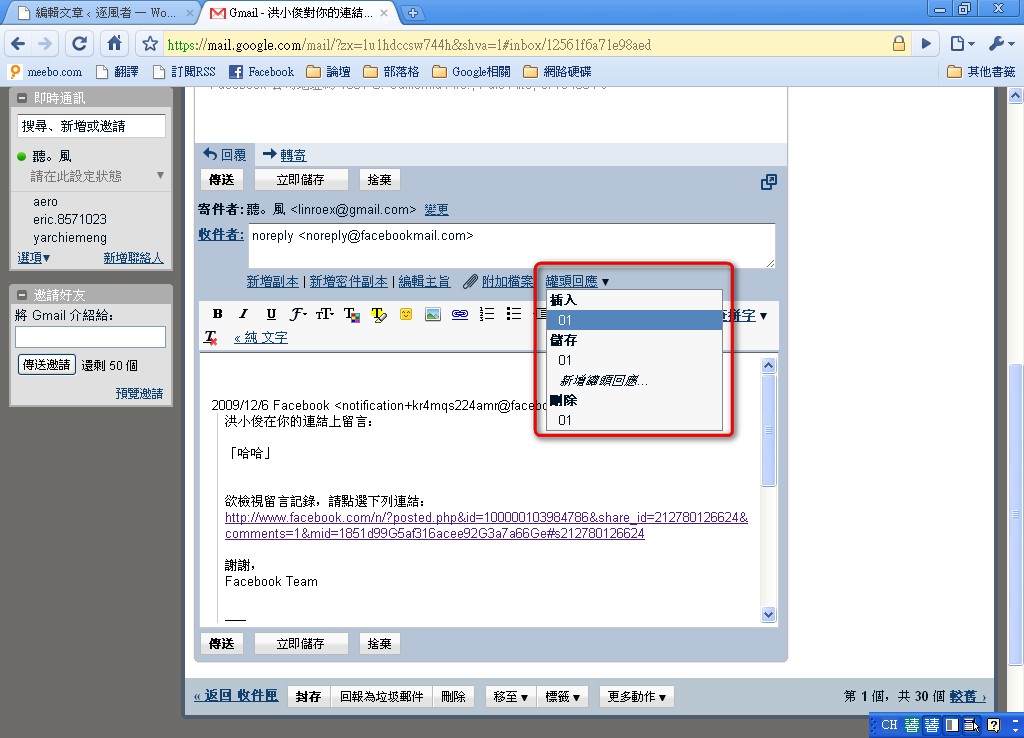
- Select [Canned Responses] → [Insert], then choose the canned response you want to use.
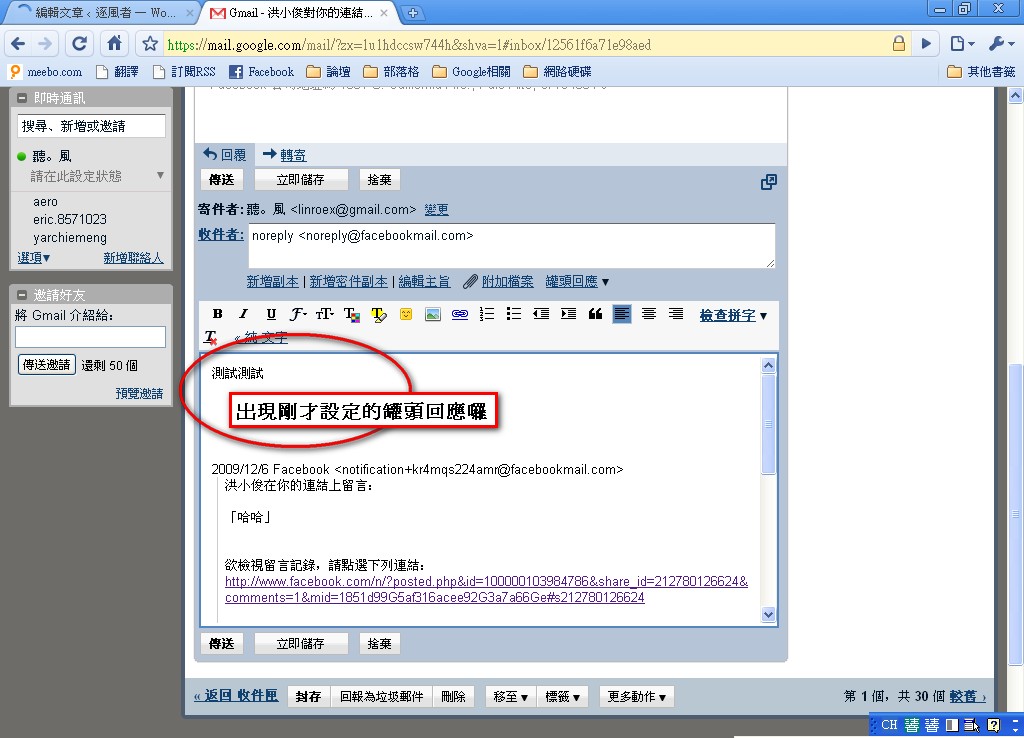
- The canned response you just set up appears.
4. Preview Inbox
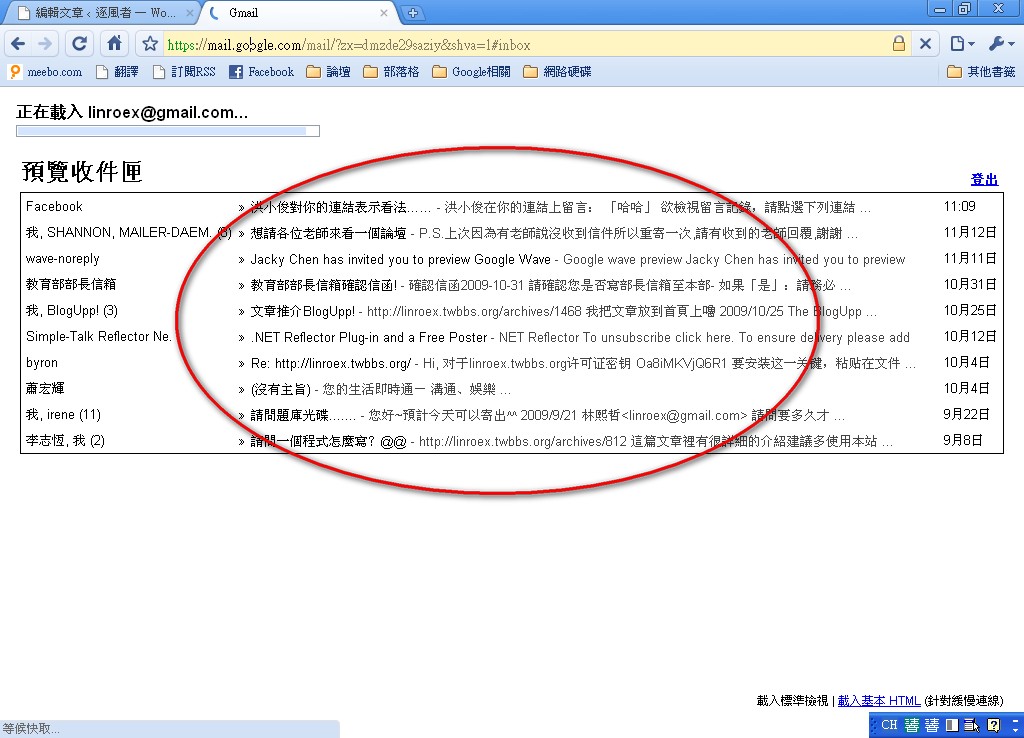
As everyone knows, Gmail has many features and is very polished, but its loading speed is not so impressive. On a computer with a slow connection, opening Gmail can take 20-something seconds. If you wait all that time and then find there are no new emails at all, I'm sure everyone would get annoyed! This is where the Preview Inbox feature comes in handy. As the name suggests, Preview Inbox lets you preview whether your inbox has new emails when you log in to Gmail. If there are none, you can close the mailbox right away.- Enable the Preview Inbox feature in Labs, then click refresh to see the effect. However, if your internet connection is very fast, you may not be able to see it.
5. Undo Send
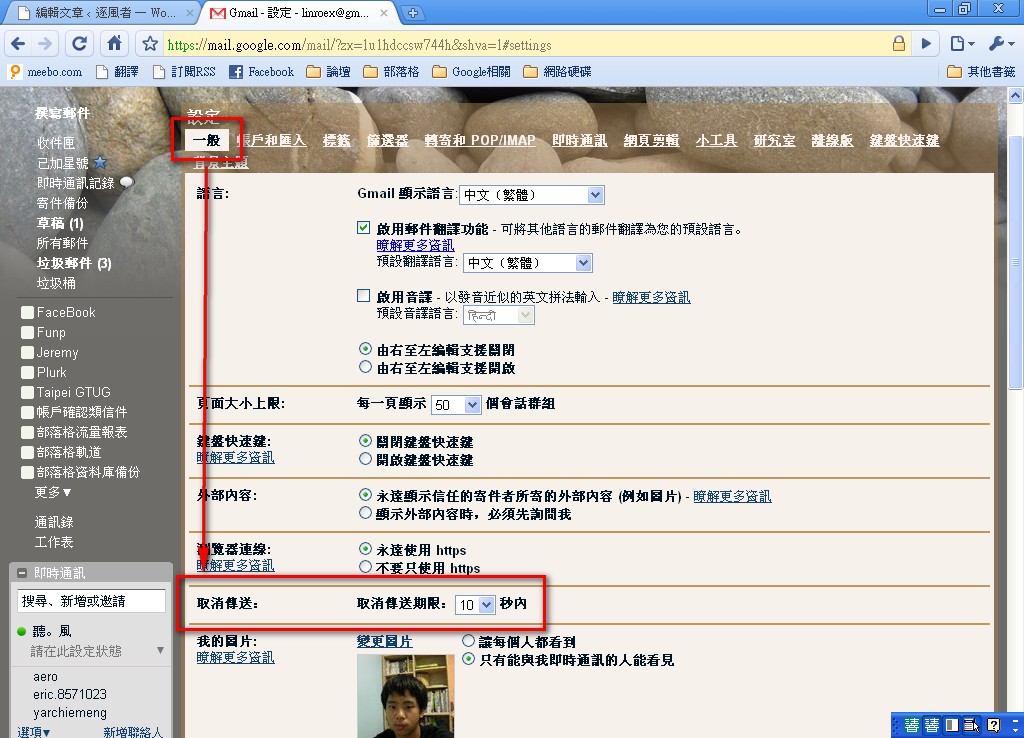
As the saying goes, "To err is human." Anyone can make mistakes; what matters is whether you can make up for them afterward. This saying fits Undo Send perfectly. Undo Send gives you a chance to change your mind within 10 seconds after sending an email. Why would you change your mind? There are probably many reasons. Maybe you notice something is missing after sending, or you sent it to the wrong person. That is when Undo Send comes in handy. The site owner uses it quite often, because the site owner tends to act first and think later (no brain used XD). For example, you might send an email scolding someone, and only after sending it realize that you were the one at fault ^^- First, install the Undo Send feature in Labs, then go to [Settings] → [General], find [Undo Send], and set the time limit to 10 seconds.
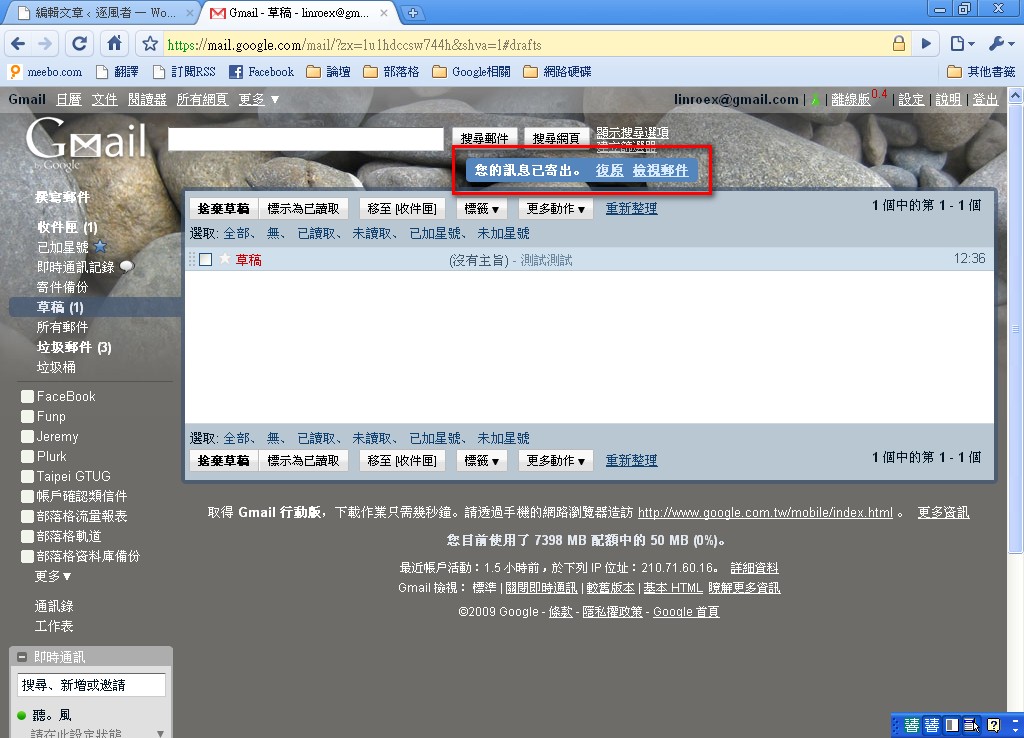
- Click [Compose], enter your own email address in the To field, fill in anything for the subject, then click [Send]. If it was enabled successfully, you should see a message saying your message has been sent, with an Undo button beside it. Click it to retrieve the email you just sent.
6. Custom Keyboard Shortcuts
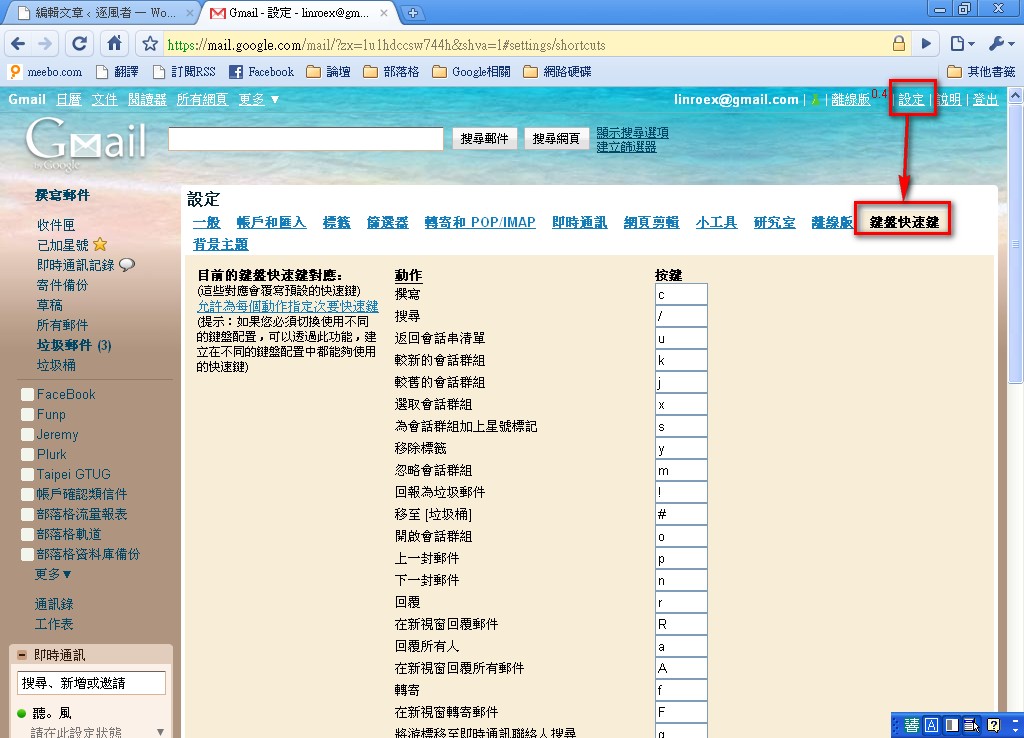
I think everyone knows about keyboard shortcuts. They are very common on computers, and almost every program has built-in shortcuts. So does Gmail have them? Actually, I don't think it did before, but now Gmail Labs has added this feature. Below, the site owner will show you how to set them up.Correction: Gmail already had keyboard shortcuts before; it’s just that now users can customize them.
- Enable the [Custom keyboard shortcuts] feature in Labs, and Gmail will refresh automatically. After it refreshes, click [Settings] → [Keyboard shortcuts] in order, and you can set up your shortcuts. From my testing, it does not seem to support combination keys yet (pressing two or three keys at the same time).