Every time you redesign your website or run an experiment, your Google Analytics data changes. For example, the bounce rate might go up. You may remember the reason for a big change in traffic or data for a short while. But if a year goes by, can you still remember why? Just as code needs comments, Google Analytics has a built-in annotation feature that lets you write notes on specific dates. That way, when you read your reports, you’ll understand what happened to cause the change in traffic!
What can annotations be used for? For example, a front-end redesign of the website or a new SEO experiment can change traffic. Or traffic may drop during the Lunar New Year holiday, or spike after a media report. These are all good reasons to use annotations to record “what happened on this day,” so that when you read your reports in the future, you can understand why the numbers changed!
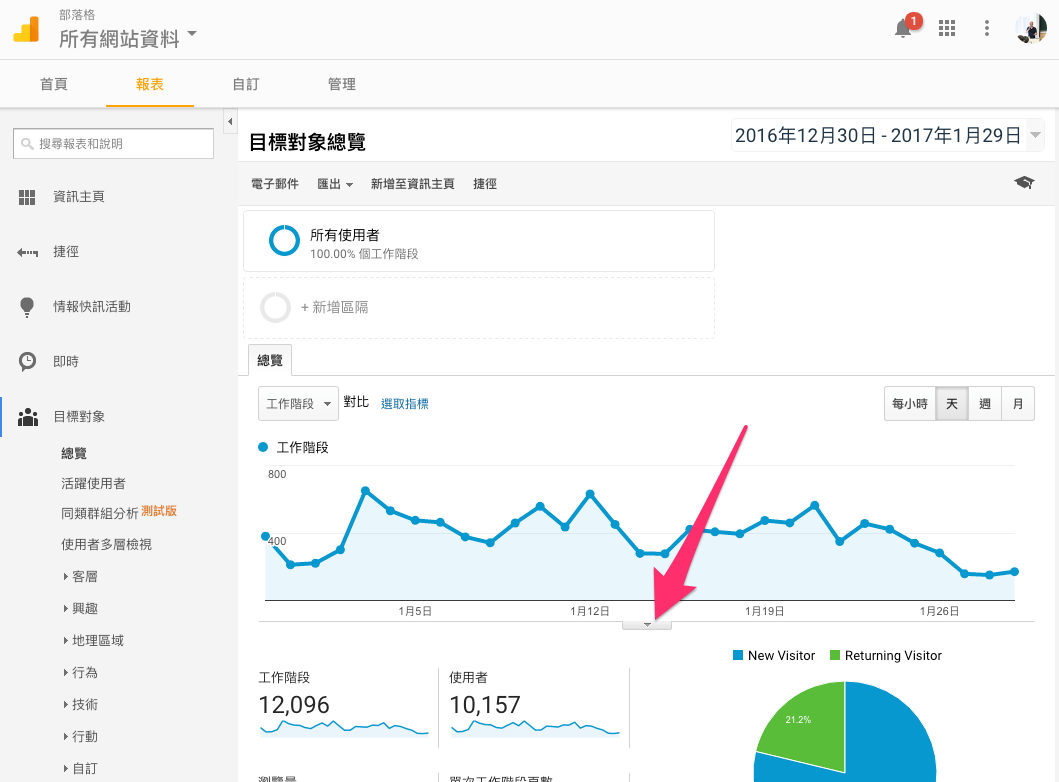
After you open a Google Analytics report, click the “down arrow” button below the date line chart. I have to say this feature is very well hidden. I seriously suspect Google doesn’t want us to use it…
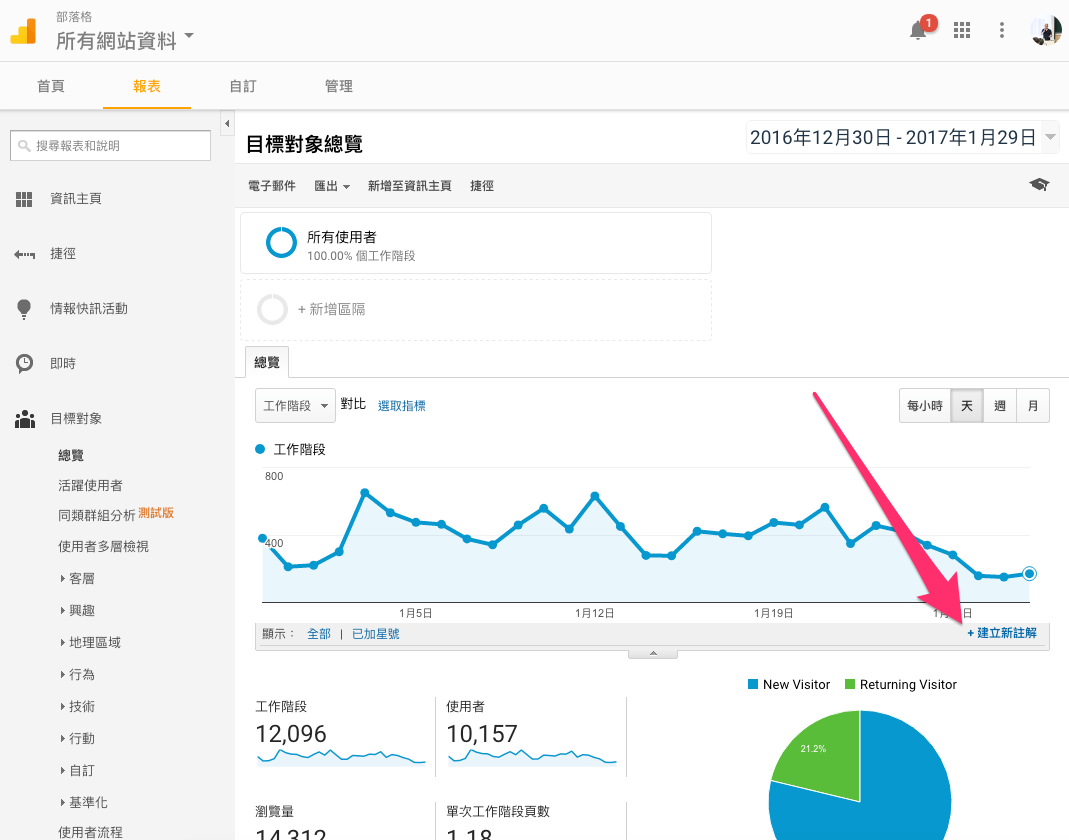
A small panel will appear. Click “Create new annotation,” set the date and the content, then save.
You’ll notice a small icon appears below dates that have annotations. Click it to read the content. Or, as in the first step, click the “down arrow” to see all the annotations within a given time range.
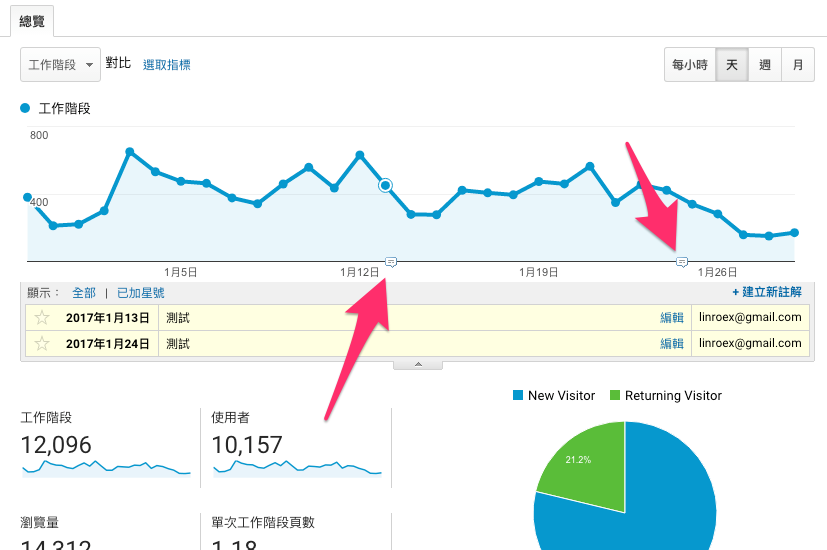
If you want to remove an annotation, the removal option is hidden inside the edit screen, by the way.
Finally, a reminder: if your Google Analytics has separate “views,” annotations are not shared between them!