Scheduling a time is an art! Every time I go back and forth over email to settle on a meeting time, I wish I could just send my calendar to the other person so they can pick a slot that works. Clean and simple! I kept thinking that the powerful Google should have a feature like this. Sure enough, after some research, I found that Google Calendar lets you share your calendar with anyone as a URL. All your events are anonymized as “Busy,” so the other person can only see that you’re occupied during that time, but can’t learn any details about the event (content, time, participants, and so on).
By default, this calendar URL only works for a single calendar. But if you’re like me and split your school, work, and club events across several calendars, don’t worry. With a small tweak to the URL parameters, you can merge the data from multiple calendars! The same principle works for merging several friends’ calendars so you can look at them together. At a glance, you can see which times are free for dinner. Of course, this only works if you and your friends are in the habit of using calendars.
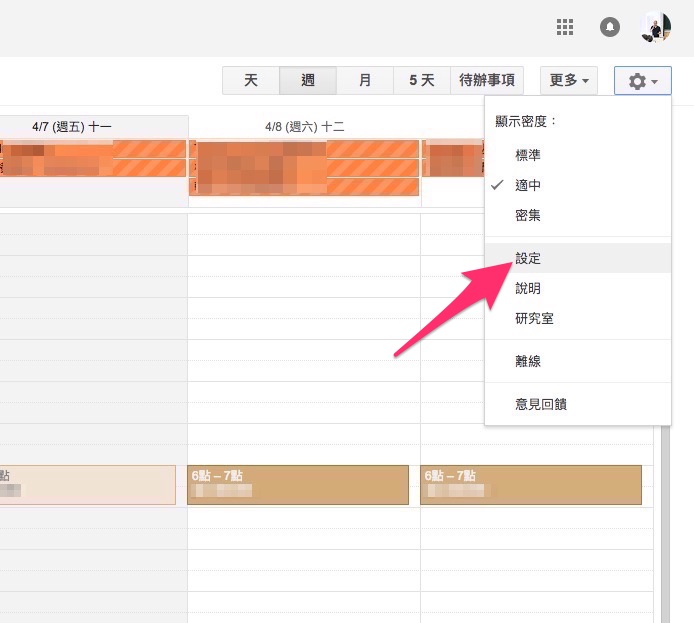
First, sign in to Google Calendar and select “Settings” in the upper-right corner.
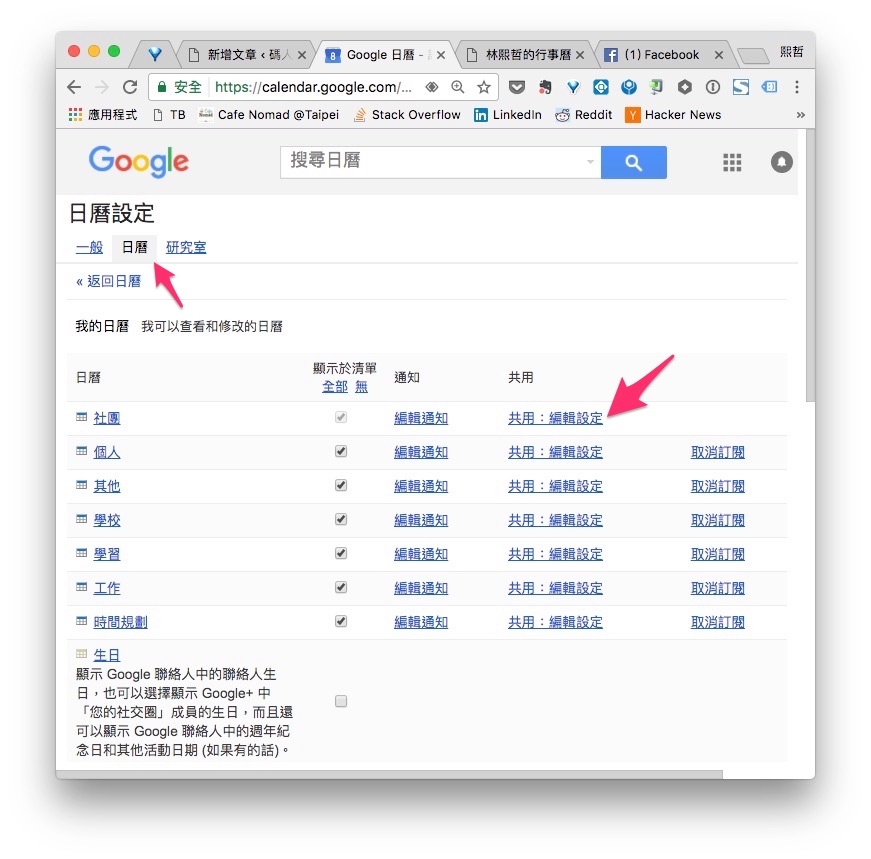
In the calendar settings, select “Calendars,” then click “Share: Edit settings” at the end of the calendar you want to share.
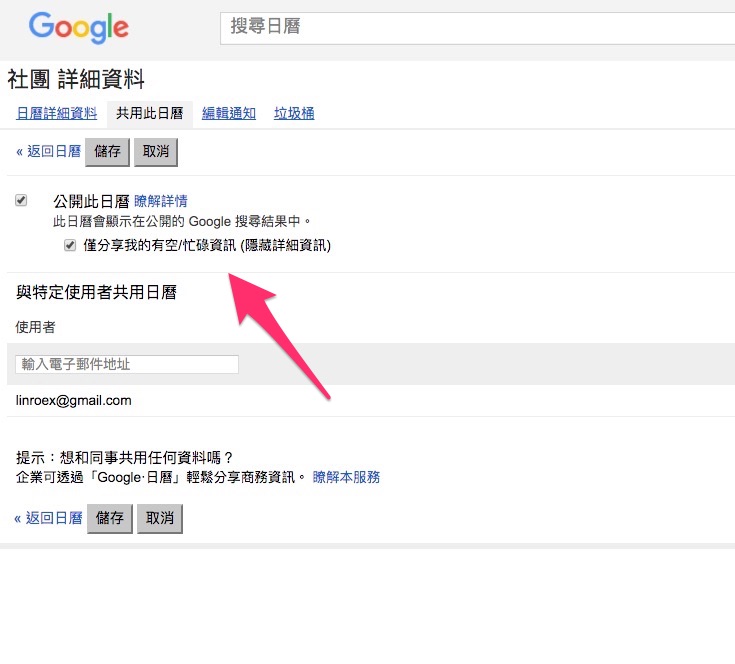
Check both “Make this calendar public” and “Only share free/busy information (hide details),” then save. This keeps others from seeing the contents of your events. If you want to display multiple calendars together, remember to turn these on for each one.
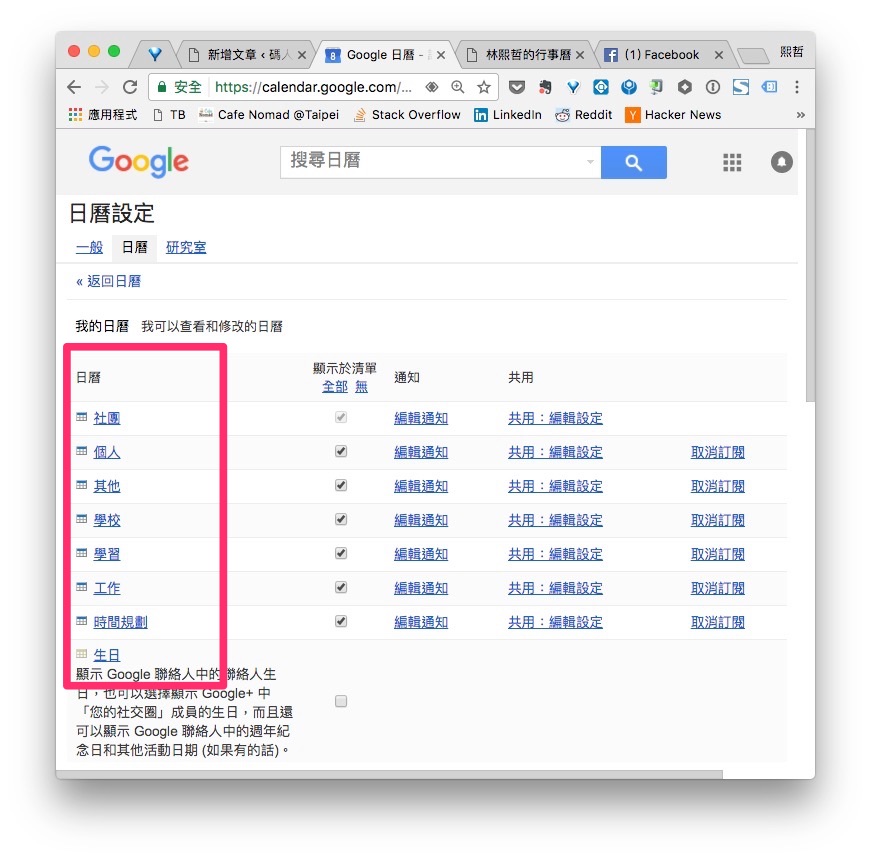
You’ll return to the “Calendars” page. Click the name of the calendar you want to share.
Once you’re in the calendar’s details, scroll down to “Calendar address.” Right-click the HTML button and copy the link address! Then you can share this URL with friends, and they’ll be able to see when you’re busy!
You’ll need the calendar ID later too, so keep it in mind.
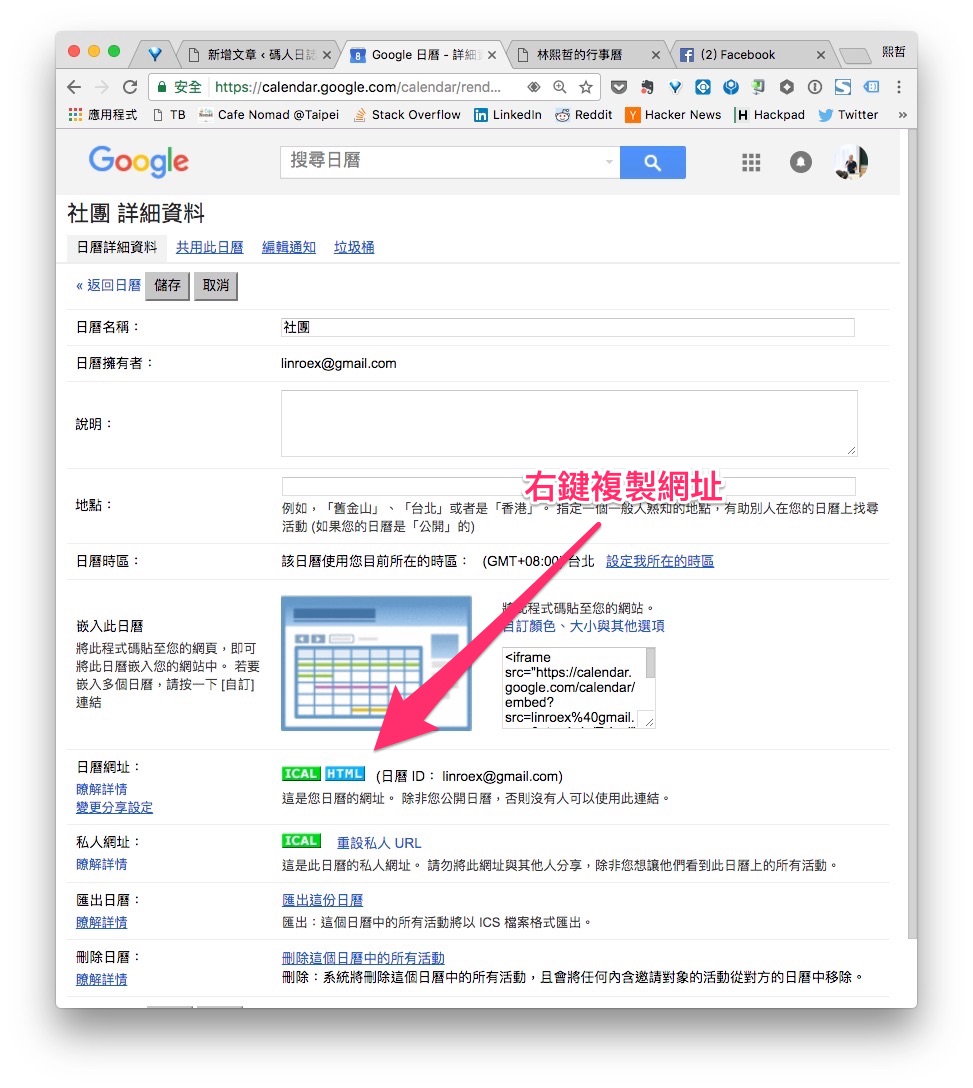
If you only have one calendar, congratulations, you’re done! But if you’re juggling three calendars like me (the “three swords” style), paste the URL you just copied into a text editor, for example:
https://calendar.google.com/calendar/embed?src=linroex%40gmail.com&ctz=Asia/Taipei
You’ll see a src parameter in there, and the src parameter is exactly the “calendar ID” from before. In fact, you can include multiple src parameters. For example, this is my public busy calendar, which has several src parameters. That’s how you display multiple calendars at once!
https://calendar.google.com/calendar/b/1/embed?src=5568b8r12gsksk53jvnuttuifo@group.calendar.google.com&src=g8596g4q67n4g5q9in12d6j0h0@group.calendar.google.com&src=38i6i61131mt5tbdu8gp0tu71s@group.calendar.google.com&ctz=Asia/Taipei
Besides the src parameter, you can use these other parameters:
- title: sets the title shown in the upper-left corner of the public calendar
- wkst: the day of the week the week starts on (Sunday = 1); I recommend setting it to 2
- mode: sets the default display mode (WEEK, AGENDA, MONTH)