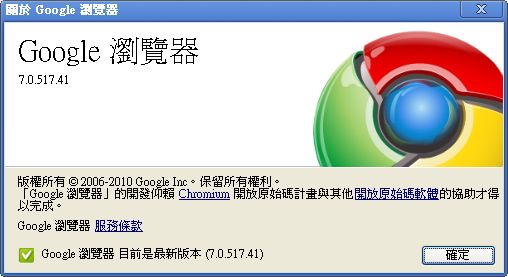
Google Chrome 7 has officially launched! The main feature of Chrome 7 is GPU hardware acceleration. Besides this new feature, it also fixes some bugs from Chrome 6. The speed is said to be 60 times faster. However, hardware acceleration in Chrome 7 isn’t enabled by default. You have to use a special method to turn it on.
So what are the benefits of GPU hardware acceleration? Simply put, once you turn it on, games you play in the browser run much faster. On some older computers, Facebook lags noticeably, and turning on GPU acceleration makes that less likely. So I recommend that friends who like browsing (Facebook~) and playing games in the browser should definitely turn this on.
For downloading and installing Chrome, see http://www.google.com/chrome?hl=zh-TW
Introduction to Google Chrome
- Official website: http://www.google.com/chrome
- Developer: Google
- Download: Same as the official website
How to Turn On GPU Hardware Acceleration
1. First, update your Chrome to Chrome 7. Then right-click your Google Chrome shortcut (it has to be a shortcut) and select -> Properties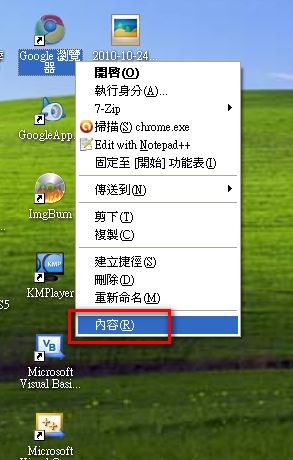
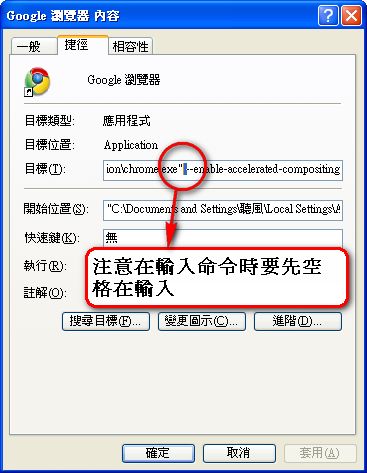
- Add the following command to the end of the Target field on the Shortcut tab, then click OK. (Read this part carefully, or you may fail.)
P.S. Be careful when you add the command: don’t delete the existing data in the Target field. This command goes at the very end of the Target field, and there must be a space between the command and the existing data.
-enable-accelerated-compositing
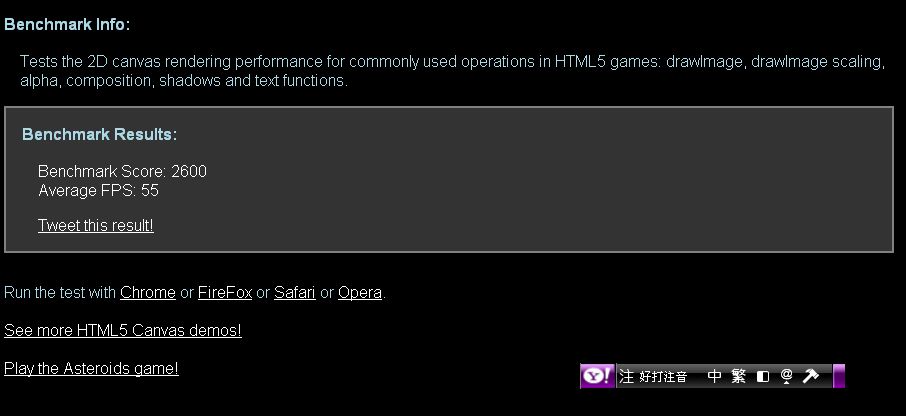
- Below are the FPS values before and after turning on GPU hardware acceleration. The difference is exactly double!!
Before:
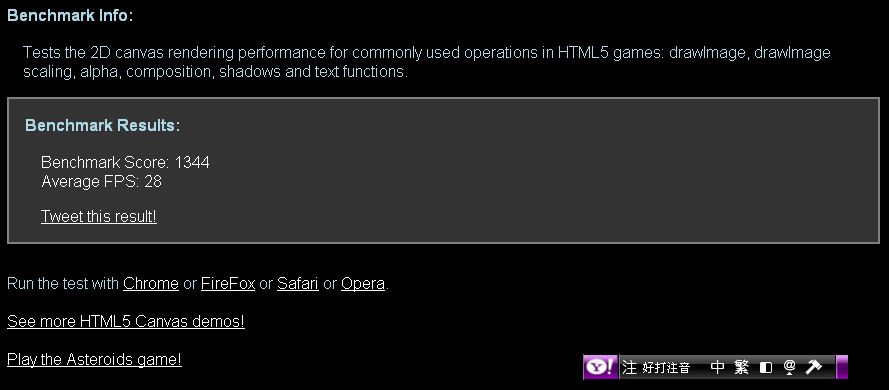
After: