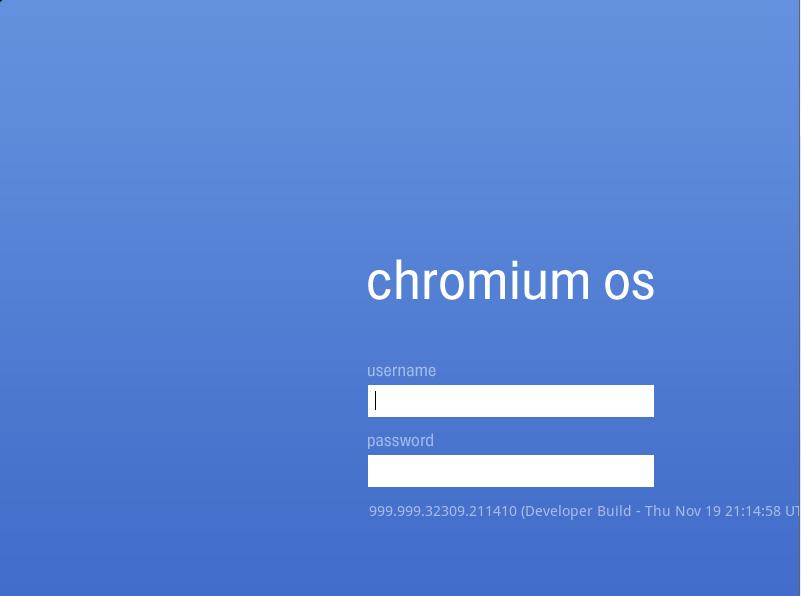
Google Chrome OS (hereafter Chrome OS) is an operating system from Google that mainly targets the netbook market. Chrome OS is known for its super-fast boot speed, very low power consumption, and very low hardware requirements. Google claims it boots in seven seconds (according to Google, that seven seconds assumes a solid-state drive). It uses Linux as its kernel, and its overall interface looks almost identical to the trendy Chrome browser.
Chrome OS moves most functions onto the web, using so-called cloud technology. So it doesn’t demand much hardware performance, which makes it well suited to netbooks with modest hardware. However, Chrome OS has one fatal drawback: it needs an internet connection to be used at all. But that isn’t a big problem, since broadband is now very widespread. Chrome OS also can’t handle performance-heavy tasks, such as video editing or programming. It’s only good for basic document editing and web browsing. But then again, people who buy netbooks probably aren’t going to write code on them anyway~
Many people think Chrome OS is still at the “only hear the stairs creaking” stage. Actually, Google released the Chrome OS source code as early as last November. And at the recent Computex show, if I remember correctly, Acer also planned to release a netbook with Chrome OS. I personally am quite optimistic about Chrome OS. Running Windows on a netbook is a bit too heavy these days, and Chrome OS is exactly what gives netbook users a computing environment without lag.
Key points of Chrome OS
- Suited for netbooks
- Low power consumption
- Low hardware requirements
- Mainly cloud-based; it doesn't work without a network connection
- May require specific hardware (an SSD) in the future
- Claims a seven-second boot (in practice it isn't quite seven seconds, but it's not far off)
Trying out Chrome OS
Before installing, keep in mind that not every computer will run it successfully. My computer kept failing, for example = =In this article, the Chrome OS used for the tutorial is not an official release. It was compiled and shared by enthusiastic Google fans. If you think it might have a trojan in it, you don’t have to use it. You can download the source code and compile it yourself. Don’t ask me where to get the official Chrome OS, because the official project only releases source code for you to compile yourself. It doesn’t provide a ready-compiled Chrome OS.
- First, go to http://chromeos.hexxeh.net/ to download the unofficial compiled Chrome OS. Click “Download the VMWare image” and the file will download.
P.S. If you don’t see “Download the VMWare image,” scroll down the page a bit and you’ll find it.
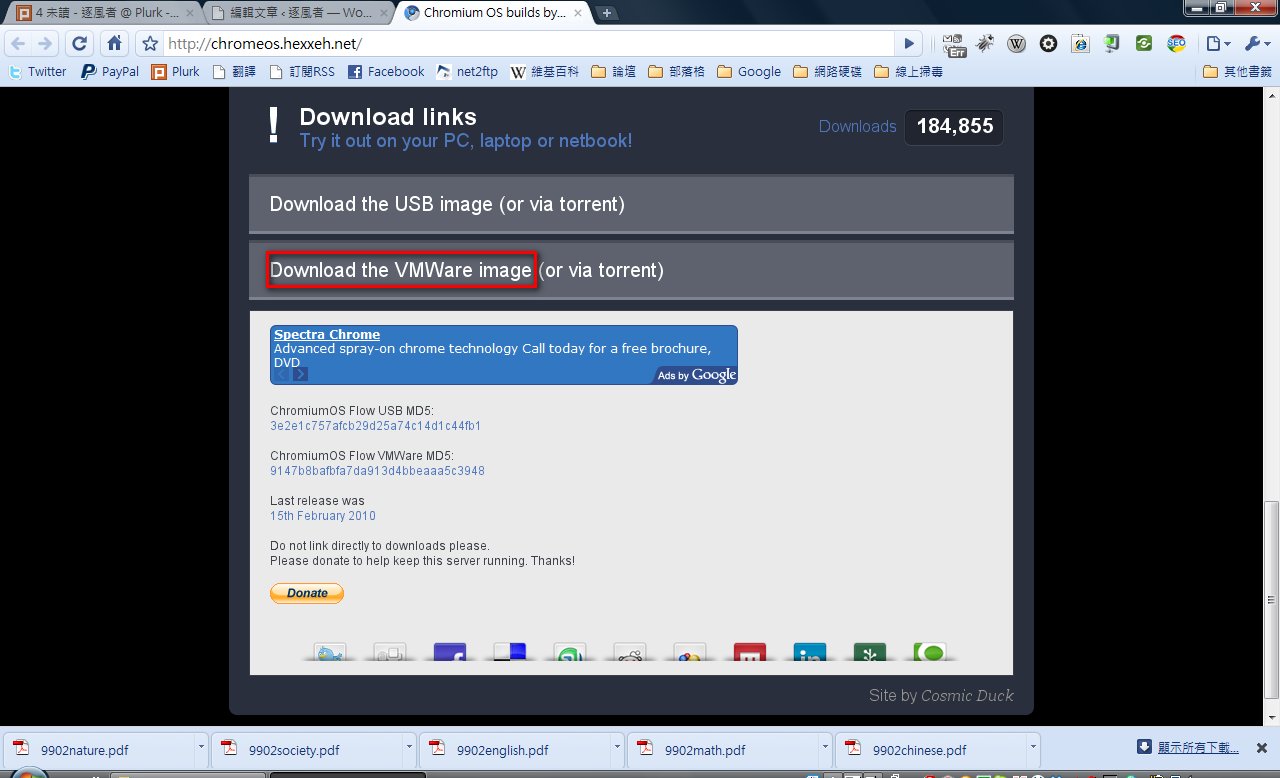
While the download runs, please wait, and use this time to download and install VirtualBox, a virtual machine program, since you need a virtual machine ready before you can try Chrome OS.
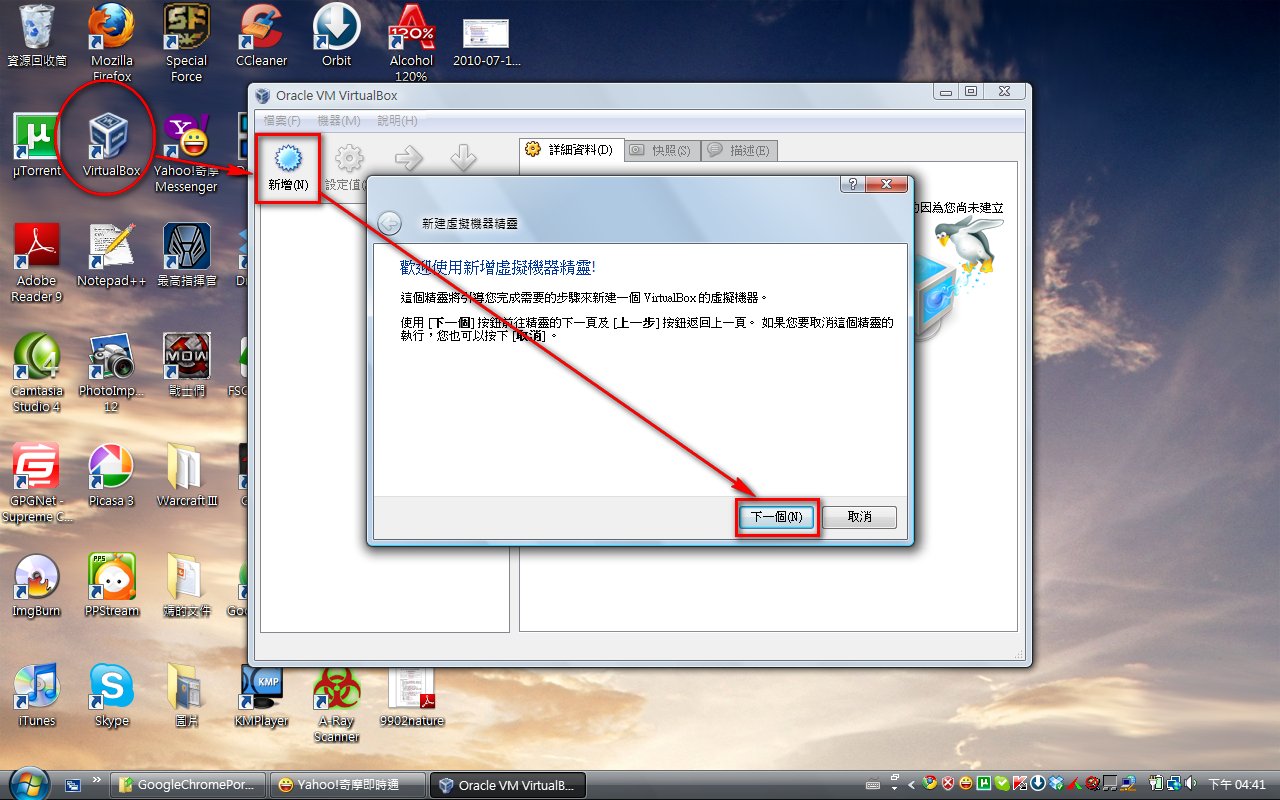
After the download, open VirtualBox, then click “New” → “Next” in order.
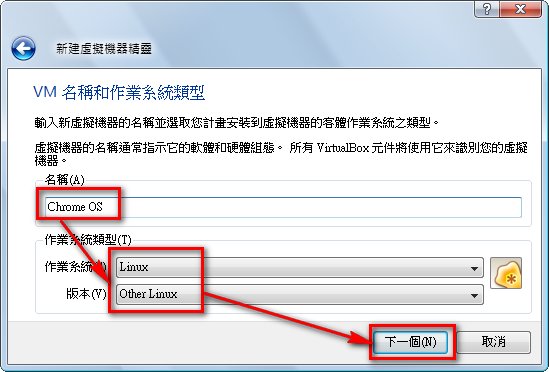
- For the name, enter Chrome OS, set the operating system type to “Linux,” and the version to “Other Linux.”
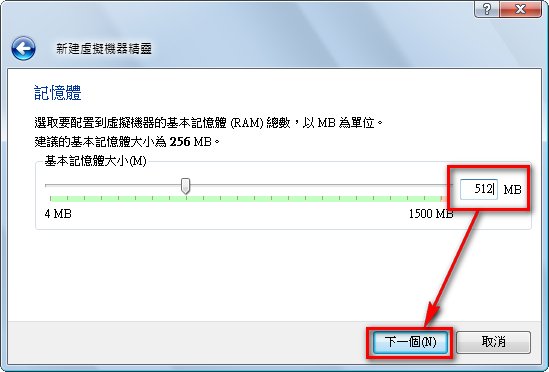
- Here you set how much memory to give the virtual machine. Every computer is different 0.0. Basically, give it at least 512 MB~
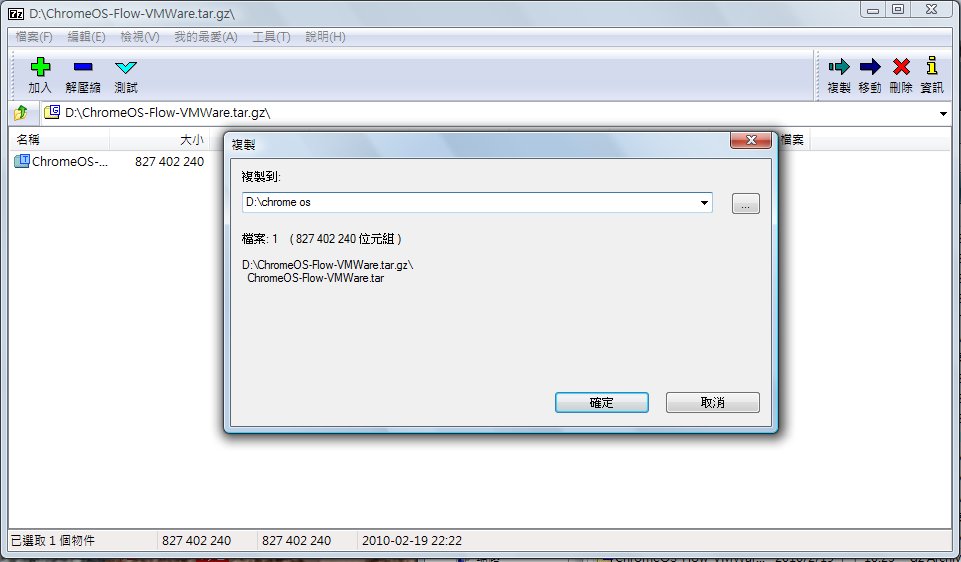
- First, extract the Chrome OS file you just downloaded
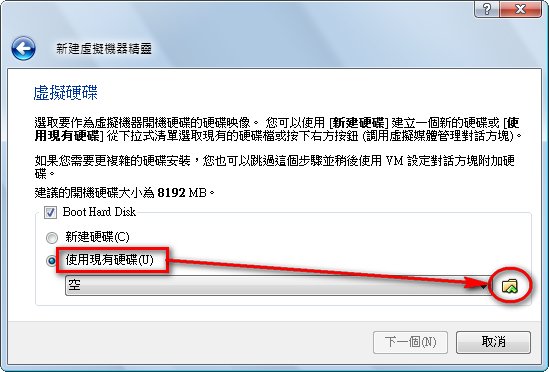
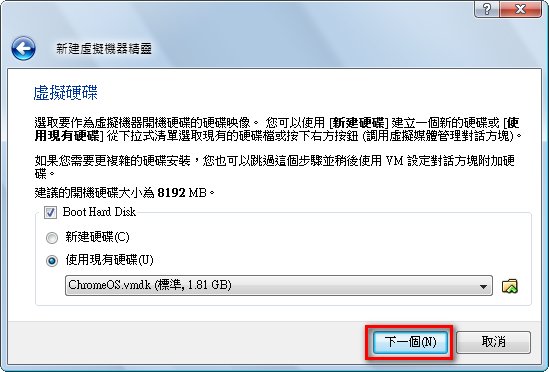
- Go back to the VirtualBox window, select “Use an existing hard disk,” then click the folder icon
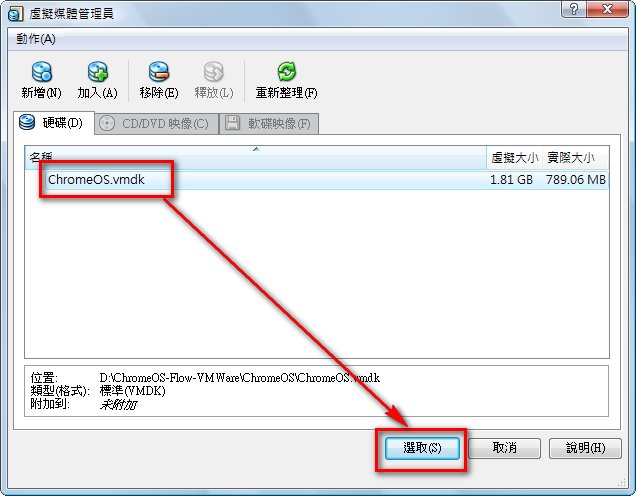
- Click “Add,” then select the file you just downloaded
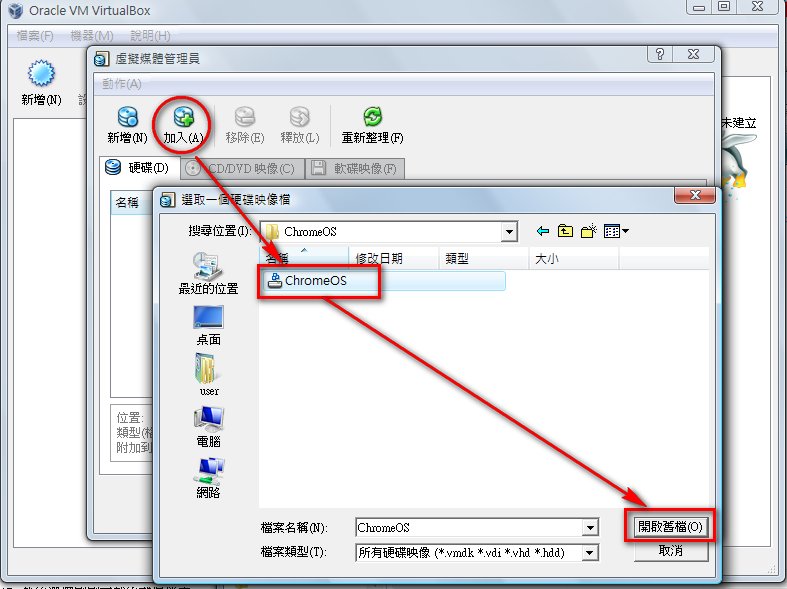
- Select the file you just added, then click “Select”
- Click “Next”
- Click “Finish”
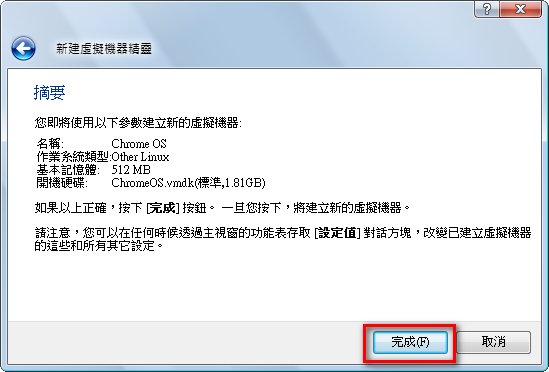
- That’s it, Chrome OS is installed~ From here on, just double-click the Chrome OS icon to open it.
I originally wanted to write about installing Chrome OS from a USB drive, but the file on the official Flow website seemed off 0.0 and kept failing to install = =
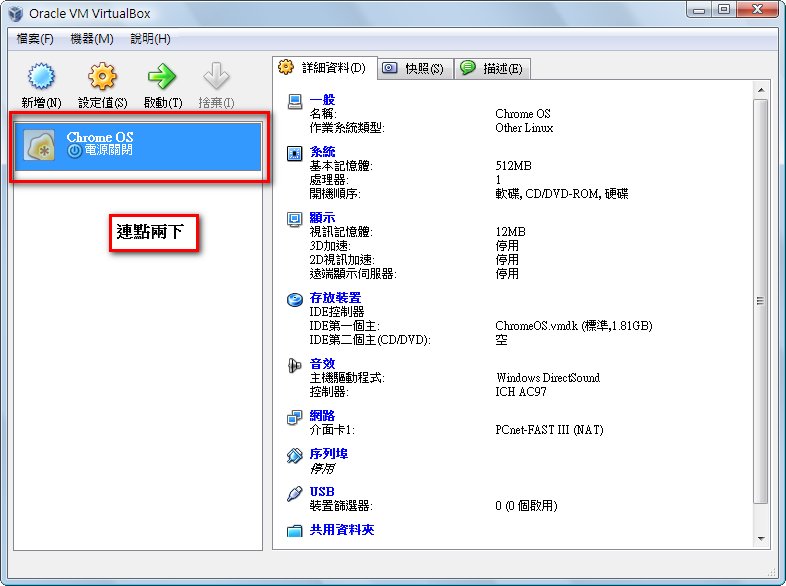
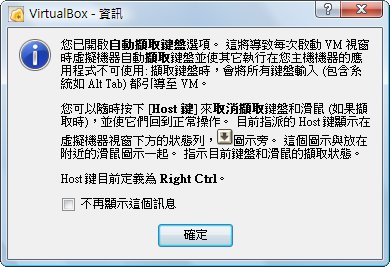
- While using it, the virtual machine program automatically captures your mouse. If you want to leave the VM and return to your normal computer, press the Ctrl key on the right side of your keyboard~
- I don’t know why, but when I test it myself, it won’t start @@
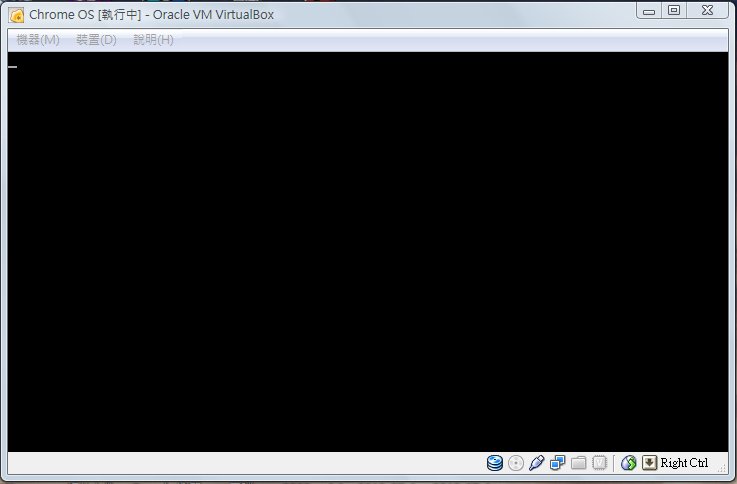
Default Chrome OS login:
The default username is facepunch, and the default password is facepunch.