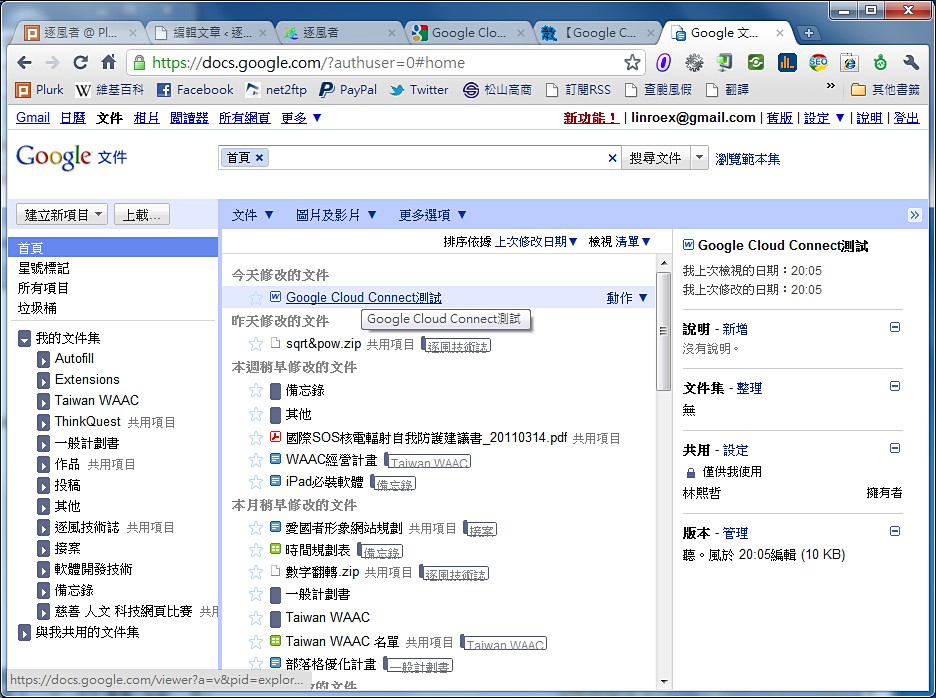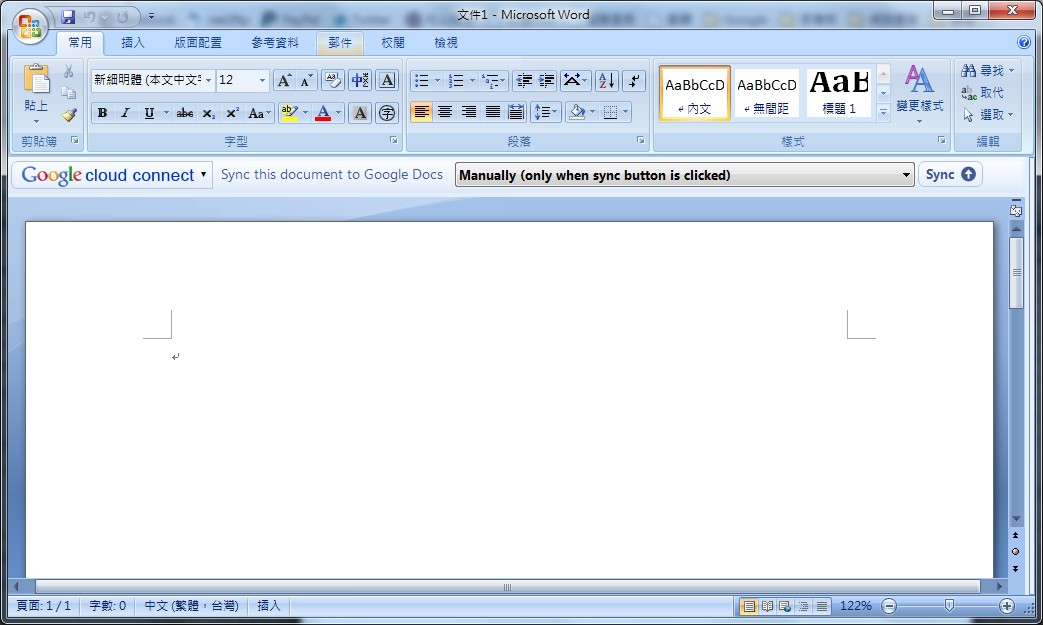
Google Cloud Connect is a small add-on for Microsoft Office designed by Google. It connects Microsoft Office to Google Docs, so you can save your documents to Google Docs in the cloud and collaborate online directly from Microsoft Office. The unfortunate part is that it doesn’t let you edit Google Docs documents directly inside Microsoft Office. It would be great if you could. To be honest, Google Docs is very handy, but it crashes quite often, and it has far too few features…
Google Cloud Connect features
- Gives Office online collaboration, cloud backup, and version restore features
Google Cloud Connect demo video
Google Cloud Connect installation guide
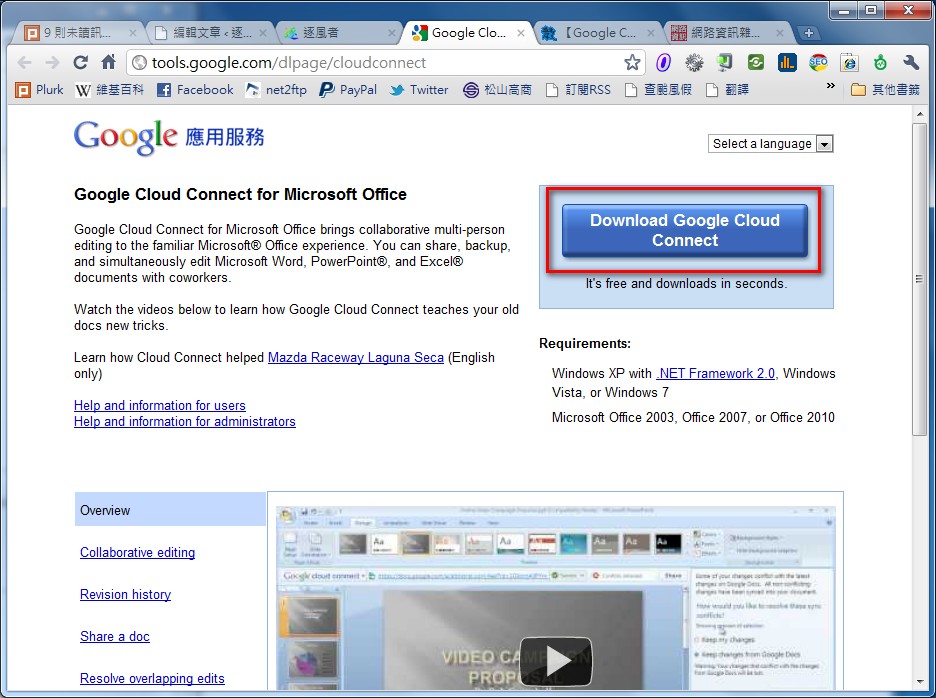
1. First, go to the Google Cloud Connect website to install it. Installation is simple: just click "Download Google Cloud Connect" and it installs automatically.http://tools.google.com/dlpage/cloudconnect
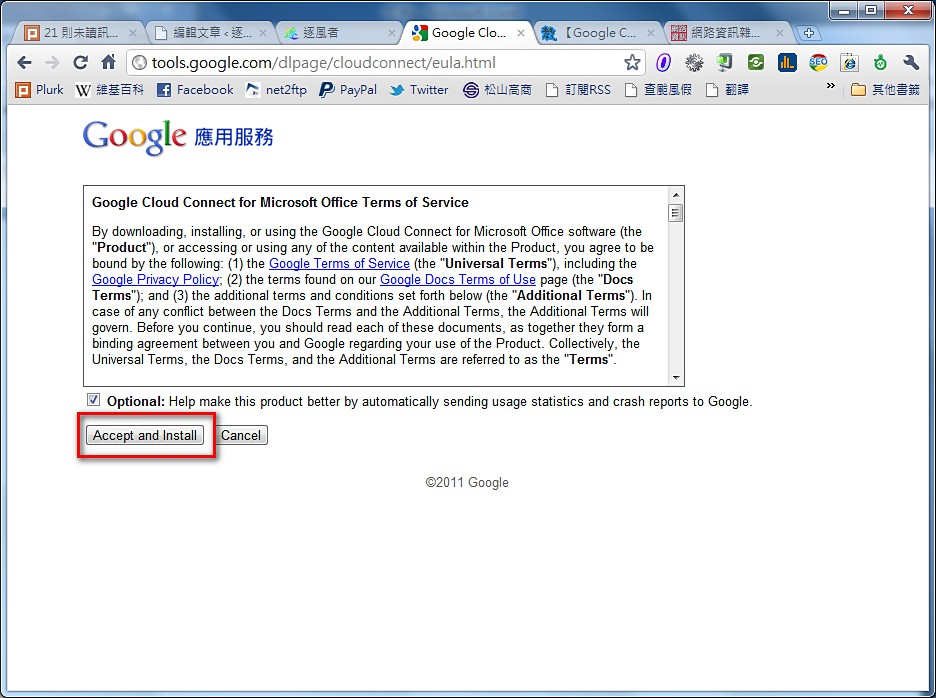
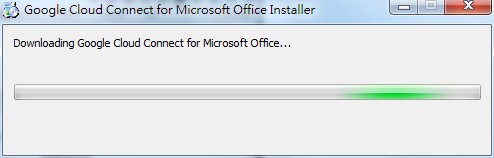
- Installing, please wait~
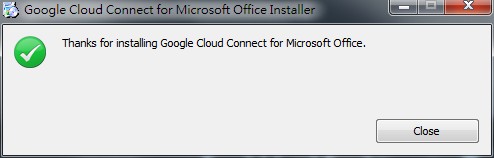
- Installation successful~
Google Cloud Connect usage guide
1. First, open Word, and you'll see a new item in it. (Google Cloud Connect actually installs itself into Word, Excel, and PowerPoint. For convenience, I'll use Word as the example.)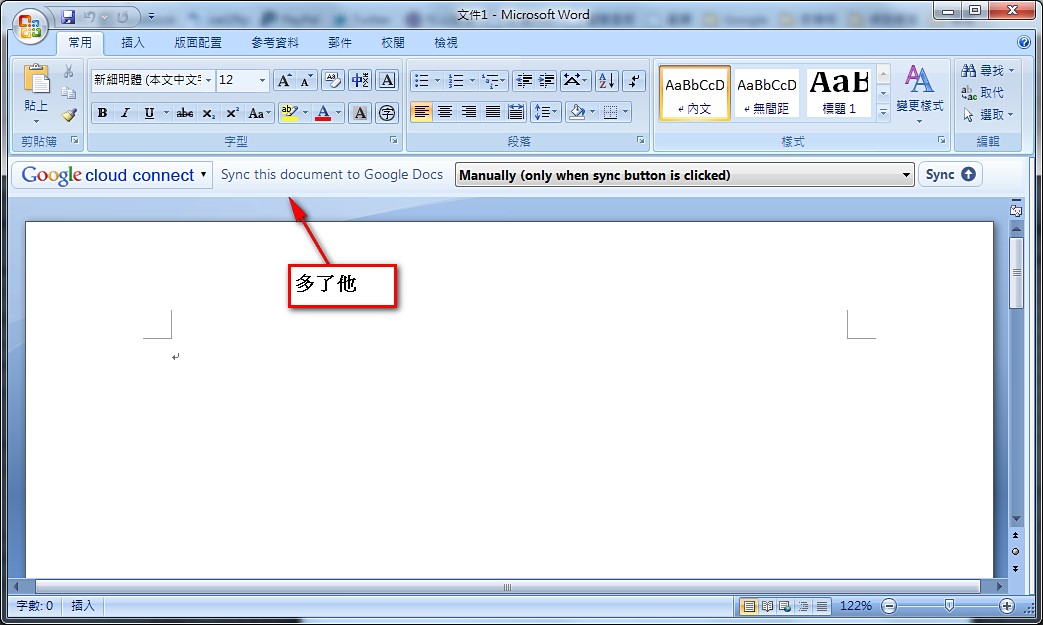
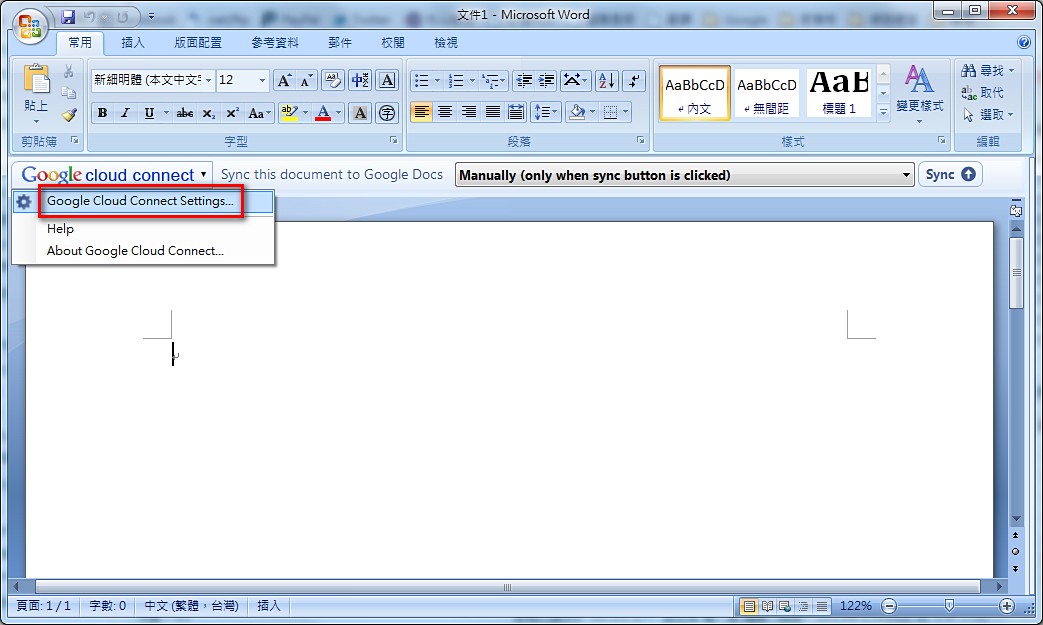
- Click the Google Cloud Connect button on the left, then select “Google Cloud Connect Setting”
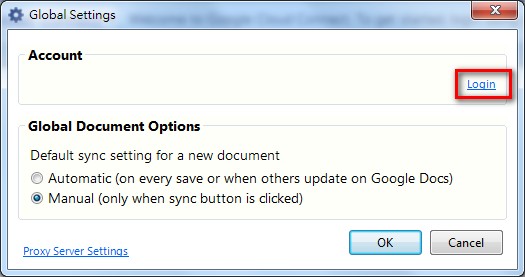
- Click “Login” to sign in with your Google account
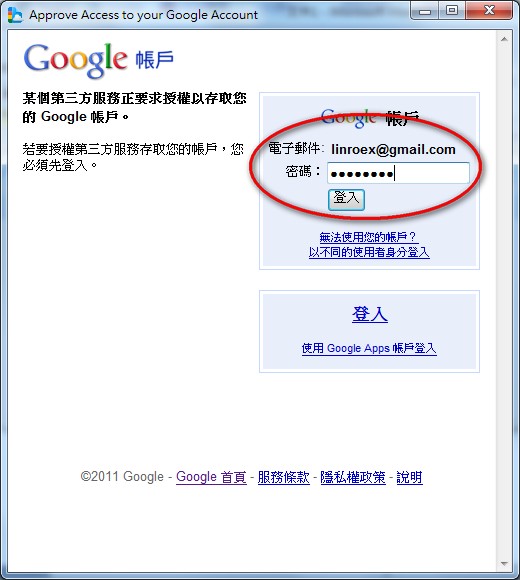
- Enter your Google account email and password, then click “Sign in”
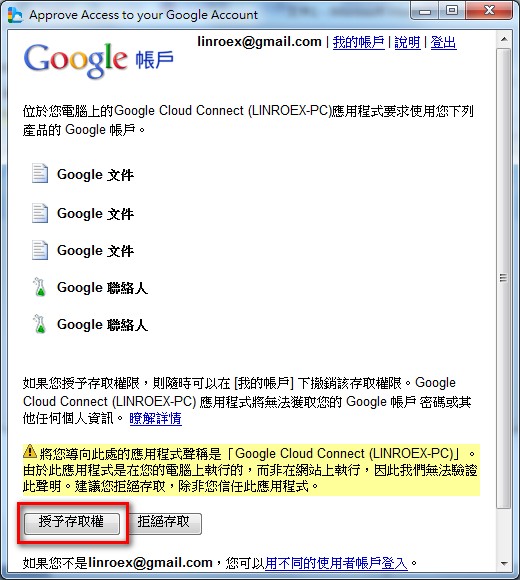
- Click “Grant access”
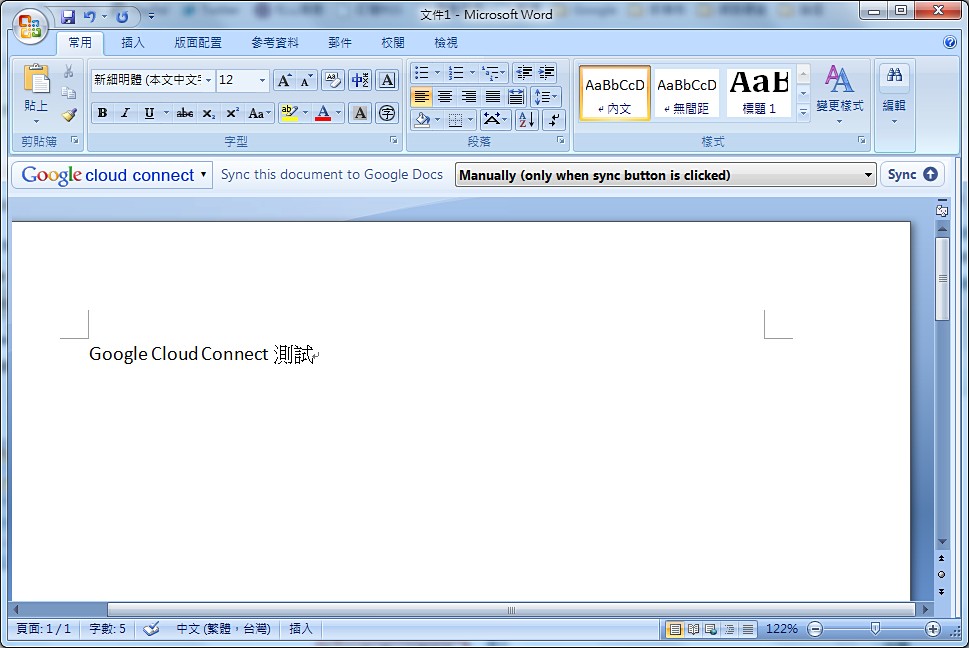
- Once you’ve completed the steps above, you’re connected to Google Docs. Next, choose how to sync: automatically, or only when you click the Sync button.
- Automatically->Automatic sync
- Manually->Manual sync
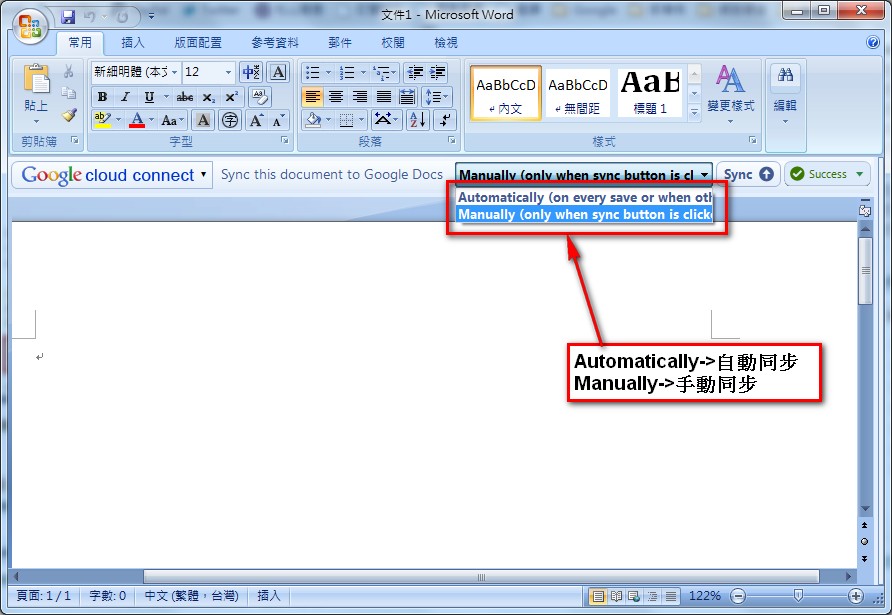
- After setting it up, you can click Sync to synchronize
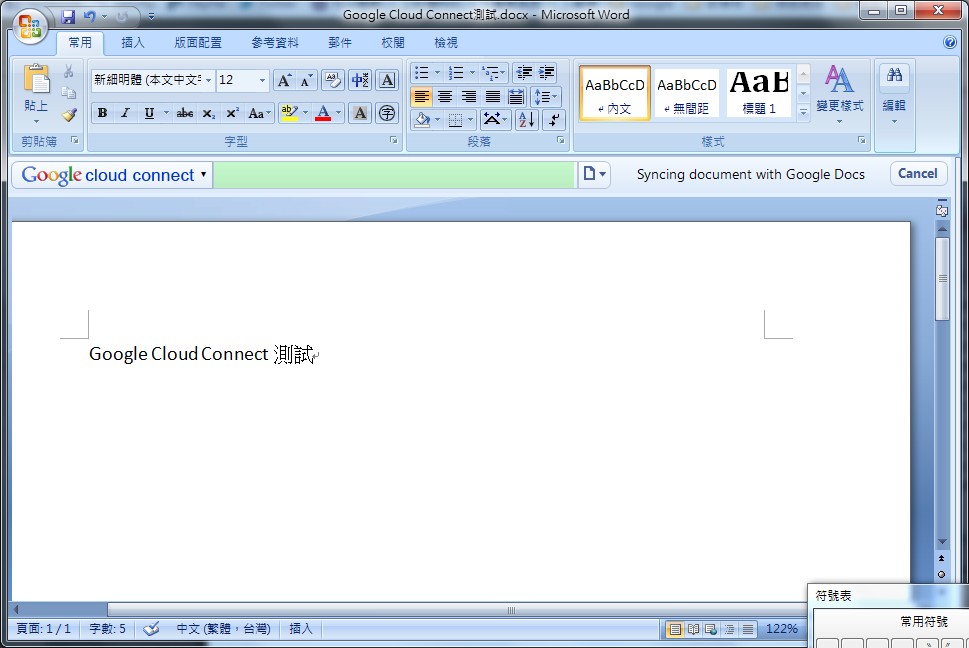
Uploading in progress ↓↓
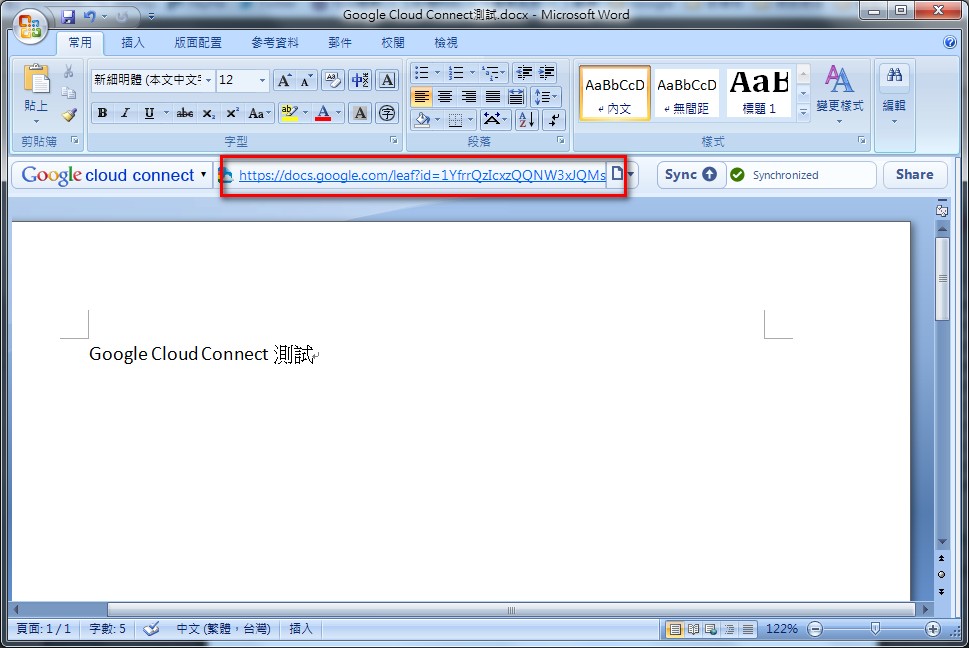
Once the upload finishes, it gives you the URL for the file.
- The file you just synced appears in Google Docs