Google Public DNS is a service Google recently launched that lets you browse the web using Google’s free DNS. The benefit of Google Public DNS is that it makes your browsing safer, and your browsing speed may also improve. By the way, openDNS also offers a DNS service, and it’s pretty good too, so feel free to check it out. Google Public DNS is also one of the few Google services that doesn’t require going to a website to use it (you just configure it directly on your computer).
I think many people don’t really know what DNS is, though! So first, I’ll explain what DNS does before showing you how to set it up. DNS stands for Domain Name System. Its main job is to convert website addresses into IP addresses. For example, when you want to visit my blog (https://coder.tw), you type the address in directly, and then DNS converts it into an IP address to make the connection. My explanation may not be very clear, so I’d recommend reading the article by Avant Courier on this topic. Traditionally, DNS was handled by ISPs, and ISPs don’t necessarily filter out malicious sites for you. But if you use Google Public DNS, it automatically checks whether the URLs you visit have any problems.
Quoted from http://avantcourier.digili.net/?p=1055To put it in an analogy: just as every building in the real world has a GPS position, such as a latitude and longitude, those numbers are hard to remember. So we normally use a street address system, like “No. XX, XX Road, X Floor.” Of course, this analogy isn’t perfect, because a street address doesn’t point directly to GPS coordinates. The two are actually different ways of locating things. Here, though, we’re only drawing on the contrast in how they work for human communication and memory.
Google Public DNS Addresses
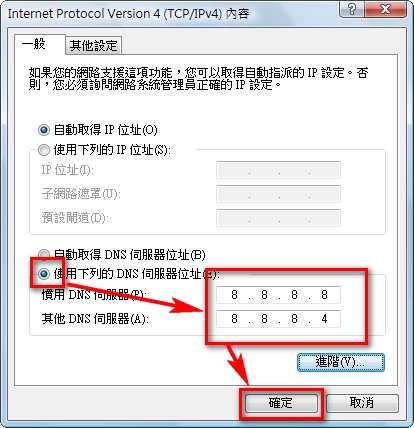
- 8.8.8.8
- 8.8.4.4
How to Use Google Public DNS
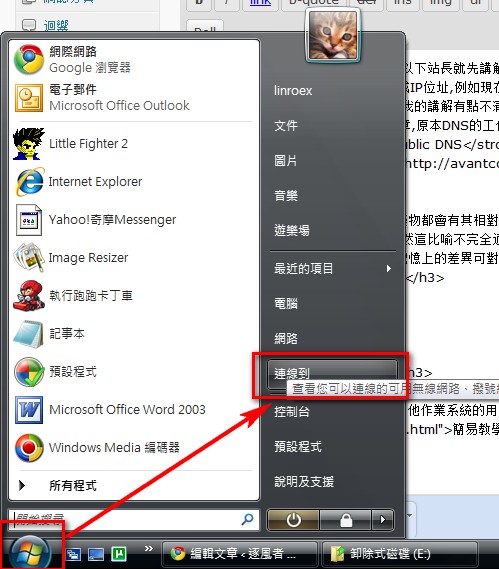
Using Google Public DNS is different from most Google services. You don't need to go to a special web page. Instead, you just make the settings directly on your computer. Here, I'll write a tutorial using Windows Vista. If you're using another operating system, you can refer to the simple guide that Google provides.- Click 【Start】 in the bottom-left corner → 【Connect To】
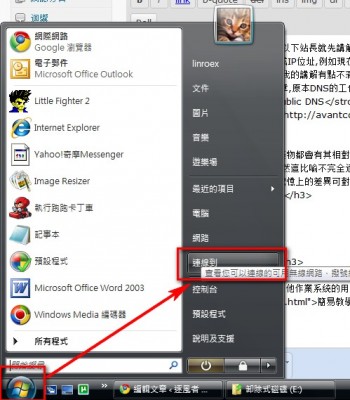
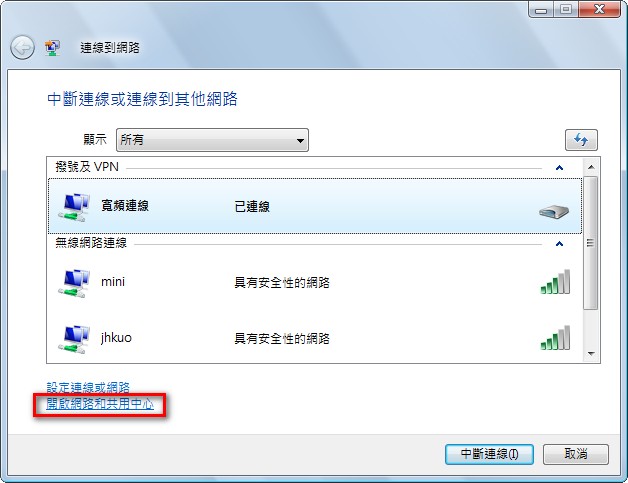
- Select 【Network and Sharing Center (My Network Places)】
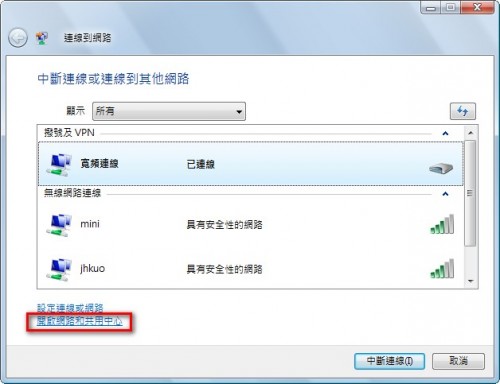
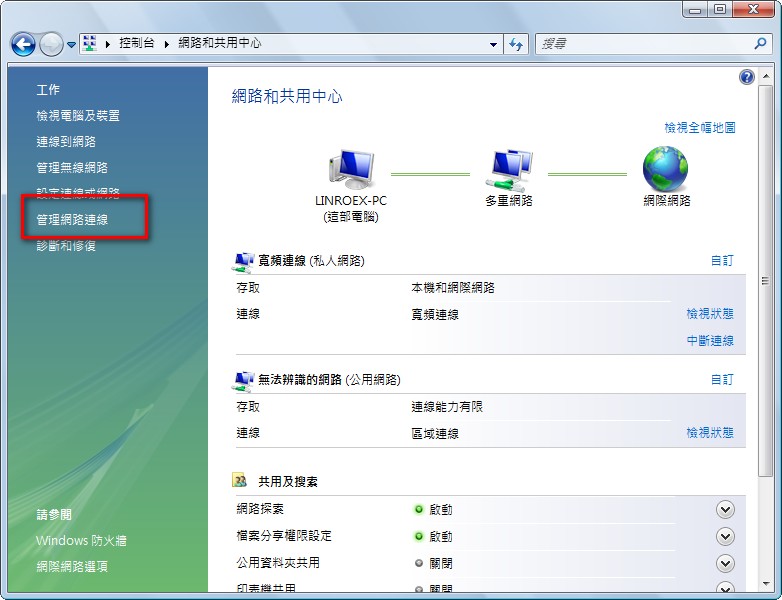
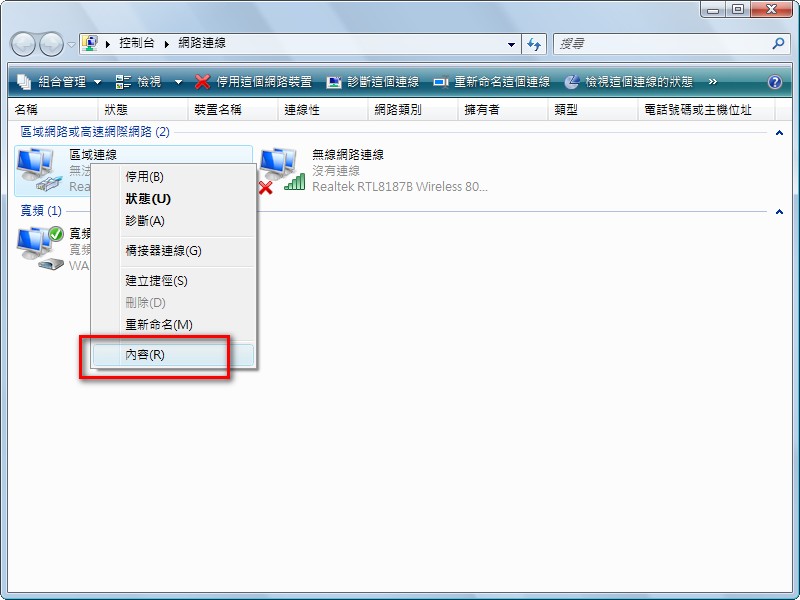
- Click 【Manage network connections】, then right-click 【Local Area Connection】 and select 【Properties】 (If you’re using XP, go into My Network Places, then right-click the local area connection and select Properties.)
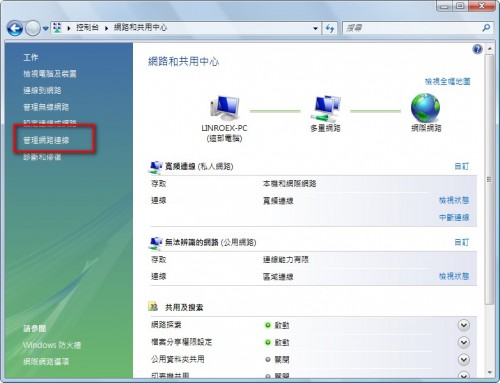
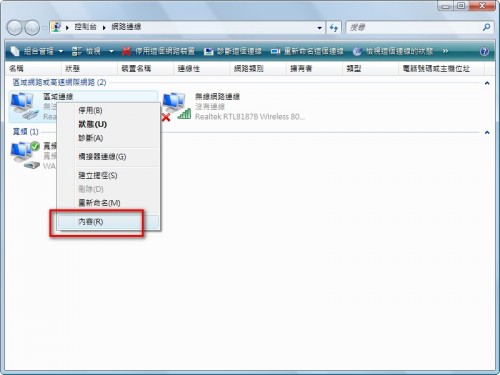
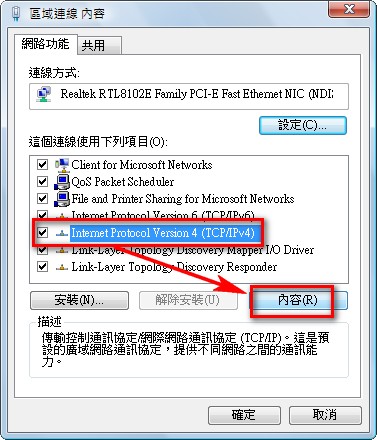
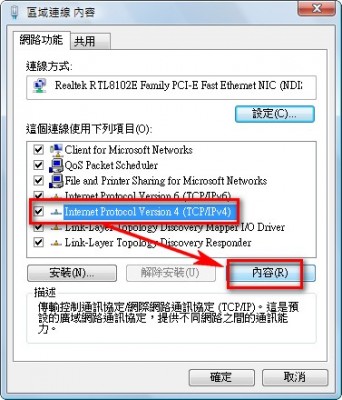
- Click 【IPv4】 → 【Properties】
- Select 【Use the following DNS server addresses】, enter 8.8.8.8 and 8.8.4.4, then click 【OK】
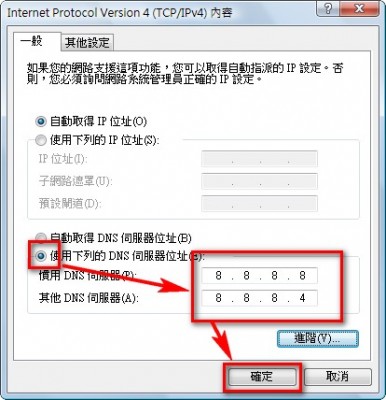
- Once you’ve finished the settings, reconnect, and the settings will take effect.