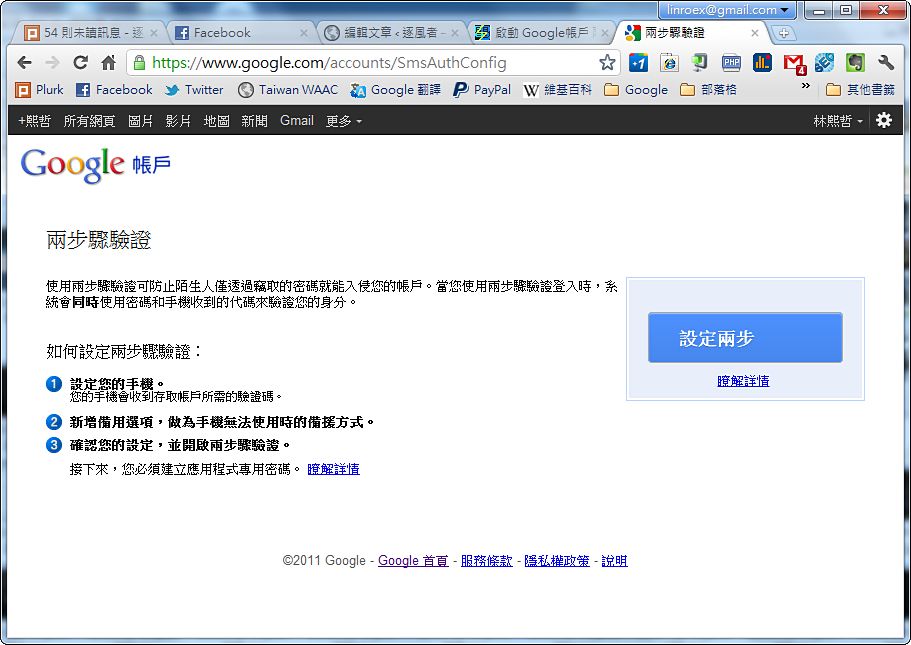
Some people who play online games may have heard of the “communication lock.” It’s an anti-theft measure that game companies came up with. Before you can log in to your game account, you have to call a dedicated line from the phone number you registered with the game company, and only after the call connects can you log in. This method prevents a lot of gamers from having their accounts stolen. After all, hackers can easily get your username and password, but they surely can’t take your phone too, right? The Google 2-Step Verification I’m introducing today is actually a lot like that communication lock.
So what is Google 2-Step Verification? Before you log in, Google’s system automatically sends a text message with a verification code to your phone, and you can log in with that code. Also, some apps can’t log in with a verification code, so in that case you can use an “app-specific password.” You only need to enter it once, so there’s no need to remember this app-specific password.
Google’s 2-Step Verification currently offers several methods, including text message, voice call, and the iOS/Android app. Personally, I’d recommend text messages since they’re more convenient. The app method requires a smartphone, and not everyone has one. But almost everyone has a phone, and since people carry them everywhere, they’re perfect for verification. Of course, if you have a smartphone, I’d recommend using the app since it’s more convenient.
Tutorial
- Log in to your Google account, then go to “Account settings”
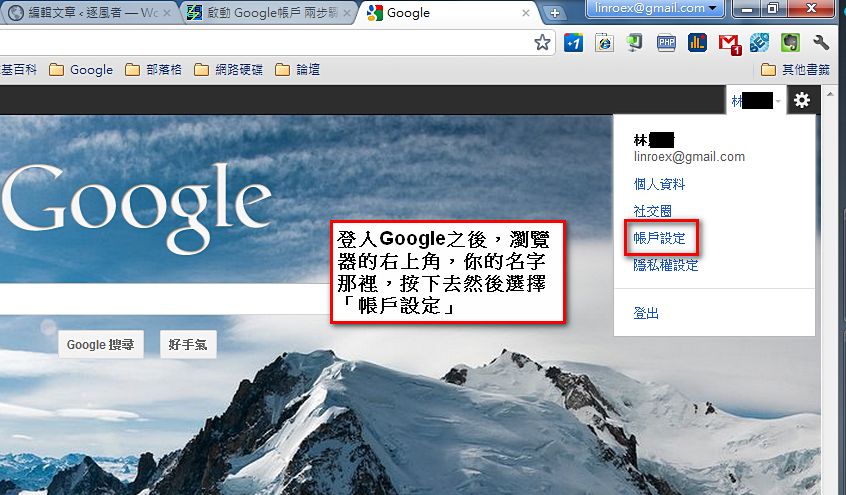
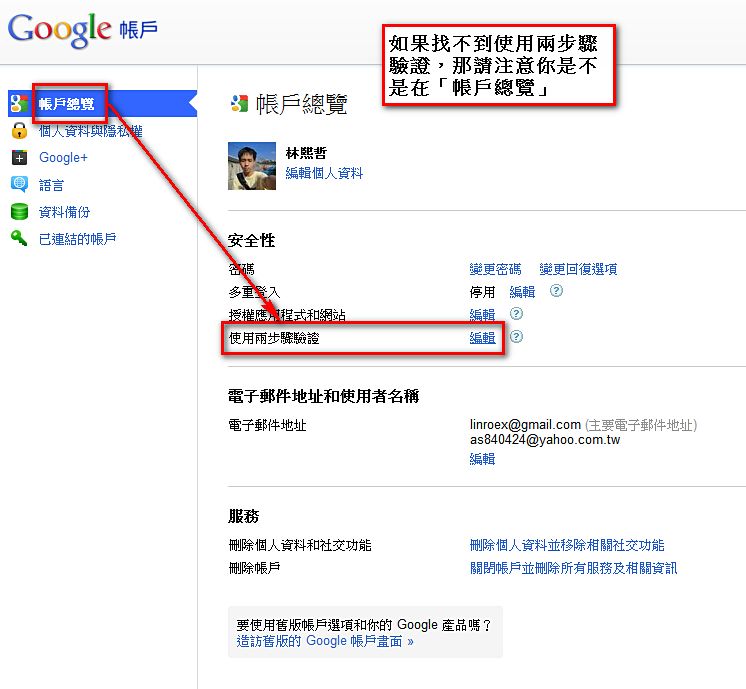
- Under “Using 2-step verification,” choose “Edit,” and Google will ask you to enter your password once more
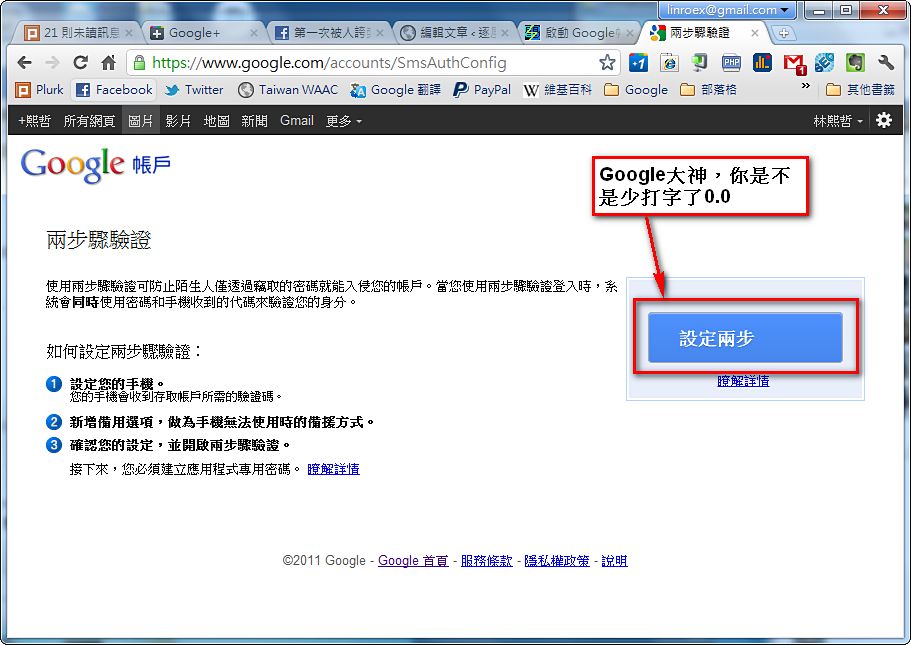
- After entering your password, you’ll reach the 2-step verification screen. Click the blue button that reads “Set up 2-step.” I strongly suspect they forgot to type a word there… XD
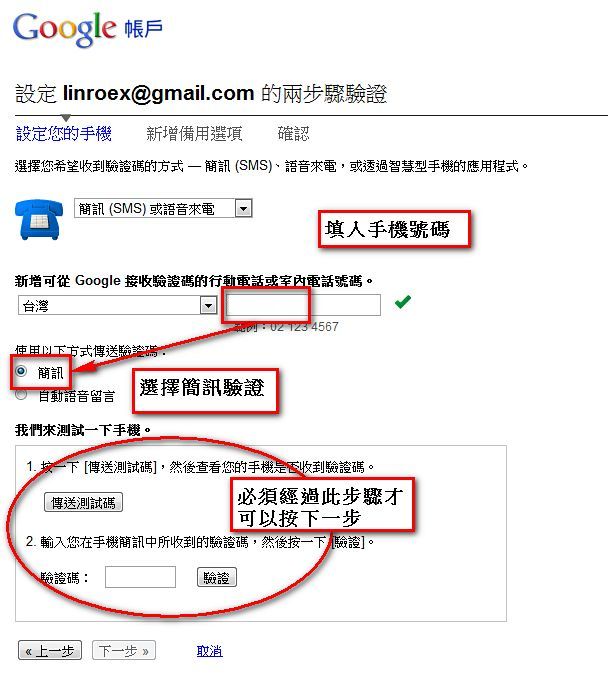
- Here you choose which verification method to use. In this example, we’ll use “Text message (SMS) or voice call.”
After selecting “Text message (SMS) or voice call,” enter your mobile number, then choose “Text message” to have the verification code sent to you. Of course, you can also choose “Voice” if you prefer, but voice calls can be missed, so I’d recommend text messages~ That said, I strongly recommend not entering a landline number, since it can’t receive text messages. And if you’re not at home, you won’t be able to log in to your Google account…
With voice, Google calls your phone and reads the verification code aloud. With text messages, the code is sent to you by SMS.
After you fill in the information, you’ll notice that you can’t click “Next.” That’s probably because you haven’t done “Send test code.” This step actually tests whether your phone can receive verification codes. Click “Send test code,” wait a few minutes, and you’ll get a call or a text message on your phone. Enter the verification code and you’re all set~
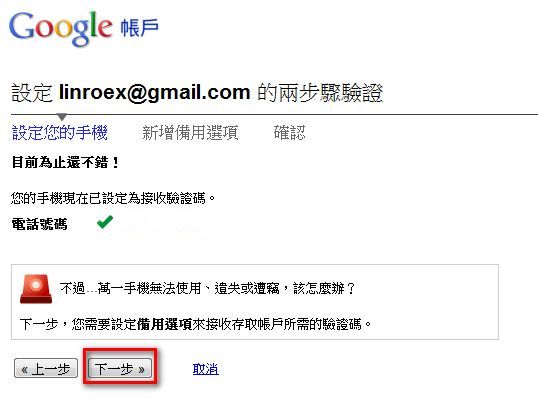
- This screen is pointless XD. Just click “Next.”
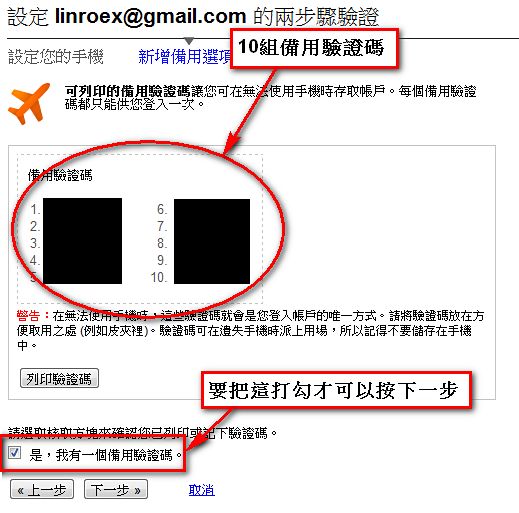
- This screen gives you 10 “backup codes.” If you lose your phone, you can use these codes to log in to Google, then change the phone used for verification or turn off 2-step verification. This prevents you from getting locked out. Also, note that each backup code can only be used once, so don’t use them for no reason. Otherwise, when you really need one, you’ll be in a real pickle.
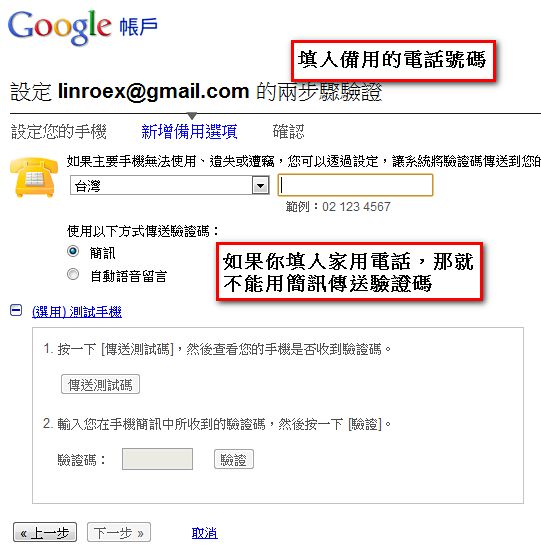
- Next, enter a backup phone number. If your original phone goes missing and you’ve also forgotten your backup codes, you can use this backup phone to recover your account. This is where you can enter a landline number (remember to include the area code).
You don’t have to test the backup number, but I’d still recommend testing it so you won’t regret it if something goes wrong…
- This screen warns you that you may need to set up an “app-specific password” later. That’s because some apps still can’t log in with 2-step verification codes, so they need a dedicated password. You can set a different password for each app. You don’t need to remember these passwords.
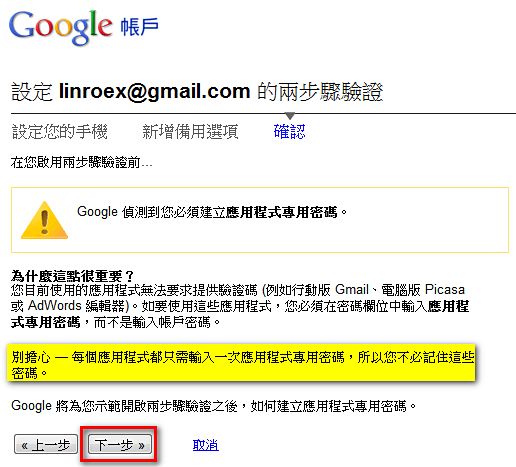
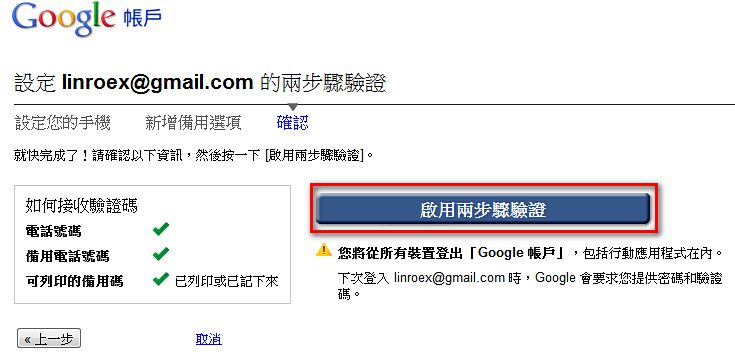
- Click “Turn on 2-step verification.” Um… what about the “app-specific password” you promised? No rush, no rush. You don’t need to create one yet XD
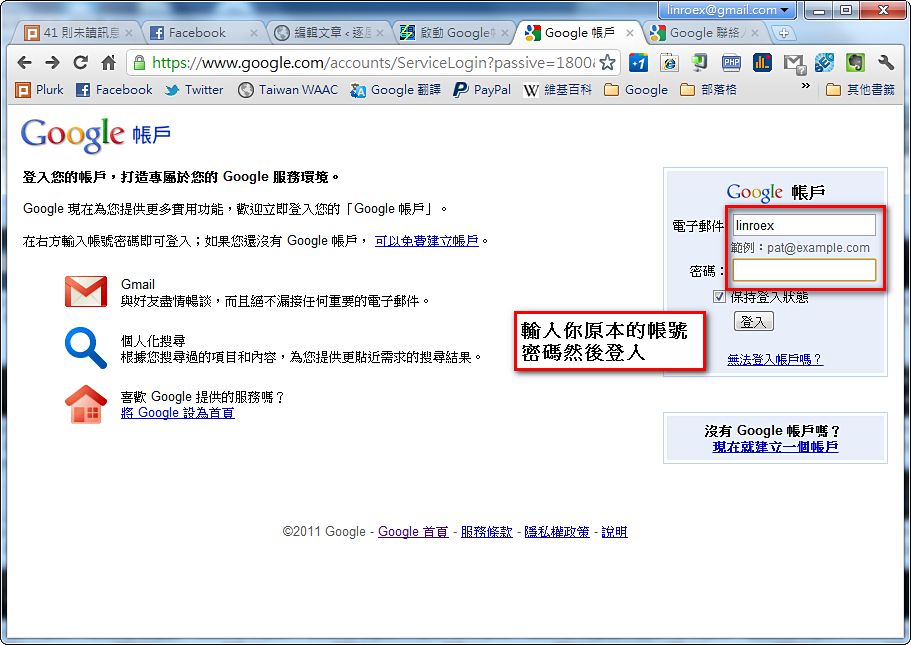
- Next, let’s actually test how to log in with 2-step verification. First, the login location and the screen are the same as usual. Just enter your username and password, then click “Sign in.”
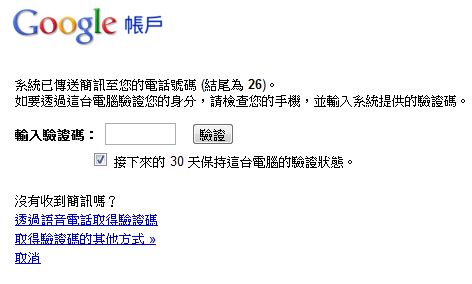
- Next, you’ll see a “Verification code” screen. Wait a few minutes, and the system will text your phone. Enter the code from the text message to log in. As for the option “Keep this computer verified for the next 30 days”: if you’re using a shared computer, like one at an internet cafe or library, leave it unchecked. If it’s your own computer, go ahead and check it~ That way, you won’t need a verification code on this computer for the next 30 days (other computers will still require one).
- The first time you log in, it will remind you to create an “app-specific password.” Just click “Create password.”
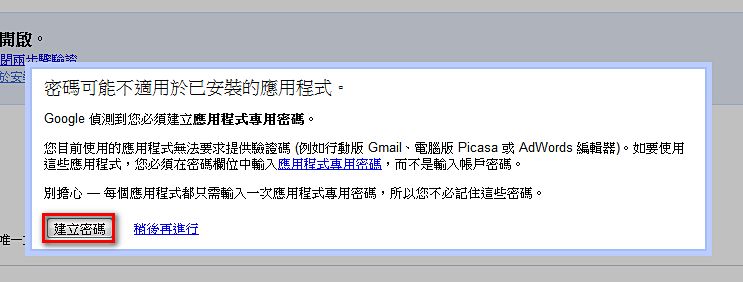
If you don’t see the screen above, you can go straight to “Manage app-specific passwords.”

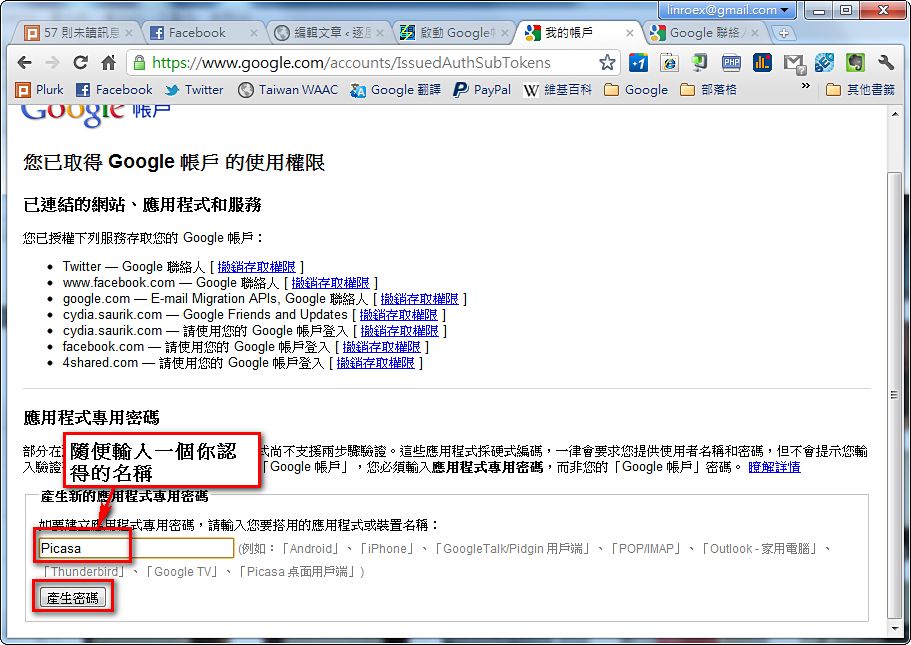
- In the box, enter a name. For example, if this password is for Picasa, type “Picasa.” You can type anything here, as long as you understand it. After entering the name, click “Generate password.”
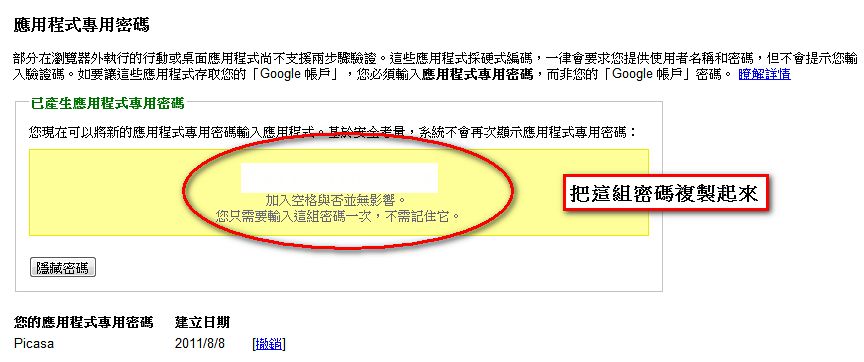
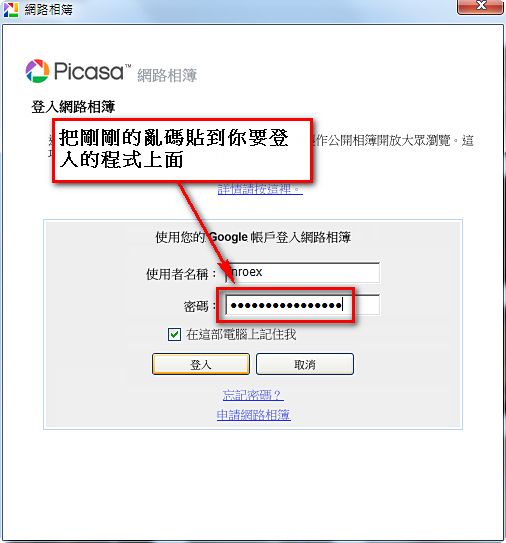
- Next, a random password is generated. It’s very long, but you don’t need to remember it. Copy it, then paste it into the account you want to verify. As I said, this one is for Picasa, so paste it into Picasa’s login screen. Some people may wonder why we never specified who this password is for, since we just typed in a random name. I think this is a design that “claims” the password for whichever app uses it first. This password isn’t restricted to any particular app. You could use it for Picasa or Google Talk, but this password will be bound to the first app you use it with
That’s it for the setup. But I think the “app-specific password” part is only temporary, since so many services are connected to Google. It would be very hard to get all of them to support verification codes at once. I think in another year or two, it might be possible to use verification codes for everything~ I’ll turn on 2-step verification then, XD