
Today I’m introducing Google’s Webmaster Central. The Webmaster Tools are one of the tools most blog owners in Taiwan use. Besides analyzing where your site’s SEO falls short, this service also lets you submit a Sitemap to Google, which is a site map. The Webmaster Tools can also check whether your site has malware and how fast it loads. But to use any of these features, you first have to make sure your URL has been indexed by Google! So in this post, I’ll cover the following:
- Submitting your URL to Google
- Adding your site to Google Webmaster Tools
- A basic tutorial for Webmaster Central
- Submitting a Sitemap to Google
Note: What Is a Sitemap?
A Sitemap helps Google find pages on your site that it might not otherwise discover. The simplest format, the XML Sitemap (usually just called a Sitemap, with a capital S), is a list of the pages on your site. Creating and submitting a Sitemap helps Google find all the pages on your site, including URLs that Google's normal crawling process might miss.Source: Google Webmaster Central Help
I. Submitting Your URL to Google
1. Go to the Google homepage, then choose 【All About Google】 at the bottom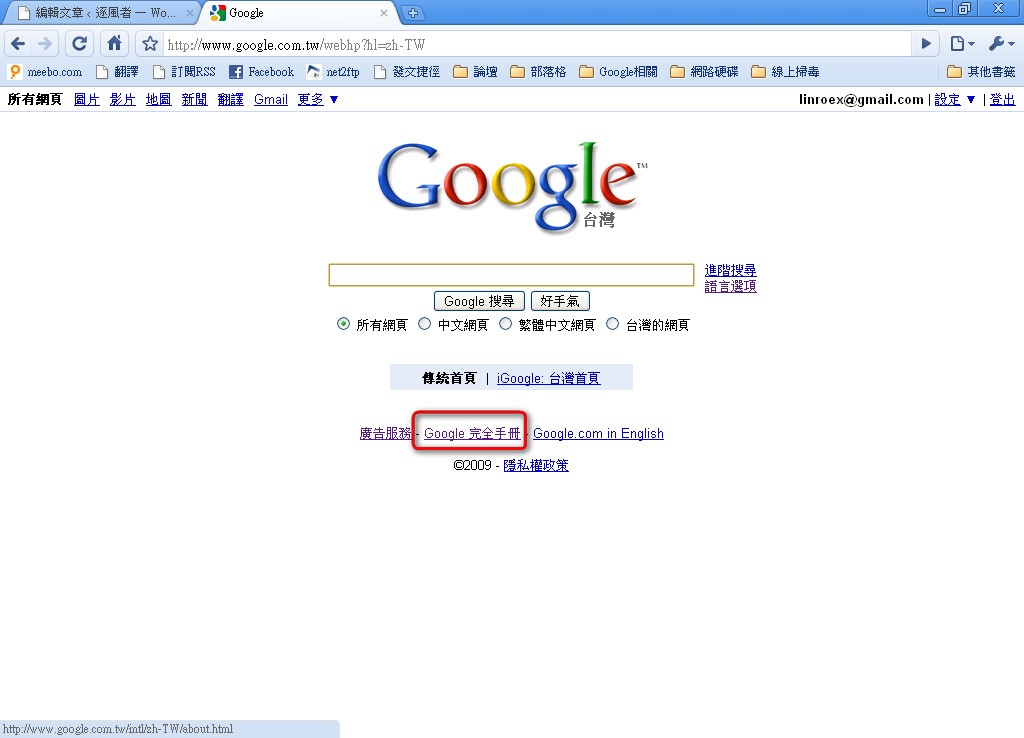
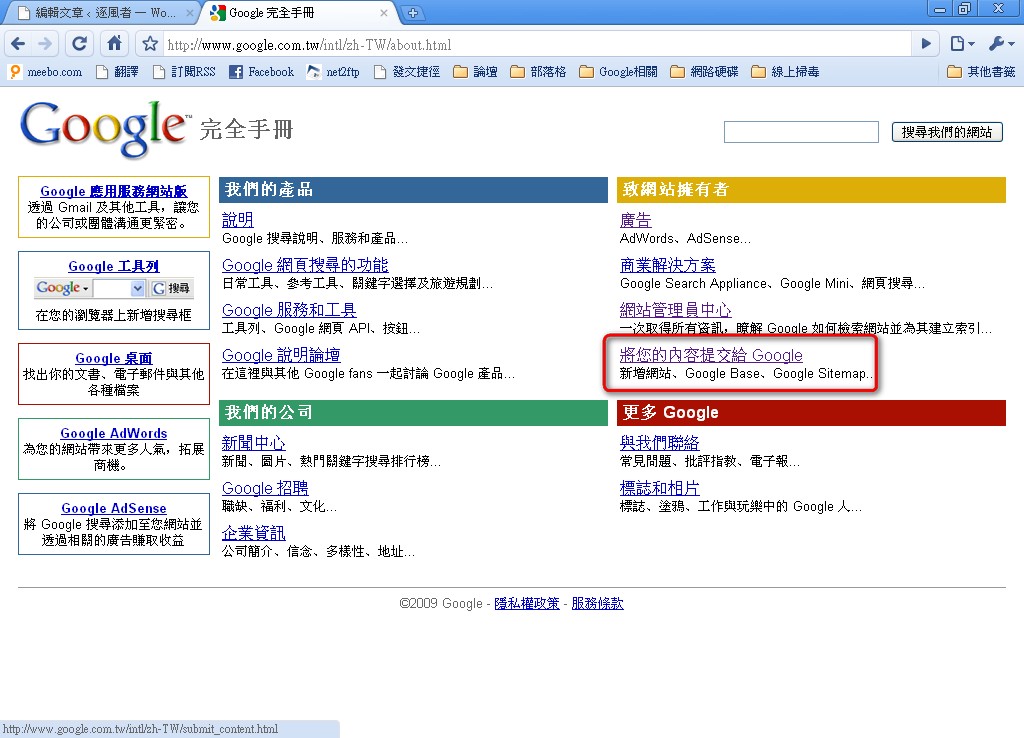
- Click 【For Site Owners】 → 【Submit your content to Google】
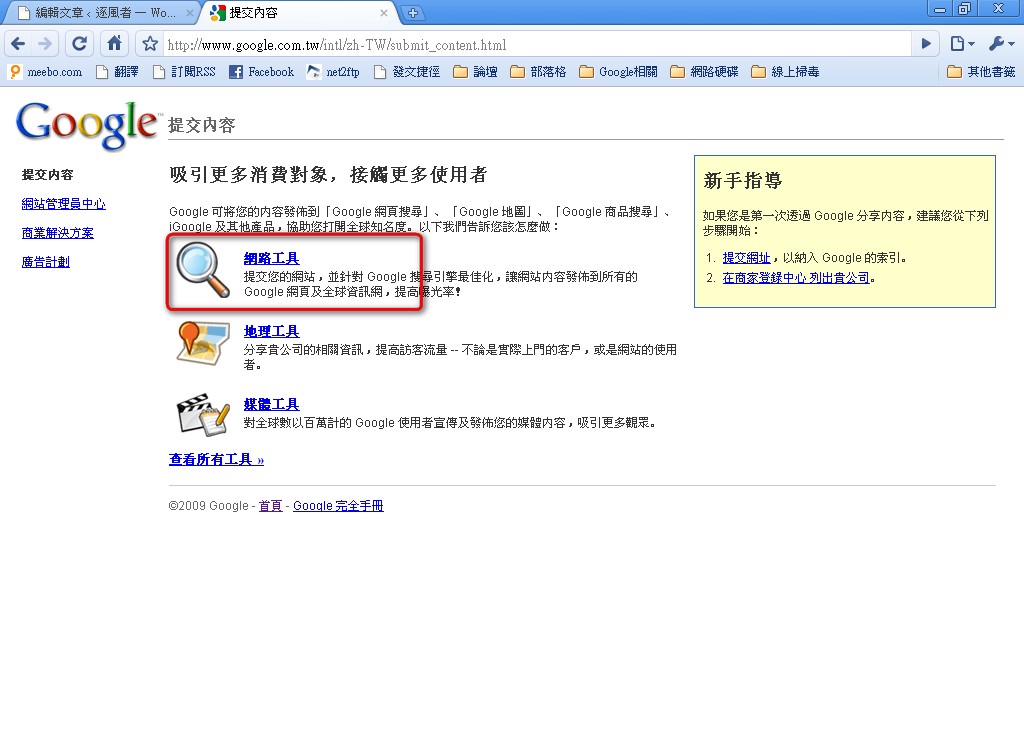
- Click 【Web Tools】
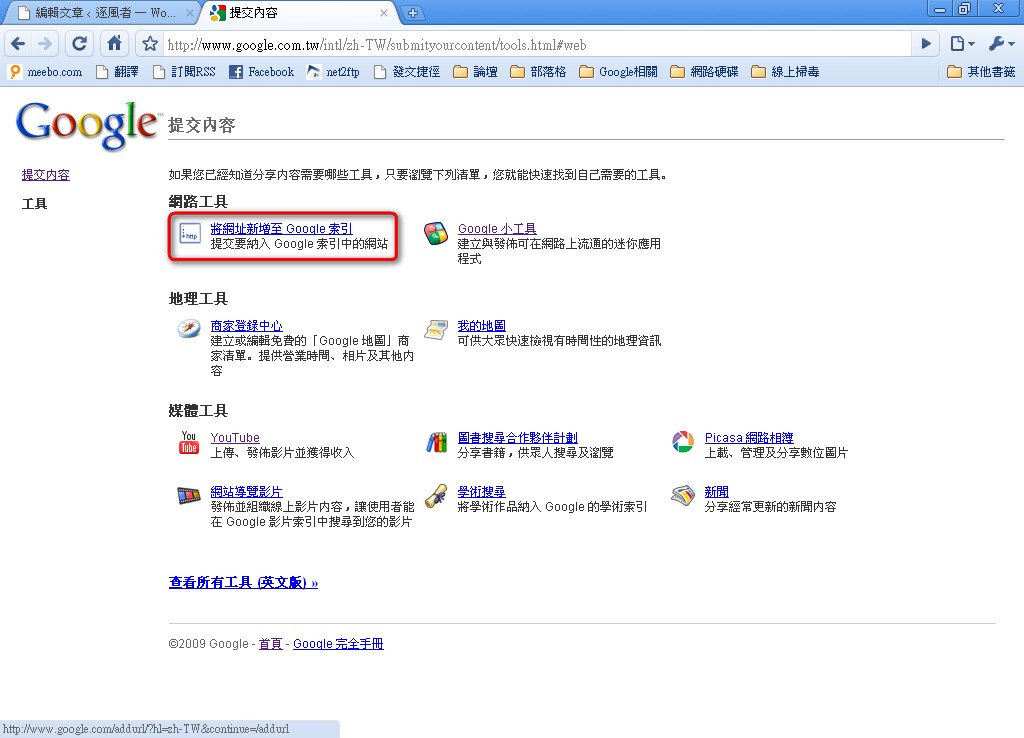
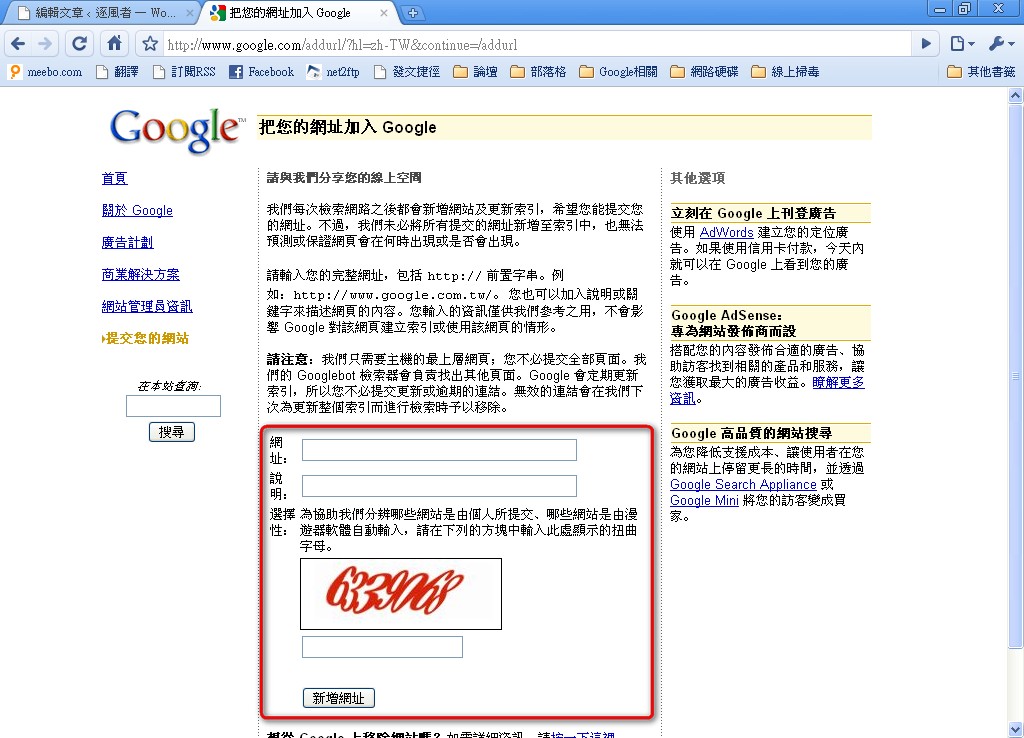
- Click 【Add URL to Google index】
- Enter your site’s information into the form, fill in the CAPTCHA, and click 【Add URL】. Google usually takes about a month to process your request. You can use Google’s 【Site Status Checker】 to see whether it has been processed.
II. Adding Your Site to Google Webmaster Central
1. First, sign in to your Google account. Then, just like before, click 【All About Google】 at the bottom of the Google homepage.- Click 【Webmaster Central】
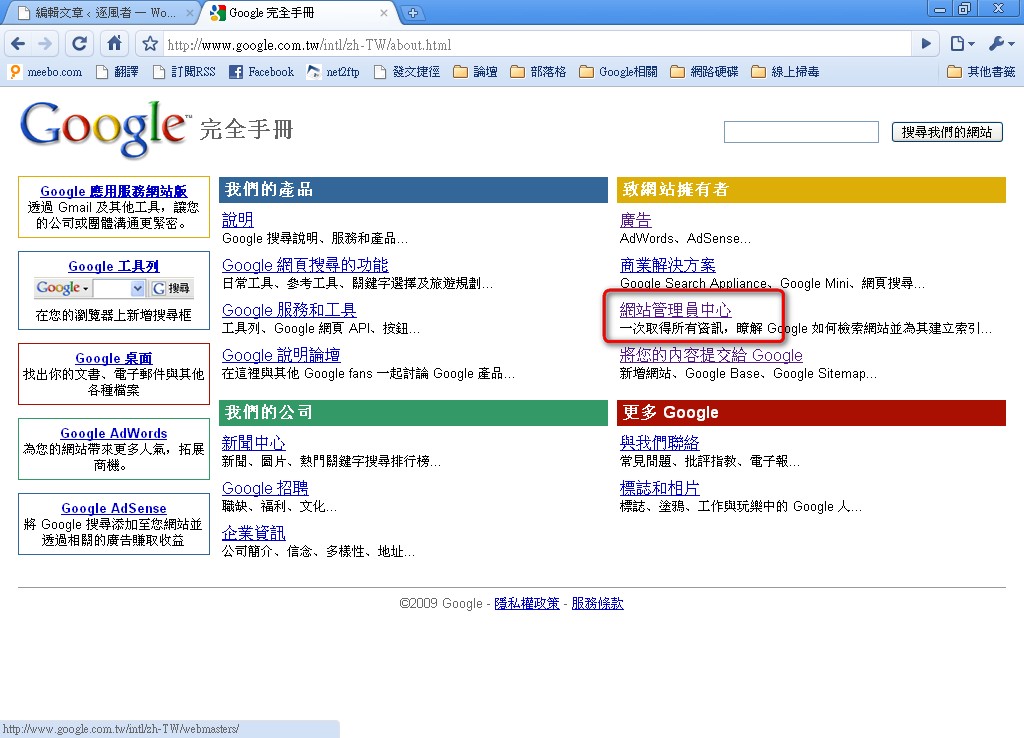
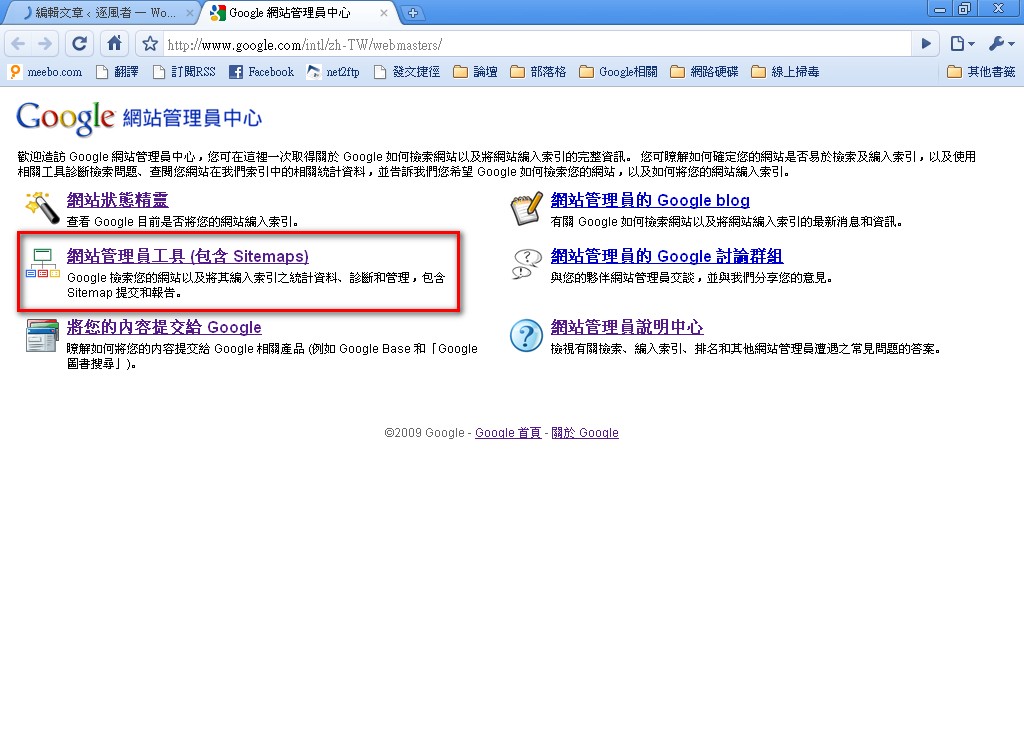
- Next, you’ll see several main features under Google Webmaster Central. The one we want is 【Webmaster Tools】, so let’s click into it.
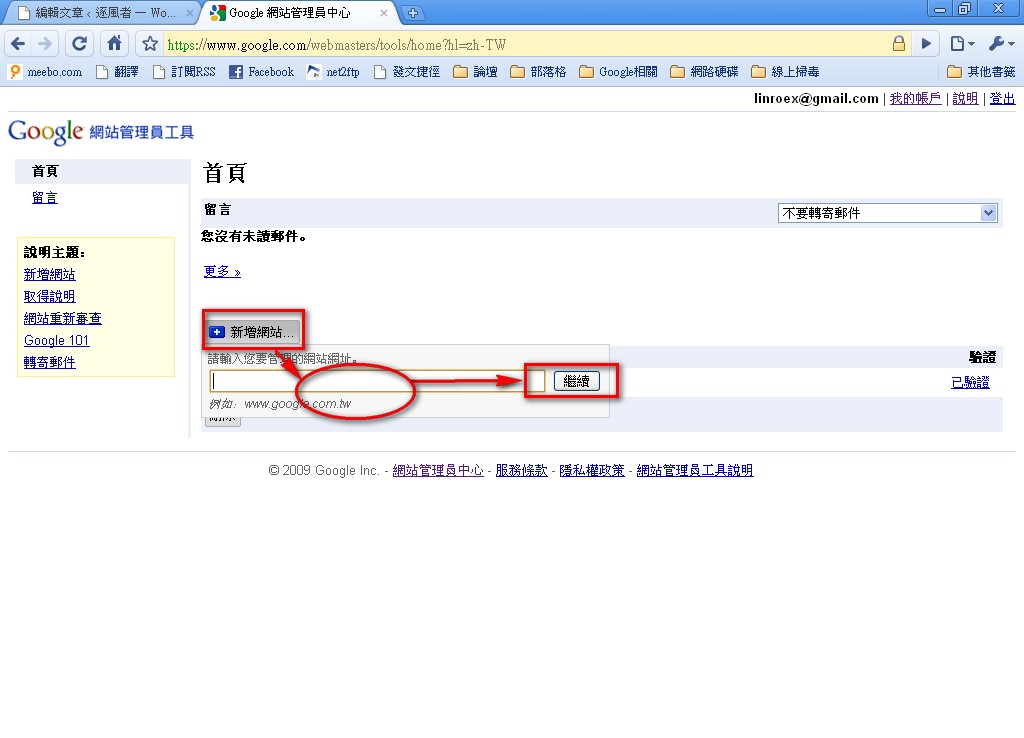
- Click the 【Add a site】 button, enter your site’s URL, then click the 【Continue】 button on the right.
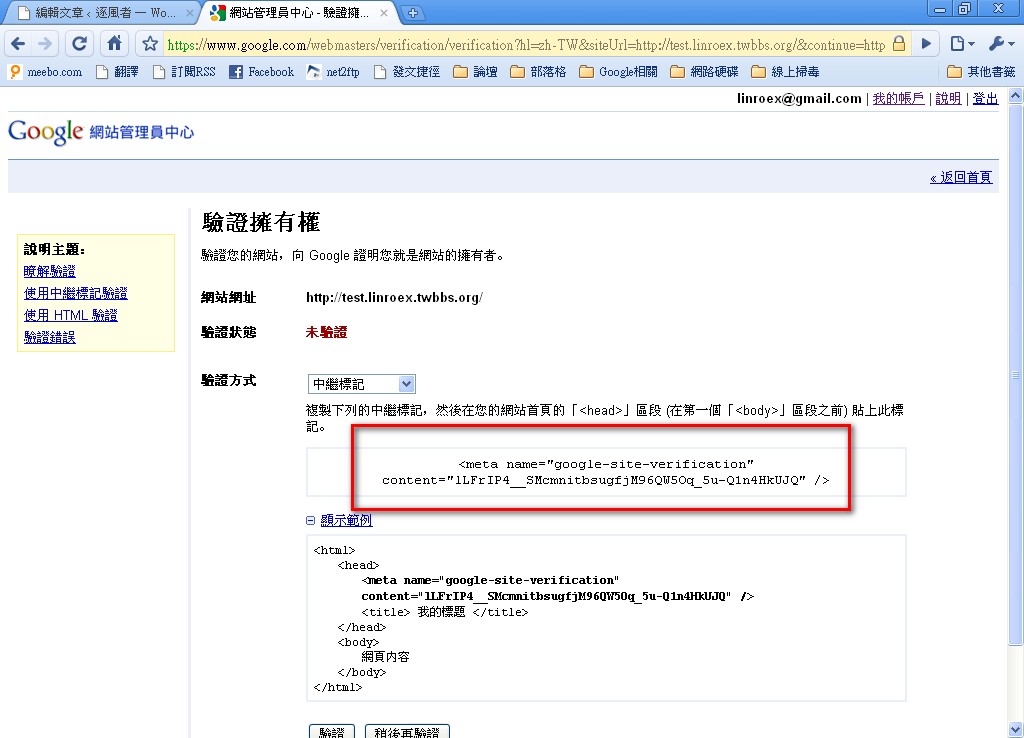
- Next, Google will ask you to verify that the site is yours. There are two ways to do this: upload an HTML file, or insert a snippet of code into your site. Note that this code must be inserted between the <head></head> tags. Here, I recommend verifying with the meta tag (inserting code) method.
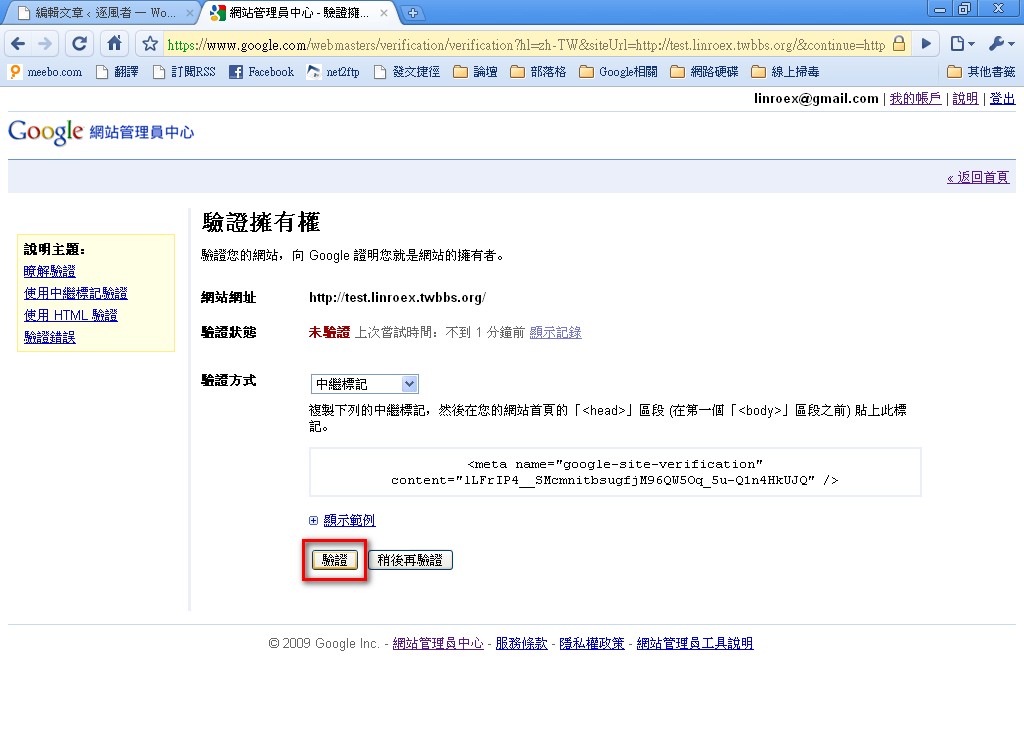
- After inserting the code, just click 【Verify】
III. Basic Guide to Webmaster Tools
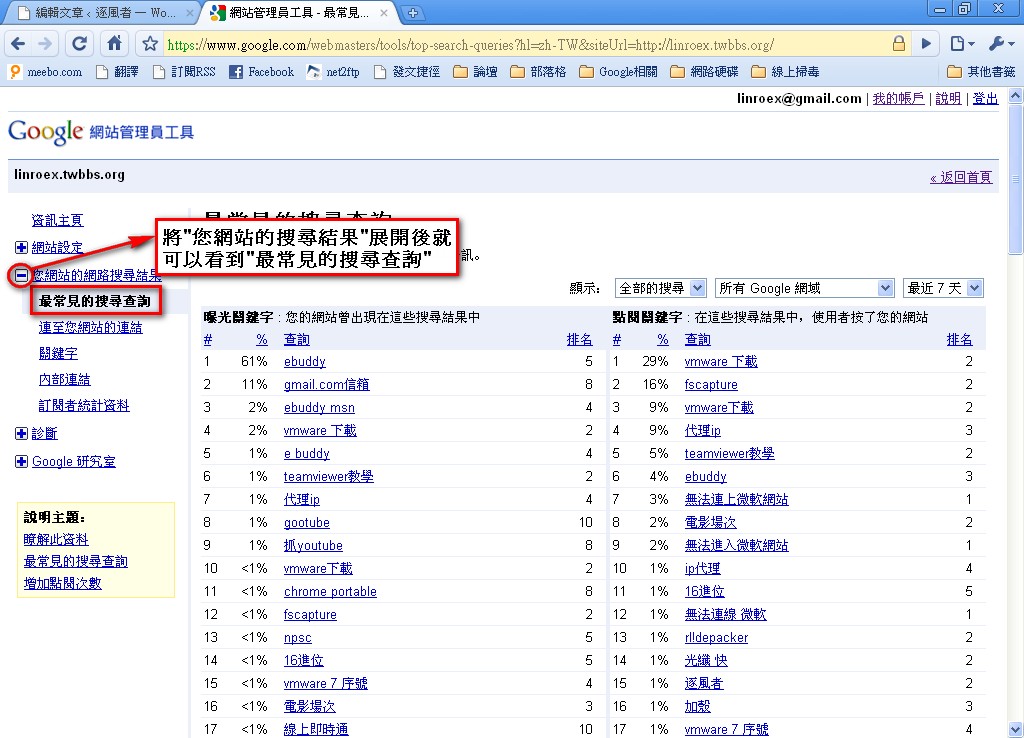
Webmaster Tools mainly helps you figure out where your site's SEO is lacking, and it also shows you popular keywords. Its functions overlap a little with Google Analytics, but Webmaster Tools is specifically designed for SEO optimization. Below, I'll briefly show you how to read the information that Webmaster Tools provides.Popular keywords ▼ Shows you which keywords people used to find your site
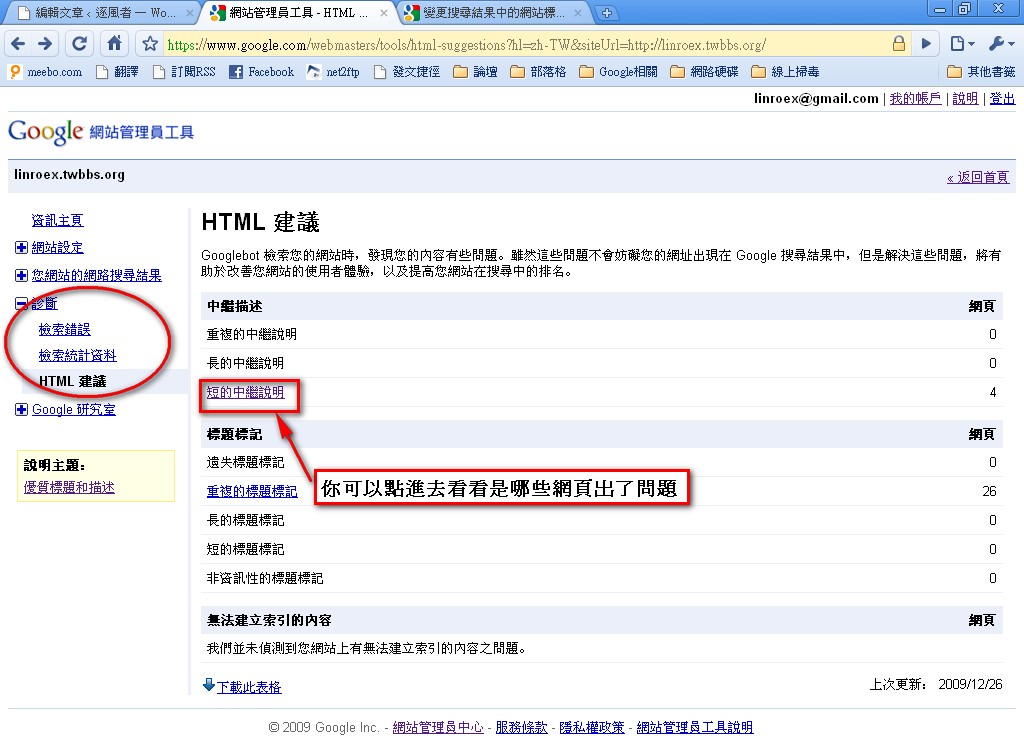
 Diagnostics ▼ This feature mainly checks your site for pages that can’t be reached (Diagnostics → Crawl errors), and also gives you some SEO suggestions (Diagnostics → HTML suggestions)
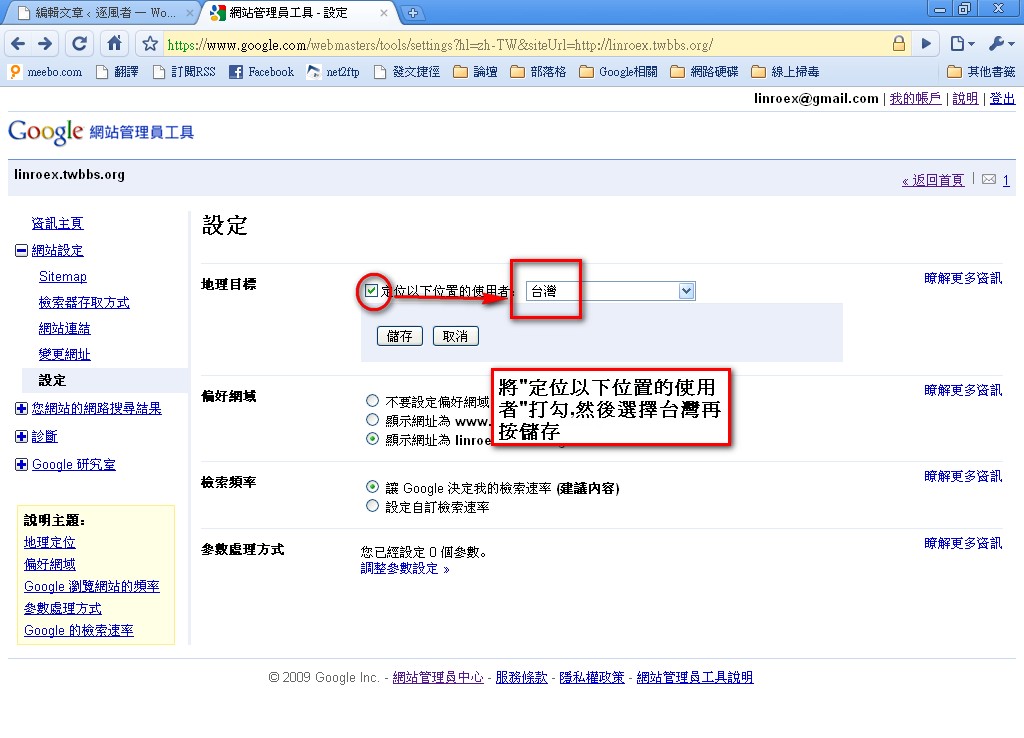
 Site settings ▼ This lets you configure some settings for your site, such as adjusting Google’s crawl rate (in other words, how often Google’s bot visits your site). Basically, you don’t need to change anything here. However, there’s one setting I strongly recommend changing: 【Site settings】 → 【Settings】 → 【Geographic target】. Some people’s sites are in Chinese but use hosting in the US or somewhere else (for example, my own site~). In that case, Google assumes by default that the site belongs to another country. So I recommend setting 【Geographic target】 to Taiwan. (Some people can’t set it because their domain already has a country code like .tw.)
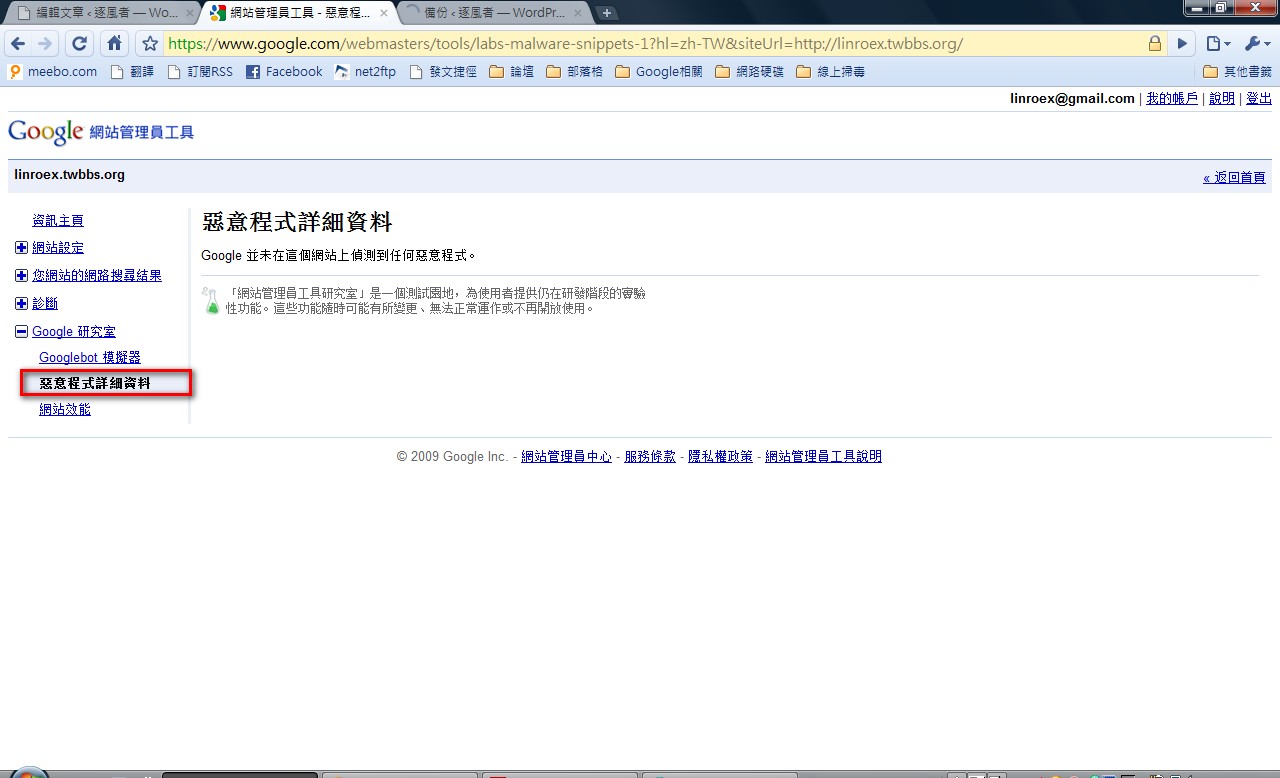
 Check whether your site has malware embedded ▼ I recommend checking this regularly. If Google finds malware on your site, it will remove your site from its search index. So check it whenever you have time. If you find any malware, clean it up right away.
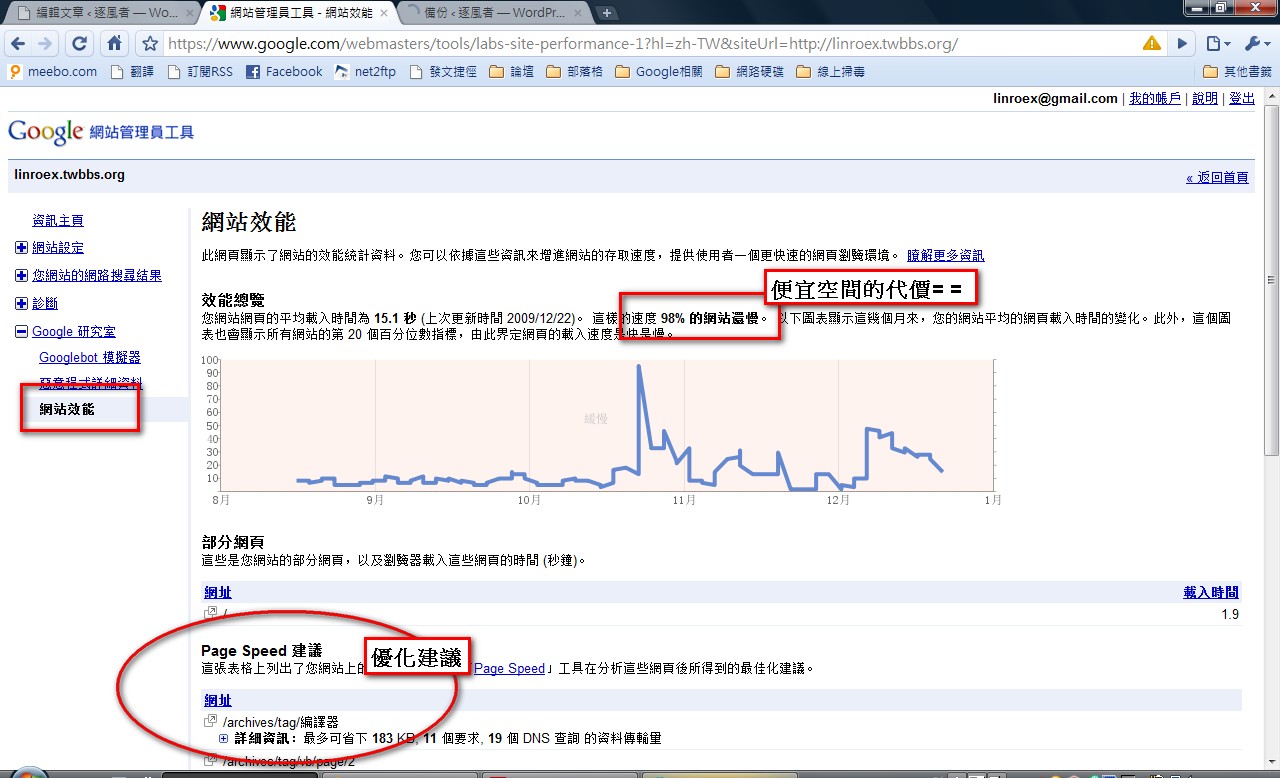
 Site performance ▼ This feature shows you your site’s average loading speed. It doesn’t seem like it has much to do with SEO, right? In fact, Google’s ranking algorithm has a factor that measures page load time. For example, this blog is hosted overseas, so it loads slowly and scores poorly on that factor (it’s even slower than 95% of sites = =). This feature also tells you how to optimize your pages.
IV. Submitting a Sitemap to Google
Submitting a Sitemap to Google isn't hard, since Webmaster Tools can handle that part for you. The tricky part is that you have to create the site map yourself. If you use a site-building package (for example, WordPress, where you can use the XML-Sitemap plugin), you can use a plugin to generate the Sitemap for you. But if you're writing web pages one by one by hand, you can generate one with a generator that Google provides. Or you can use an online generator.For tutorials on this part, see http://www.google.com/support/webmasters/bin/answer.py?hl=b5&answer=34634
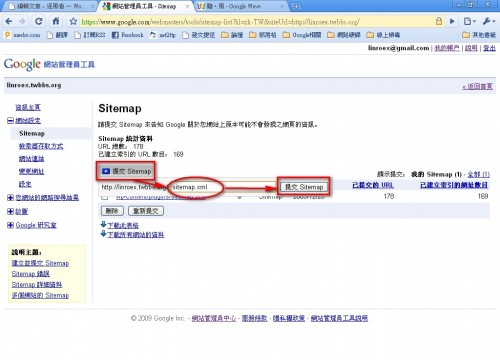
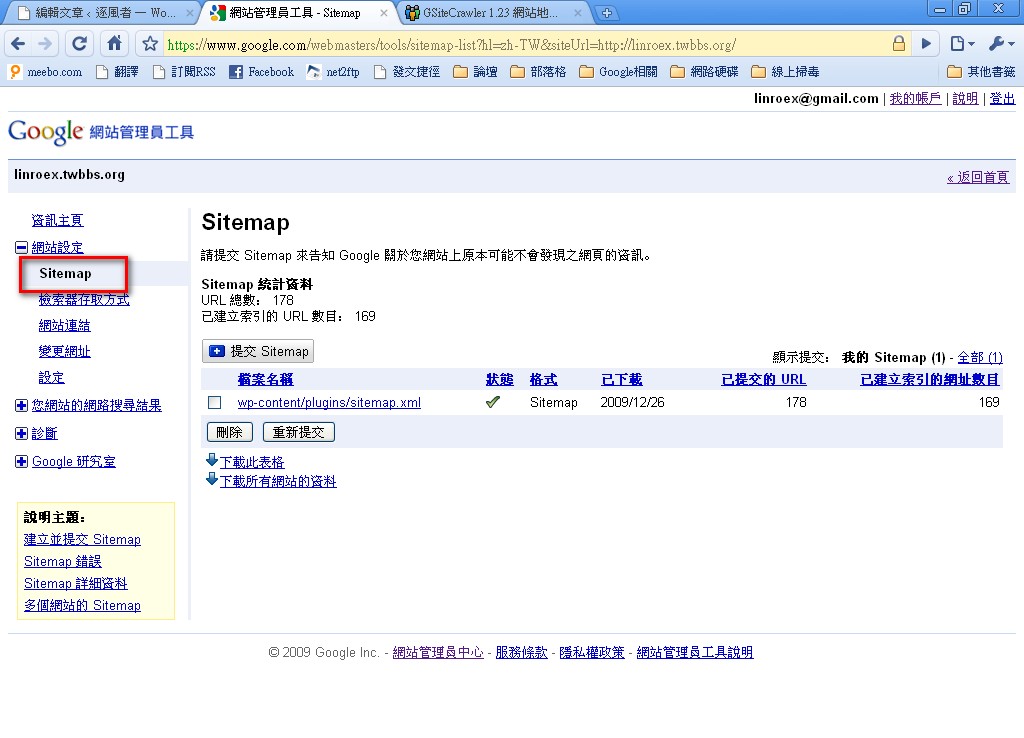
- First, create the Sitemap and upload it to your site (it has to go in the server space where your site is hosted, not some other space). After uploading, go to Webmaster Tools and click 【Site settings】 → 【Sitemap】 in order.
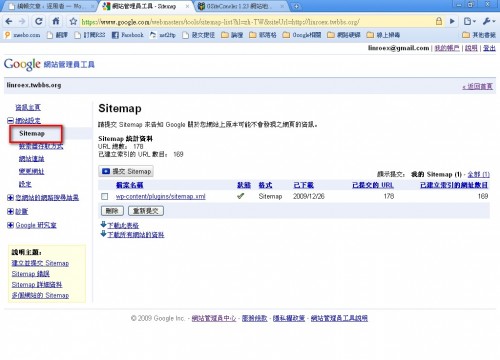
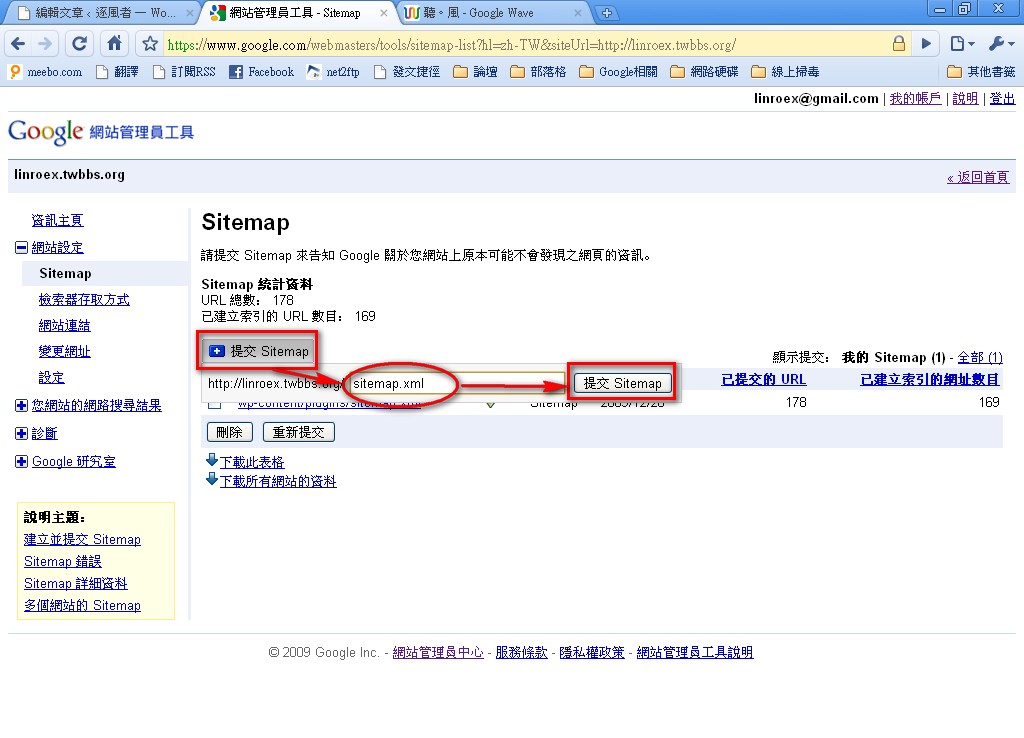
- Click the submit Sitemap button, then enter the URL of the Sitemap you just uploaded. Remember not to repeat any part that’s already filled in.
Example: If your Sitemap URL is http://xxx.twbbs.org/sitemap.xml, then just enter sitemap.xml.
From my own honorable rule of thumb, Google takes 1 to 2 weeks to fully index the URLs you submit, though it also depends on how many URLs there are.