Honestly, I rarely use the handwriting input method built into XP anymore, because I can already type XD. I was reminded of it because our science teacher once ran into a character whose pronunciation they didn’t know and went to ask the Chinese teacher, and that made me remember this fun handwriting input method.
So what’s the benefit of handwriting input? Of course there is! Otherwise, why would I write a whole post about it ^^. Handwriting is slow for typing, but it lets you enter “a character you can recognize but whose pronunciation you don’t know.” Some characters are rarely seen, so you might come across one somewhere and have no idea how to read it. In that case, you can draw it into the computer to use this feature~~~ (Very few people actually use it to type. Most people use it to look up characters.)
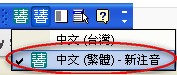
To use this handwriting input method, first switch your input method to “Microsoft New Phonetic.”
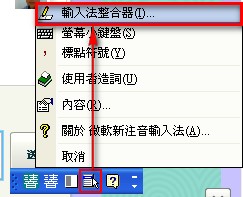
After switching to “Microsoft New Phonetic,” click the “Tools” menu, then “IME Pad.”
After opening IME Pad, you’ll see a window titled “IME Pad - Handwriting Recognition (CH)” (shown below).
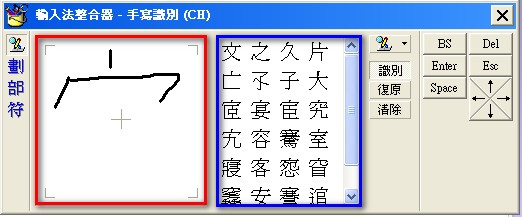
Legend:
Red box: where you write
Blue box: possible characters
In the examples below, I’ll use the character 去 (“to go”) to demonstrate.
- First, click the “Clear” button to erase the text.
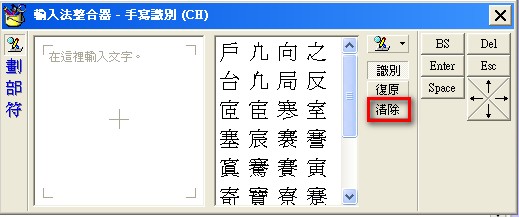
- Draw the character 去 with your mouse in the white area, and the white box on the right will show the possible options.
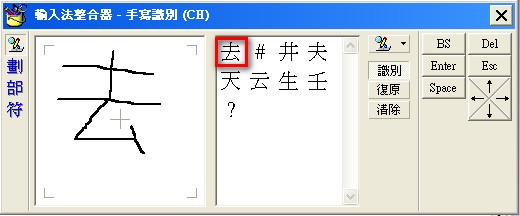
Now that should all be clear!
Handwriting input can also be used for continuous input. Just click “Continuous input” (shown below).
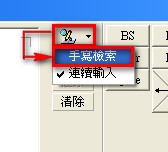
The original input area then splits into two. You can write in the first one, then click the second one and write there. After you finish the second, click the first one again, and so on. Once you’ve written everything you need, click “Recognize” to finish.
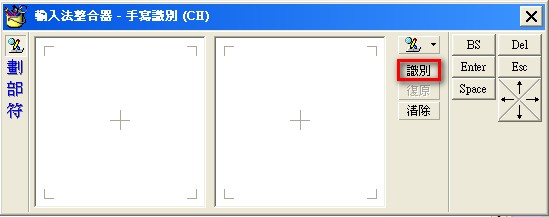
If the instructions for continuous input above are hard to follow, you can also watch a video I made for this: