The TV hanging in our office has been sitting empty for a long time, and that is not a good use of it. So I recently started planning to show some important numbers on it, such as conversion rate, traffic, and live visitors. I originally thought a dashboard would be a simple request: two or three days of backend work to organize the data, then D3.js on the front end to draw the charts. Or I could make it even simpler and use custom reports in Google Analytics. But once I started researching, I found the problem was not so simple. Let me walk you through it.
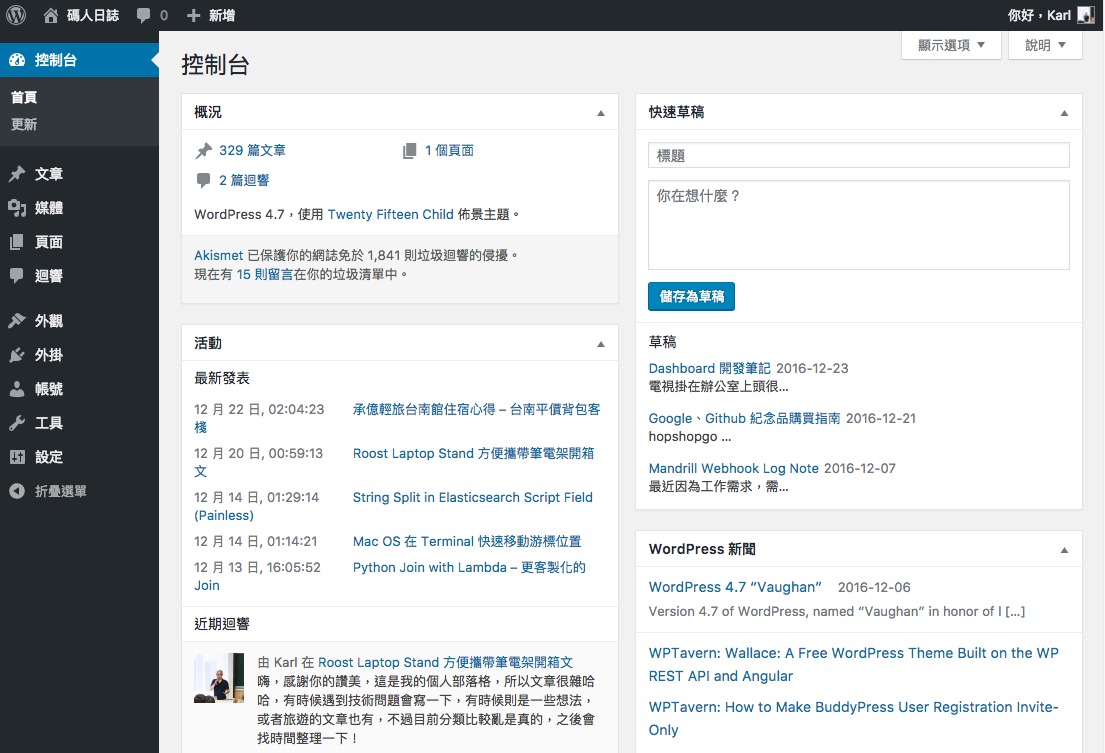
A dashboard is a page that brings various data and information together in one place. Many information-driven companies mount dashboards on TVs so employees can see important information at a glance, or use them to announce important notices. Other dashboards are not on a TV at all. They simply appear on the admin home page, so users can see the key information as soon as they log in. For example, the WordPress admin home page shows the latest posts, comments, and so on.
The Purpose of the Dashboard
Before designing a dashboard, you need to think about "why do we need a dashboard?" so you can decide what data to put on it. Space is limited. Should a single page show today's traffic or this month's traffic, or the breakdown of visitors' browsers? All of this depends on the "why" behind the dashboard and on the company's business model.I think a dashboard exists for two purposes:
- Team unity: Imagine the engineering team's new feature has finally gone live, and everyone gathers around the TV to watch the numbers climb! I think the main purpose of a public dashboard on a TV is to strengthen the team's sense of unity. For example, the number of active members, the five most recently launched features, and the number of people online right now all serve this goal.
- Warning signs: Would you ever open Google Analytics out of boredom and notice that today's visitors have suddenly dropped? Or open Skylight (a performance monitoring tool for Ruby on Rails) and find that a newly launched feature is running slowly? No. Unless the company has dedicated testers or analysts, nobody normally checks these numbers. Usually we only discover problems when complaint calls start coming in. But the dashboard TV hangs in the office, so you can expect everyone to glance at it every time they come in. That is a great chance to display warning data! For example, you could show the latest customer complaints, or a month-over-month comparison of website uptime. When an engineer sees that this month's uptime is lower than last month's, they will naturally become alert.
Considering the Nature of the Medium
Beyond the purpose, you also need to be clear about the medium. When I first started designing the dashboard, I completely forgot that it would be shown on a TV. I thought it would be like before: a page on the admin home screen that people operate. These two designs are opposite in logic. The most obvious difference is that if the medium is a TV, there is no interactivity at all. After all, you probably would not want to operate a TV with a remote. But if the dashboard is shown on a user's computer screen, you can include handy interactive features such as a date picker or multiple pages. Even when the medium is a TV, there are plenty of effects you can use to fit more data into a small space, such as flipping to a new page every few seconds, or animated charts that flow. Using the right effects lets you present much more data on a small TV screen.The medium also affects things like size and font size. I rely a lot on feel when designing interfaces, but a design that looks good on a computer may not look good on a TV. Text that seems large on a computer screen can become hard to read from a TV, because viewers are sitting in their own seats. Getting these details right takes experience, or adjusting after launch.
How to Present the Data
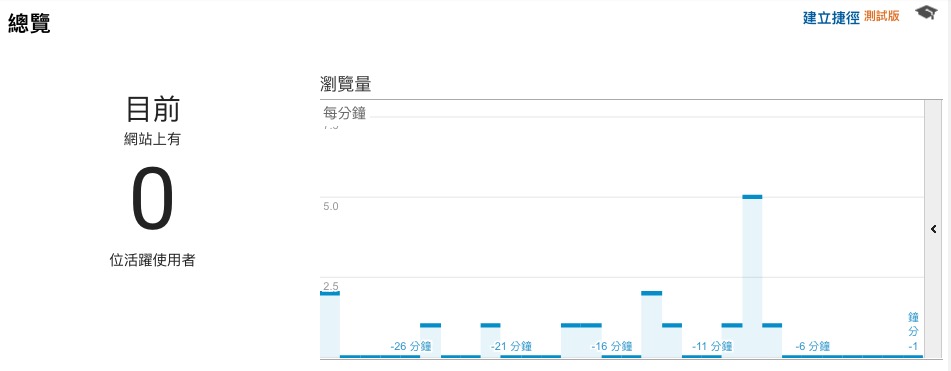
Presenting data is also an important subject. It is far more than drawing a pie chart or a line chart. Different purposes call for different presentation methods. Data by itself is just data. Only with the right presentation can you achieve the benefits you want.Take live visitors as an example. Are you showing them to create a “wow, so many people!” feeling, or to understand the website’s load? If you want the wow effect, showing the number alone will not do much. You need a comparison element, such as a line chart showing the difference between this second and the previous one, along with the current number. Comparing across time gives readers the feeling of “wow, suddenly there are more people!”
Take money as an example. When you show an amount, do you just display a plain number like 190,000,000? Or do you use a format like “1.9 hundred million”? I think the difference is clear. A plain number barely registers with readers, since it is just a string of digits. But writing it as “1.9 hundred million” is much easier to grasp. You can even add an analogy. Newspapers and magazines often say things like “the saved paper could be stacked into several Taipei 101 towers,” which uses the same technique.
Helpful Tools
As the saying goes, "If a craftsman wants to do good work, he must first sharpen his tools." When building a dashboard, there are plenty of tools that can help you reach your goal. Here are a few I think are worth a look:- Shopify/Dashing: A dashboard framework developed by Shopify. You feed data into it and can quickly generate a dashboard! Unfortunately, Shopify has stopped maintaining it. Similar tools include Freeboard and Dashku, but I have not looked into them deeply, so I will not introduce them here. You can search for "dashboard framework" as a keyword.
- Airbnb/Superset: Yes, this is a data visualization tool released by Airbnb (you need to host it yourself). It was originally called Caravel. It was designed so that non-technical people can visualize and explore data quickly and easily. It has many built-in chart types, so you can use it to build a dashboard quickly.
- Kibana: A tool similar to Superset (you need to host it yourself). It also lets users quickly create charts. The main difference is that Kibana is built on Elasticsearch, so its full-text search is more powerful. It supports fewer chart types than Superset (though you can install plugins), and development takes longer. Its community and stability are stronger than Superset's. Personally, I think Kibana suits engineers better, while Superset suits non-engineers.
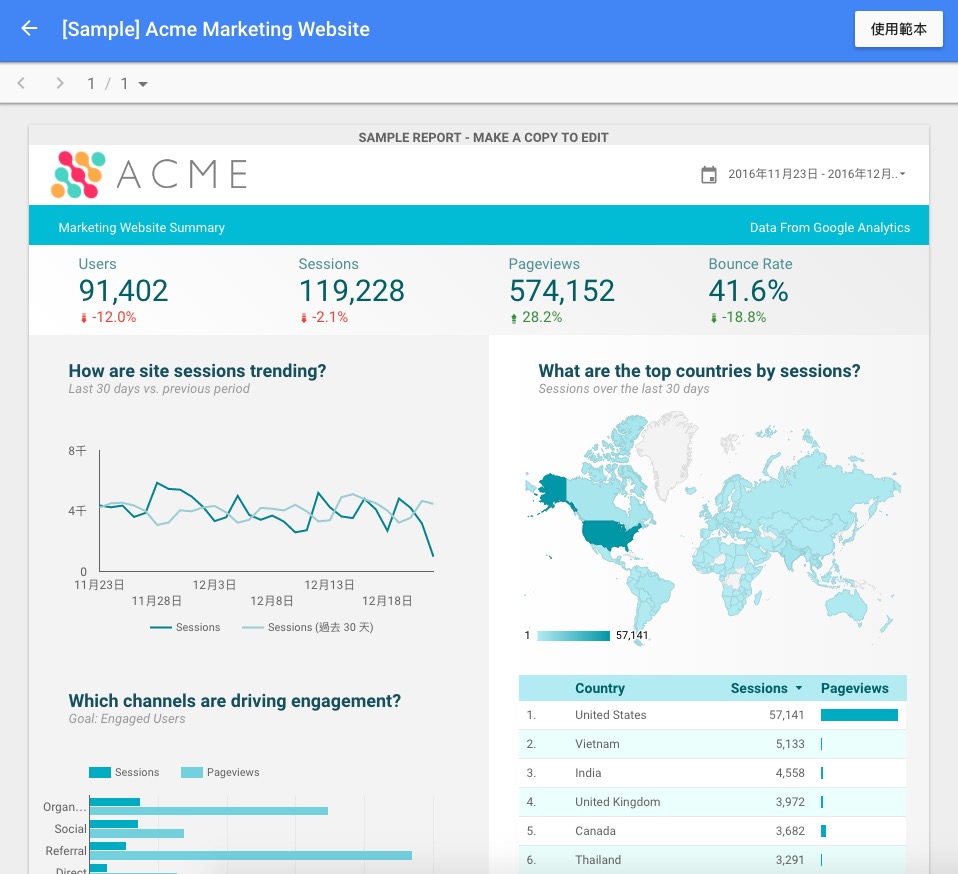
- Google Data Studio: A powerful new tool from Google that lets you quickly draw all kinds of charts. Its biggest feature is that it connects seamlessly with Google Analytics, Google BigQuery, and other related services. You can even connect it to your own database (MySQL), and in a very short time build an online report whose data loads dynamically! I personally used it to design a dashboard (lol). However, designing a dashboard with Google Data Studio has some problems. It is not flexible enough. For example, I could not adjust the page size, and when I wanted to list the five most recently merged features, I had to use quite a few dirty hacks.
- D3.js: You cannot talk about drawing without mentioning the powerful D3.js! With D3, you can quickly draw the charts you want. And because D3.js draws from the lowest level, you can create any chart you can imagine.
- C3.js: D3.js is so low-level that, while it lets you build very flexible reports, it has a high learning curve and slower development. C3.js uses D3.js as its foundation but has an easier-to-use API. Similar libraries include NVD3.js, Plotly.js, and others.
How to Show It on a TV
Finally, and most importantly: once the dashboard is done, how do you actually show it on a TV? Connect your laptop with HDMI? That is not very economical. Do you really have to keep a computer next to the TV all day just to show a dashboard? You might think of using a Raspberry Pi or buying a simple host machine, but in fact all you need is a Chromecast, which is about the size of your palm. (Note: the Chromecast Ultra, which supports 4K, is also available now.)The Chromecast lets you develop a Receiver App. A Receiver App is essentially an HTML page. In other words, the Chromecast itself is a browser. So as long as you design your dashboard as a Receiver App and optimize it, you can easily display it on the TV all day long!
In addition, some smart TVs have a built-in browser, so you can display the dashboard through it and skip connecting a separate computer entirely!