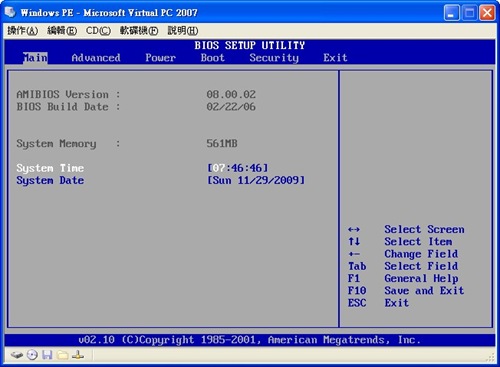
Booting from a CD is the most important step when learning to reinstall a computer. Once the CD boot is set up, installing the operating system is not that hard, since it is almost always just clicking Next. So in this article, I will teach you how to change the boot settings in the BIOS.
What is the BIOS? Basic Input/Output System (BIOS, Basic Input/Output System) is the most basic software code loaded onto a computer’s hardware system. The BIOS can be thought of as a tiny operating system that specializes in communicating with the hardware. It is usually written in assembly language for compatible CPUs. (This section is based on Wikipedia.)
.
Basic Operation: Opening the BIOS Menu
When the computer starts, you need to press a hotkey to enter the BIOS menu (press the key repeatedly right after pressing the power button). However, each BIOS vendor uses a different key to enter the BIOS menu. Here is how to find yours: after you turn on the computer, a lot of text appears, right? Quickly look for text like the example below, or something similar. Once you find it, you will know which key to press to enter the BIOS! In the example below, the key is DEL (Delete).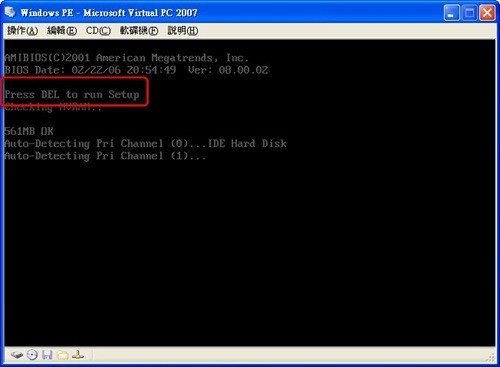
Note: Desktop computers usually use ESC, Delete, or F4 to enter the BIOS, while laptops usually use F2.
.
Basic Operation: BIOS Controls
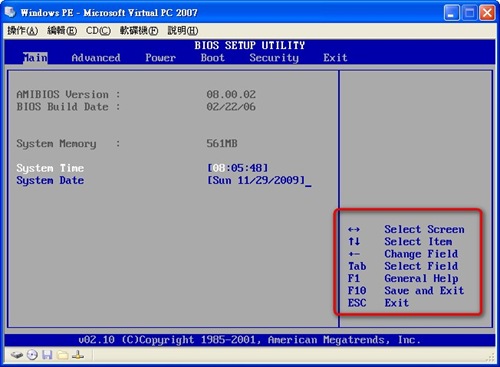
Next, I need to explain how to use the BIOS. Inside the BIOS, everything is controlled with the keyboard, not the mouse. Please listen carefully!The control instructions for each BIOS brand are usually shown in the BIOS menu, but they are in English, so here are the most common controls:
1. AMIBIOS controls
Arrow keys (↑↓): Move up or down between items. In the example below, the selection is moving between System Time and System Date.
Arrow keys (→←): Move between tabs. Tabs are the items across the top, such as Main, Power, and Boot.
ESC: Exit the BIOS menu
F10: Save settings and exit
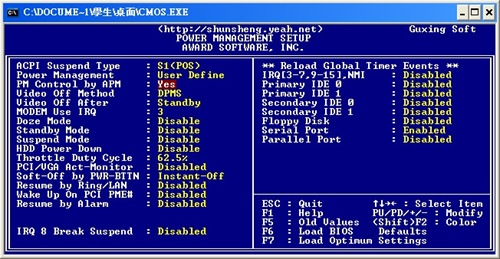
2. AwardBIOS controls
Arrow keys: Move up, down, left, and right
ESC: Exit the BIOS menu
F10: Save settings and exit
.
Setting the CD Boot
1. Use the arrow keys to move to the Boot tab.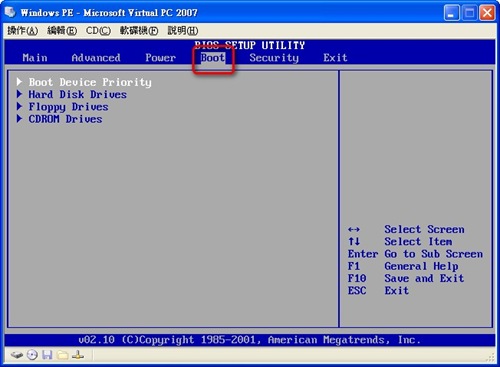
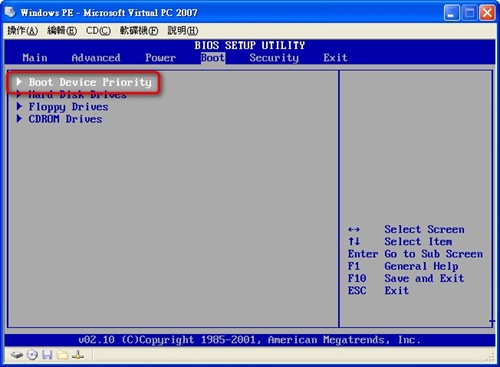
- Press Enter on Boot Device Priority to open the boot device settings menu.
- Select 1st Boot Device, press Enter, use the arrow keys to highlight CDROM, then press Enter.
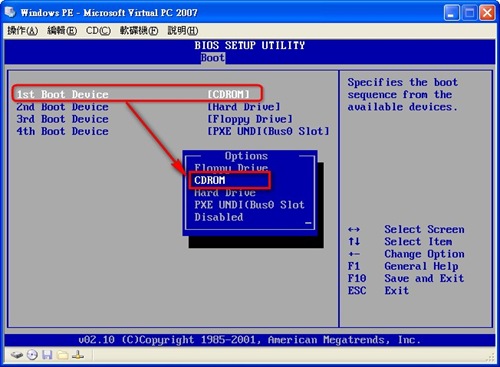
Note: On some computers, you need to press the + key or F8 to move the CDROM option to the top. It is not difficult: use the arrow keys to move to the CDROM option, then press the + key.
- After making the setting, press F10, insert the installation disc, and the computer will boot from the disc automatically.
The image below shows the boot menu of Windows PE 3.0.