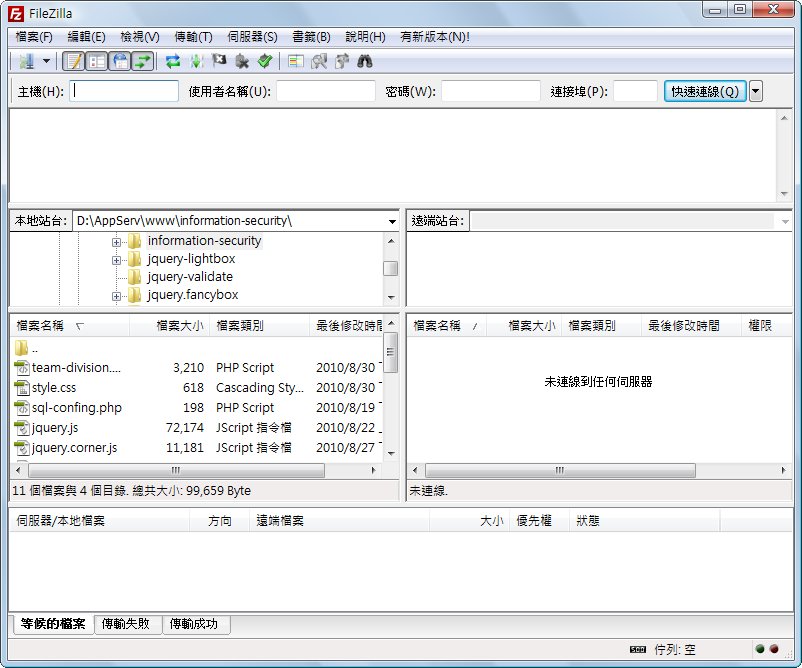
Let me briefly introduce this program, FileZilla. FileZilla is an FTP client that lets you connect easily to an FTP server and upload and download files. It also has a built-in site manager that remembers the server address, username, and password for you.
About FileZilla
- Official website: http://filezilla-project.org/
- Download: Official download | Box.net | Xun6 | 4Shared
- File size: 6 MB
FileZilla Tutorial
1. First, go to here to download the FileZilla main program (or use any of the download links above), then extract it.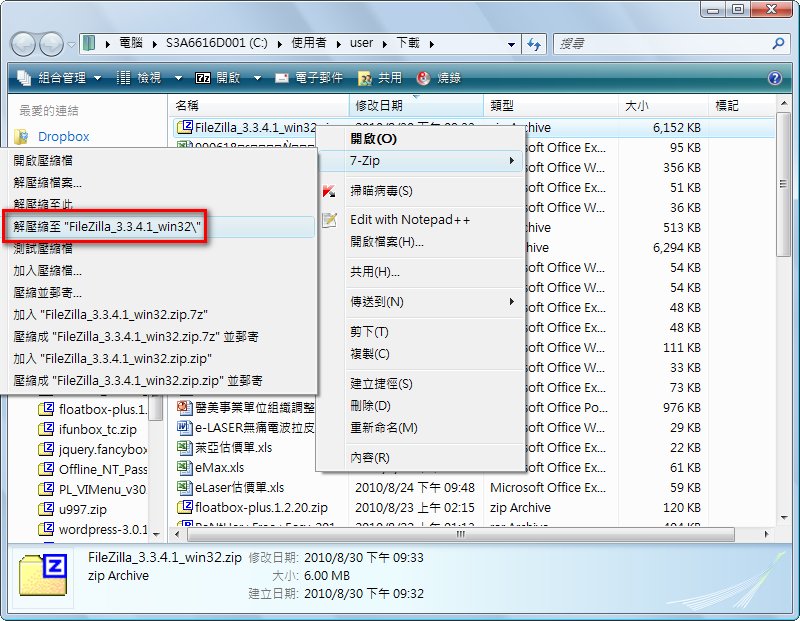
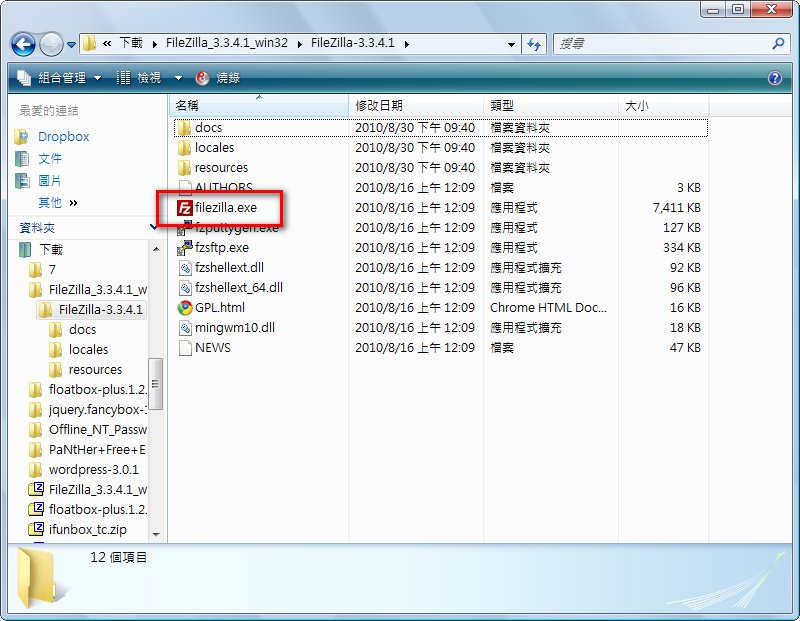
- Open the folder you just extracted, then open filezilla.exe.
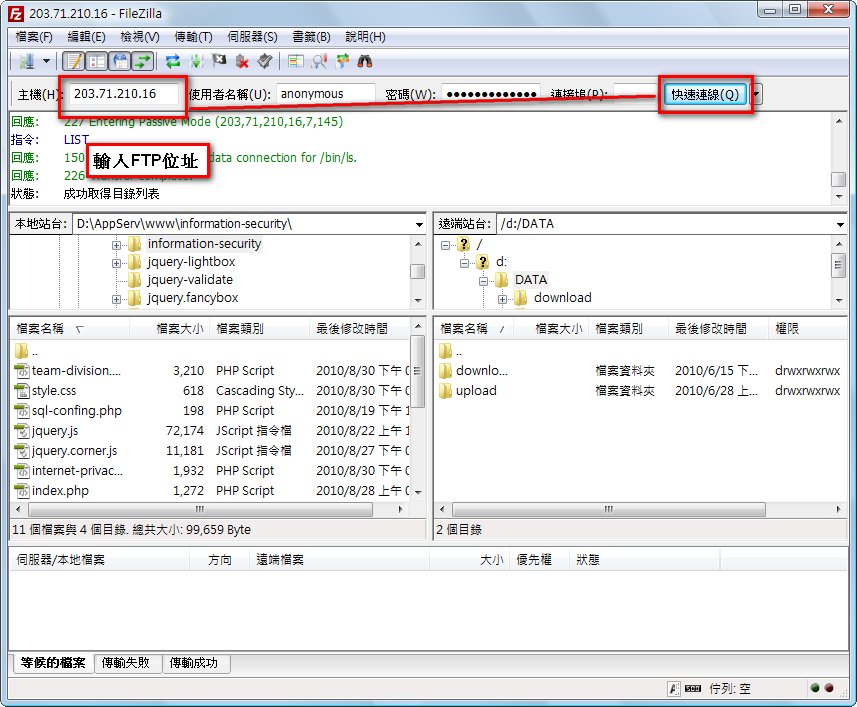
- In the Host field, enter the address of the FTP server. If the FTP server requires a login, enter your username and password in the Username and Password fields, then click Quickconnect. Our school’s FTP does not require an account, so you only need to enter the server address and click Quickconnect, and it will automatically log you in as a guest.
- Let’s start with uploading. First, select the file you want to upload on the left side, then right-click the file (or folder) and choose Upload.
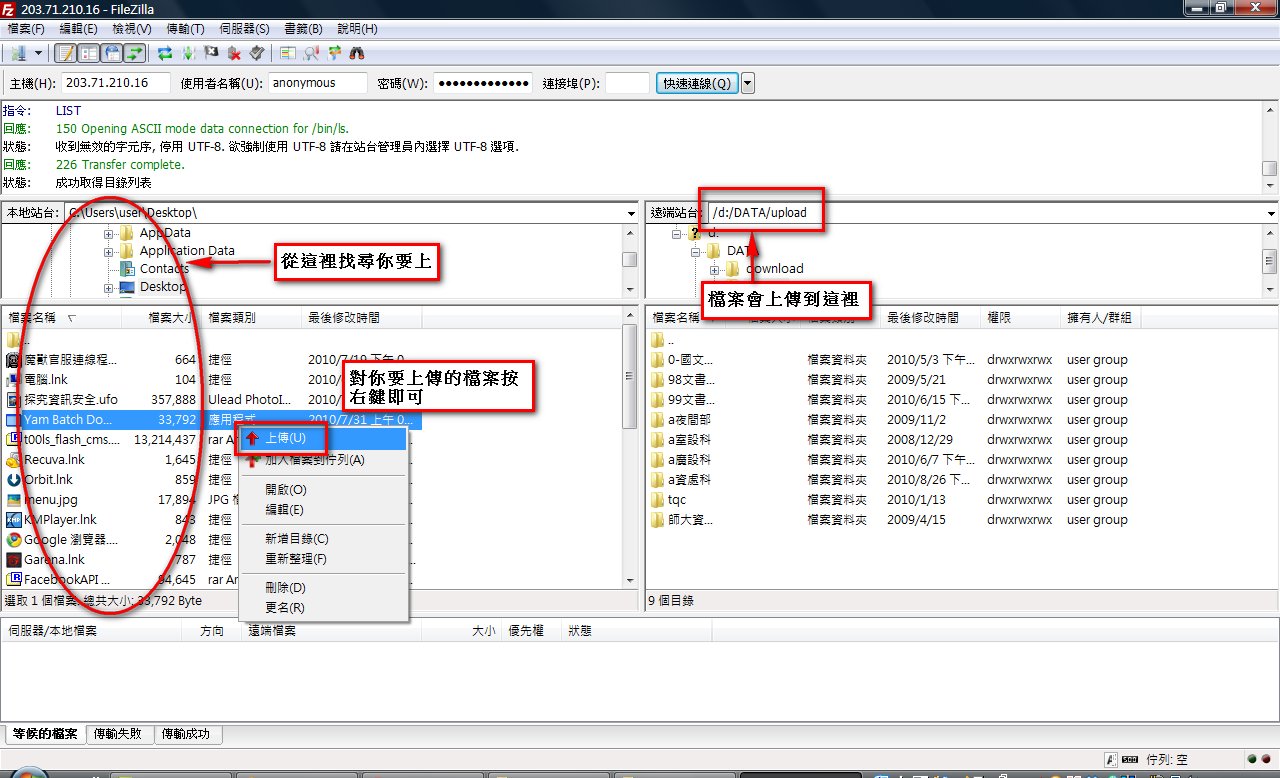
- Next, here is how to download files from FTP. It is simple: just reverse the previous steps. Earlier, you uploaded from the left side. This time, right-click on the right side and choose Download.
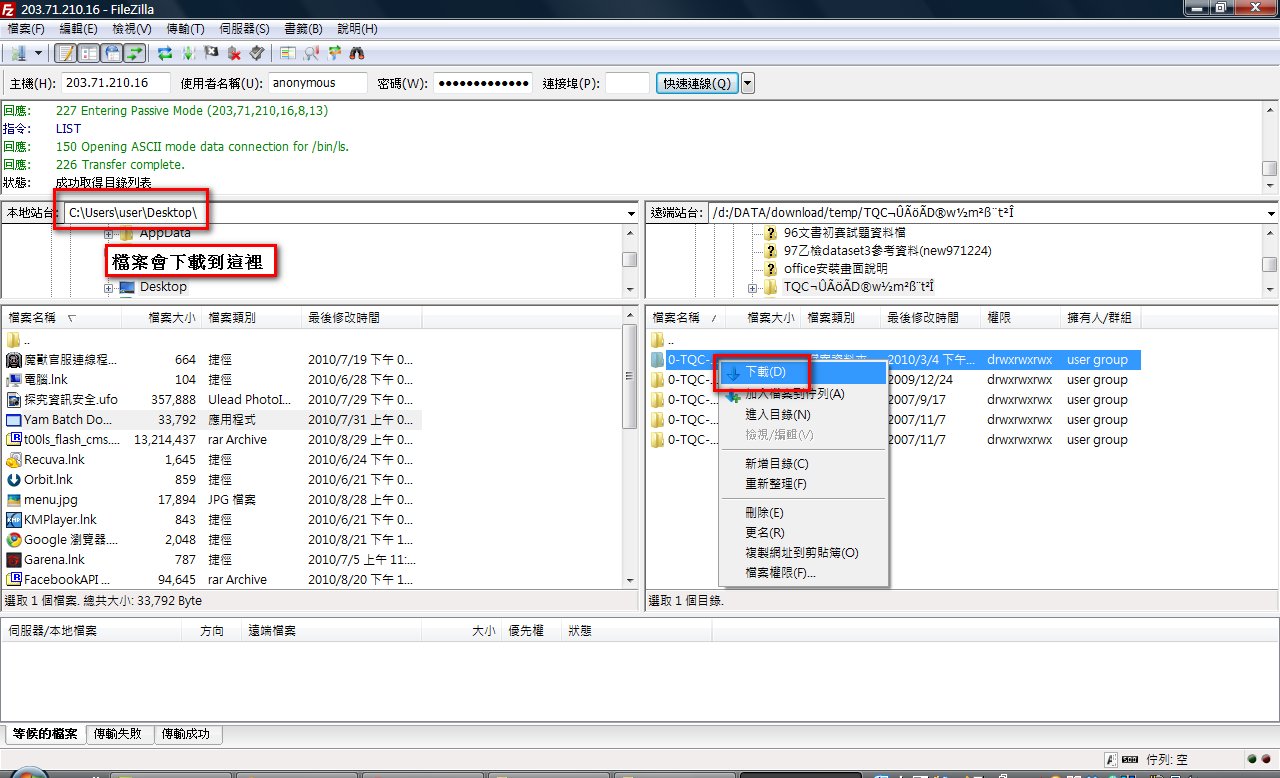
- That covers the basic usage. Also, once you have logged in one time, FileZilla will automatically save the FTP server details, so you can get back in quickly next time.
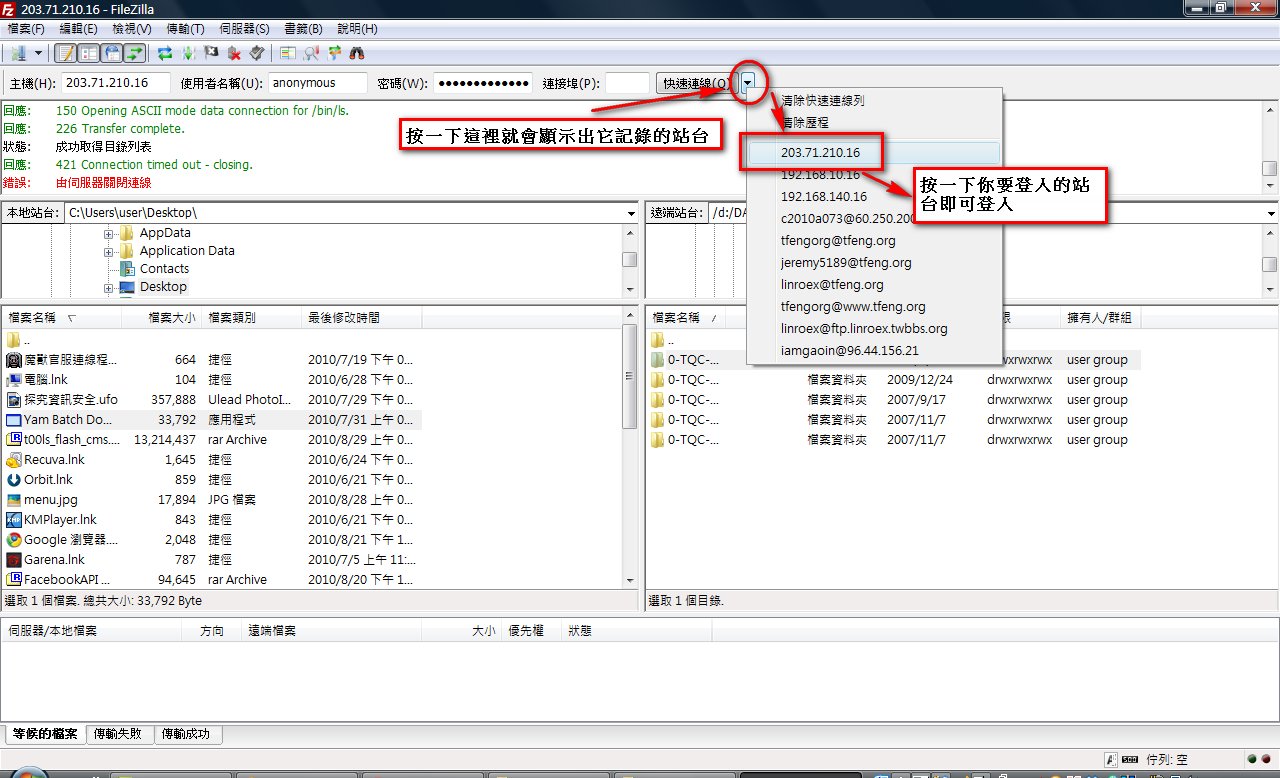
- Also, when you download many files at once, you can check the progress in the transfer queue pane at the bottom of the program.
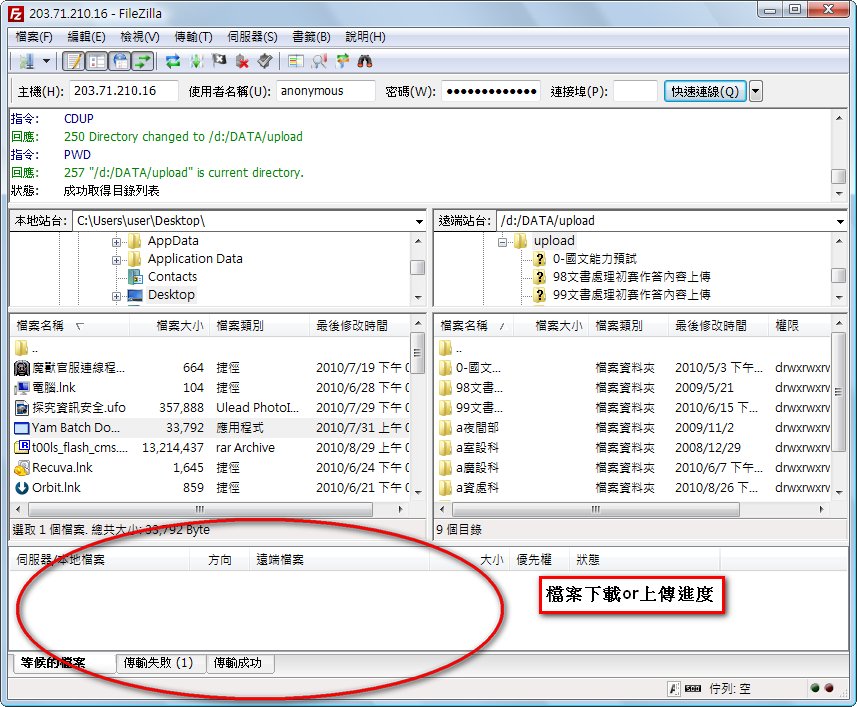
Note: Be careful, and I recommend not logging into instant messaging apps, MSN, or any other feature that requires an account and password on school computers. I originally thought the school probably had a restore utility installed, so viruses were not a concern. But later the department head told us that one of the hard drives is used for storing our files… which means someone could plant a virus there too. I really do not dare to use instant messaging on these computers. (I logged into my instant messenger today, and after the department head told me this, I totally freaked out….)