When doing front-end development on a computer, browsers provide handy developer tools that let us check error messages, storage contents, step through JS, and more. But how can we open these powerful developer tools when testing a web page on a mobile device? After all, you cannot fit them on a tiny screen! This article shares how, for iOS devices, you can connect to a Mac and use Mac Safari’s developer tools to remotely control the web page running in iOS Safari, which makes testing on iOS much easier.
When it comes to front-end testing on mobile devices, besides testing on real devices, you can also use the Device Toolbar in the browser. But that usually only simulates screen resolution and User-Agent. If you want to test syntax compatibility, you have to use a simulator or a real device. Do not think mobile testing is unimportant. Many HTML5 and CSS3 features you take for granted may be unsupported or behave differently on mobile devices. Even if the documentation says iOS Safari supports something, that does not necessarily mean it really does. So I recommend testing it yourself to be safe.
To connect iOS Safari with Mac Safari, you first need a cable, of course. You also need to turn on Web Inspector in iOS Safari. Go to iOS Settings => Safari => Advanced and enable “Web Inspector.”
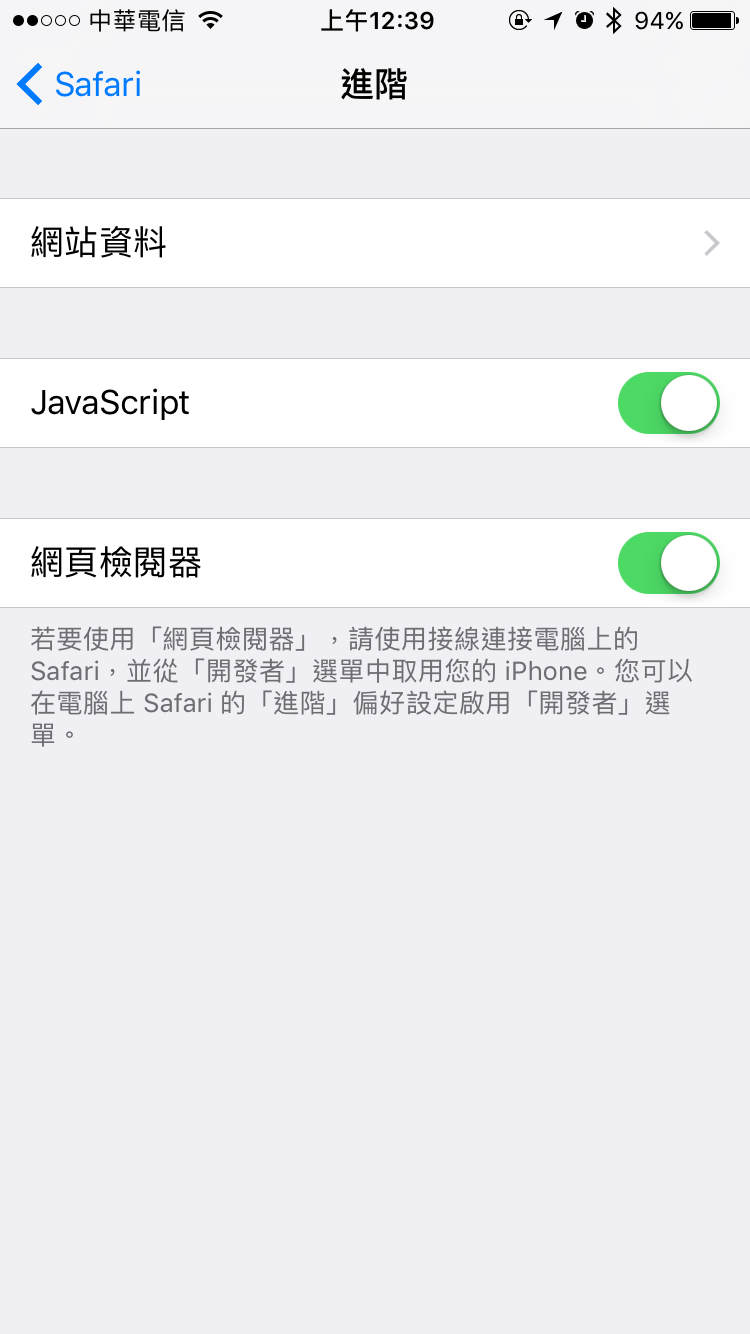
After enabling it, open the web page you want to test in iOS Safari. Next, we need to turn on the developer features in Mac Safari. Unlike Chrome and Firefox, Mac Safari hides its developer features by default. You need to enable them in Preferences => Advanced.
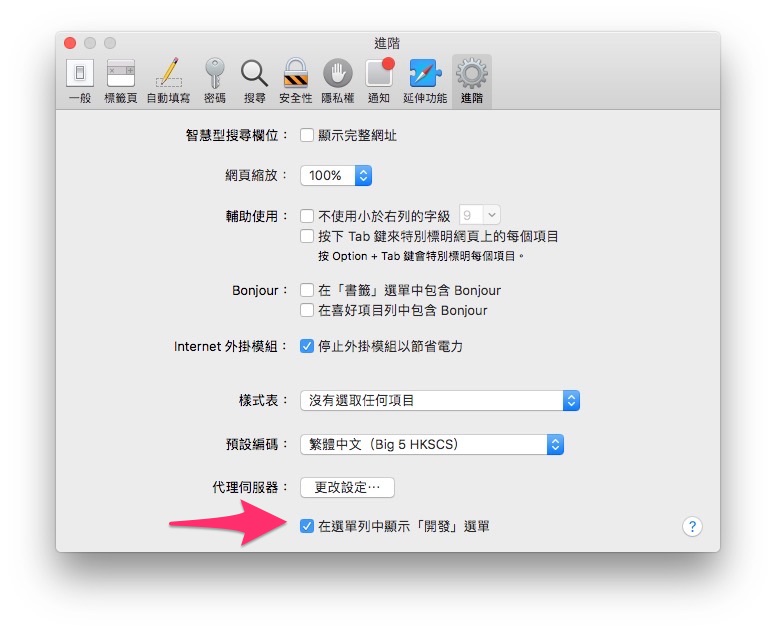
Once you check the “Develop” menu, “Develop” appears in the Mac Safari menu bar. Click “Develop,” and you will see your iOS device’s name and the web pages open on it. Select the page you want to test, and the developer tools will appear!
Mac Safari’s developer tools actually remotely control iOS, so you can check how the iOS web page is running directly on your computer. If you want to see error messages, you can also output them directly.
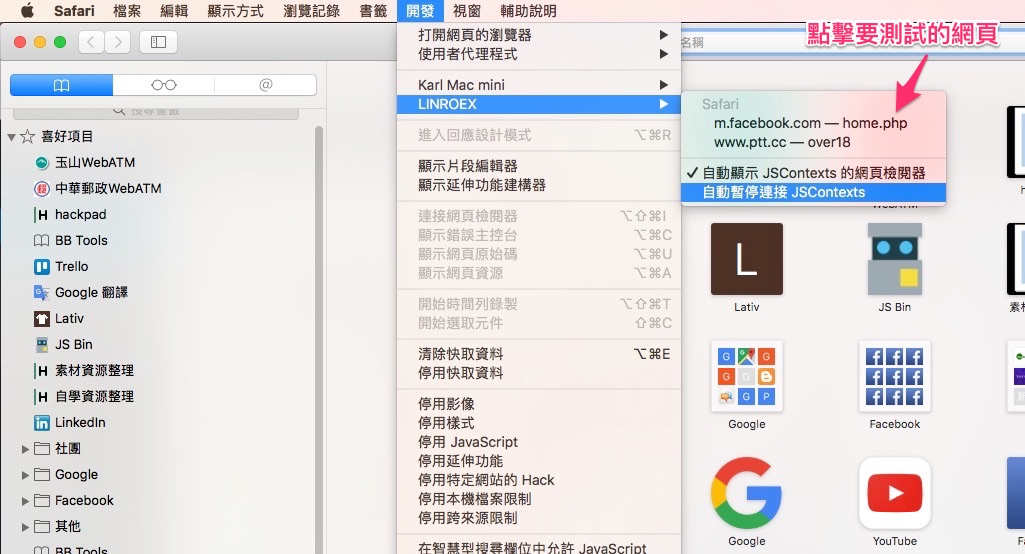
If the expected URL does not appear to click on, check the following:
- Are the phone and computer connected to each other?
- Is the phone screen unlocked?
- Is iOS Safari open?
- This feature only works with iOS Safari. (However, iOS Chrome uses the same JS engine as Safari, so testing in Safari is enough.)