
I’m sure you’ve noticed the new sticker at the bottom of the sidebar on this site, which mentions a program called IE8. IE8 is Microsoft’s latest browser. It was originally supposed to come out together with Windows 7, but Microsoft has always liked to release its browser before the operating system, and IE7 with Vista was the same. But that’s a digression~ In this post I want to introduce Microsoft’s IE8. From my own experience, Microsoft has finally woken up this time! The features it introduces are also worth a look. Several of them aren’t even in Firefox (maybe the next Firefox update will add them). And Microsoft, which has always ignored the rules and acted like a big shot, actually follows the W3C CSS 2.1 standard. Looks like Microsoft has learned to humble itself before its users^^
Software Information
- Program name: IE8
- Official website: http://www.m~~~~default.aspx
- Download location: Download
- Related sites: Add-on download area | Video demo
With all that said, what new features did Microsoft actually add this time?
- Full support for CSS 2.1
- Visual search
- SmartScreen Filter
- WebSlices
- Compatibility View
- InPrivate Browsing
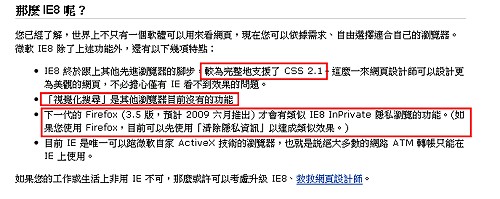
The list above shows its main new features. Some of them may be hard to understand, though! For example, when I first saw InPrivate Browsing, I had no idea what it was for. Don’t worry, though~ I’m a very earnest person, so of course I’ll explain everything clearly.
1. IE8 Download Guide
1. First, go to the official IE8 download page, then choose your language in the left column (it should be Traditional Chinese, right?)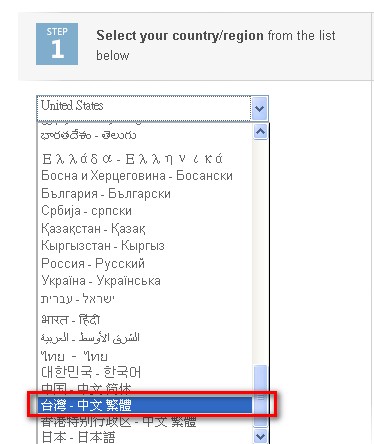
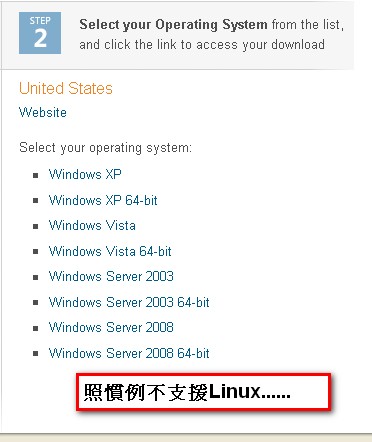
2. Choose your operating system.
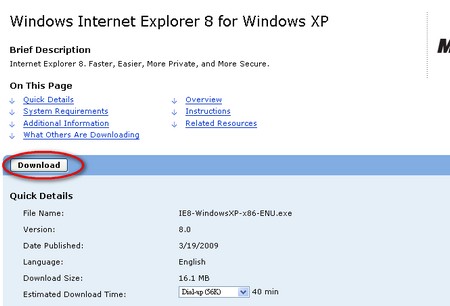
- Next, it will open another window. Just click the button in the box below to start the download.
IE8 Installation Guide (XD~ made by Carbon)
1. Run the installer. You can choose "Not now" and click "Next"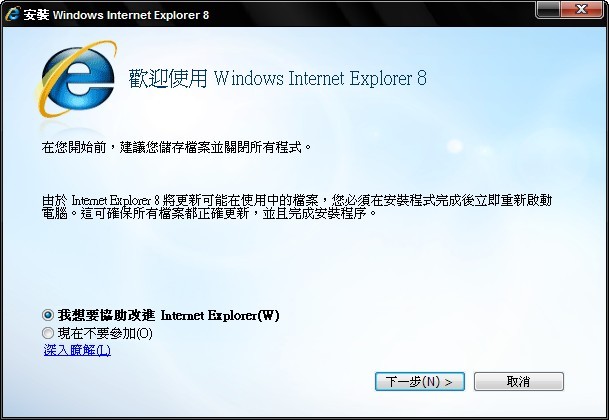
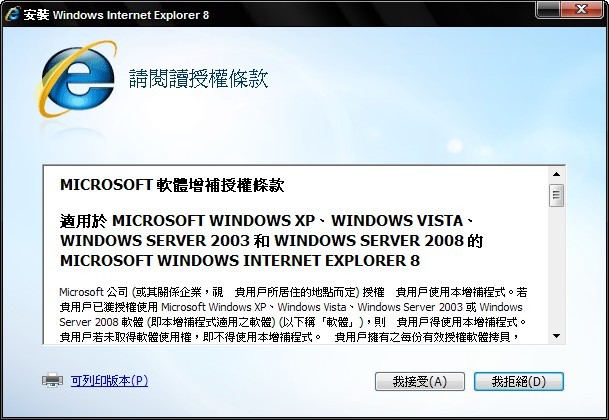
- Choose “I Accept”
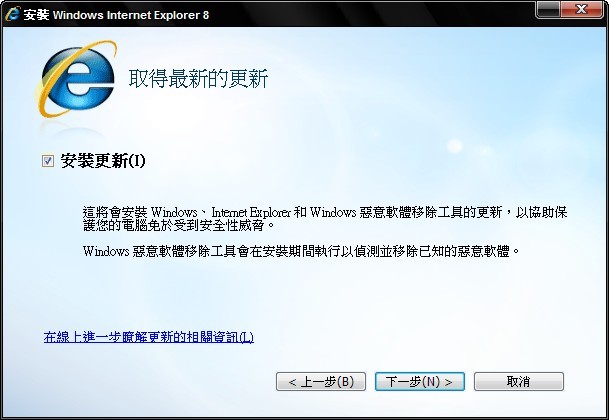
- The “Install updates” option removes malware (I recommend checking it)
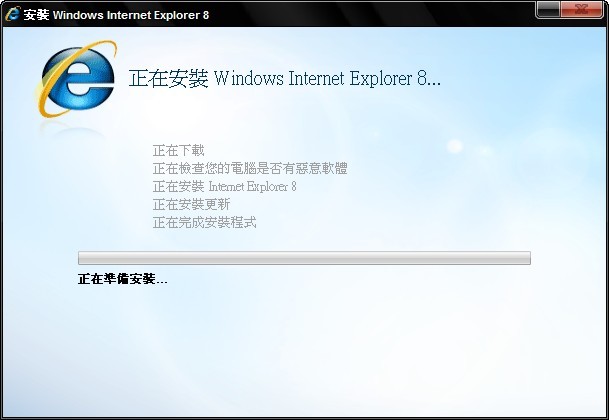
- Installation starts. This part takes a while and may freeze for a moment.
- When the installation is finished, I recommend clicking “Restart now”
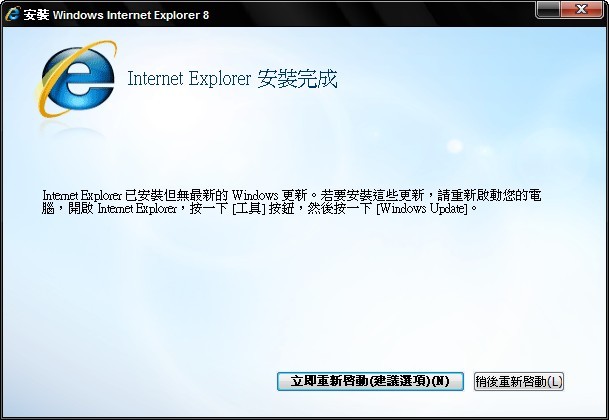
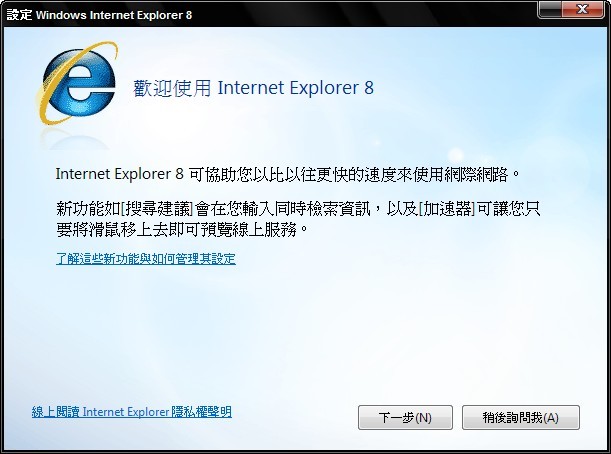
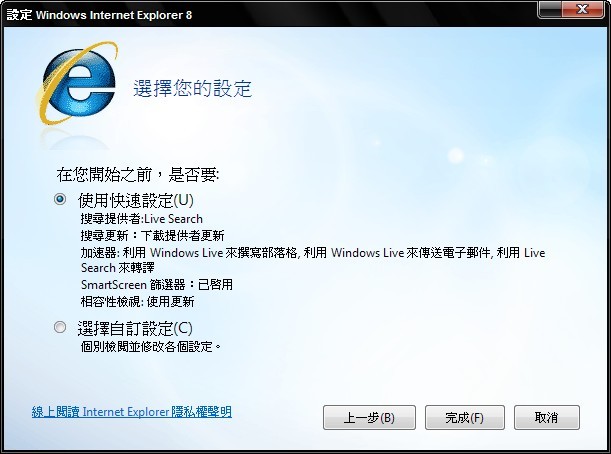
- After restarting your computer, launch IE8. A setup screen appears the first time, so click Next. (If you choose “Ask me later,” you don’t need to read on.)
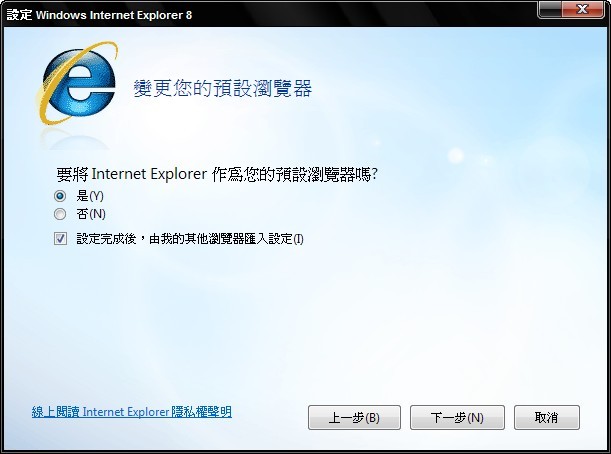
- Whether to set it as the default browser
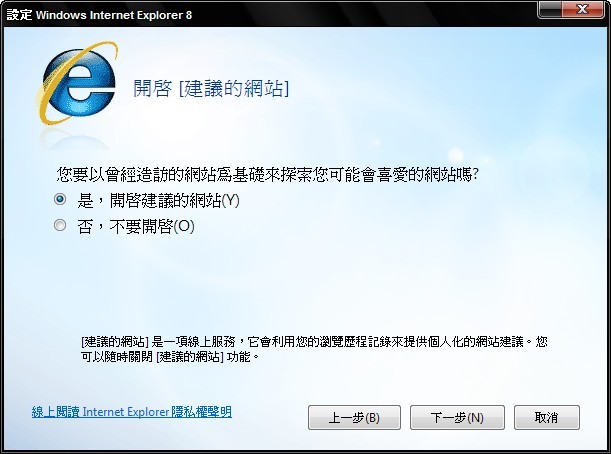
- Whether to open your favorite websites
- Choose the settings you want
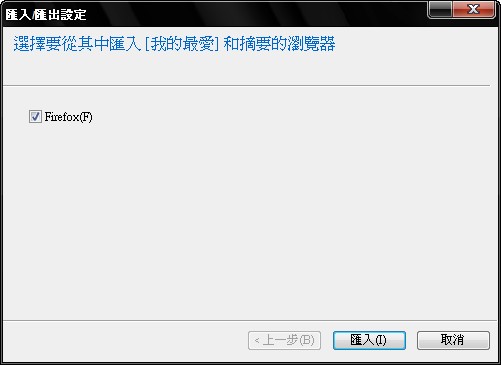
- If you have other browsers, you can import their favorites and feeds
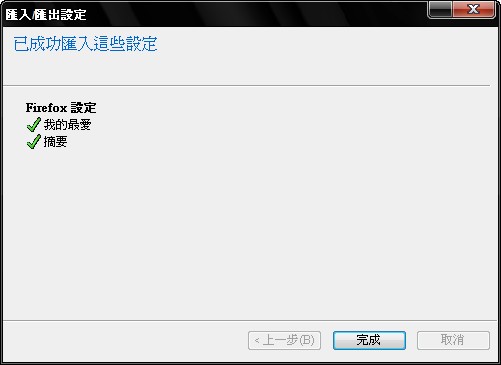
- Import complete!!
To learn about its features, you can watch the video on the official website. It also offers phone support.
IE8 Technical Support Landline: 0800-00-88-33 Mobile: 02-2999-88-33
Afterword: Microsoft really made an effort this time. Not only did they provide video demos, they also offer phone support, so you can call and ask questions XD Only a big company like Microsoft has the money for phone support, right! Still, it shows sincerity that they’re willing to spend the money: ) At least they’re unlike the company masked as “Dai-X” in the original, which doesn’t care about Taiwanese people and treats the Taiwan market as too small to bother with. I won’t say more; you all know what I mean! Still, even though IE8 has improved, I still don’t want to use it @@ Because I’m already used to Firefox and I’m too lazy to switch! Besides, I still don’t really trust the stability of the IE family.