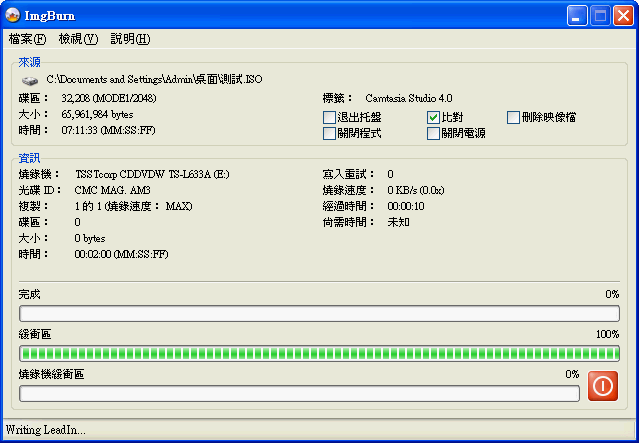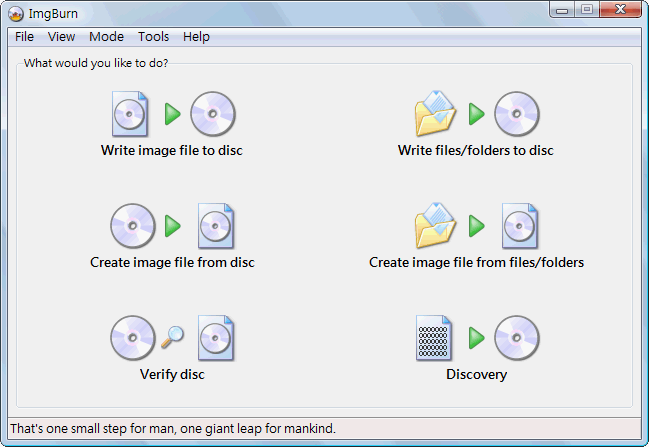
You’ve probably all heard of Nero, but I bet few of you have heard of ImgBurn, a burning program. That doesn’t mean ImgBurn is inferior to Nero. In fact, it’s precisely because ImgBurn is free software that fewer people know about it. How so? Free software can’t advertise the way companies that sell paid software do. It can only spread through bloggers’ recommendations and word of mouth, so few people hear about it. ImgBurn doesn’t have as many features as Nero, but it’s very suitable for ordinary users, because its built-in features are already more than enough for regular users. Unless you’re a very professional burner (is that even a job?), ImgBurn is more than enough.
ImgBurn Information
- Official website: http://www.imgburn.com/
- Main program download: Official mirror | Xun6 | Box.net | 4Share
- Traditional Chinese file download: Official mirror | Xun6 | Box.net | 4Share
- Virus scan report: VirusTotal
- MD5: f3791cfacdac03b9e676e44aa2630243
ImgBurn Features
- Burn files to CD/DVD
- Create an ISO from files
- Create an ISO from a disc
- Burn an ISO to CD/DVD
1. ImgBurn Installation Guide
1. Double-click the ImgBurn installer. If a security warning appears, ignore it and click 【Run】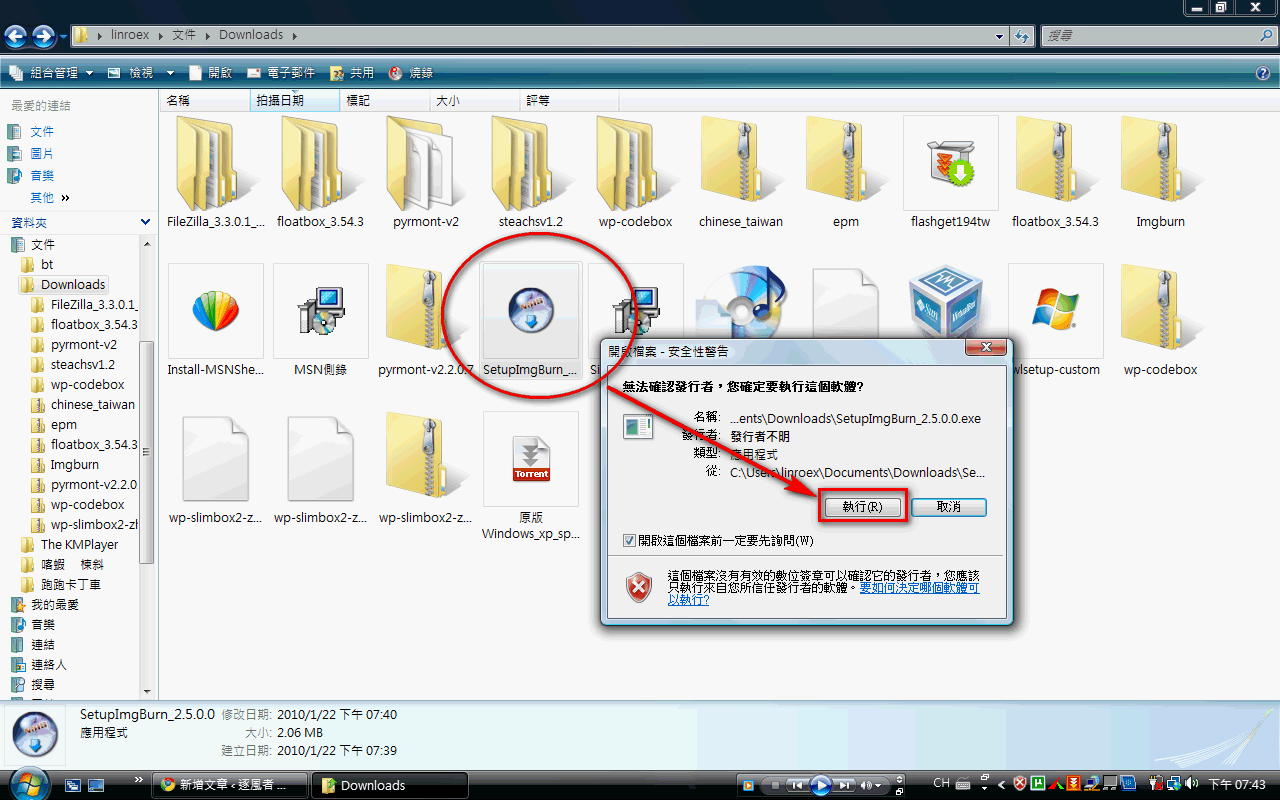
- Click 【Next】
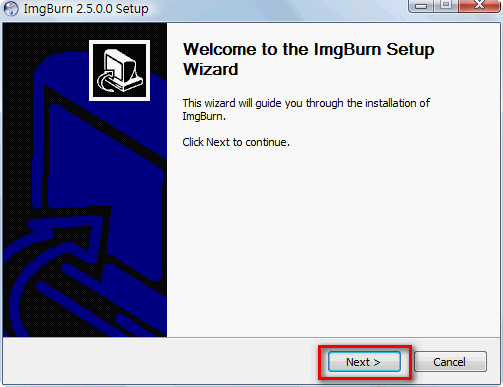
- Choose the installation type. You basically don’t need to change anything here, so just click 【Next】
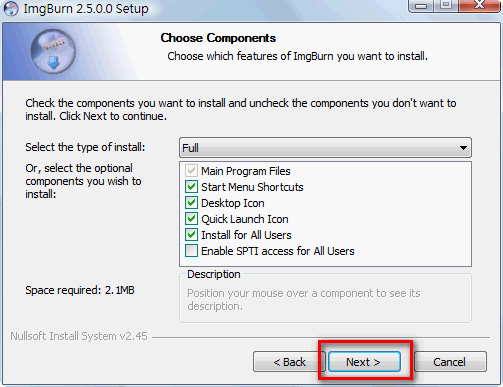
- Set the installation path. Unless you don’t have enough disk space and need to install somewhere else, just click 【Next】
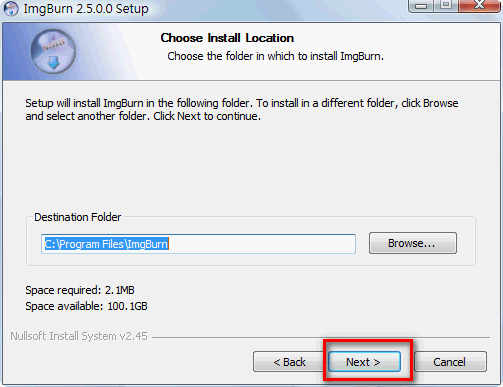
- Click 【Install】
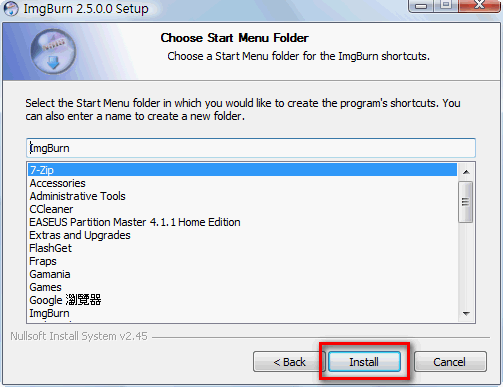
- Installation is complete. Click 【Finish】 and you can open ImgBurn
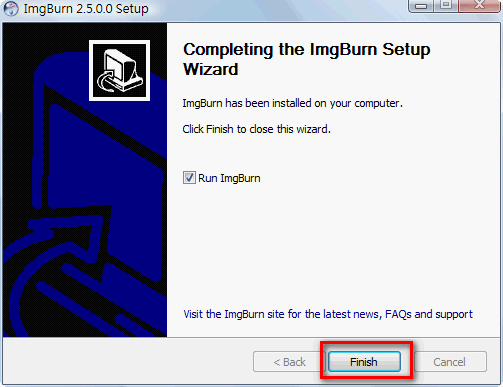
- Next, I’ll show you how to install the Traditional Chinese translation file. First, open the folder where ImgBurn is installed. If you didn’t change the install location, it’s “C:Program FilesImgBurn”. Once you’re in the ImgBurn folder, open the folder named “Languages”
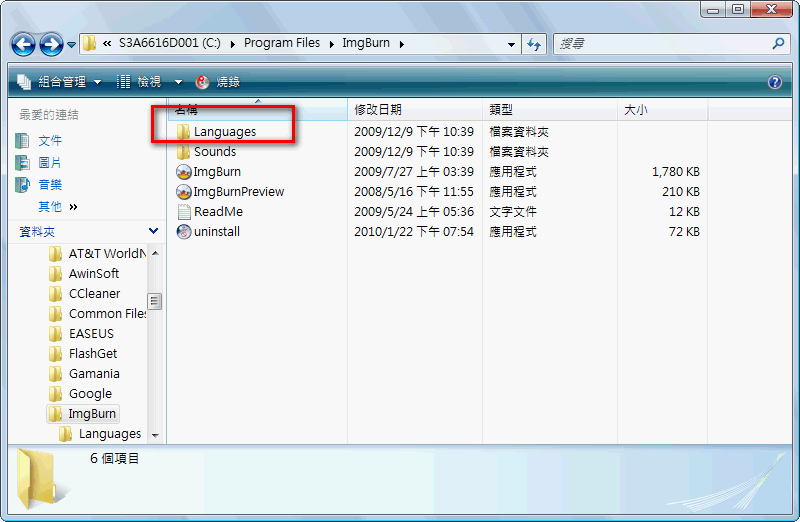
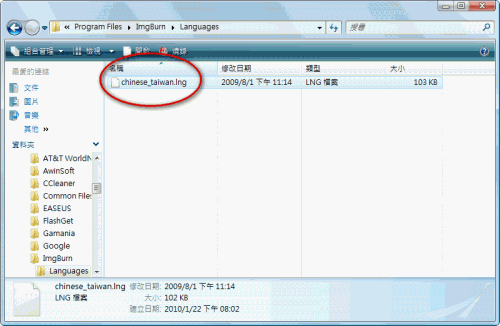
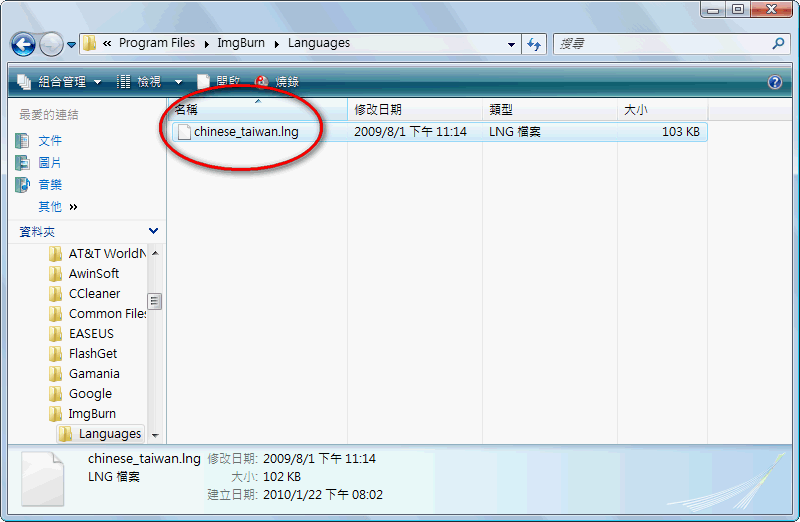
Copy the ImgBurn translation file into the “Languages” folder, then open the main ImgBurn program
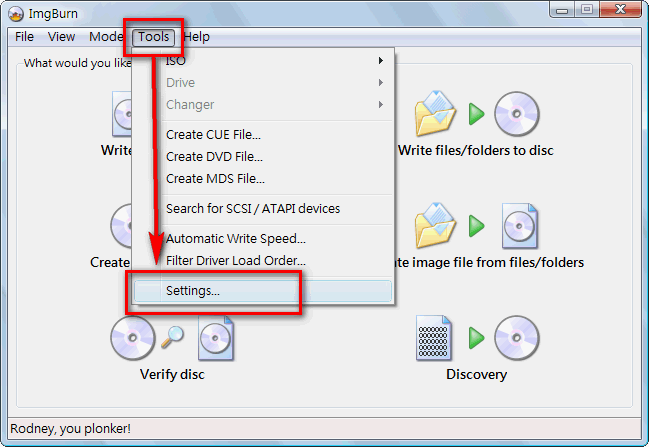
Once the ImgBurn main program is open, click 【Tools → Settings】 on the top toolbar, in that order.
- Select the 【General → Page 1】 tab, change 【Languages】 to 【Traditional Chinese】, and click 【OK】. The interface will switch to Chinese.
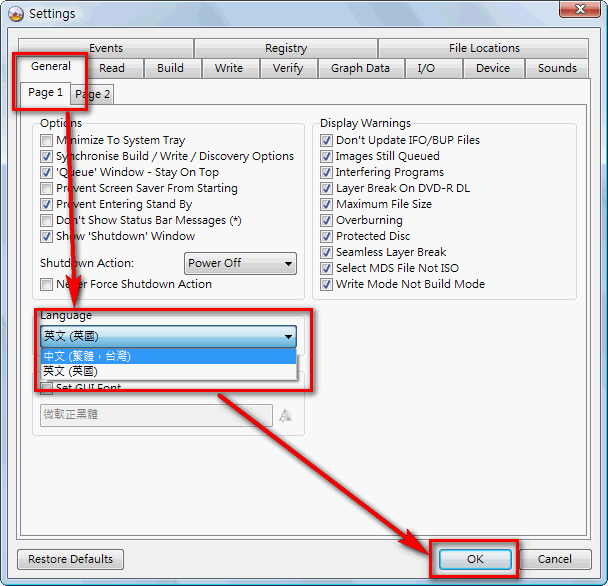
- Now it’s in Chinese, the way you’re all familiar with!
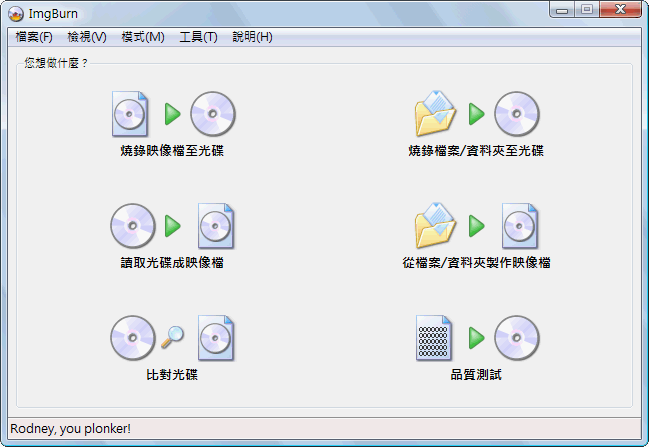
2. Burning Files with ImgBurn
1. Insert a blank, recordable disc into the burner, then open ImgBurn.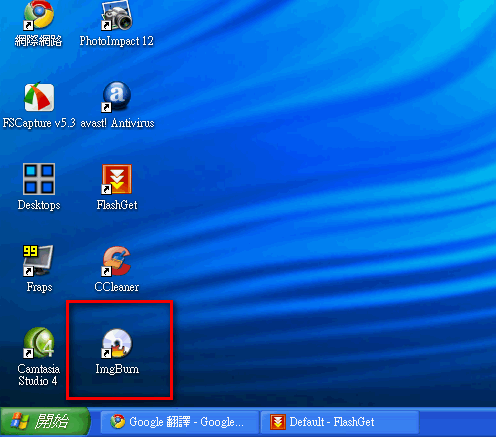
- Choose 【Write files/folders to disc】
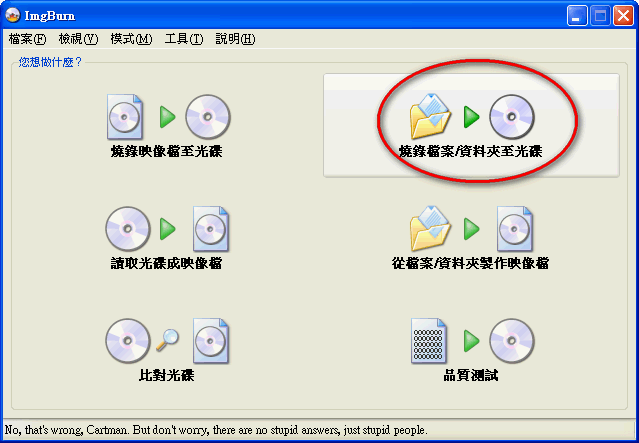
- Click Browse for file or Browse for folder under Source (see the image). If you want to burn many files at once (organize them into a folder first) or an entire folder, I recommend using Browse for folder to add them.
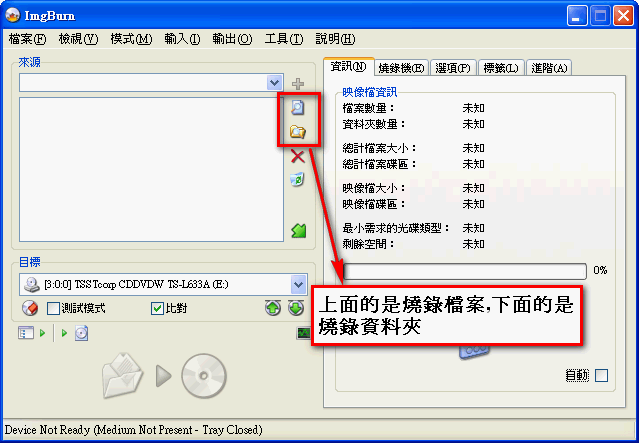
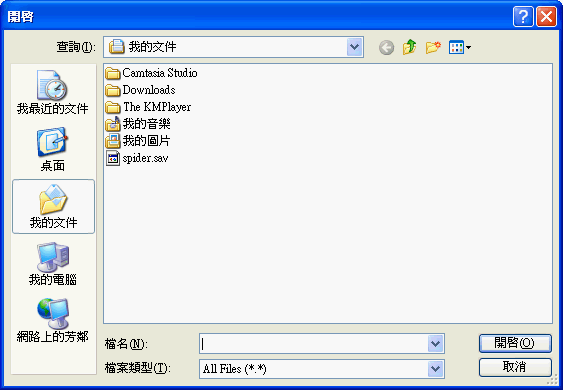
Select the files to burn ▼▼
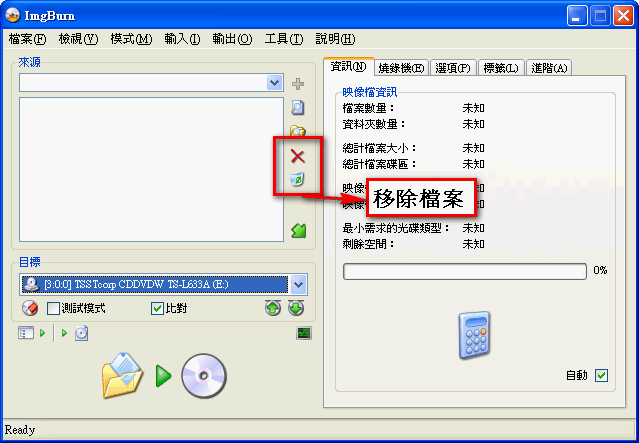
If you accidentally add the wrong file, you can click the X to remove it ▼▼
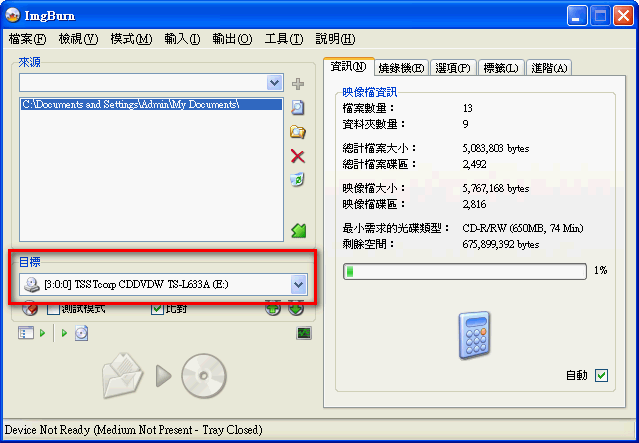
- If you have two or more burners, click 【Destination】 and select the burner you want to use.
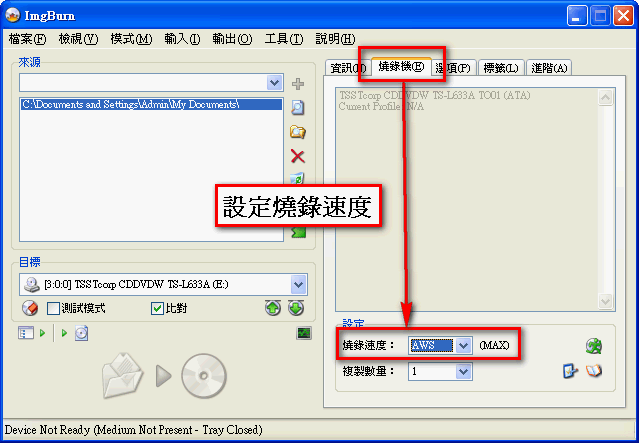
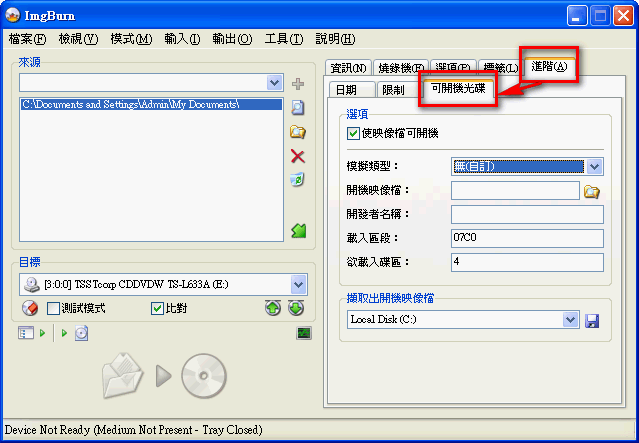
- If you have special needs, such as making a bootable disc or adjusting the burn speed, you can set them in the tabs on the right.
Adjusting burn speed ▼▼
Creating a bootable disc ▼▼
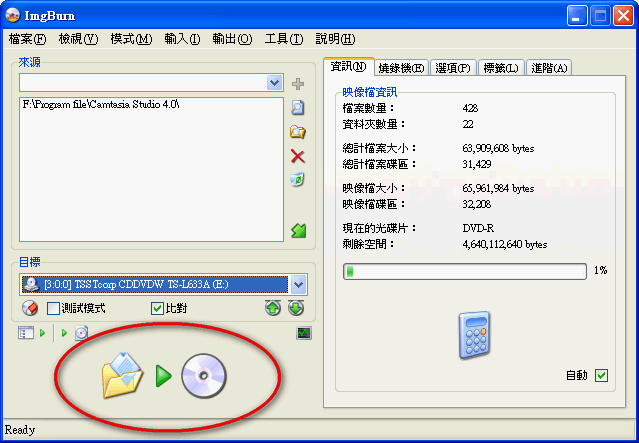
- Once everything is set, click the big button at the very bottom to start burning.
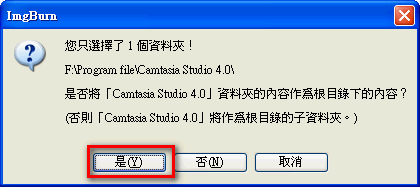
- If a dialog box like the one below appears, click Yes.
- Also, if you didn’t set a disc label in the tabs earlier, ImgBurn will remind you to set one. If any strange dialog boxes appear after that, just click OK.
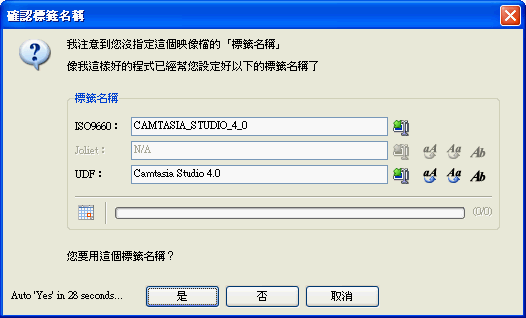
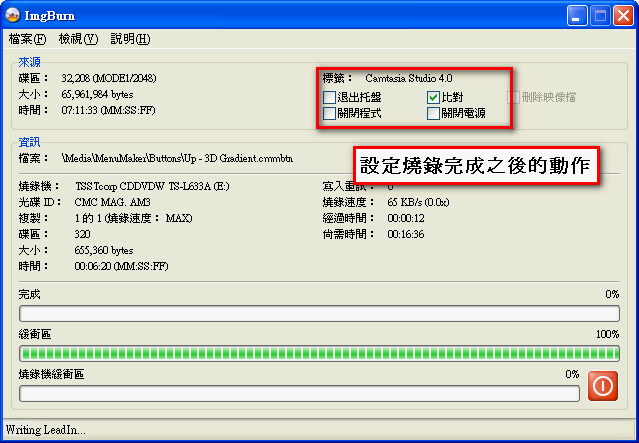
- Burning starts~~~
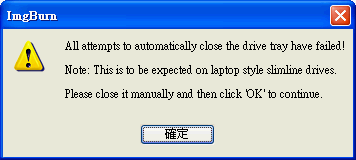
- When burning is finished, the system will show the dialog box below to let you know.
3. Turning a CD into an Image File (ISO)
So what is an image file? An image file is basically a compressed copy of a disc. It packs everything on a disc into a single file, which makes it easy to share the contents online or pass them to friends. Some people also want to make disc-to-disc copies, and for that they can use an ISO file as an intermediate step: first compress the CD into an ISO, then burn that ISO onto the target disc. In the next two sections, I'll show you how to create and burn ISO files with ImgBurn. 1. Open ImgBurn
- Choose 【Read disc to image file】
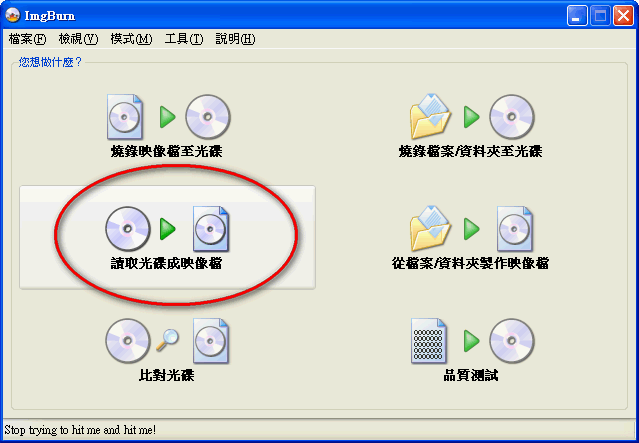
- Under 【Source】, select the drive you’ll use to create the ISO, then under 【Destination】, set where the ISO file will be saved.
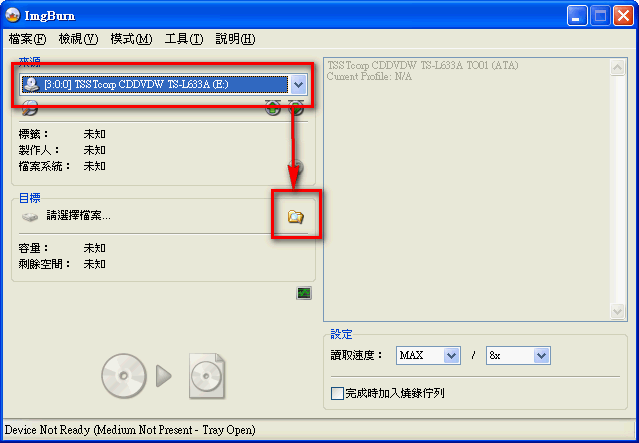
- Click the big button at the bottom to start reading the disc and creating the ISO.
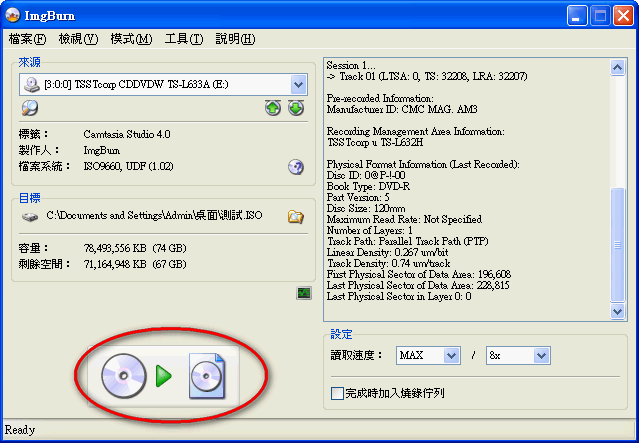
- The ISO file is done!
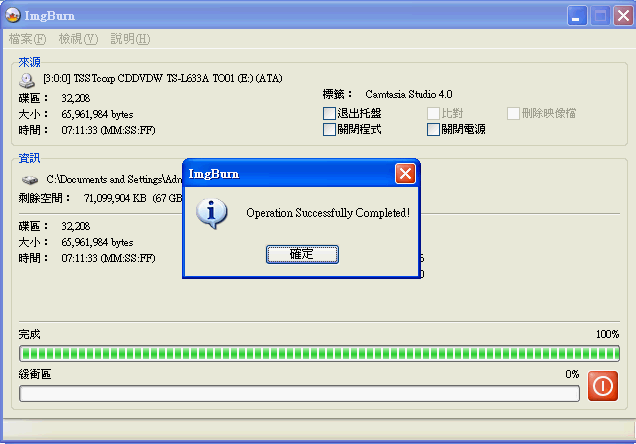
4. Burning an Image File with ImgBurn
In the previous section, we covered how to create ISO files. In this section, I'll show you how to burn an ISO file onto a CD. Sometimes when you download files online, you'll get ISO files too, and you can follow this section to burn them.- Open ImgBurn and choose 【Write image file to disc】
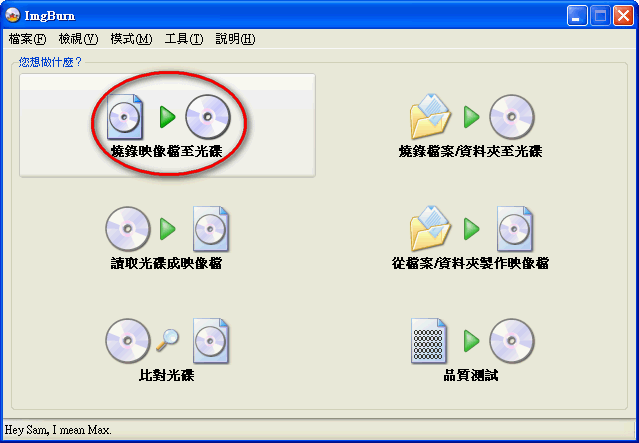
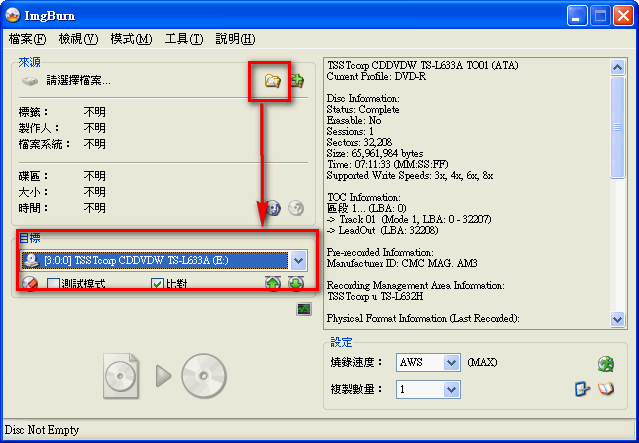
- Under 【Source】, select the location of the ISO file, then under 【Destination】, set the burner you’ll use.
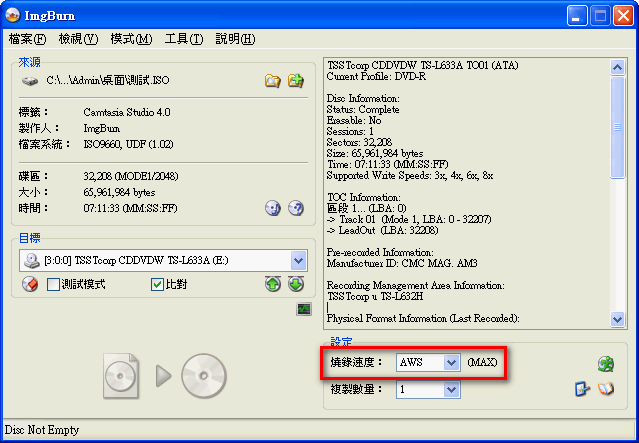
- If you’re burning an ISO for an operating system such as Ubuntu, I recommend slowing down the burn speed, as it has a higher success rate.
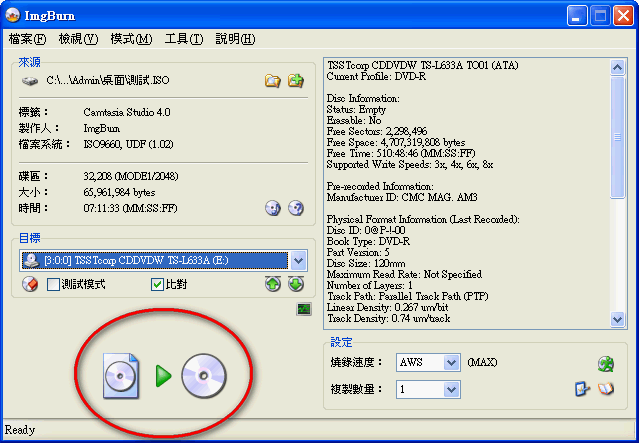
- Once everything is set, click the big button to start burning.
- Burning in progress