Installing Android Apps
1. Open the Android Market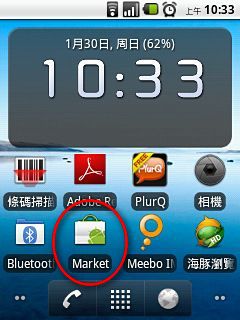
- Find the app you want to install. You can browse the Featured section, look for download links that others share online, or go through the categories one by one and pick what you like XD When I first started, I browsed every category and installed whatever caught my eye.

↓↓You can also use search~

- Once you find the app you want, tap it~

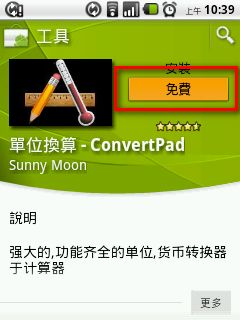
- On the app’s page, tap 【Free】 in the top right corner.
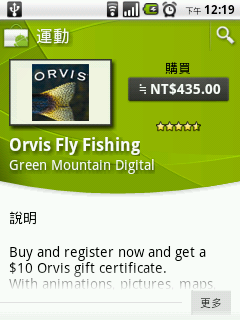
↓↓If you’re buying a paid app, the button in the top right shows the price (in New Taiwan dollars), so just tap it~
- After you tap the Free button in the top right, it changes to 【OK】. Tap it once more and installation starts.
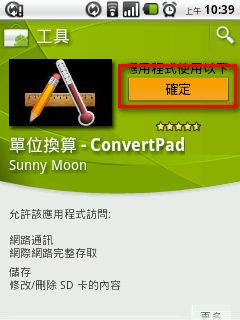
- Downloading. Meanwhile, you can download other apps.
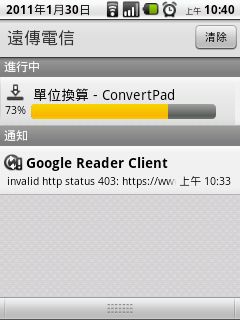
- Once the download succeeds, you can find the app you just downloaded in the app menu~
Uninstalling Android Apps
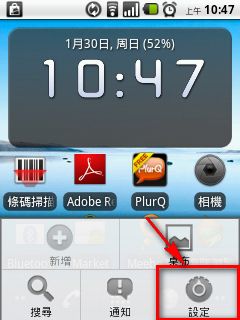
Removing apps on Android is a bit of a hassle, and it isn't as intuitive as on iOS. The first time I tried to remove an Android app, I searched for a long time before I found that you can remove apps from the Settings. And don't think that long-pressing an app icon on the Android home screen and dragging it to the trash counts as uninstalling. That only removes the app from the home screen; in Windows terms, it's removing a shortcut. The program itself is still there.- Press the standard Android menu button, then select 【Settings】
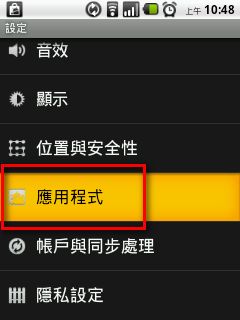
- In the Settings menu, tap 【Applications】
- Tap 【Manage applications】
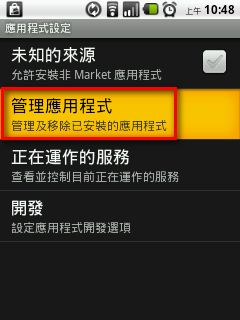
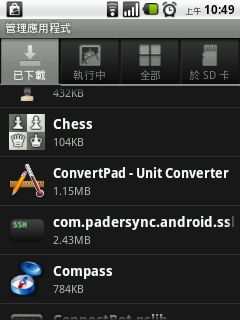
- Select the app you want to remove
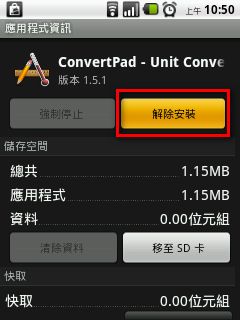
- Once you’re on the info page of the app you want to remove, tap the 【Uninstall】 button in the top right
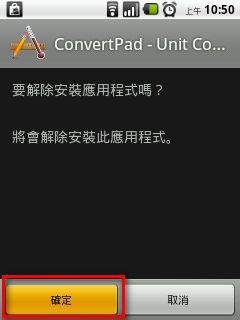
- It will ask whether you’re sure. If you want to delete the app, tap 【OK】
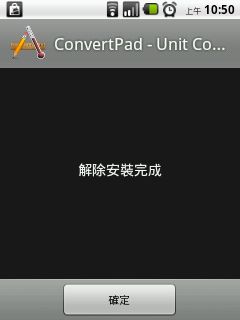
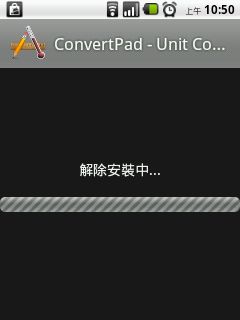
- Uninstalling~
- Uninstall successful. The app you removed has left you for good~