Several years ago, I remember reading in a magazine about so-called “distance learning,” which uses information technology so that students can take classes without going to school. SyncSpace, the app I’m introducing today, is quite similar to distance learning. It’s an app made exclusively for iPad, and its main function is a synced whiteboard! Over the internet, it lets many iPads sync with each other. For example, if you write an A on your screen, other users who have joined the same whiteboard will see an A appear on their iPads. This can be used in many places, such as the distance learning I just mentioned. Or, say you’re a business owner who suddenly comes up with an idea while on a business trip. You can use SyncSpace to jot it down right away, then sync it back to the office.
Although SyncSpace’s main function is the synced whiteboard, you can still use it without an internet connection~ You just can’t share with other iPad users. You can still view your boards on your own, use it as a handwritten notebook, and export to PDF. SyncSpace also has a special feature called “infinite zoom”: with a two-finger touch, you can keep zooming in on your whiteboard, bigger and bigger! And the image quality doesn’t get worse.
About SyncSpace
- Price: Free
- Language: English
- Developer: Infinite Kind, LLC
- Category: Productivity
- Download link:http://itunes.apple.com/us/app/syncspace/id408672838
Tutorial
1. Adding and Removing WhiteboardsIn SyncSpace, you can add many whiteboards, like having multiple notebooks~
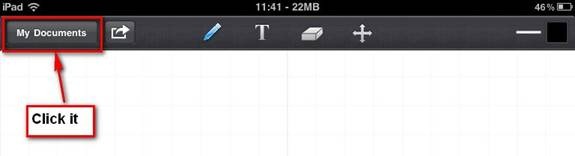
▲▲Tap My Documents
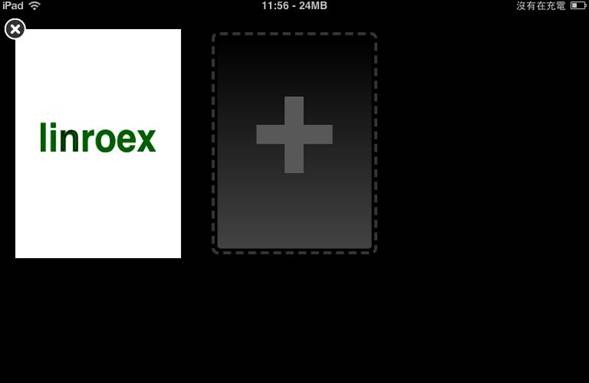
▼▼Here you can add and delete whiteboards
2. Using the Pen

▲▲When you enter SyncSpace, it’s already in pen mode by default. If it isn’t, you can tap the pen at the top of the screen. After selecting the pen, you can change its color, thickness, and so on in the top-right corner (where the red arrow points).
3. Typing Text Directly
Besides drawing with your fingers, SyncSpace also lets you type directly. That’s good for people who prefer typing on a keyboard to handwriting~
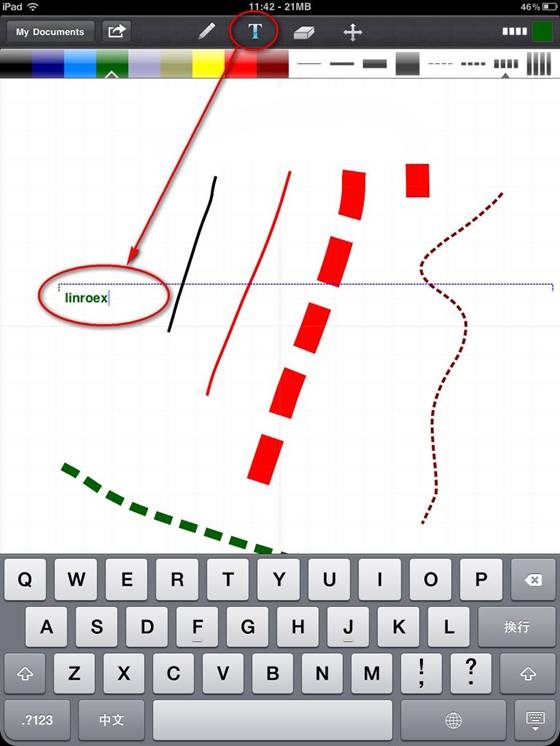
▲▲There’s a 【T】 button at the top. Tap it, then tap where you want the text to appear on the canvas, and you can start typing.
4. Eraser
SyncSpace’s eraser is actually quite useful. Unlike the erasers in typical drawing software, SyncSpace treats everything on the canvas as an object, so using it is like deleting objects.
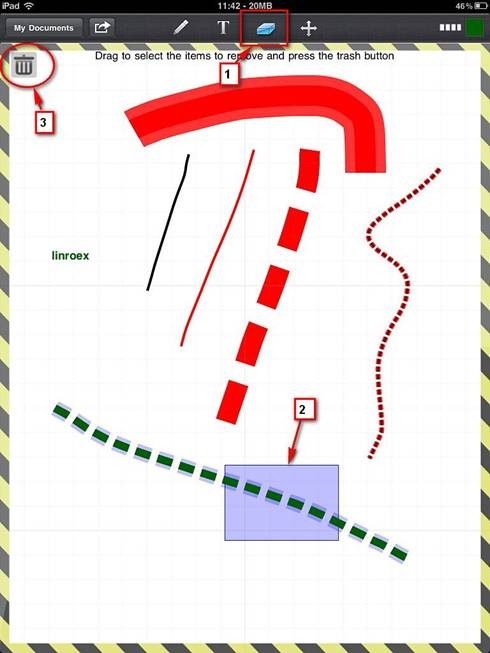
▲▲First select the eraser, then draw a box around what you want to delete, and tap the trash can button in the top right to delete it.
5. Zooming
Zooming is one of SyncSpace’s major features. Because it has “infinite zoom,” you can zoom in as far as you like, and the resolution doesn’t drop. I think this is because its graphics are stored as vectors. With this infinite zoom, you can do things like micro-engraving~ That’s also what the official video shows XD
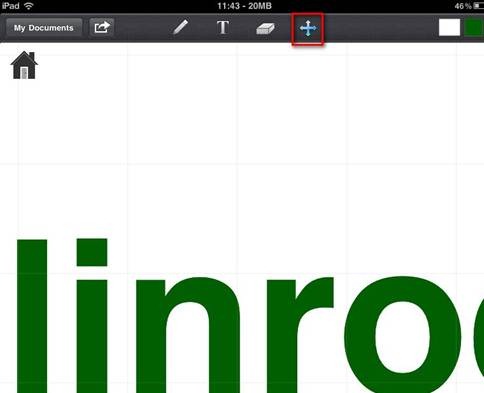
▲▲There’s a cross-shaped button at the top. Tap it, then touch the screen with one finger to move the canvas, or with two fingers to zoom it.
6. Synced Whiteboard
Synced whiteboarding is SyncSpace’s main feature. However, I only have one iPad, so the tutorial here was actually tested on a single iPad XD (Feel free to try it yourself at home. You can sync even with just one iPad!)
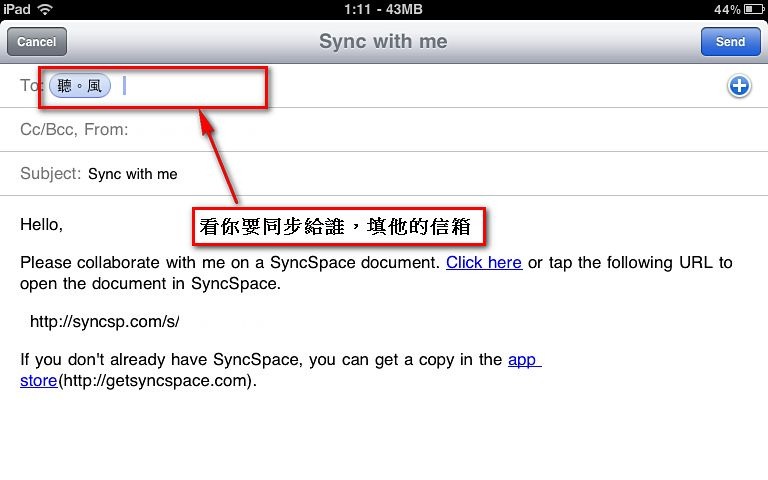
- Open SyncSpace, tap the second button from the top left to enable “Sync Document,” then tap “Email Sync Link”
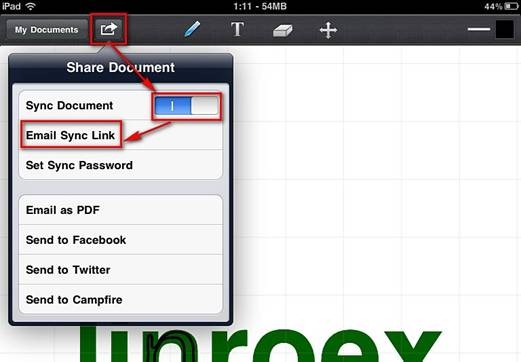
- Enter the email address of the person you want to share with, then tap Send
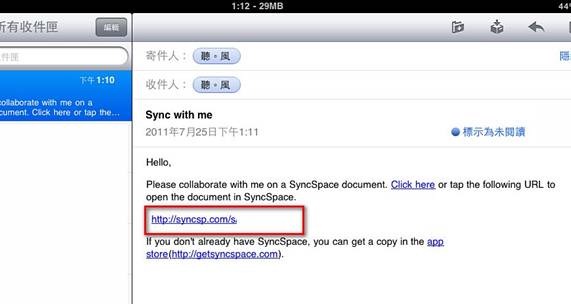
- Have the person you’re syncing the whiteboard with check their email. They’ll see the message you just sent. Tap the link inside.
P.S. The link should look like this: http://syncsp.com/s/xxxxxxx
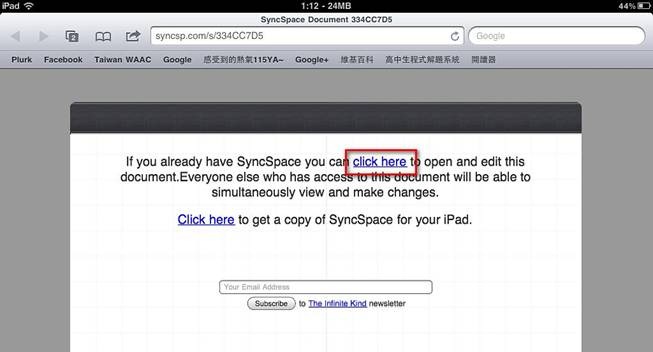
- The system opens the browser and asks whether you’re ready to start syncing the whiteboard. Tap “Click here” to start~