When developing iOS apps, or when doing things you’d rather keep under wraps, you may need to capture packets. For capturing packets on a computer, Wireshark is the top choice. But what if you want to capture packets on your iOS device (iPhone, iPad)? You could set up a proxy and have the iOS device connect through it, or jailbreak and run tcpdump on the device. But both approaches are too troublesome. Here I recommend the rvictl command included in the Xcode Command Line Tools. It requires no complicated setup or jailbreak, and with just one command you can capture packets on your computer using any software.
rvictl creates a virtual network interface on your computer and makes iOS send all of its traffic over the cable to the computer’s network interface. rvictl is a command Apple provides for developers’ convenience, and it requires installing the Xcode Command Line Tools before you can use it.
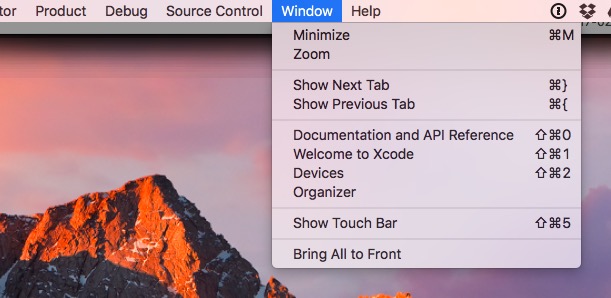
Before you start, connect your phone to your computer with a cable. Then you can look up the device’s UUID in Xcode. Open Xcode, and in the menu bar at the top, go to “Window” and choose the “Devices” option.
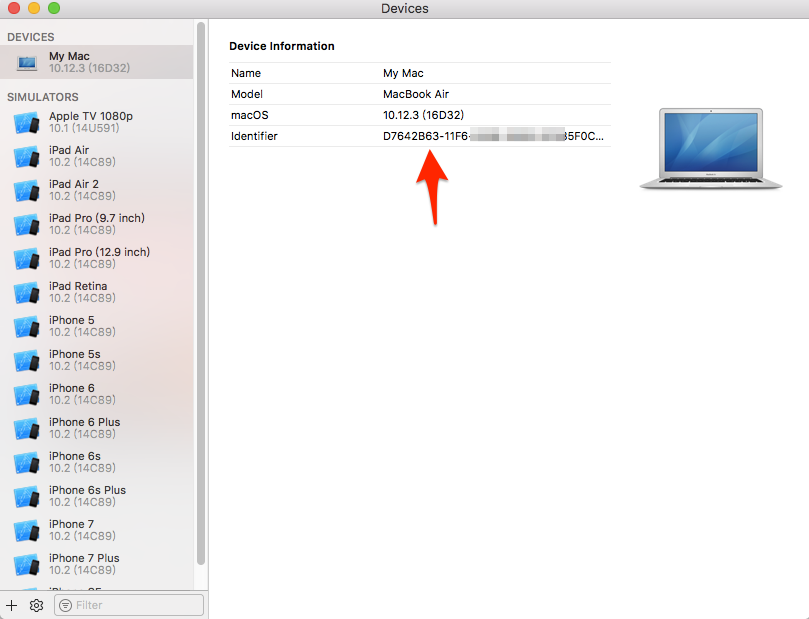
Select the device whose UUID you want to look up. The “Identifier” field is the UUID. Copy its value.
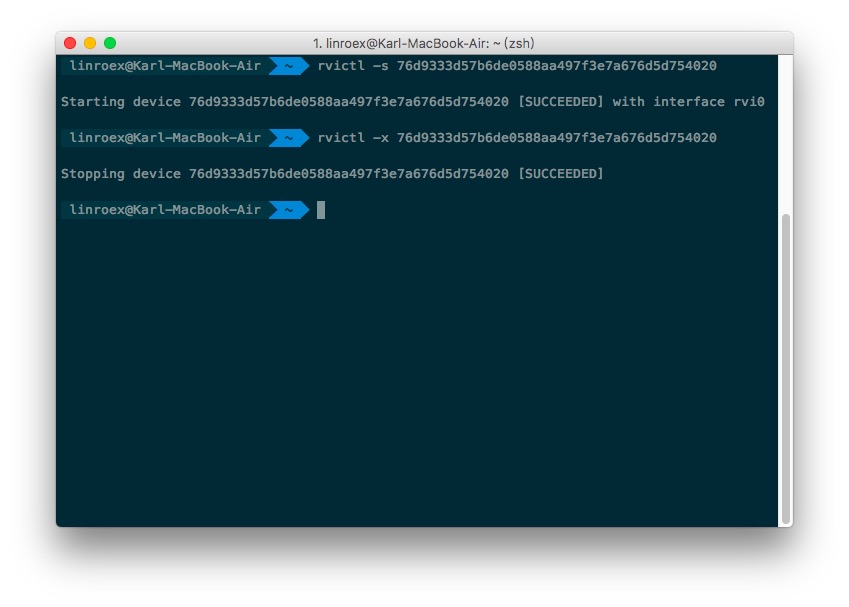
Enter the following command in Terminal to start the rvictl service. Once it’s running, a copy of the phone’s traffic is sent to the computer.
rvictl -s <UUID>
This command performs a “start” action, so it returns to the prompt right after you enter it. Next, you can start working with Wireshark or another packet capture tool. The default interface should be the rvi0 virtual interface, but in the end, the command’s output messages are what matter.
When you’re done, don’t forget to enter the following command to stop the rvictl service before unplugging the cable.
rvictl -x <UUID>