Over the past week, I’ve been taking Java, JSP, and SQL courses at Taipei Business College. I had planned to learn Java anyway. A netizen once told me that the languages every engineer needs to know are C++ and Java. I’ve dabbled a little in C++ and can write small programs, but I had never touched Java at all. When my teacher asked whether I wanted to take classes at Taipei Business College, I went right away, very happy about it.
I originally thought Java wasn’t very useful. I wanted to learn it because it’s a required skill for engineers, and also because of its cross-platform nature: I could easily write Java programs for desktop and even mobile phones. Android’s basics are also built on Java. But after a few classes, I started to like Java. It gave me the same drive I had when I first learned a programming language. I started staying up until midnight with a book in my hands… It’s the same feeling I had back when I learned VB.NET!!
Without further ado, here’s how to install the JDK, the tool you use to compile Java programs after writing them, and how to compile Java code. The following tutorial uses the Command Prompt rather than Eclipse.
Java Information
- Official Java website: http://www.java.com/zh_TW/
- JDK official website: http://www.oracle.com/us/technologies/java/index.html
- Latest version number: 1.6
- Application areas: Java can be used for mobile apps, network applications, general desktop programs, and more
Installing the JDK
1. Download the JDK first. Here are the Windows download links. If a download link no longer works, you can [report it here]JDK download page: http://www.oracle.com/technetwork/java/javase/downloads/index.html
JDK Windows 32bit: Official download | 4Shared
JDK Windows 64bit: Official download | 4Shared
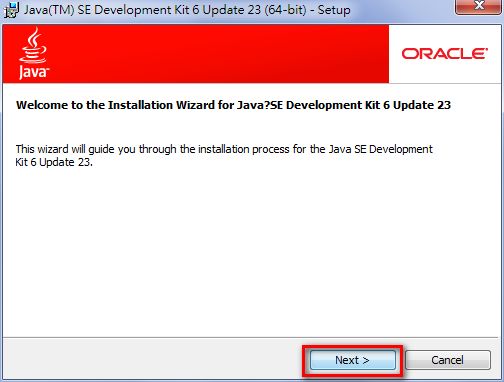
- Run the JDK installer you just downloaded, then click [Next].
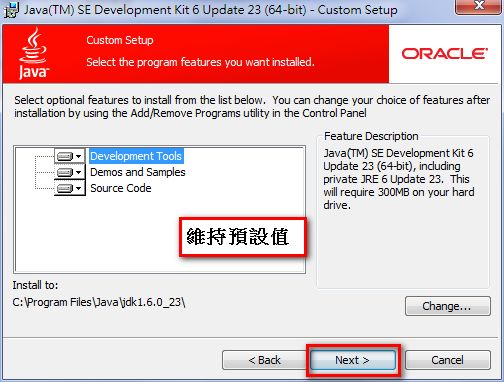
- This page sets where the JDK will be installed. I recommend keeping the default value to avoid trouble with the settings later.
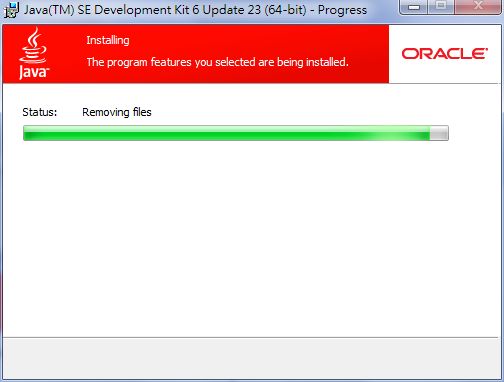
- Installing, please wait~
- Installation complete
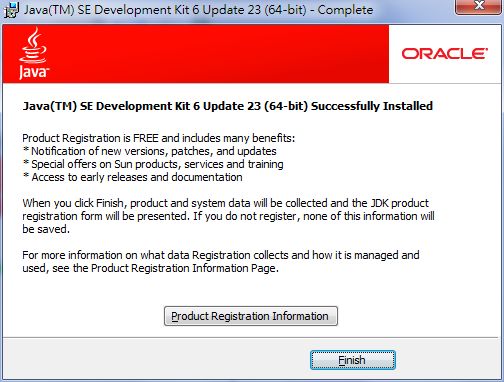
That’s the JDK installed. But is it really that simple? Of course not. Next, we need to set up the environment variables, which tell the operating system where the JDK is installed on your computer.
Setting Environment Variables
1. Right-click My Computer and select [Properties].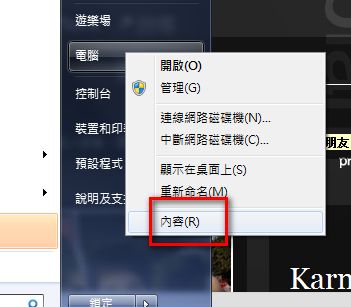
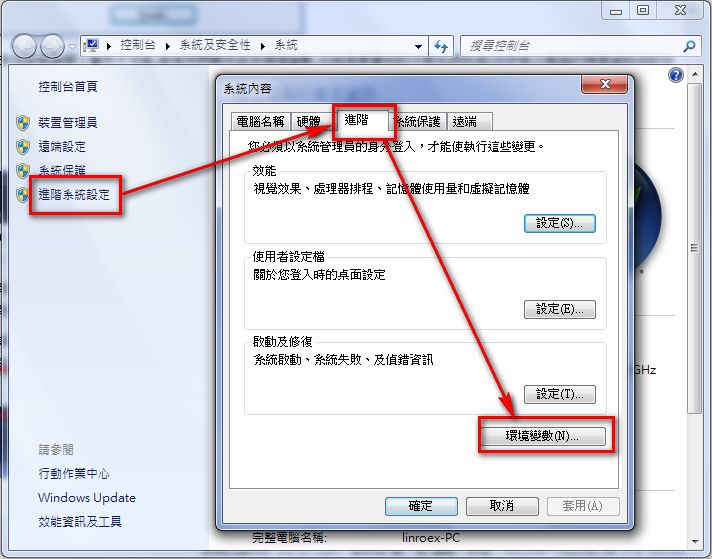
- If you’re using Windows 7, first click [Advanced system settings], then click [Advanced] → [Environment Variables]. If you’re using XP, just click [Advanced] → [Environment Variables].
- Select [PATH] and click [Edit].
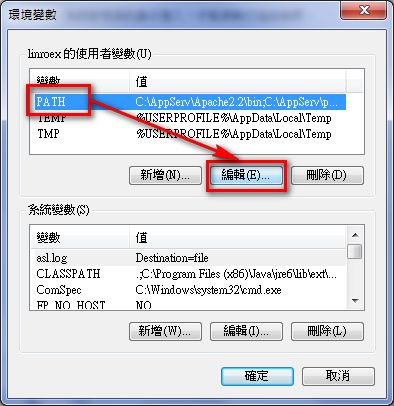
- Add [C:Program FilesJavajdk1.6.0_23bin;] to the end of the variable value. Be careful not to overwrite the existing value. You need to add to the end of the original value! If you changed the installation location when you installed the JDK, you also need to change this path.
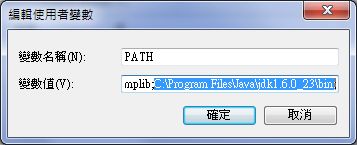
- When you’re done, click OK.
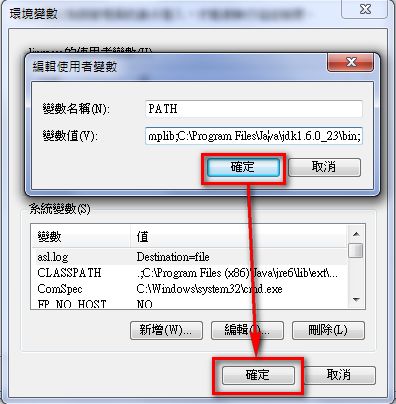
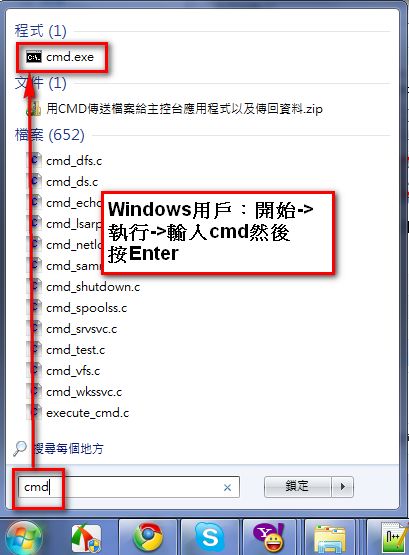
- Then open cmd (Command Prompt) to test whether the change worked.
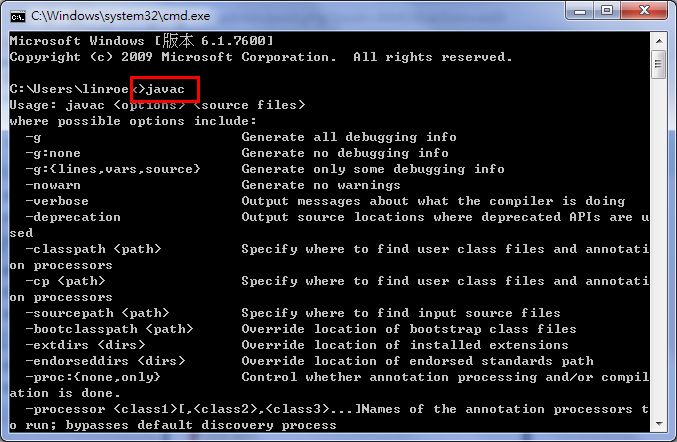
Type javac and press Enter. If you see the message “‘javac’ is not recognized as an internal or external command, operable program or batch file.”, your settings are wrong.
Tutorial on Compiling Java Source Code
When you've written a Java program, you need to save it as a *.java file and then compile it. The JDK's job is to do the compiling. So below, I'll show you how to compile and run a Java program.- Open cmd, then type javac
→→ there must be a space between javac and the source file path! Also, the source file path must be the full path, including the drive letter, the file name, and the extension.
Press Enter after typing it.
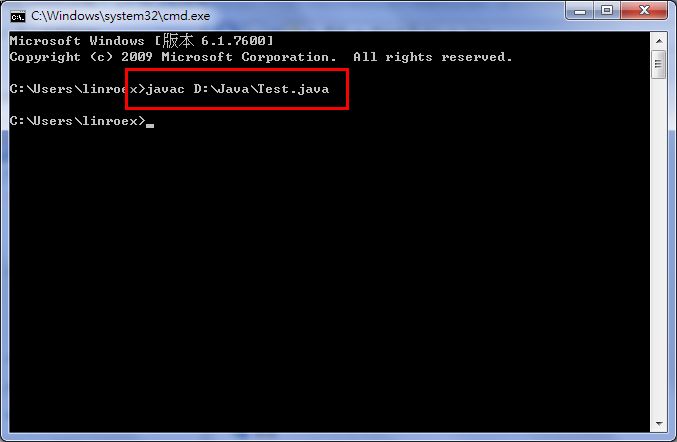
- If no message appears, the compilation succeeded, and you should find a file with the .class extension in the same folder as your source code.
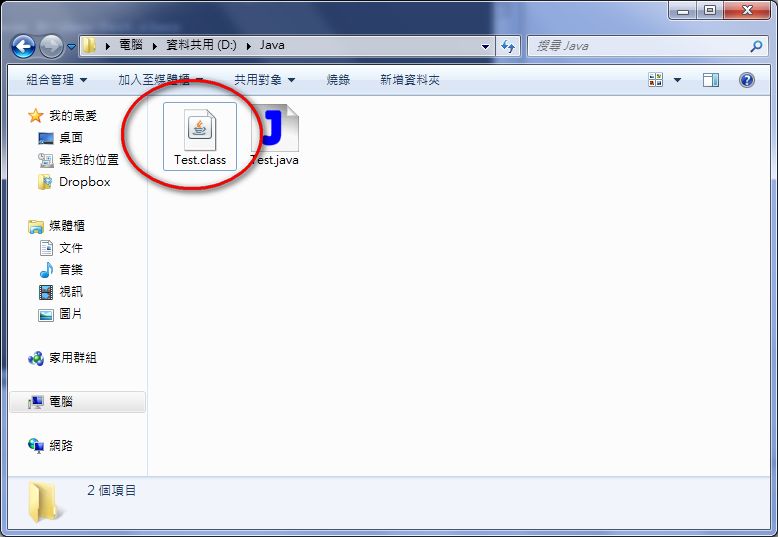
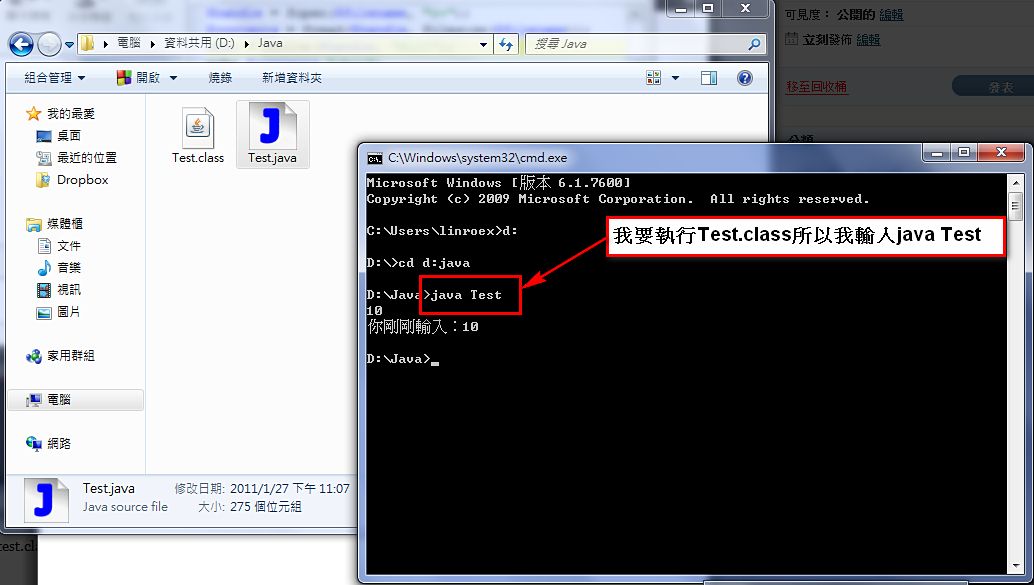
- Next, to run the class file, open cmd again. The steps are a bit more involved:
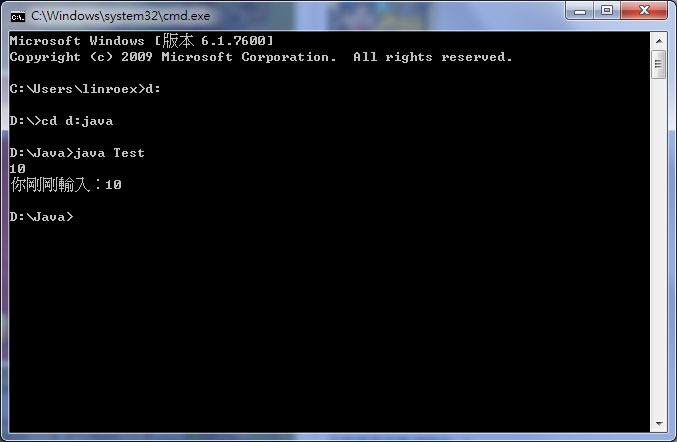
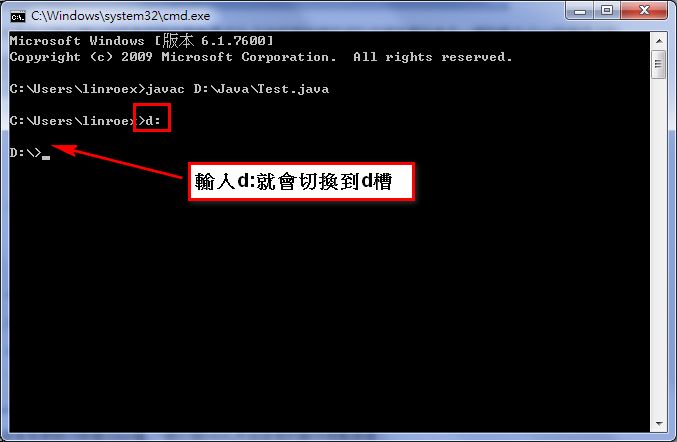
(1) If the class file is not on the C drive, first type the drive letter where the class file is located. For example, if it’s on the D drive, type d: and cmd will switch to the D drive.
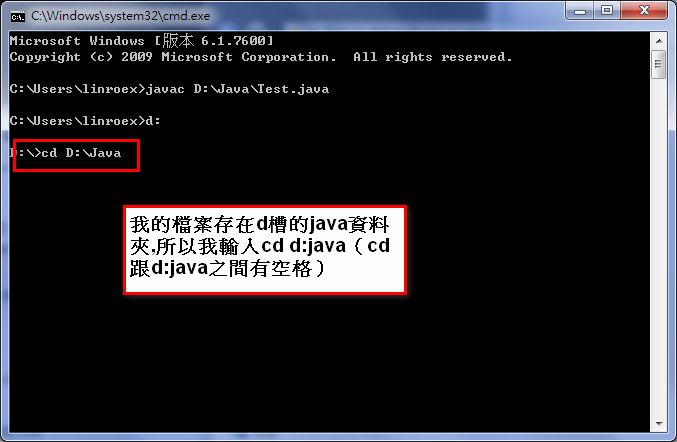
(2) Type cd
p.s. You don’t need to include the file name.
(3) Type java
p.s. Assuming the program is named test.class, type [java test]. No file extension is needed.
That’s the end of the tutorial~ I hope you have fun with Java.