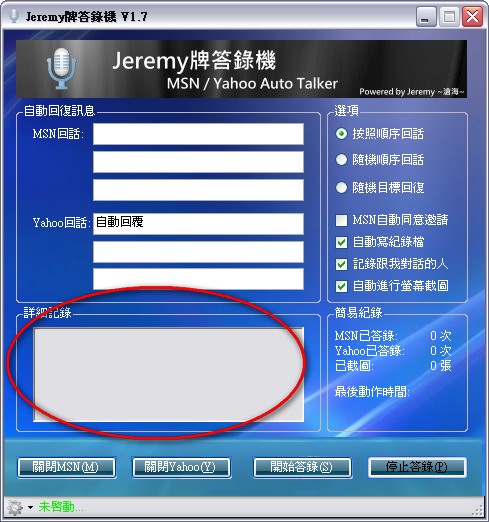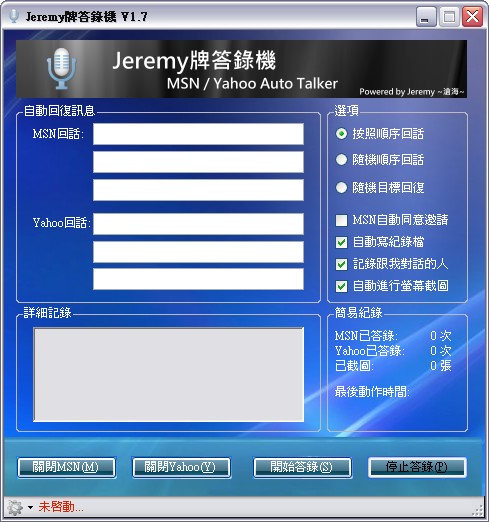
The Jeremy Brand Answer Machine, an auto-answering program for instant messengers, is yet another program by my good friend Jeremy, as the name suggests. The biggest feature of Jeremy Brand Answer Machine is that it supports automatic replies on any version of an instant messenger. I think most people who have used an instant messenger have rarely seen an auto-reply tool for one. Usually only MSN has one. My guess is that’s because Yahoo doesn’t open up its plugin interface, so there are almost no plugins for its instant messenger. So how does Jeremy Brand Answer Machine send auto-replies? The principle is simple, somewhat like a “craftsman’s philosophy” (a plain, hands-on, brute-force approach): when the instant messenger window pops up, the program just sends a message to that window to produce the reply. And because Jeremy Brand Answer Machine doesn’t use any instant messenger API, it works with any version. Below, let me introduce the Jeremy Brand Answer Machine! ※ If you’ve read the tutorial and still can’t use it, feel free to leave a comment and ask me.
Program Information
- Software name: Jeremy Brand Answer Machine
- Latest version: V1.7
- Author: Cang Hai (Jeremy)
- Download: Xun6 | 4Shared | Box.net
- Virus scan report: VirusTotal
- MD5: 910de8b740120b7b0c9d7b1da40a3e2b
- File size: 321KB
Main Features
- Three sets of auto-replies each for MSN and other instant messengers
- Chat log feature
- Automatic screen capture
- Automatically accepts MSN friend requests
Tutorial
1. Pick any download link from the Program Information section, download the Jeremy Brand Answer Machine, and unzip it.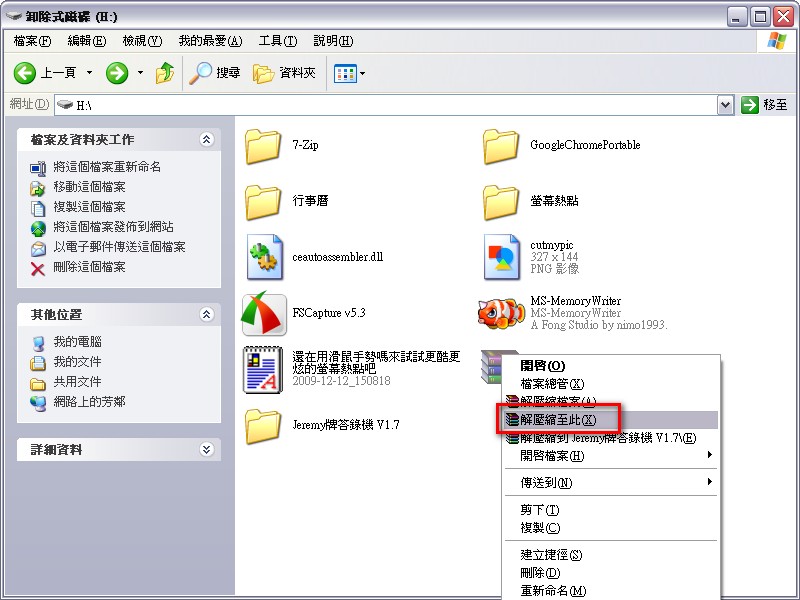
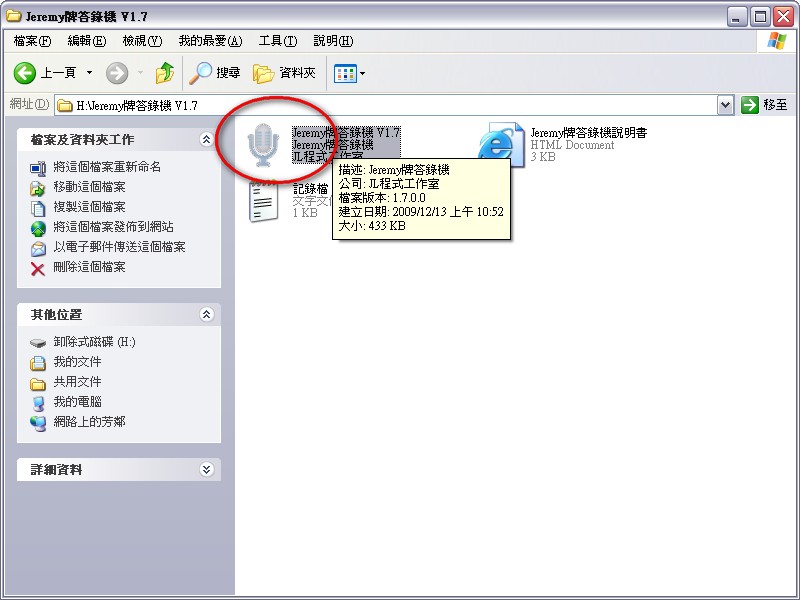
- Open the main program (the one with the microphone icon).
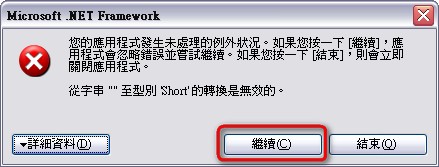
- The first time you use it, you may see the window shown below. Just click Continue. V1.8 fixes this bug.
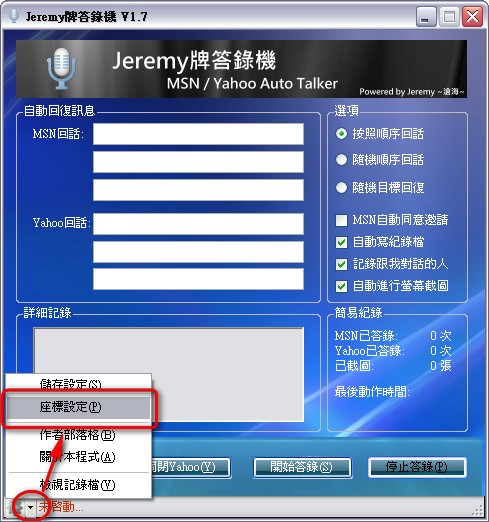
- Next, click the downward arrow in the lower-left corner and select Coordinate Settings.
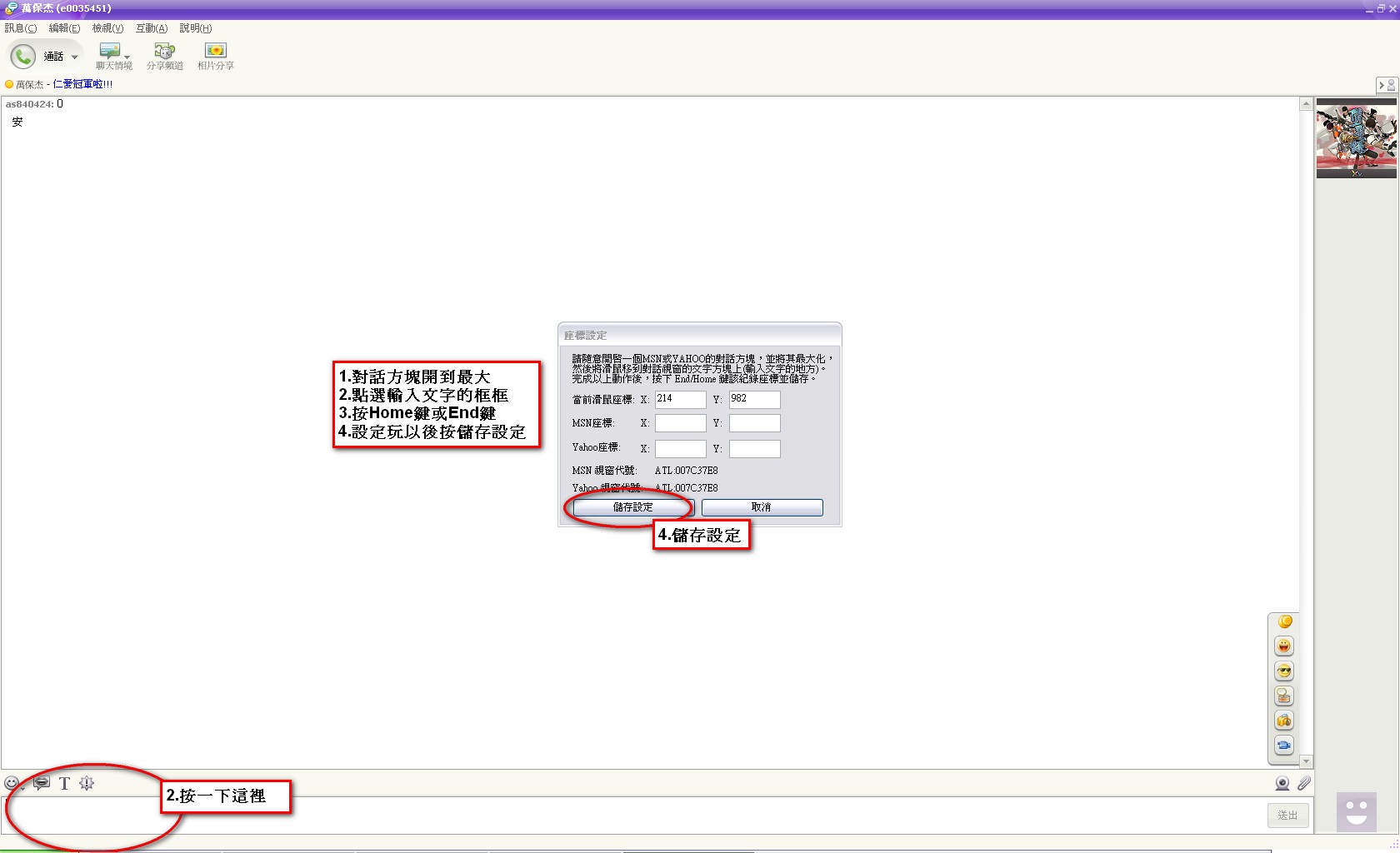
- Open your instant messenger or MSN, open any chat window, and maximize it. Then click in the text input box and press the End or Home key (press Home to auto-reply on the instant messenger, and End to auto-reply on MSN). Once you’ve made the settings, click Save Settings.
Note: In fact, you need to press both the Home and End keys. Also, if your instant messenger has been updated, you need to set it up again.
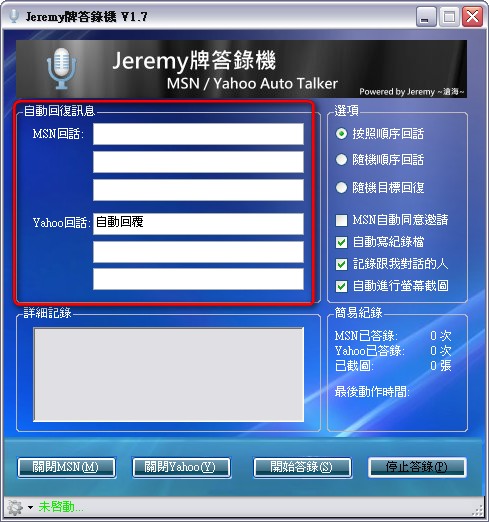
- Next, enter the messages you want to send as auto-replies in the auto-reply message fields for the instant messenger and MSN. You can enter up to three sets. (If you can’t type Chinese, copy and paste the text in instead.)
- After setting up the auto-reply section, you can go to the Options section. You can basically leave the defaults. When everything is set, click Start Answering, and the program will close all other windows. Have a friend message you to test it.
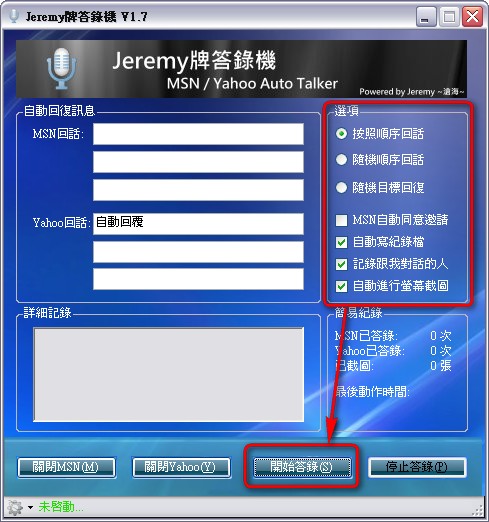
- The program also automatically logs your replies and shows them in the detailed log.