The GIF format nearly disappeared for a while, but recently, with the rise of Facebook and Twitter, more and more people use GIFs to make animations or as stickers in Messenger. I use them for the tutorial videos in my blog posts. GIFs have the advantages of small files and quick loading on web pages. For certain rough motions, GIFs work very well for tutorials. Today I want to share LICEcap, which can record your screen to make GIF files. It supports Mac and Windows and has a simple interface. All the recent GIFs on my blog were recorded with LICEcap.
- Official website: http://www.cockos.com/licecap/
- Download link: go to the official website and click "Download" at the bottom to get the latest version
- Source code: https://github.com/justinfrankel/licecap
After you press “Record,” it asks for parameters such as where to save the file and how often to take a capture. Once you’ve set those, press “Save” and recording starts right away. Now you can do what you need to show. When you’re done, press “Stop” and it saves automatically.
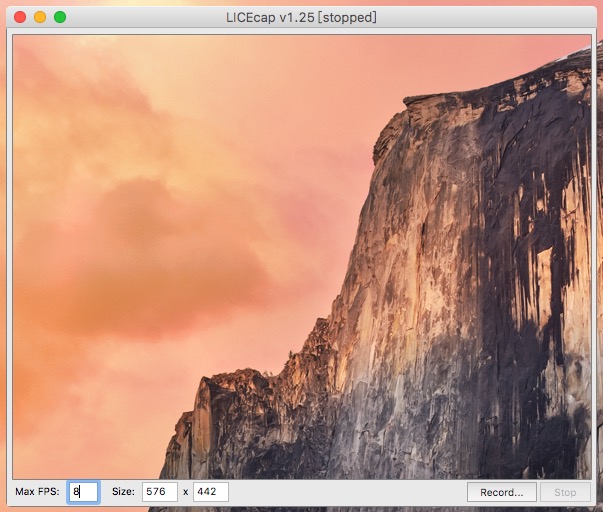
It feels a bit unfamiliar the first time, because most screen recording software records first and saves afterward. LICEcap saves the file first. When you press Stop, no confirmation screen or dialog box appears, so sometimes you’re not sure whether you were recording (lol).
Keep these points in mind when recording a GIF:
- After recording starts, wait 1-2 seconds before you act. When your action is finished, also wait 1-2 seconds before you press Stop.
- Because of how GIFs work, you can slow the motions down a little.
- GIFs have no sound, you know!